Your iPhone has hidden features and Easter eggs scattered throughout iOS that Apple never advertises. Some are genuinely useful shortcuts that will change how you use your phone daily, while others are completely pointless but surprisingly entertaining.
If, you're anything like me, you could go ages without discovering them because they're tucked away in unexpected places or require specific commands that most users would never think to try.
You certainly won't stumble across these features by accident, which is exactly why they feel so satisfying to discover. Here are five iPhone easter eggs you probably didn't know existed.
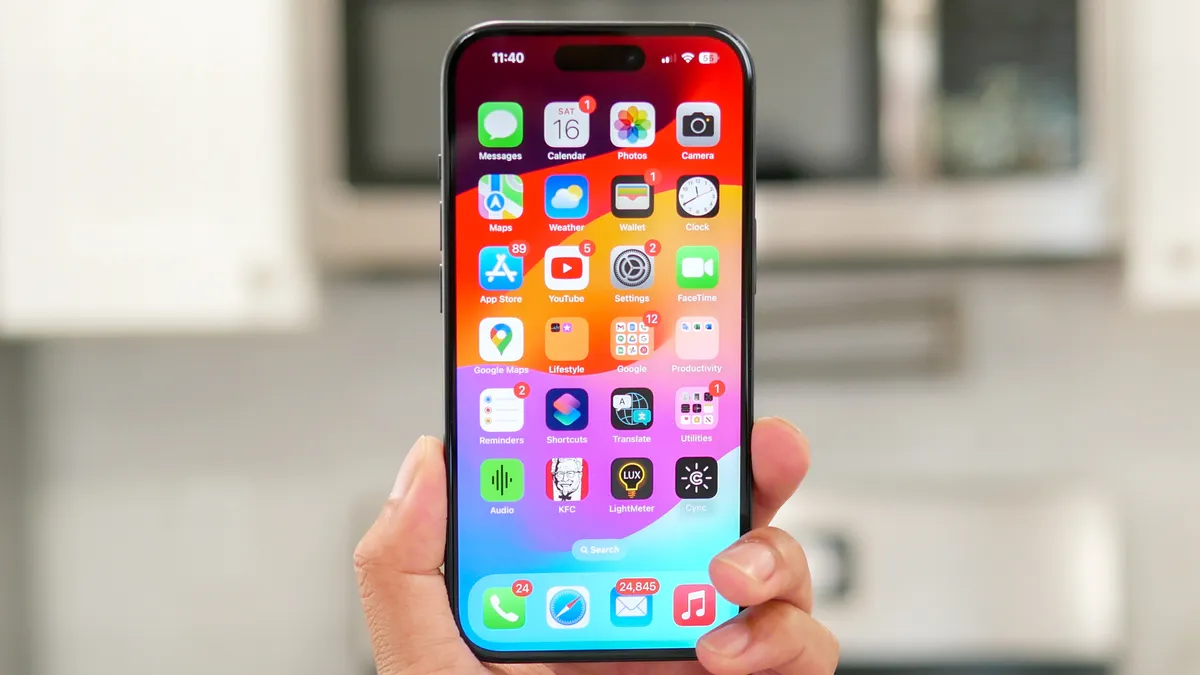
1. Remove those annoying red notification badges
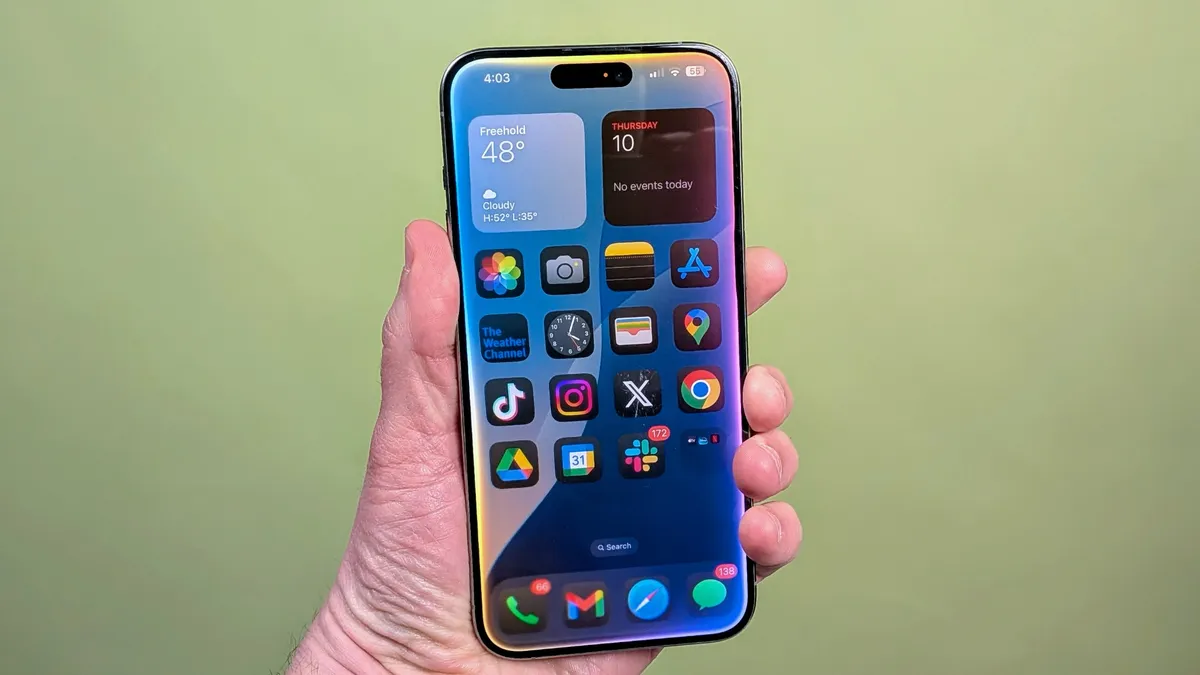
If those little red notification bubbles on your apps drive you crazy or ruin your carefully organized home screen aesthetic, you can turn them off completely. Go to Settings, scroll down to Notifications, then find the app you want to clean up. Simply toggle off Badges and the red bubble disappears permanently.
You'll still receive the actual notifications — you just won't see that nagging red dot reminding you of 47 unread emails every time you look at your phone.
You'll need to repeat this process for each app individually, which takes a few minutes if you want a completely badge-free home screen. But once it's done, your iPhone looks significantly cleaner and less cluttered.
2. Banish verification codes in Messages
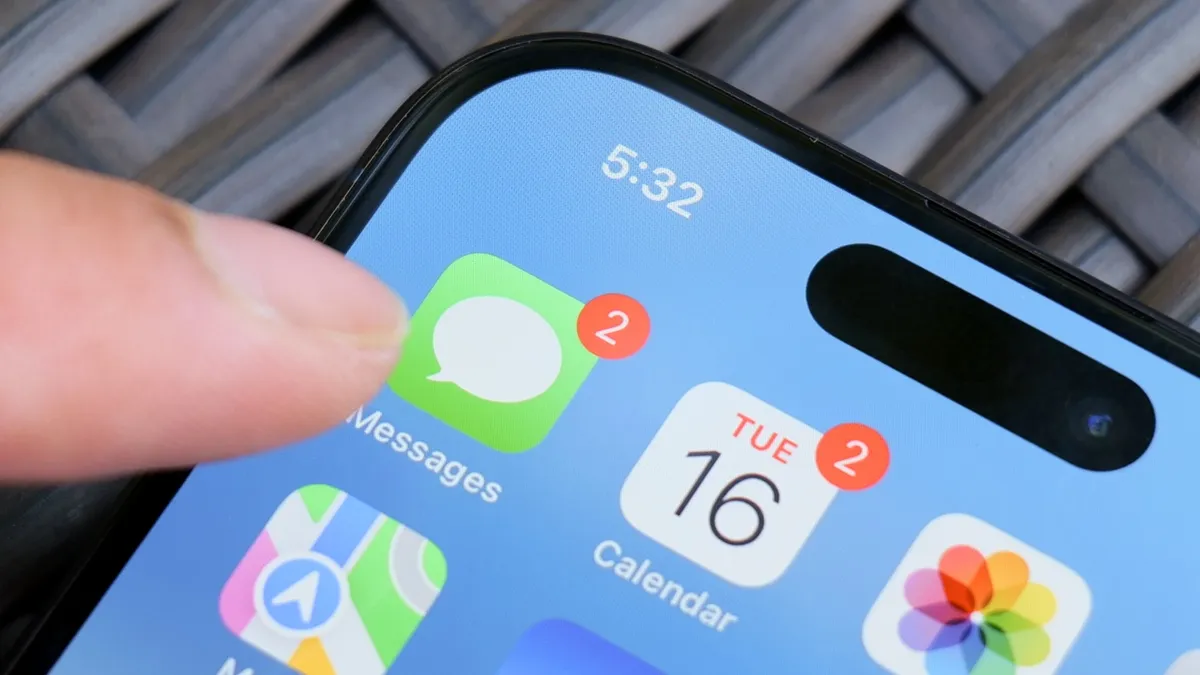
Two-factor authentication keeps your accounts secure, but it floods your Messages app with verification code texts that pile up and clutter your conversations. Your iPhone can automatically delete these codes as soon as you use them.
To do this, go to Settings, General, AutoFill & Passwords. Then scroll to the Verification Codes section and toggle on Delete After Use. Now when you receive a verification code via text and use it to log in, iOS automatically removes that message within seconds.
As a bonus, the same setting works for verification codes sent to Apple's Mail app. No more scrolling past dozens of expired codes to find actual conversations.
3. Turn on your flashlight using "magic"

Harry Potter fans will be pleased to know there's a magical way to turn on your flashlight. Say "Lumos" to Siri and your flashlight activates instantly — no need to dig through Control Center in the dark. When you're done, say "Nox" to turn it off.
This works even when your phone is locked, making it perfect for finding your keys in the dark or navigating a movie theater without blinding everyone around you.
The Harry Potter commands don't stop there. Say "Accio" followed by any app name to open it immediately. For example, "Accio Safari" or "Accio Messages" launches the app as if you've summoned it with a wand flick.
4. Make it snow in the Apple Store app
Here's another delightfully useless Apple Store app Easter egg (the one for buying iPhones and MacBooks, not the App Store where you download apps) and tap the search bar. Simply type let it snow and watch as snow starts falling across your screen.
This serves absolutely no practical purpose. It's just a fun seasonal Easter egg that Apple included for anyone curious enough to try it. Perfect for getting into the holiday spirit or amusing yourself while procrastinating on actually buying anything.
5. Your USB-C port matches your iPhone's color

This is a tiny easter egg most people never notice, but Apple's attention to design extends all the way inside your iPhone's charging port.
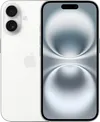
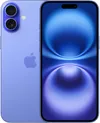
The inner connector piece is color-matched to your device's finish. It's not just plain silver or white like you'd expect — Apple actually color-coordinates this hidden component that most users will never even see. Pink iPhones have pink USB-C internals, blue ones have blue, and so on.
Once you spot this easter egg, you can't unsee it, and it's oddly satisfying to know your iPhone is coordinated right down to the charging port.

Follow Tom's Guide on Google News and add us as a preferred source to get our up-to-date news, analysis, and reviews in your feeds. Make sure to click the Follow button!
More from Tom's Guide
- 9 hidden iOS Messages features everyone needs to know
- Apple buried these 5 iPhone features in settings
- I just discovered Siri has secret responses — try these 5 easter eggs