Browsing and searching for new things has changed ever since AI chatbots like ChatGPT and Google Gemini came around. Now, whenever I have a question or am unsure about something, the first thing I do is open the ChatGPT app on my iPhone (even though it can still make mistakes).
I usually rely on these AI chatbots for quick, everyday queries, like how to make matcha tea at home or understanding the symbols on my dishwasher. In fact, I've even started using AI Mode in Google Search more often, since it gives me the reliability of Google Search with the conversational comfort of an AI chatbot.
That said, one of my biggest issues with these apps is that they store your chat history and are not exactly privacy-friendly to begin with. Even though both ChatGPT and Gemini let you start temporary chats, doing that every single time still feels like too much friction for something I want to use quickly.
I recently found a hidden iPhone shortcut that gives me the same chatbot-like experience with a single tap, without relying on the ChatGPT or Gemini apps. It has quietly replaced both on my iPhone, and here's how you can set it up on your iPhone as well.
Why I prefer Chat with Apple Intelligence shortcut and not ChatGPT or Gemini
There's no argument that ChatGPT and Google Gemini apps are bad. In fact, they're packed with features, letting you do things like generate images, or directly reference workspace apps in Gemini's case.
But for my specific use case, which is mostly asking random questions throughout the day whenever I need to look something up, the Chat with Apple Intelligence shortcut I've been using has been just as good.
You can ask it the same kinds of questions you'd ask other chatbot apps, and you still get useful extras like follow-up questions, meaning it retains the context of an ongoing session. You can also attach files and photos, so referencing screenshots or documents works just as well here.

The best part, though, is how quickly it gets me going. I don't have to wait for an app to load. I just tap the shortcut, and it's ready instantly, letting me ask a question or start chatting right away.
There are a few other benefits, too. You can easily copy text from the answers, which is handy if you're refining messages or emails. And the biggest win for me is privacy: it doesn't retain your chats. Once you close the shortcut, that conversation is gone forever. There's no history, no archive, nothing stored, which is perfect for quick, occasional lookups during the day.

I've used it to get caption ideas for my Instagram stories and even to summarize an email from a screenshot, and it handled both really well. More importantly, it did so quickly, without any long loading time, which is exactly what I want from a tool like this.
How to get this shortcut on your iPhone
If you want to give the Chat with Apple Intelligence shortcut a try, you can set it up on your iPhone in just a few steps. Here’s how to add it to your Home Screen for quick access:
1. Open Chat with Apple Intelligence shortcut in your iPhone's Shortcuts app
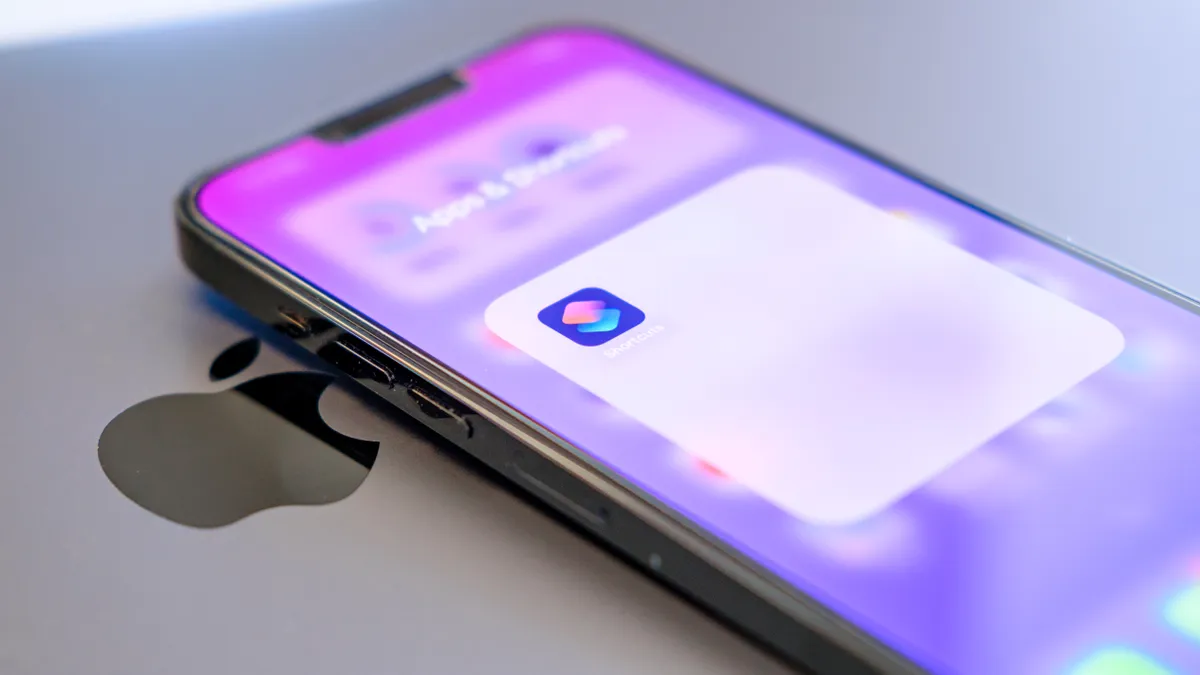
The first step is to open the shortcut link on your iPhone. The link opens directly in the Shortcuts app, so you don't need to install any separate app or service to use it.
If you don't already have the Shortcuts app installed on your iPhone, you will need to download it from the App Store first.
2. Add the shortcut to your Shortcuts library

Once the link opens in the Shortcuts app, tap the Add Shortcut button. The shortcut will now appear in the Library section of the app.
3. Add the shortcut to your Home Screen

Next, add the shortcut to your iPhone's Home Screen so you can launch it instantly. You can skip this step if you're happy accessing this shortcut in the
To do this, tap the three-dot button on the shortcut's card in the Shortcuts app. Then tap the Share button at the bottom and select Add to Home Screen. You can customize the icon's color and style if you want. Once you're done, tap Add.
4. Run the shortcut

Now head back to your Home Screen, and you'll see the shortcut icon there. Whenever you want to use it, just tap the icon, and you’ll jump straight into the chatbot.

The first time you run the shortcut, iOS will ask for a few permissions, such as access to the clipboard. If you attach photos later, you may also need to allow access to your Photos library. Once that's done, you're good to go.
There are a few disadvantages that you should be aware of
I'll be honest: I've been using this shortcut for the past two weeks, and overall, it's been a great experience. It has genuinely proven useful for my (dumb) everyday questions, but there are still a few disadvantages you should be aware of:
- No chat history: While it's great that the shortcut doesn't retain your chat history or files, it can also be a bit annoying. If you exit a chat midway, you'll have to provide the context all over again since the Shortcut does not retain any history. That's something you usually don't have to deal with in other AI chatbot apps.
- Information isn't up to date: This is easily the biggest drawback. The shortcut's knowledge cutoff goes back to October 2023, which may not work for everyone. If you're asking about current events or recent news, there's a good chance that the shortcut won't be able to give you an accurate answer.

I can't wait for Gemini integration with Apple Intelligence
That said, I'm not too concerned about the information cutoff right now, because I think this shortcut will only get better over the coming months. Apple has already announced that it is working with Google to use Gemini for the next generation of Apple Foundation Models, which will help power future Apple Intelligence features.
This means, if and when that happens, this shortcut could give you more up-to-date answers while still keeping things private, without sharing your chats directly with Gemini.
There's still some time before we get there (and before the new, more personalized Siri arrives), but until then, I think the shortcut works just fine for what it is.

Follow Tom's Guide on Google News and add us as a preferred source to get our up-to-date news, analysis, and reviews in your feeds.
More from Tom's Guide