'Tis the season of giving, which means it’s also the season of receiving, and if you’re the lucky recipient of one of the best Garmin watches this year, then congratulations! I’ve tested almost every Garmin watch, and they’re excellent devices packed with sports and smart features.
There are so many features on Garmin watches; in fact, it can be a bit overwhelming at first. Garmin does a good job of explaining some key features in the setup process with any new watch, and you can get by without really changing anything. But I like to take the time to customize everything to my preferences.
This makes the experience of using a Garmin more enjoyable and means you don’t miss out on useful features. Here are the nine things I recommend doing with any new Garmin to get the most out of it.
1. Set up your sports modes

Garmin watches are sports trackers first and foremost, and they come equipped with a lot of sports modes. The first thing to do is narrow that list down so only your favorites show, making it easier to find them when you go to start a workout (other sports modes will still be available, just hidden in a long list).
You’ll be prompted to pick your favorites when you go to start a workout for the first time with your watch. I have running and yoga as the favorites on my watch, for example.
Then you’ll want to customize your data screens to show the stats you want available at a glance during those workouts. For example, I prefer to use lap pace during runs instead of current pace, because it’s smoother and less prone to jumping around based on GPS signals. Head to settings within your activity and click data screens to do this.
Lastly, a small thing I like to do is change the accent color for my sports modes. I don’t love red, which is the default color for runs, my main sport, so I always change it to light blue. You can do this in the activity settings — accent color is buried at the bottom of the list of options.
2. Customize your widgets

If you scroll down from your watch face, you can see your widgets, which are shortcuts showing off info like weather or your training stats. Several are selected by default, but if you go to the bottom of the list, you can edit which widgets show, so you can remove irrelevant information and add in what you care about.
You can also combine several widgets into folders to clean up your list. I have all my health and activity stats in one folder, for example, and all my training stats in another, so it’s quick to scroll through my widgets.
3. Pick your watch face

Garmin watches come equipped with several default watch faces you can pick between, and you can also add other Garmin and third-party faces using the Garmin Connect IQ app store.
You can find your watch face settings in the main menu, where you can also customize the data shown on the face’s complications and the colors used. You’re going to see a lot of this watch face, so it’s worth taking the time to set it up perfectly.
4. Select your shortcuts

Shortcuts are found in the main menu of the watch under system settings, and these allow you to assign certain actions for when you hold down a button or use a combination of buttons.
A default shortcut is double-clicking the light button on a Garmin to activate its built-in flashlight (if it has one), and I always set up holding the start button to bring up my timers, which I use a lot during cooking.
5. Set up emergency assistance

This is something you’ll be prompted to do by your watch and in the Garmin Connect app in the safety and tracking section, and it’s certainly a feature that’s wise to have running on your watch.
You can use this feature to select your emergency contact and whether your device will contact them or the emergency services if prompted to do so.
Along with manually using this to get help in an emergency, Garmin watches also have incident detection and will automatically notify your contact if a fall is detected (you have an opportunity to cancel this on the watch before an alert is sent if you think it’s unnecessary).
You can also set up LiveTrack to automatically notify your contact when you start an activity, and they will be able to track your progress remotely.
6. Link your Garmin to Strava
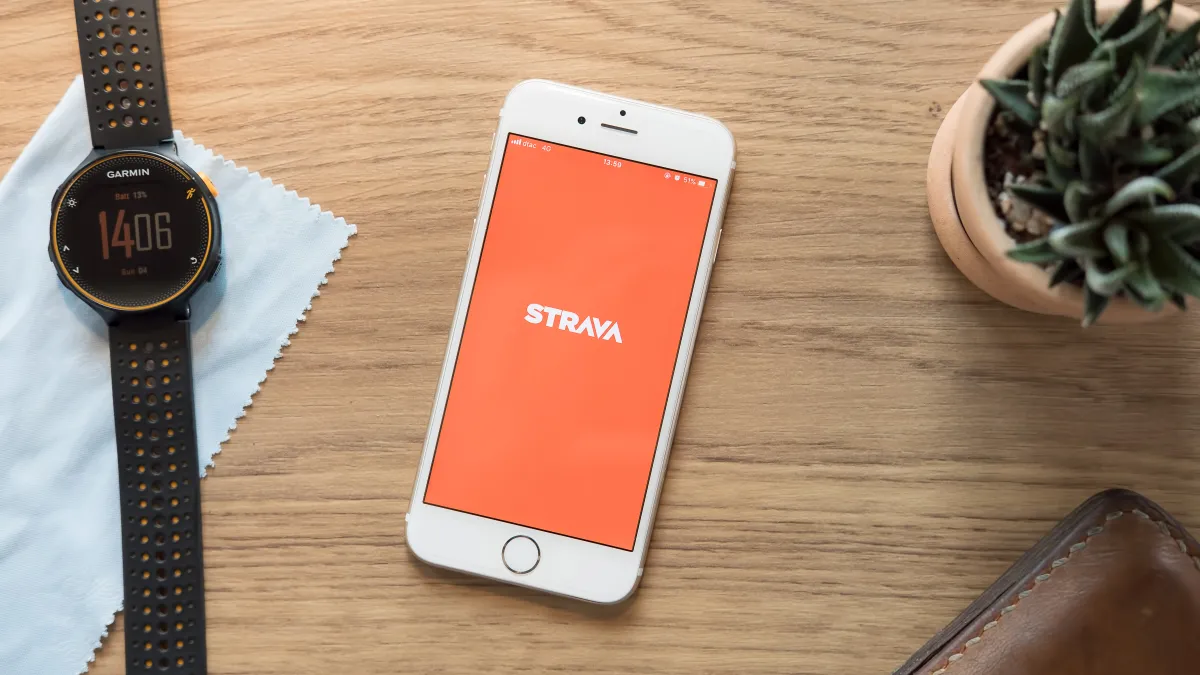
Garmin and Strava have had their disagreements this year, but the relationship seems cordial enough right now, and many people, myself included, want their Garmin activities synced over to Strava automatically.
You set this up in the Garmin Connect app. Hit the three dots in the bottom left, then select settings, and then connected apps. Select Strava, and you’ll be guided through the process to link your Garmin account to Strava.
7. Link your music streaming service

Most Garmins now offer music storage and can link with premium accounts for Spotify, Amazon Music, YouTube Music and Deezer. Once set up, you’ll be able to sync your playlists to the watch wirelessly and listen without your phone.
Music is found in the main menu on your watch, and there, you can select whether you want to use the watch to just control your phone’s playback, listen to files you’ve manually transferred to the watch, or use a music streaming service.
If you select the latter, you’ll be prompted to download the app for your watch and can then set up your account to start syncing your music over.
8. Set up Garmin Pay

Garmin watches offer NFC payments — you can see the list of participating banks in your region on the Garmin website. This allows you to pay for things with your watch, and it’s easy to set up in the Garmin Connect app.
Head to the more section by clicking the three dots in the bottom right corner of the app, then select wallet and Garmin Pay, and follow the instructions to add a card to your wallet. You’ll need to create a passcode for this as part of the process.
9. Consider a nylon band

This is not essential, but I swap out the silicone band most Garmin watches come with for a nylon band, which I find more comfortable. You can get official Garmin nylon straps or find much more affordable third-party ones on Amazon.
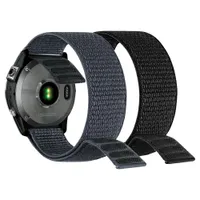
Nylon bands don’t dry as quickly as silicone bands and aren’t as durable, but I find they still dry quickly enough for me after I rinse them off following a workout. They also have a more easily-adjustable fit than silicone bands, and they don’t tug on my arm hair like some silicone bands.

Follow Tom's Guide on Google News and add us as a preferred source to get our up-to-date news, analysis, and reviews in your feeds.
More from Tom's Guide
- I just ran a marathon with the Apple Watch Ultra 3 vs. Garmin Fenix 8 Pro — here’s the winner
- Coros Pace 4 vs Coros Pace 3 vs Coros Pace Pro: Which is the best Coros watch for you?
- Garmin Fenix 8 vs. Garmin Fenix 8 Pro: should you upgrade?