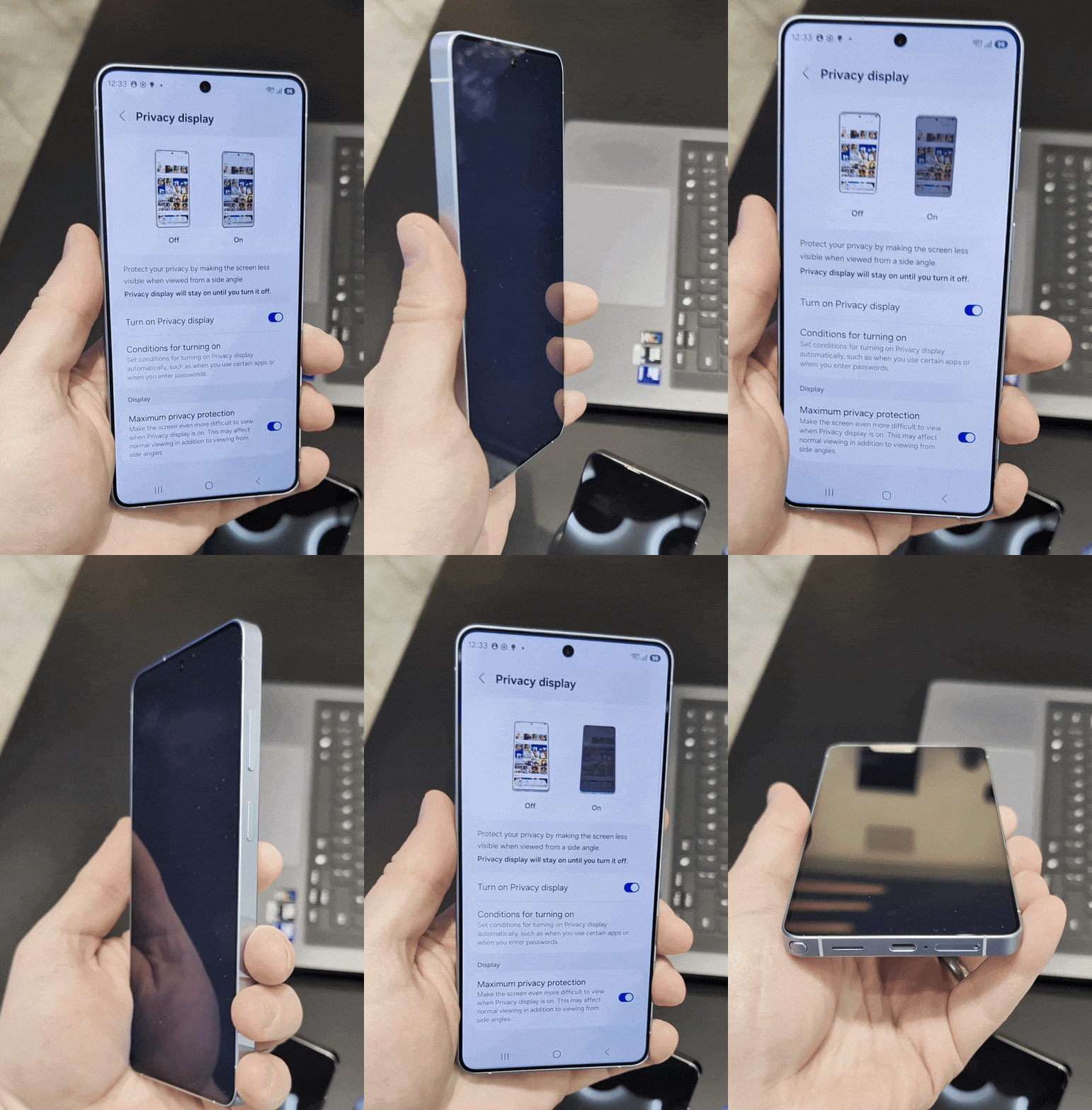
The new Privacy Display feature on Samsung Galaxy S26 Ultra makes it significantly harder for people to sneak a look at your phone. In fact, from some angles, all those prying eyes will be able to see is a blank screen. More impressively, Samsung has set up Privacy Display in a way to block certain parts of your screen but not others. That means it can black out notifications from side angles, without blacking out the entire screen.
That being said, there have been a number of complaints from S26 Ultra owners that the Privacy Display feature is causing headaches and eye strain. Still, I've found it to be one of the best features of Samsung's new phone.
Those of you who have just picked up a Galaxy S26 Ultra might be wondering how to get Privacy Display set up. Here's our step-by-step guide.
How to set up Privacy Display on Samsung Galaxy S26 Ultra
1. Open the Display menu

Open the Settings menu on your Galaxy S26 Ultra, then tap the Display section
2. Turn on Privacy Display

Tap the Privacy Display section, and then Turn on Privacy Display
Alternatively you can turn on Privacy Display by tapping the toggle on the right-side of the screen. However this is best utilized if you've already configured the settings to your liking.
3. (Optional) Toggle on Maximum Privacy Protection

There's also an additional option called Maximum privacy protection, which can be switched on by tapping the relevant toggle.
This screen also gives you the option to increase the level of privacy afforded by the Privacy Display. The default privacy doesn't black out everything from side angles, and some general details might still be visible. Maximum privacy protection ramps everything up to 11, and ensures no detail is visible to potential snoops.
4. (Optional) Set Conditions for turning on Privacy Display

You don't have to keep Privacy Display switched on all the time. Using the Conditions for turning on menu, you're able to tell Privacy Display to switch itself on when certain things happen on your phone.
You have two direct options here, which are whenever a PIN, pattern or password shows up on screen, and when Notifications pop-up. Hit the Toggle for either option to switch them on.
Apps is its own sub-menu, and tapping it will bring you to a screen of all the apps Privacy Display can work with. Simply hit the toggle for any of the apps for which you want to enhance your privacy.
How it feels to use Privacy Display
The one thing you need to know about the Samsung Galaxy S26 Ultra is that the display isn't as bright as the Samsung Galaxy S25 Ultra. Our lab testing shows that it's a fairly minor difference, but it's something you should be aware of if you're planning on picking up the Galaxy S26 Ultra for yourself.
It's also important to remember that having Privacy Display on causes a noticeable dip in screen brightness. You don't need to test that in a lab to see the change.
For that reason alone, I'm more inclined to use the conditional privacy display, rather than keeping it switched on all the time. That way, you only experience that drop in brightness when the privacy filter switches itself on. Then again, that relies on the triggers actually switching the privacy filter on when they're supposed to.


I've also noticed that the conditional activation triggers don't always work correctly during my time with the Galaxy S26 Ultra. The phone knows to block the pattern screen when I unlock the phone, but it doesn't seem to offer the same privilege to login pages for apps and websites.
Similarly, I haven't actually seen it block any notifications yet, and I've noticed that screen brightness can interfere with how much content gets blocked. With the Galaxy S26 Ultra's brightness turned up to max, I was still able to make out some details when looking at the screen from a sideways angle — even with Maximum privacy protection switched on.
The Privacy Display is imperfect in its execution, but the idea behind this feature is still pretty sound. We have a lot of sensitive information on our phones, and the last thing we want is for someone to be able to sneak a look at any of it. Any extra protection you can have on your phone will only be beneficial, and the fact that you can switch it off at a moment's notice simply sweetens the pot.

Follow Tom's Guide on Google News and add us as a preferred source to get our up-to-date news, analysis, and reviews in your feeds.
More from Tom's Guide