




Google saves every search you make. Every query you type, every website you click from results, every topic you research — all of it gets stored in your Google account indefinitely unless you delete it.
This search history doesn't just sit unused. Google uses it to personalize ads, refine search results, and build a profile of your interests and behavior. The company can see everything you've searched for years back, creating a detailed record of your curiosity, concerns, shopping habits, and personal questions.
Don't want Google remembering your browsing history? Fortunately, the clearing process takes under five minutes and works from any device with a browser. Here's how to delete your entire Google search history.
1. Delete all search history at once
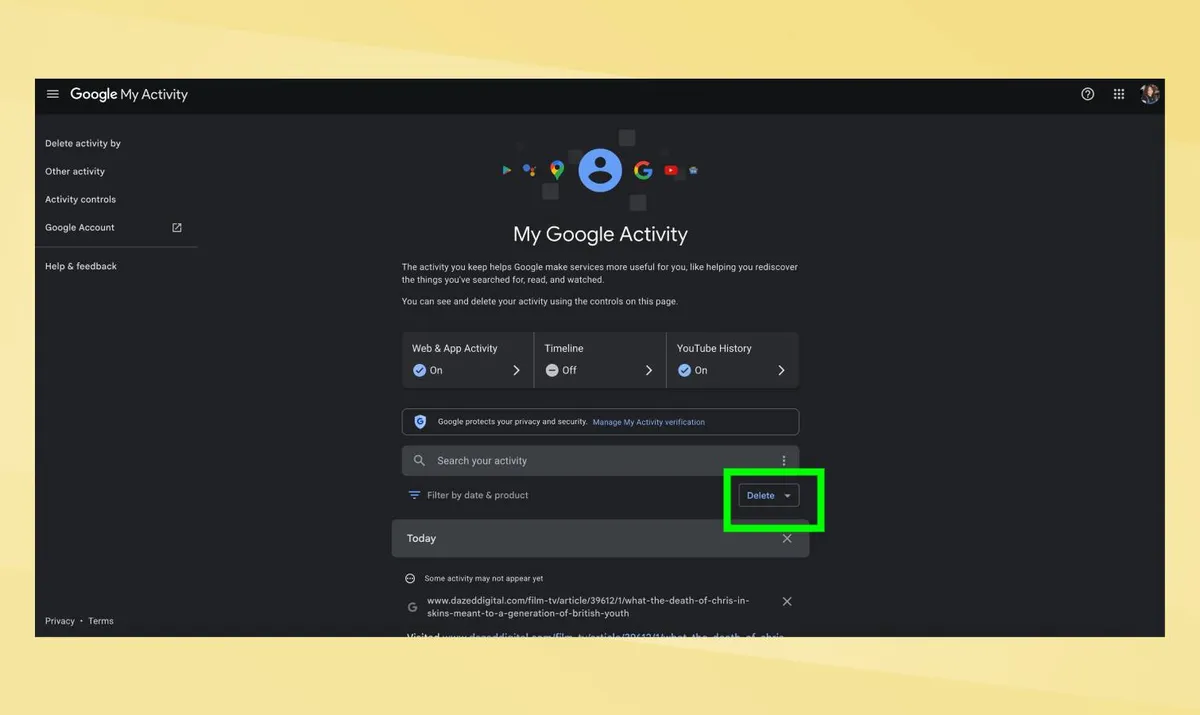
Google's "My Activity" dashboard shows everything you've searched and lets you delete it all in one action. This works across all devices signed into your Google account — you don't need to clear history separately on each phone, tablet, or computer.
Go to myactivity.google.com and sign into your Google account if prompted. Click the "Delete" dropdown menu above your search history on the right side. Select "Delete all time."
Google displays a list of items it will remove. Make sure "Search" is checked, then click "Delete" to confirm.
This clears searches from Google Search, but not from other Google products like YouTube, Chrome browser, or Maps. Those maintain separate histories you need to clear individually.
2. Delete searches from specific time periods
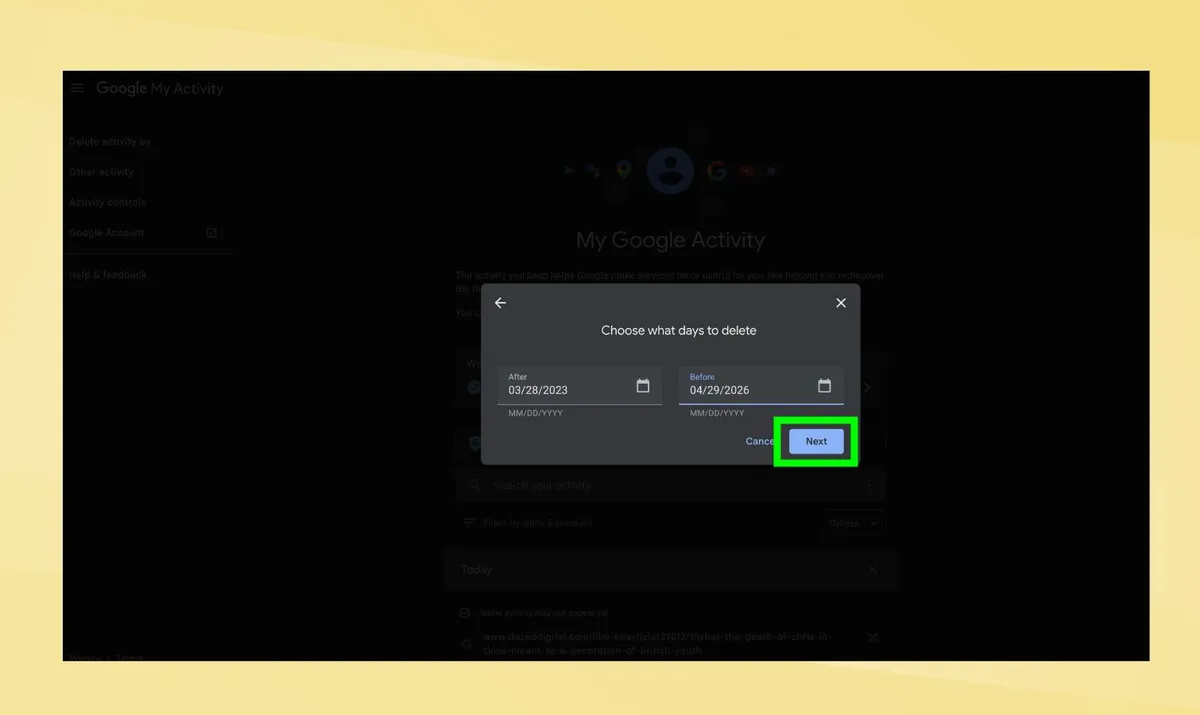
If you don't want to erase everything, delete only searches from particular dates. This lets you keep recent useful searches while removing older entries.
In My Activity, click the "Delete" dropdown menu. Then select "Delete custom range." A window opens letting you choose start and end dates.
Simply pick the time period you want to clear. Google removes only searches within those dates, leaving everything else intact.
3. Set up automatic deletion
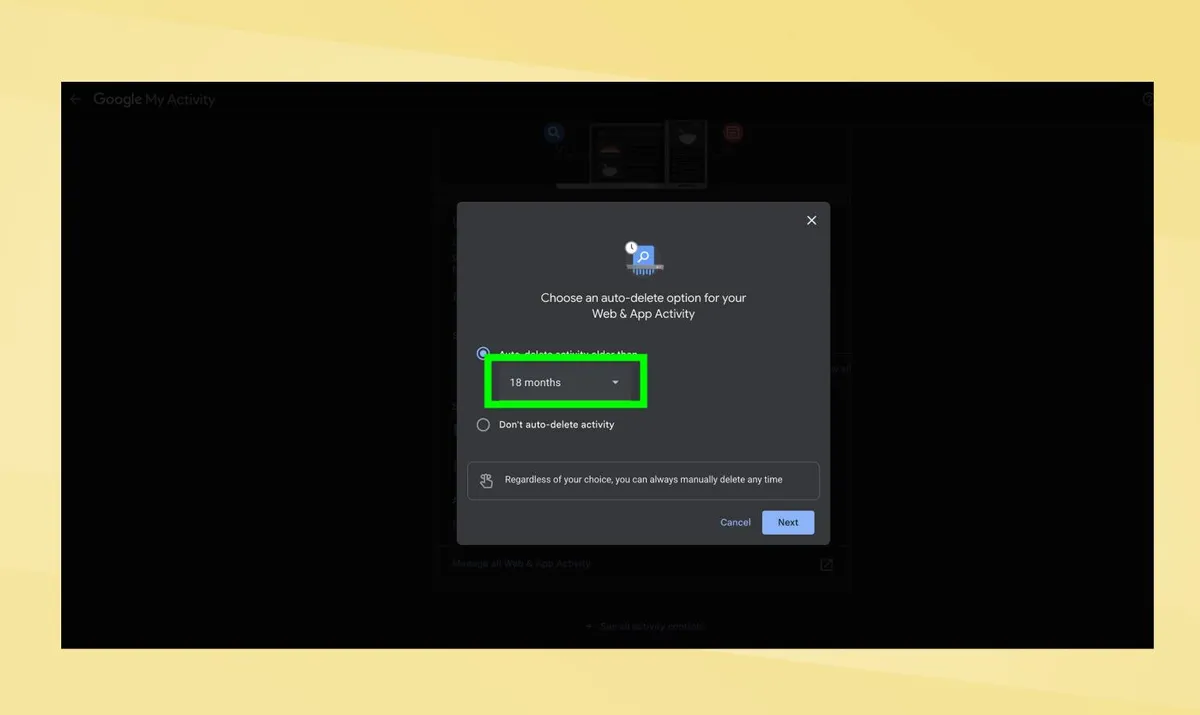
Instead of manually clearing history repeatedly, configure Google to auto-delete old searches after a set time. This prevents indefinite storage without requiring regular manual deletions.
In My Activity, click Web & App Activity, then scroll down to the Auto-delete section and tap the arrow. Choose how long to keep searches before automatic deletion: 3 months, 18 months, or 36 months.
Google now automatically removes searches older than your selected timeframe. This happens continuously, so you don't need to do anything else.
Setting auto-delete to 3 months keeps recent searches accessible for reference while preventing Google from accumulating years of search data. Older searches disappear automatically.
4. Clear Chrome browser history separately

Deleting search history in your Google account doesn't clear it from Chrome browser. Chrome stores its own separate browsing and search history locally on each device.
Open Chrome and click the three-dot menu in the top-right corner. Select History, History (or press Ctrl+H on Windows, Command+Y on Mac, and open History Page.
Next, click "Delete Browsing Data" on the left side of the screen, followed by "Delete Data."

Follow Tom's Guide on Google News and add us as a preferred source to get our up-to-date news, analysis, and reviews in your feeds. Make sure to click the Follow button!
More from Tom's Guide

