WWDC 2026 is right around the corner, which means it’s been nearly a year since I first started using iOS 26 — first through the developer beta and later via the public releases. Since then, I’ve managed to explore many of the new features and even put them to the test against their Android counterparts.
In our initial iOS 26 review, my colleagues and I detailed how these features function and what benefits they offer. Now, I want to go back and rate them based on how much I actually use them. Quite frankly, not all of them made a lasting impact. That’s why I’m eager to see what’s coming in iOS 27 and how it might hint at future hardware releases, such as the iPhone 18 Pro, 18 Pro Max, and yes, the rumored iPhone Fold.
Here’s my favorite iOS 26 features after living with the new software for almost a year. And I'm curious: how much do you use them?
Liquid Glass interface overhaul

There was a lot of controversy surrounding Apple’s new design language with Liquid Glass, specifically how the transparency made certain interface elements harder to see. However, that has since been fixed through options that let you adjust the opacity of the effect. As a result, I love the new aesthetic and have kept it enabled ever since the beginning.
Verdict: It’s a slick aesthetic that’s distinctly iOS 26.
Keeping spammers at bay with Call Screening

Visual Voicemail has been great ever since it launched with the original iPhone, but it finally got a well-deserved upgrade with Call Screening on iOS 26.
The feature is excellent at detecting potential scam calls, saving me the frustration of dealing with spammers by directing them straight to the screening function. I really love using it because it transcribes their voice in real time, allowing me to decide whether to pick up or simply let them finish leaving a message.
While it’s still not quite as robust as the Pixel 10 Pro’s Call Screen tool, it’s a great start for Apple.
Verdict: A massive time-saver that keeps spam calls at bay.
3D lock screen with Spatial Scene
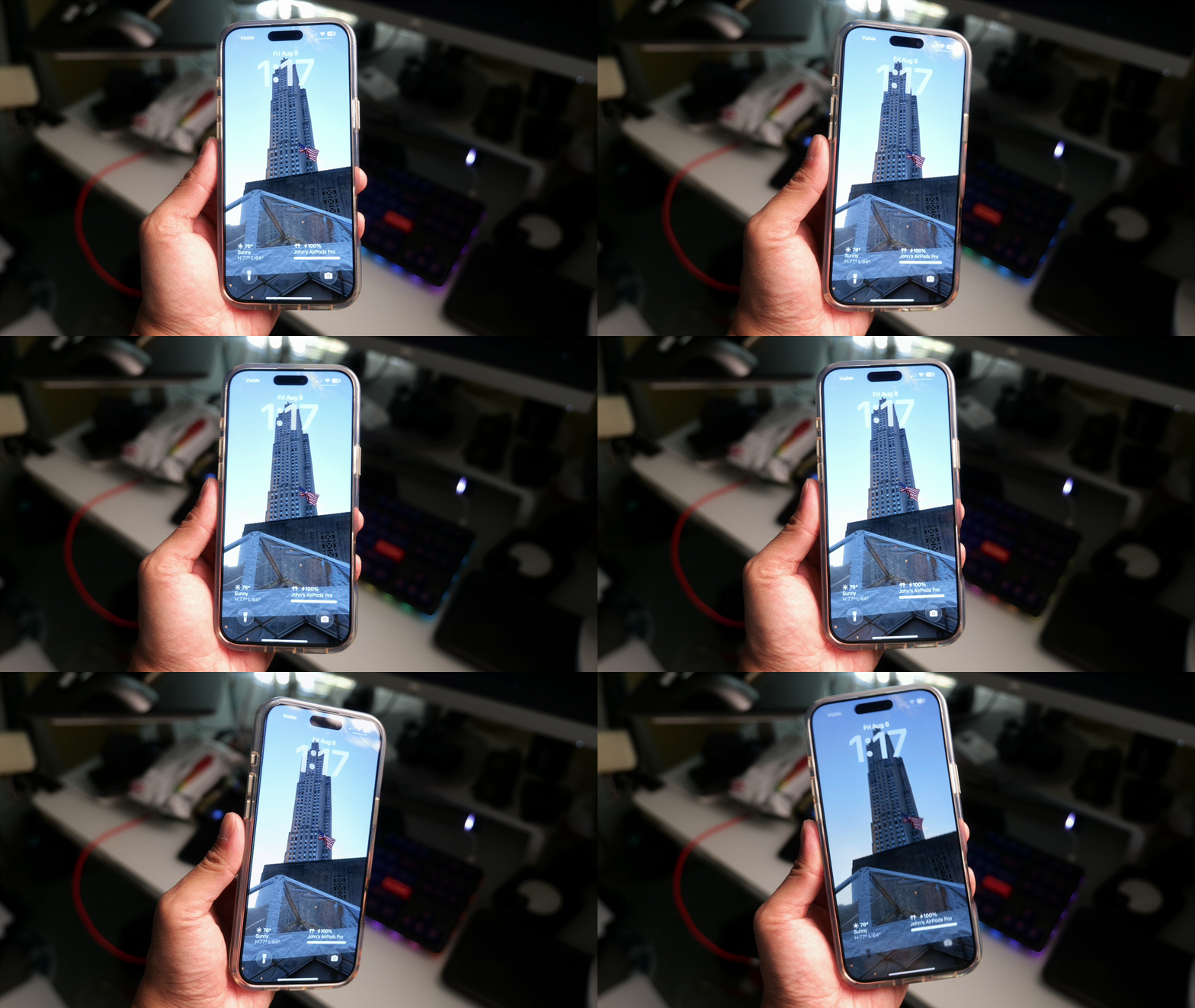
iOS 26 clearly brings more customization to the table than ever before. From adding widgets to changing icon colors, Apple has finally bridged the customization gap. But the real showstopper for me has been the ability to create a Spatial Scene on my lock screen.
This feature lets me take a photo I’ve captured and apply a spatial effect tailored for the lock screen to create a striking illusion of depth. Tilting my iPhone slightly showcases just how impressive the 3D effect is, but I also love how it intelligently layers other elements, like the clock and notifications, to complete the look.
Verdict: My lock screen has never been this captivating.
Hold Assist saves me from elevator music

Similar to Call Screening, Hold Assist in iOS 26 has become a handy tool that I rely on whenever the situation arises. Rather than sitting idly on the line enduring looping elevator music, I let Hold Assist do the waiting for me, freeing me up to focus on something else.
Once a human agent picks up on the other end, I’m immediately notified so I can jump straight into the call. While most of my hold times so far have been under five minutes, it’s still an incredibly liberating feature to have in your pocket.
Verdict: A total lifesaver that means never having to endure hold music again.
Interpreter mode with Live Translation

When iOS 18 launched, it introduced the ability to transcribe Voice Memos and generate text summaries — a helpful tool I’ve frequently used to boil down long press conference announcements. With iOS 26, Apple adds a new capability with Live Translation that operates on the fly during phone and FaceTime calls. Powered by Apple Intelligence, it essentially acts as a personal interpreter.
While it is accurate and effective compared to Samsung’s Galaxy AI equivalent, it’s nowhere near as impressive as the Pixel 10 Pro’s Voice Translate feature, which uses generative AI to clone my voice and apply the appropriate regional accent.
Verdict: It works well, but it clearly can’t match Google’s version.
Easier searches with Visual Intelligence

New Apple Intelligence features were few and far between with the arrival of iOS 26, but the most meaningful addition expanded Visual Intelligence. Its functionality is now baked directly into the screenshot tool, allowing me to search for anything I’m looking at on my screen instantly.
It’s Apple’s answer to Google’s Circle to Search, making it easy to identify an actor in a video or determine if an outdoor shrub is poisonous. I love that I no longer have to jump over to Safari to manually search for things, which is exactly why this feature comes in so handy.
Verdict: Saves me from the hassle of manually looking everything up.
Quick engagement with Polls in Messages

Group messaging in iOS 26 gained the native ability to create polls, which is perfect for quickly gathering answers in one central place rather than sorting through disjointed replies over several hours.
Perhaps because I don’t participate in as many massive group chats as other people, it’s just not something I’ve relied on as much as the other new features.
Verdict: Helpful if your daily routine revolves around group chats.
New CarPlay features

Since I test a lot of the best electric cars, I’m constantly pairing my iPhone to access CarPlay while driving. iOS 26 introduces a wealth of new features that make the interface far more intuitive and visually appealing — specifically how it neatly mirrors the phone's new Liquid Glass aesthetic.
Other features I’ve come to rely on include the ability to add new widgets to the CarPlay home screen, the option to swap out Siri for ChatGPT, and support for quick Tapback message replies.
Verdict: A gorgeous, highly functional upgrade for anyone who spends significant time on the road.
Streamlined Camera app
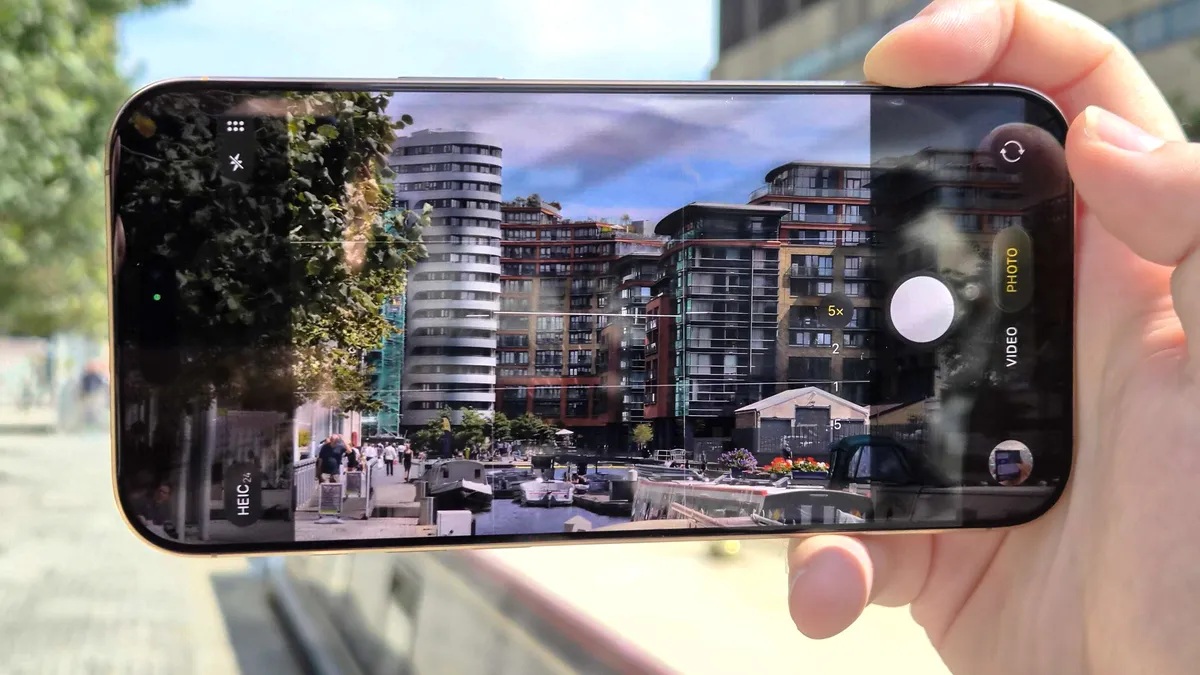
For years, I’ve criticized Apple for burying essential shooting controls instead of making them easily accessible within the viewfinder. Thankfully, iOS 26 addresses many of my long-standing frustrations with its streamlined Camera app layout.
In addition to adopting the sleek Liquid Glass aesthetic, the app finally lets me adjust photo and video resolutions directly from the screen, rather than forcing me to dive into the main Settings app like in the past. While Apple could still add a few more advanced toggles to match the sheer depth of Samsung's pro modes, this remains a tremendous, long-overdue update.
Verdict: The exact cleanup iPhone photographers have been waiting for.

Follow Tom's Guide on Google News and add us as a preferred source to get our up-to-date news, analysis, and reviews in your feeds. Subscribe to Tom's Guide on YouTube and follow us on TikTok. Finally, you can visit our dedicated Tom's Guide Savings Squad hub for expert help on getting the best products for less.
More from Tom's Guide