Virtual display glasses (or AR glasses) sit in a strange spot. For travelers and fans of the best handheld gaming consoles, they’re a boon and prevent you from craning your neck while you play your Steam Deck OLED. For those who work out of coffee shops and other public spaces, they provide privacy. For everyone else? I don’t know the main use case.
Many of these glasses are pitched as being perfect for gamers. Even the cheapest of the best smart glasses still cost $299, which could get you a decent gaming monitor. For comparison, one of the best gaming monitors costs $349.
With that in mind, I wondered whether a pair of virtual display glasses could actually replace my monitor. For a week, I ditched my monitor and my TV in favor of smart glasses. Here's what happened.
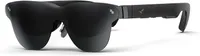
What I used

For this experiment, I tried a couple of different pairs of smart glasses: the Viture Pro 2 and RayNeo Air 4 Pro. I also briefly tested the X by Xreal A01+ glasses, but mostly as a comparison.
Despite being something of a tech nerd, I’m also cheap. So my current monitor and TV setup isn’t the newest, top-of-the-line gear. I have an older 24-inch Asus VG2491A gaming monitor that doubles as my work monitor and PC gaming screen. For my TV, I have an even older 55-inch Sony XBR-X900F — still an excellent TV even if it's not as up-to-date as the best TVs — that I use for streaming and gaming on my PS5.
Ostensibly, you could also connect your smartphone and use your phone via the smart glasses, but you gotta take breaks sometimes, like when you walk your dog.
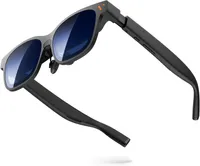
Toiling away at work

I primarily use the Air 4 Pro for work because I find the display easier to see when connected to a PC than Viture or Xreal’s glasses. It doesn’t have the blurry corners those two have and has a more rectangular display, whereas the other two feel more square on desktop.
Right away, I’m certain it’s not good to stare at a monitor for 8 hours a day, but it’s probably not good to have one in your face for as long either. This is especially true because these glasses block out light, even without any lens caps. You’re not getting as much diffused indirect light to break up the direct light from the displays in the glasses.
I found that toward the end of the day, I was getting weary of the glasses, especially as the week wore on. It’s not a weight thing, even though the RayNeo are a bit heavier than the Viture Pro 2. Mostly, I got tired of having something on my face for that long.

Additionally, even if you can see around the displays in the glasses, it’s harder to transition to other activities. I like to write in a notebook on my desk throughout the day, and I found the smart glasses cumbersome when trying to actually do that, even if that just meant taking them off. The flaw here is the connecting wire, which on many smart glasses is on the right arm. However, I’m a lefty and tend to put everything on my left.
Finally, you can’t really take Zoom meetings with smart glasses, especially ones where you’re expected to be on camera. This may or may not be a flaw for you.
In shorter two- to three-hour runs, it was comfortable. And I ended up taking more screen breaks during the day to work around this. I also wasn’t adjusting my body position throughout the day like I would when gaming or watching movies; more on that momentarily.
Make the swap? Yes and no. Again, for shorter sessions like at a coffee shop or for a quick project, I think you’ll find that smart glasses do the job. However, I wouldn’t recommend it for a full workday or a longer project.
Game on

At press events, I’ve tested smart glasses with the Steam Deck and found them awesome. However, at home I have a PS5 and Switch 2, neither of which work nicely with smart glasses.
I did not play my Switch 2 during the week. I do have a Viture Pro Mobile Dock, but I don’t like using it because it’s heavy and the cables are short, and I want my handheld console to feel relatively light.
I ended up purchasing a $27 10-foot Fairikabe HDMI-to-USB-C cord (with USB-A to power the glasses) to connect to the PlayStation. The length was mostly so I could lie down on my couch when I wanted to game. I’ll note that the cable ends got surprisingly hot when I disconnected it from the console at the end of the night.

I’ve been plowing through the Path of Exile 2 early access beta, and with the glasses, I found the details much sharper with no real lag. I only game at night for a couple of hours after my kids go to bed, so I wasn’t spending multiple hours gaming.
On my PC, I snuck a few sessions of Valorant in alongside some nostalgic Age of Empires 4. Valorant played smoothly, and I never felt like the glasses lost track during intense battles.
Make the swap? Yes. Unless you’re looking for OLED gaming and need precise calibrations, you could easily swap your gaming monitor for a pair of smart glasses. The extra wire to connect to my PlayStation was an annoyance, but it’s also part of my living room setup right now. Having the glasses could free up where I place the console, which is theoretically nice.
At the cinema

I mostly watched movies by connecting the glasses to my Galaxy S26 Ultra and using streaming apps. Honestly, this may have been my favorite way to use the glasses during the week. You do need to make sure your phone is charged.
It was easy to plug in my phone, open the app, and find the movie or show I wanted to watch. Plus, I could lie in bed and watch the movie or set up a pillow nest on the couch.
The RayNeo Air 4 Pro is one of the few virtual display glasses that actually offers HDR10, meaning that any content like Apple TV shows can take advantage of the improved resolution. The screen is vivid with no grain as far as I can tell.
Make the swap? Watching movies and TV shows is probably the best way to enjoy virtual display glasses. They’re fairly comfortable, and the portability allows you to take your media wherever you want. Plus, you don’t have to crane your neck or get extra accessories to make it work; it just does. It’s definitely cheaper than even the best TVs under $500.
Conclusion

After a week of using smart glasses exclusively for all my screens, I’m not sure I have a satisfactory answer. I won’t be replacing my monitor or TV anytime soon, but I don’t know that you’d be out of line if you did.
For work, the glasses are at their best if you’re not at your desk. Take them out to a coffee shop, use them on the plane, etc. There’s a freedom to not being chained to a desk and a monitor all day when you don’t have to be. But wearing tech on your face all day gets tiresome, and I don’t think it's for everyone, and that goes no matter what you’re using smart glasses to do.
As I said, these glasses are mostly pitched as tools for gamers and media watching. They’re great for that, even despite some necessary accessories depending on your console of choice. They’re cheaper than most gaming monitors and decent TVs and still provide excellent displays. They’re still best for handheld devices like the Steam Deck and even the Switch 2 (looking at you, Project Aura). But it could actually make your PS5 or Xbox a little more mobile since you just need a power plug and maybe some internet (plus that extra cord).
If you’ll excuse me, I have the next episode of Lanterns to watch on my glasses.

Follow Tom's Guide on Google News and add us as a preferred source to get our up-to-date news, analysis, and reviews in your feeds.
More from Tom's Guide