AI is not just a chatbot you talk to — it’s the primary driver of modern PC gaming performance. Leading this charge is Nvidia’s DLSS, which can unlock high-end fluid visuals without needing top-tier hardware (provided you use it right).
And that’s why I’m here to break it all down. What is DLSS? How does it work? How can you make the most of it? And what is the deal with the DLSS 5 controversy? Let’s get into it.
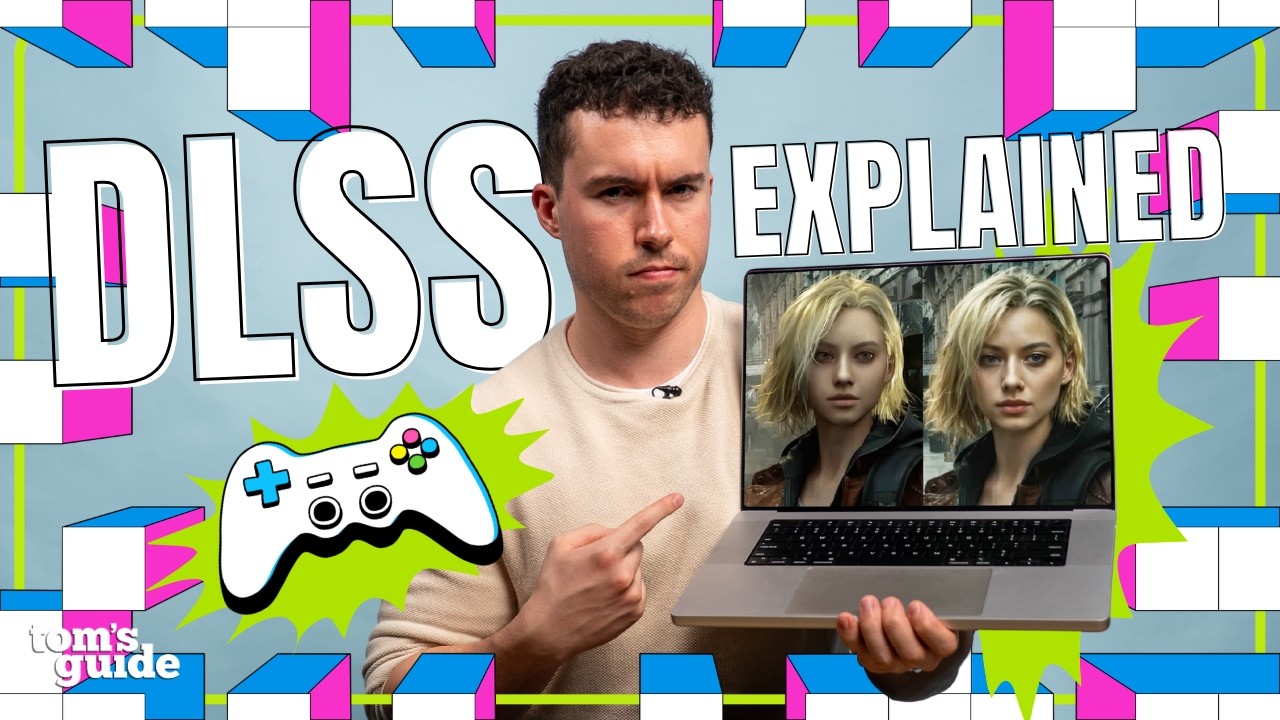
What is DLSS?

Deep Learning Super Sampling (or DLSS for short) first debuted in 2018, and it’s a combination of AI tricks to boost a game’s performance — allowing players to prioritize either high-end visuals, faster frame rates or a balance of both. Neural networks have been fed millions of hours of gameplay and trained on Nvidia’s supercomputers to deliver this.
Back in 2017, Nvidia saw an AI revolution coming and introduced Tensor Cores into its GPUs. These are engineered to be the bedrock of deep learning and inference, which can essentially allow your graphics card to work smarter not harder in rendering games
Over the years, many layers have been added onto this AI-fueled cake. But at it’s core, DLSS does business in two ways:
- Super Resolution: Rendering a complex AAA game at full resolution is a taxing ordeal — especially when you throw things like ray tracing into the mix. So with Super Resolution, the GPU renders the game at a lower resolution, uses AI to look at the picture and upscale it to look like native quality. This can massively reduce the hardware strain.
- Frame generation: To smooth out the frame rate, DLSS is able to analyze every frame generated by the GPU and fill in the gaps with AI frames. With DLSS 4.5, Nvidia is able to inject up to six additional frames.
Beyond that, there are additional things Nvidia has thrown into the mix, such as:
- Dynamic Frame Generation: Proactively adjusting how many frames it adds to adhere to the maximum refresh rate of your monitor
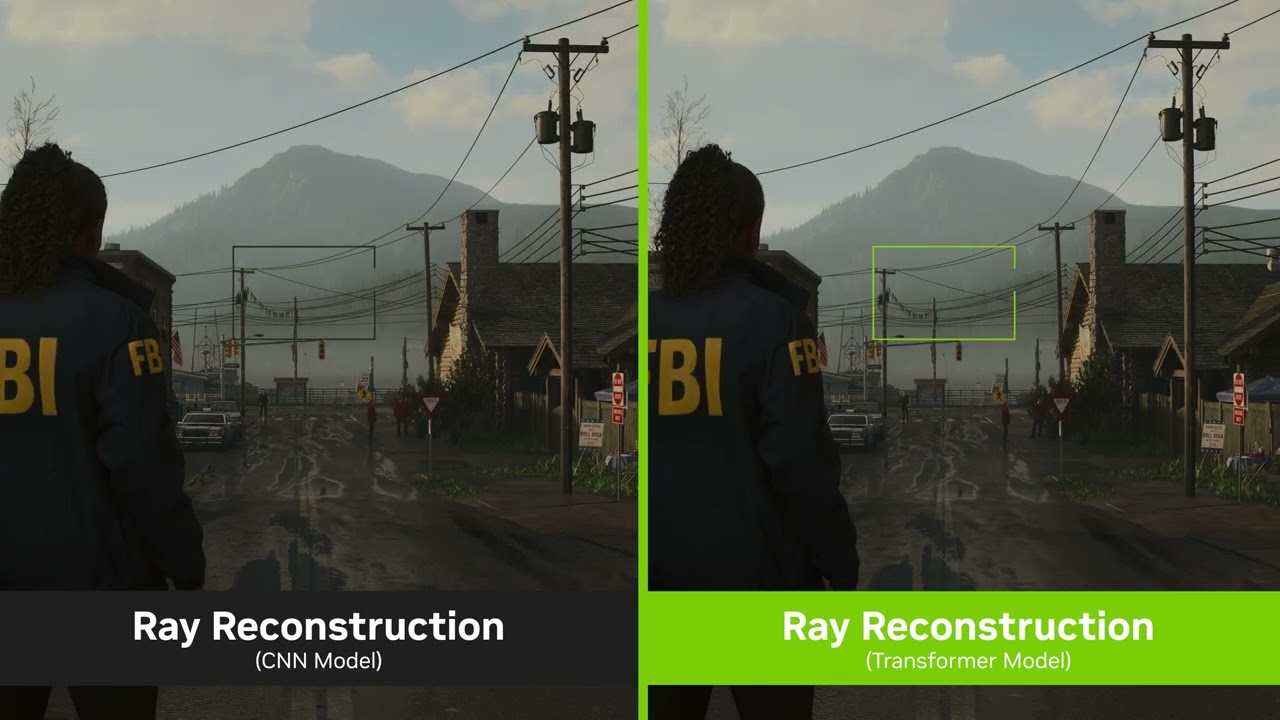
- Ray Reconstruction: Instead of having the GPU brute force all the light and reflection calculations in path tracing (a crazy intensive task), Nvidia’s AI model replaces this with a neural network trained on how light works in the real world to do all those calculations instead.
- Nvidia Reflex: We’ll talk more about latency in the next section, but Reflex is a key technology Nvidia introduced to keep games feeling responsive even when stuffed with AI frames.
And that in a nutshell is DLSS. But just like any technology, you’ll only get the best results if you use it right.
How to use DLSS the right way
If you’re looking at this thinking “I’ll just turn everything up to max, slap DLSS on it and call it a day,” stop it. That’s like trying to win a F1 race in a minivan just because you put high-performance racing tires on it.
And as the guy who has tested all the best GPUs, I’ve learned a thing or two about how to tame this beast.
My Super Resolution preferences

Yes, DLSS 4.5 super resolution is capable of some bonkers things (like upscaling a 240p picture to a better-than-expected 4K image). But as a general rule of thumb in real-world gaming, the more “input pixels” the AI has to work with, the more aggressive you can be with upscaling.
Here are the four DLSS modes you’ll see in your game settings:
- Quality: This renders the game closest to native resolution (normally around 66-70% of resolution).
- Balanced: Finding the mix between getting the best possible textures and frame rates, this will render the game at 58% of your targeted resolution.
- Performance: One step down to maximize frame rate, this will often go for 50% of the resolution.
- Ultra performance: If you want to go all out on frames, ultra performance will target 33.3% of the total resolution being rendered by the GPU.
Now I’m about to start talking about three presets here that you can access from the Nvidia app settings. These presets are three different neural networks Team Green has made to fuel its resolution scaling. Here’s a breakdown of them:
- Model K: This is DLSS 4 and much better-built for quality and balanced DLSS modes
- Model M: This is DLSS 4.5 with a model tuned for performance mode
- Model L: This is an offshoot of DLSS 4.5, which is meant for ultra performance mode
Got that? Good. Now let’s break down which ones are best for you by the resolution you want to play at.

- Gaming at 4K? Use Performance (or Balanced) Mode: In the Nvidia app, this is labeled as Preset M, and in my own testing, I’ve found it to be the sweet spot at 4K. This will typically render a game at 50% of the resolution (1080p), and given how good this model has become over the years, the difference between this and Quality mode is nearly invisible in motion (unless you’re seriously pixel peeping). But at the same time, the FPS gain is massive.
- 1440p or 1080p? Stick to Quality: Turn on Preset K and stick with Quality (or Balanced at a push). Performance or Ultra Performance can lead to some losses of finer details in complex textures like hair or grass — leading to a soft image. For example, Ultra Performance at 1080p would be trying to upscale from as low as 480p.
Chances are you can get away most of the time with just sticking to Balanced mode. But there are finer tweaks you can make to get even more out of it.
My Frame Generation preferences

So this is where I get into latency — the difference between how smooth a game looks and how it feels. Let me break it down.
Let’s say you’ve got a game playing at 30 FPS before you turn on any AI trickery. If you take that number and divide a thousand by it (1,000 ÷ 30), you’ll get the gap between frames which is 33.33 milliseconds.
Now if I turn on multi-frame generation at 4X and up that to 120 FPS, it’ll look smoother, but game inputs are locked at that 30 FPS, so it won’t feel as smooth. That’s why it’s incredibly important to start with a solid base rate for the game you’re playing before turning on frame generation.
Over my years of PC gaming, I’ve broken it down into three targets in my mind based on what I’m playing to find that right starting point:
- If your game is a slower-paced single-player title, start at 40 FPS: Think like linear story-driven games where twitch reflexes are not needed. RPGs like Baldur’s Gate 3 are great examples of this, and if the game you want to play falls in this region, you don’t need a lightning fast base frame rate and can focus on upping the graphics settings.
- If your game requires faster reflexes, aim for at least 60 FPS: Whether it’s racing in Forza Horizon 5 or needing to perfectly time parries in Black Myth: Wukong, if faster reflexes are needed, you’ve gotta close that gap between frames rendered before stuffing more AI frames in between them. This would reduce frametime to 16.67 milliseconds — a nice base to build on.
- If you’re in seriously competitive multiplayer, either don’t use it or aim for 120 FPS: A sub 10 millisecond gap between frames is a critical helping hand to being competitive in online lobbies. If you’re particularly clutch and don’t want a single bit of AI trickery getting in your way, don’t use frame generation and focus on turning your settings down instead. But if frame gen is OK, start with a 120 FPS base.
DLSS 5 controversy explained

So now that you’ve got a grip on how to best use DLSS in its current form. Let’s look at where Nvidia’s AI tech is going, because DLSS 5 has caused quite a stir!
Coming this fall, the fifth generation goes beyond the “predictive” modeling of resolution scaling and frame generation, and fuses it with the “probabilistic” elements of generative AI. CEO Jensen Huang calls it the “GPT moment for graphics,” and this comes down to real-time neural rendering.
Basically, DLSS 5 looks at a game on a frame-by-frame basis, and rather than trying to “show you the game better,” it’s now aiming to “show you a better version of the game.” And the results of this pursuit for extreme photorealism is a bridging of the uncanny valley that has the gaming community worried.


Of course, we’re only looking at very small slithers of demos of an early build, but as you can see from certain screenshots, it looks as if the model is adding details that weren’t there originally — like additional hair, fuller lips or a sharper jawline.
There’s changes being made to the cinematic lighting and material depth too, which all contribute to another breakthrough, but one that developers are going to have to figure out the right way to use. Nvidia confirms this is an early build of DLSS 5, and probably with sliders turned all the way to max. So between now and the fall, devs will tune it however they wish.
Outlook
It’s not been the smoothest of rides for Nvidia’s DLSS. With each new version, there’s been a backlash of some sort. But every single time, it becomes the default and if you use this technology the right way, it can unlock gaming experiences unlike anything you’d see elsewhere.
Because more and more, it’s becoming abundantly clear that we’re reaching the limits of how many transistors we can stuff on a chip to make these things work through hardware. So in a moment like this, AI is being used to continue the march forward.
Is DLSS 5 going to be a moment of overreach? Potentially, but then again this is completely controllable by developers who will hopefully find that right balance. But for the PC gamer of today, DLSS is an essential tool in your arsenal that when tamed can be a breakthrough.

Follow Tom's Guide on Google News and add us as a preferred source to get our up-to-date news, analysis, and reviews in your feeds.
More from Tom's Guide