Nvidia has just dropped DLSS 4.5 Dynamic Multi Frame Generation and I’ve been testing it for the past week. This takes the idea of multi-frame generation and adds automation to it, so AI only generates the frames you need rather than going over the top, and in my time using it, Team Green has created a far smoother experience with lower latency because of it.
It’s a better balance of making sure your GPU’s raw rendering skills and AI trickery work hand-in-hand to deliver more consistently stable gameplay. But while you’ll hear a lot about this being big for 4K 240Hz monitors, I found that this is the missing piece to using your PC as a games console replacement — a dream I’ve had for years. Let me explain.
What is Dynamic Multi Frame Generation?

Up until now, Nvidia has dabbled in Multi-Frame Generation — you can think of this like the manual transmission in a car. Each gear has its benefits for more speed, but if you slow down at these higher gears, it’s hard to get back up to speed. This can be felt in the form of latency if you poorly optimize your game from the jump.
Dynamic Multi Frame Generation switches that out with an automatic transmission, which changes gears (frame multipliers) based on the intensity of the scene — ensuring you’re at the max speed of the display you’re on at all times. This ensures you only get the frames that you need, and produces a far smoother experience with less latency.
In this beta, you’ll see two presets in the Nvidia app:
- Preset A: The brute force option. This will take a look at literally everything on screen as one frame and generate. Much wider compatibility, but can come with some issues of smearing in-game UI elements with the background.
- Preset B: In this model, DLSS is able to look at both the in-game visuals and the UI separately. This can help keep your on-screen text razor sharp, but compatibility is limited as it requires developers to isolate the layers.

But as I always say (following on from poorly optimizing your game), it’s critical that you use this the right way. I’ve got a full guide on my resolution scaling and frame generation preferences, but to summarize real quick, it’s important that your base frame rate before turning on any AI trickery is strong.
Because if your game is running at 20 FPS, slapping on this DLSS coat of paint will make it look smoother, but it’ll still feel like 20 FPS.
- If you’re in a single player game with slower pacing, 40 FPS is enough.
- Need faster reflexes? Start at 60 FPS.
- Competitive multiplayer? Don’t use it or build from 120 FPS.
Got it? Good. Let’s get into the results of my testing.
By the numbers

So let’s test what Nvidia has here — starting with its main focus upon making the most of a 4K 240Hz monitor. I’ve got my RTX 5080 rig that I built with Scan computers here in dear old Blighty, and the Alienware AW2725Q monitor. If you want to see how to build a PC like this for yourself, the guide is just below.
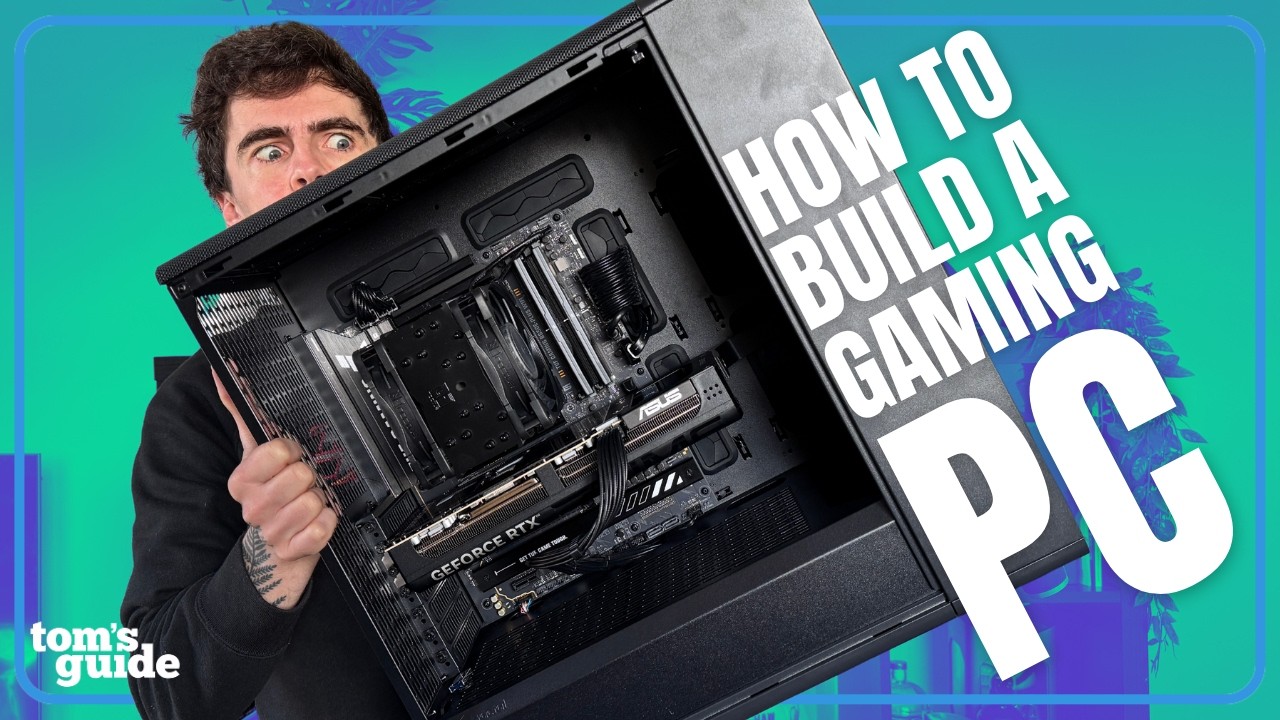
Anyway, let’s get into it. Put simply, monitors of this caliber are no longer just future-proof hardware — RTX 50-series is able to fully utilize them and get 100% of the experience you pay for.
Game (and settings) |
Average FPS |
1% Lows (FPS) |
Latency |
Average Dynamic Multi Frame Generation Multiplier |
Base FPS |
|---|---|---|---|---|---|
Cyberpunk 2077 (4K Ray Tracing Ultra) |
238.99 |
167.87 |
43.37ms |
4-5x |
58.5 FPS |
Hogwarts Legacy (4K Ultra) |
205.94 |
79.51 |
36.34ms |
5-6x |
74.02 FPS |
Dragon Age: The Veilguard (4K Ultra) |
237.17 |
132.58 |
41.47ms |
5-6x |
53.15 FPS |
God of War Ragnarok (4K Ultra) |
211.55 |
106.93 |
37.5ms |
2-3x |
92.47 FPS |
In games like “Dragon Age: The Veilguard,” you’re seeing a base frame rate of 53 FPS get effectively upshifted heavily to saturate the monitor’s refresh rate. On the opposite end of this, “God of War Ragnarok” already has a strong base performance, so DFG essentially downshifts to a lower multiplier for the smoothest possible image quality.

Another way to look at it is those 1% Lows. This is the lowest frame rate you see 1% of the time (as the name suggests), and it’s a good way to track whether the game will visibly stumble at any dramatic rate.
On average (including some loading scenes, so data is a little bit off), you’re looking at an average of 115 FPS across all my tests, which is an excellent floor of the performance — well above the variable refresh rate threshold and eliminating visible judder.
The beauty of this restraint is fully realized in the latency, though. Multiple generated frames are often criticized for adding a floaty input lag. Of course, this comes down to how to tame the technology in many ways. But with an average of 33-45ms, my data proves Nvidia has overcome this hurdle.
To put it in perspective, Cyberpunk 2077 with everything turned up and maintaining only 45ms of latency is a landmark achievement to squeeze up to 240Hz gaming.
To my eyes


As for the visual element of it (numbers are good, but it’s got to look good too), same as I found when going eyes-on back at CES 2026, You’ll struggle to notice when the multiplier shifts — there’s no identifiable switch up or stuttering at all in all the games I tried.

There are some small ghosting issues I did spot. The most prominent one being in “Hogwarts Legacy” around this teacher’s hair, but most impressively, none of this impacts the UI. One of the most common problems with frame generation is that it can make on-screen elements like a health bar or button prompts smear into the background of the game.
And that’s the magic of Preset B isolating static elements from the game visuals. Menus in “Spider-Man 2,” “Hogwarts Legacy” and “Forza Horizon 5” remain perfectly clear even as the 3D world is being interpolated at a 4-6x rate.
TV time

Now, you’re going to hear Nvidia talk a whole lot about making the most out of high refresh rate hardware, which Team Green absolutely does here. But I wanted to see whether it could fix one problem I’ve always had — playing PC games on my TV.
It’s been my dream to have a cheaper RTX 5060 Ti rig plugged into my big screen to replace my console setup. A lot of these single-player games that Dynamic Multi Frame Generation is perfect for usually run at 30 FPS on Fidelity mode and 60 FPS on performance.
While a PC can smash that barrier already (and latency issues are felt much less with a controller), there are two key issues:
- UI smearing: The brute force frame generation option has viewed the entire game and its UI as one picture. When blown up to a massive TV, that means you can see the UI elements start to smear and ghost — especially when the picture behind it is moving fast (think like a racing game).
- The VRR stutter: When framerates can change quite dramatically on a PC game, most HDMI 2.1-armed TVs can suffer from gamma flickering. Without the variable refresh rate of a gaming monitor, the locked refresh rate of the big screen behaves a little weird with this.


With Dynamic Multi Frame Generation (and Preset B), it was my hope that beyond the marketing messages, this could be the key to having my PC become the all-in-one gaming desk machine and TV setup.
And you know what? It absolutely nails it. Of course, if you're looking at this from a keyboard and mouse/your face close to a monitor perspective, some of those latency numbers could be a problem. But for the couch gaming side of things (average response time on a PS5 or Xbox Series X sits between 100ms and 150ms), these numbers are actually a win for the TV rig.
Game (and settings) |
Average FPS |
1% Lows (FPS) |
Latency |
Average Dynamic Multi Frame Generation Multiplier |
Base FPS |
|---|---|---|---|---|---|
Cyberpunk 2077 (4K Ray Tracing Ultra) |
123.46 |
92.51 |
83.69ms |
4-5x |
27.16 FPS |
Hogwarts Legacy (4K High) |
98.43 |
30.16 |
77.12ms |
5-6x |
31.1 FPS |
Dragon Age: The Veilguard (4K Ultra) |
132.92 |
105.26 |
58.65ms |
3-4x |
34.42 FPS |
Of course, it's worth noting that this is a stress test. I wanted to see how far I could push this on an RTX 5060 Ti rig with settings turned all the way up — lowering the base frame rate target to what a console hits at 30 FPS and seeing how it fares.

If you want something more responsive, you can tweak those settings down a tad. But for my time playing with a controller, I certainly didn't notice any input latency at all.
The UI remains mostly rock solid thanks to preset B isolating the in-game visuals from the on-screen elements, and generating only the frames I need keeps things feeling responsive while eliminating any flickering.
Verdict: a console killer?

So the main thing I want you to take away from this is that Dynamic Multi Frame Generation is not just for the enthusiast with the 240Hz monitor. It’s for the rest of us gamers who want their PC to act like a polished, reliable appliance in the living room.
For years, my “PC as a console” dream died at the hands of micro-stutters, UI ghosting and the constant need to babysit settings. While the latter of those three could do with some work (looking at you, Microsoft), Nvidia has finally automated the two headaches away.
It’s the first time that AI hasn’t felt like a “more frames” button, but rather a “better experience” brain. By letting it decide when to push and when to pull back, your PC stops feeling like a hot rod and starts feeling like a refined supercar of a high-performance console.
Put simply, if you’re on an RTX-50 Series GPU, this isn’t just a toggle — it’s the new standard.

Follow Tom's Guide on Google News and add us as a preferred source to get our up-to-date news, analysis, and reviews in your feeds.
More from Tom's Guide
- I really wanted to love the Asus TUF Gaming A14 (2026), but it’s an expensive heartbreaker
- Is the RAM price crisis finally ending? I’m starting to see cracks
- I tested the Intel Core Ultra 7 270K Plus and 5 250K Plus against AMD’s best gaming CPUs — this should be a mismatch, but the results shocked me