

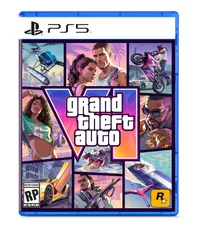
GTA 6 is finally here! It’s easily Rockstar Games’ most ambitious title ever, featuring dense environments and lush soundscapes. You get a rich visual and audio experience out of the box, but tweaking a few PS5 settings can enhance it.
We’re talking specifically about the PS5’s settings, since GTA 6 has no graphical settings beyond a motion blur slider. Even on a PS5 Pro, your options are limited. But with a few smart tweaks, you can make GTA 6 look and sound its best on either PS5 console.
Here are the 3 PS5 settings you need to check to enhance your GTA 6 experience.
HDR settings

This one is for folks who own an OLED TV. In the Video Output tab in System Settings, scroll down to HDR. Click it, and you’ll be taken to another screen to calibrate the console’s HDR.
You’ll adjust the brightness across three pages. On the first two pages, press up or down until the sun logo disappears. On the last page, dial it all the way down, since your OLED TV can display deep blacks.
GTA 6 also has in-game HDR calibration. Just follow the on-screen prompts to get your desired result, though I’ve found the default settings work well.
Audio settings

GTA 6 is undoubtedly a feast for the eyes, but you shouldn’t neglect the audio side of the equation.
While the PS5 didn’t launch with Dolby Atmos, it now supports the feature. So if you have a soundbar or surround sound system that supports Dolby Atmos, you should definitely enable it. To do so, go to Sound in System Settings, click Sound Output, scroll down to Audio Format, and select Dolby Atmos.
VRR and 120Hz

GTA 6 targets 30 frames per second on all consoles. Rockstar Games even confirmed to Kotaku that the PS5 Pro won’t be patched to run at 40 or 60 fps. That said, we can’t completely rule it out.
If GTA 6 ever adds a performance-enhancing feature, you’ll want to set the PS5 Pro for that. In the Video Output tab of the Screen and Audio settings, make sure that VRR is set to Automatic for unsupported games and that 120Hz output is set to Automatic.
Again, this won’t make GTA 6 run at a higher frame rate, but it prepares your PS5 Pro if it ever does. As a rule of thumb, you should have these settings enabled anyway, since many PlayStation titles offer 40 fps modes.
Bottom line
Until we get the inevitable PC version of GTA 6, we'll have to make do with the experience on existing consoles, in this case, the PS5. That said, the advice I've given you should help you get the most from the game. Have fun in Vice City!

Follow Tom's Guide on Google News and add us as a preferred source to get our up-to-date news, analysis, and reviews in your feeds.
More from Tom's Guide