One of the best new features that arrived with the Samsung Galaxy S26 series is no longer exclusive. Gemini's screen automation is now rolling out to Google's Pixel 10 series, as part of the March Feature Drop.
This means both Pixel and S26 owners will be able to use Gemini's automation tools to place orders in compatible apps. They include Uber, Lyft, Uber Eats, GrubHub, DoorDash and Starbucks. In fact, Tom's Guide Phones Editor John Velasco did just this last week, using Gemini to order from Dunkin' Donuts, via DoorDash on a Galaxy S26, and was seriously impressed with the results.
Now, you can do the same with a whole new series of phones. Just follow these steps to get the whole process set up.
1. Open Gemini settings

Open the Gemini app and head to App Settings.
2. Grant the right permissions

Tap Screen Automation and give Gemini permission.
3. Agree to all terms
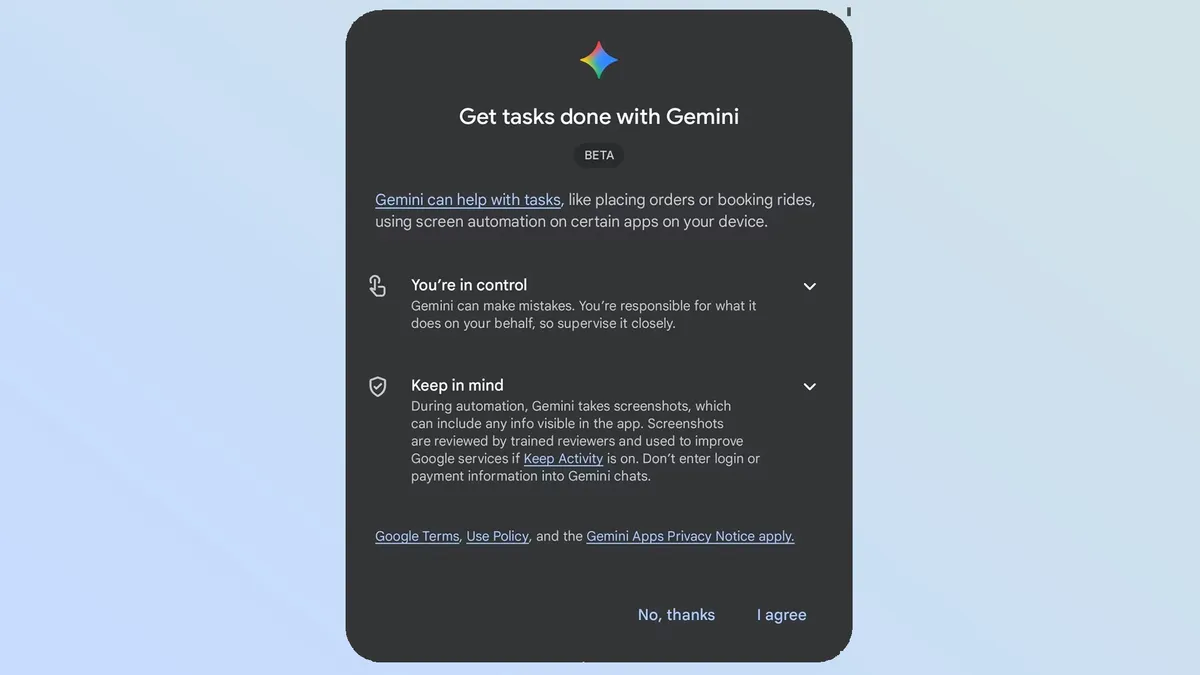
Agree to the terms if they pop up.
One thing to note is that screen automation is not available for everyone just yet. I didn't get the option to agree to the terms on my Pixel 10 Pro, which means I'm currently locked out of ordering myself food or a cab using Gemini. If you're in the same position as me, you'll just have to do things the old-fashioned way until screen automation rolls out to your phone.
However, once the feature is available, you can take advantage of the fact that Gemini is a conversational AI. So you're able to use real-world phrasing, rather than being restricted to specific commands. So if you want to order a specific coffee order that isn't necessarily on the menu, or book a ride with enough room for multiple people and their luggage, then Gemini should be able to understand and make it happen.
Things to remember
As convenient as it is to be able to make orders using your voice, there are some caveats you will need to be aware of. The first is that Screen Automation doesn't complete the process for you. It will do everything right up to checkout, and it's up to you to actually confirm the order — ideally, making sure Gemini got all the details right in the process.
John also noted that the ordering process was considerably longer using Gemini than it would have been if he'd done everything himself. His order took about two and a half minutes to process, versus the 30-ish seconds it normally took.
It's also worth mentioning that you don't get to make unlimited requests. How often you can use screen automation depends on the level of Gemini subscription you have. Free users are limited to 5 requests a day, while AI Plus subscribers get 12 requests. AI Pro ups the limit to 20 requests, and the most expensive AI Ultra plan comes with 120 requests.
The automation process also requires Gemini to take screenshots, which could potentially expose any information that is visible in your apps. If you have set Google services to "Keep Activity On", then those screenshots are viewed by "trained reviewers" — otherwise known as real people. So if you value your privacy, the least you can do is switch off the activity history.

Follow Tom's Guide on Google News and add us as a preferred source to get our up-to-date news, analysis, and reviews in your feeds.
More from Tom's Guide
- I haven’t answered a scam call in months — this hidden iPhone feature is why
- Samsung confirms Galaxy S26 Ultra display includes 'some variation' in quality when it's held at different angles — even with Privacy Display off
- I've been testing the Samsung Galaxy S26 Plus — and it's a great phone that few people will actually want