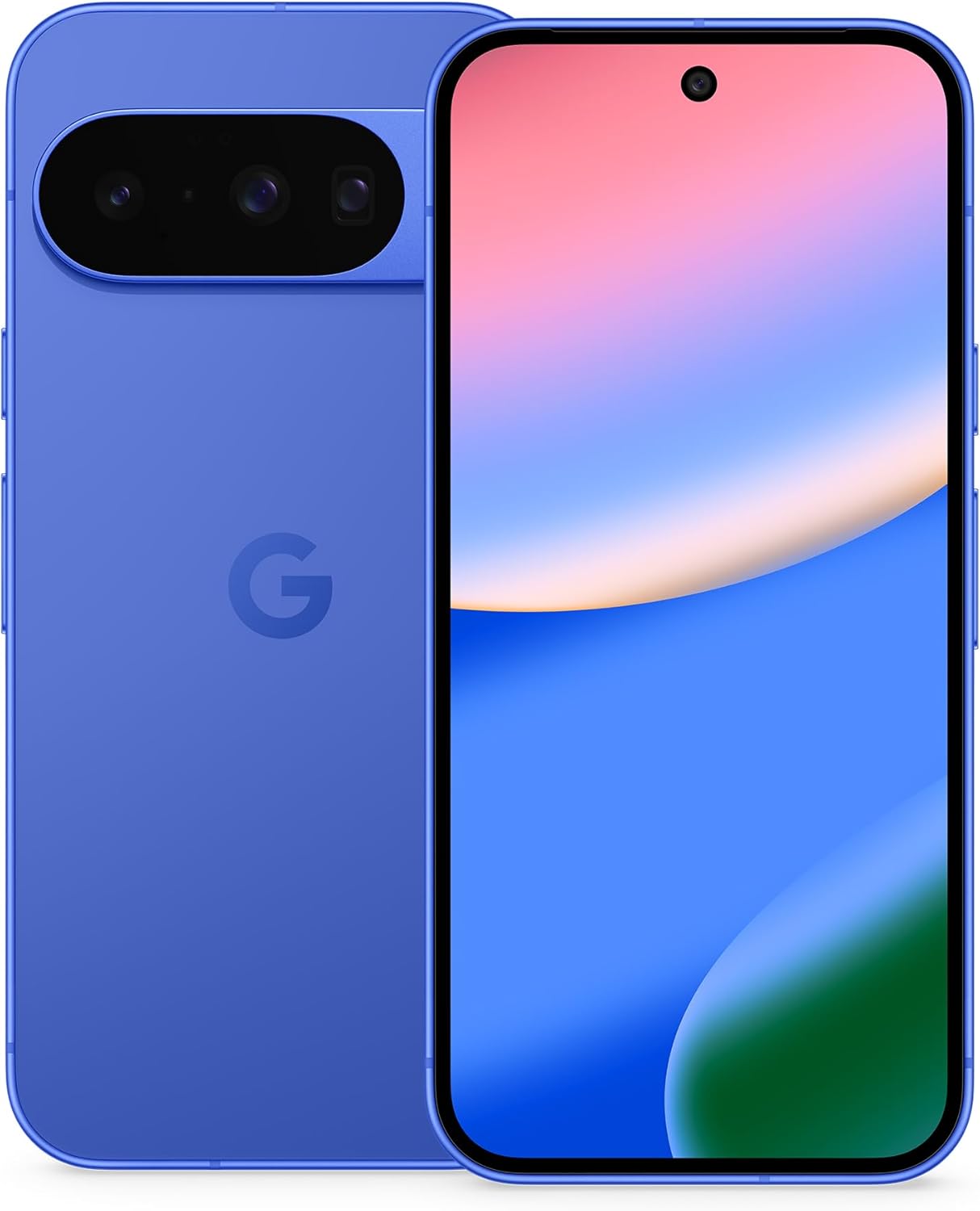
Even the best Android phones can struggle to last from breakfast to bedtime once you add 5G music and video streaming, bright 120Hz displays, and a day’s worth of scrolling – sorry, we mean work – into the mix.
Faster charging helps, as newer phones supporting speedier charge times can top off your battery faster than before. But if you are constantly eyeing your phone’s battery icon – or packing a power bank to go with your holiday travels – consider that a sign your settings need a tune-up.
The good news is that modern Android builds give you a lot of control over how apps behave in the background, how your screen sips power, and when extra features like 5G and Always-On Display are allowed to run.
Tweak a handful of options, adopt a couple of new habits, and you can stretch your battery comfortably into the evening without turning your smartphone into a brick.
1. Switch on Adaptive Battery

Your first stop should be the phone’s own battery “brain”.
Modern Android builds use Adaptive Battery to learn which apps you actually rely on and quietly clamp down on the rest — it is enabled by default on recent Pixels, Samsung Galaxy phones, and most other big-name Android handsets.
Even devices with the best phone battery life, such as the Samsung Galaxy S25 Ultra, OnePlus 15 or Motorola Razr Ultra, still benefit from letting this system do its thing before you start closing apps manually.
To get started, open Settings > Battery and check that Adaptive Battery is switched on. On recent Pixels, you’ll find that setting under Battery, while Samsung tucks a similar toggle into its Battery and Device Care menu.

Next, dive into Android’s Battery Usage screen and look at which specific apps are chewing through the most power over a typical day.
From each app’s battery settings, change rarely used ones to “Optimized,” “Restricted,” or put them in Samsung’s “Sleeping” or “Deep sleeping” lists so they cannot run wild.
Just be careful not to overdo it with messaging, navigation, health, or banking apps. If those get throttled too hard, you may miss important alerts or live updates.
2. Refresh Rate, Brightness, and Timeout

Unsurprisingly, your phone’s display tends to be the single biggest drain on the battery, so it is worth taming before anything else.
High refresh-rate screens – 120Hz or even 144Hz panels on some devices – look wonderfully smooth, but they also ask the GPU to work harder and refresh more often, using more power than a standard 60Hz mode.
Many newer handsets now offer an adaptive setting for displays that drops the refresh rate when you are just reading or checking email, then ramps it back up for scrolling and gaming.
If your phone has this option, it is a smart default; if not, consider switching to 60Hz on days when you know you will be away from a charger for a time, like when you travel.

Brightness is the other major culprit. Using adaptive brightness can strike a good balance, learning your preferences over time and dialing things down indoors.
You can also help yourself by shortening the screen timeout to 30 seconds or a minute, so the display does not stay lit on the table after you have put the phone down. Newer Android builds also have an Adaptive Timeout feature.
3. Always-On Display and lock-screen wake-ups

Always-On Display is one of those features that feels harmless — a tiny clock, a few icons, maybe your next calendar appointment — but it can make a real dent in standby time.
Recent OLED flagships like Samsung’s Galaxy S series and Google’s Pixels use their panels efficiently, yet independent testing still shows noticeably higher idle drain with AOD enabled than with it off.
It could be worth jumping into the Settings app and experimenting. (You’ll find Always-On Display controls on the Display & Touch menu in the Pixel’s Settings and in Lock Screen and AOD for Samsung flagships,) The simplest win is to turn AOD off entirely and rely on tap-to-wake or raise-to-wake, so the screen only lights when you actually need it.
While you’re adjusting settings, review which apps are allowed to light up the lock screen or show full-screen previews — trimming this list stops your display from flashing on every time a group chat fires, and quietly saves a little more battery over the course of the day.
4. Location and connectivity

Location and connectivity are the other quiet battery killers.
Like their iPhone cousins, modern Android phones let you choose between “Allow all the time”, “Allow only while using the app”, and “Ask every time” for location access, and many apps default to the most generous option they can get away with.
It is worth doing an occasional audit: head to the Settings app, and select Location >App Permissions to downgrade apps to “only while using.”
For services that do not need GPS-level accuracy —say, a basic weather or shopping app — you can usually turn off precise location and let them work from Wi-Fi and mobile network data instead.
Your wireless radios deserve the same attention. Features like Wi-Fi and Bluetooth scanning can stay active even when the main toggles look switched off, allowing your phone to hunt constantly for networks or accessories.
If you do not rely on things like indoor location, nearby device detection, or automatic audio switching, it is sensible to turn those scanning options off.
5. Battery Saver and Extreme Battery Saver

Most recent Android phones include a standard Battery Saver mode that cuts background activity, limits visual effects, and may gently rein in CPU performance.
Set this to switch on automatically at 15% to 20% so you are not caught out, and toggle it manually when you see a marathon day coming.

Recent Pixels also offer a more aggressive Extreme Battery Saver mode, which other Android phones may adopt as well. Turning on Extreme Battery Saver pauses almost everything except calls, texts, and a few whitelisted apps.
You can also find newer Android options aimed at long-term battery health rather than today’s screen-on time.
Phones from brands like Google and Samsung now include battery protection modes that cap charging at roughly 80% to 85%, or use smarter overnight charging to avoid sitting at 100% for hours.
What else can I do to extend battery life in Android?
Even with all the right settings enabled, a few simple habits still make a difference to getting more battery life out of your Android phone,
Uninstall apps you have not opened in months, avoid running a mobile hotspot for hours on battery power, and try not to combine max brightness, 5G, and long gaming sessions unless you are near a charger.
If your phone is still conking out early after all of this, it may be a sign the battery itself is past its best. Many Android handsets now show battery health information in settings, and a service center can check capacity more precisely.

Follow Tom's Guide on Google News and add us as a preferred source to get our up-to-date news, analysis, and reviews in your feeds.
More from Tom's Guide
- How to check Android battery health
- 19 hidden Android features you should be using
- 5 ways to give your Android phone a serious speed boost