Most people use Apple AirPods for two things: music and calls. That's it. They go in, they come out, the case gets charged. But Apple has quietly packed in a set of features that most owners never find — because they're not signposted anywhere obvious.
Enable the right settings and your AirPods Pro 2 and AirPods Pro 3 can work as a hearing assistance device, picking up and amplifying sounds around you in real time. They can let you answer calls with a nod or decline them with a shake of your head. They can turn a solo listening session into a shared one, with two people tuned into the same audio from a single iPhone.
Here's how to turn them on.
1. Amplify conversation in noisy places

Loud restaurants are great until you spend the whole meal leaning across the table asking people to repeat themselves.
Live Listen fixes that. Set your iPhone down near whoever you're talking to and it transmits their voice directly to your AirPods, cutting through the noise around you like they're speaking straight into your ear.
To enable it: swipe down to Control Center, tap the Hearing icon, select Live Listen.
It works up to 50 feet away, so you can leave your phone near a speaker or a conversation and move around freely.
2. Share audio
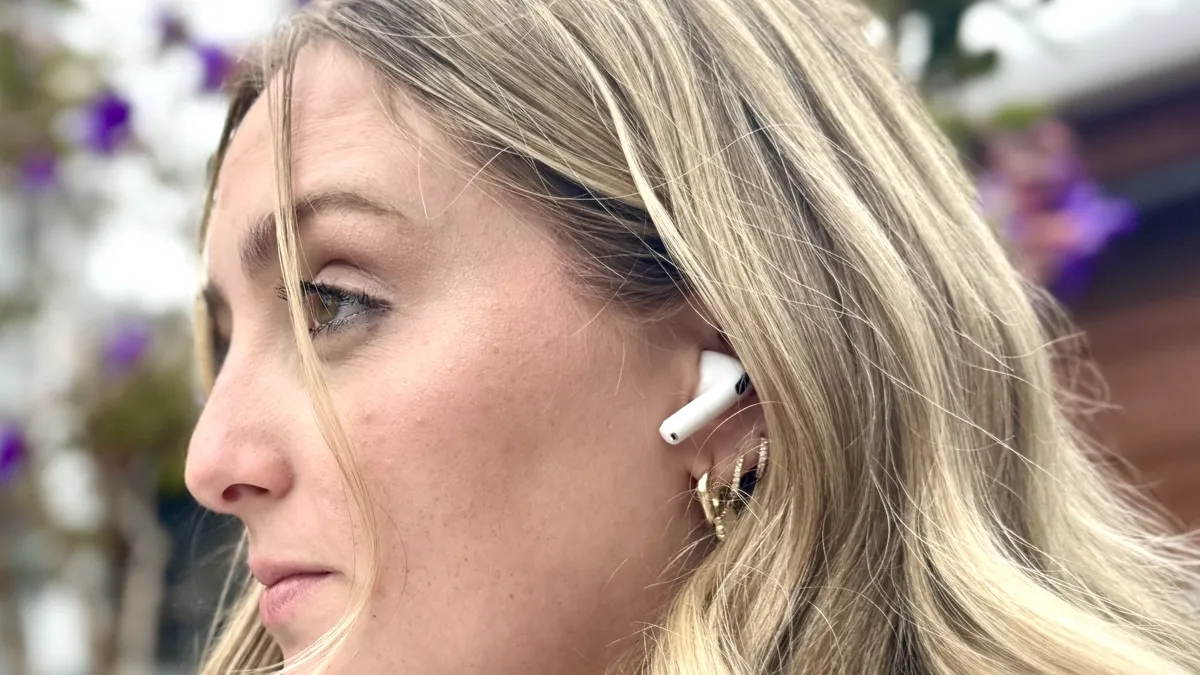
Long flights, train journeys, lazy Sunday mornings, sometimes you just want to watch something together without hudding over a single screen sharing one pair of earbuds.
Share Audio lets two people listen to the same iPhone simultaneously, each on their own AirPods or Beats, each controlling their own volume.
To set it up: connect your AirPods and start playing audio. Open Control Center, tap the AirPlay icon, and select Share Audio. Bring the second pair close to your iPhone, open the case, and a prompt will appear to connect them.
That's it. Both listeners hear the same audio independently — no splitting earbuds, no one stuck with just the left audio. It works with any combination of AirPods and compatible Beats headphones.
3. Head gestures

You're elbow-deep in dinner prep, hands covered in raw chicken, and your phone starts ringing. Head Gestures were made for this. Nod to answer and shake to decline, your AirPods detect the movement and handle the rest without you touching a thing.
To enable this, go to Settings, tap your AirPods name at the top, select Head Gestures and toggle it on. Then simply choose which motion answers and which declines.
It works beyond calls, too — nodding or shaking responds to Siri announcements, message replies, and other notifications, making it genuinely useful any time your hands aren't free.
Is there a hidden AirPods feature that you love to use? Let us know in the comments below.

Follow Tom's Guide on Google News and add us as a preferred source to get our up-to-date news, analysis, and reviews in your feeds. Make sure to click the Follow button!
More from Tom's Guide
- How to pair AirPods with any Android phone — 5 simple steps
- Your earbuds are disgusting — here's how to clean them
- Spotify's Lossless listening makes music sound brand new