




Your computer's supposed to shut down when you tell it to. That's pretty basic. But a recent Windows 11 update threw a wrench in that simple expectation for some users. Hit the shutdown button, and instead of powering down, the PC just restarts.
Specifically, those using Windows 11 Enterprise with System Guard Secure Launch enabled have run into trouble. Although Microsoft acknowledged the problem and rolled out a fix on January 17 2026, some people are still dealing with computers that refuse to stay off.
Here's exactly what happened and how you can fix it.
1. What caused the problem

The culprit was update KB5073455 (23H2), which Microsoft started rolling out on Jan. 13. The bug created a conflict with System Guard Secure Launch, a security feature designed to protect against firmware-level attacks during startup.
Microsoft acknowledged the issue on its Release Health tracker that when users with Secure Launch enabled tried to shut down or sleep their computers, the system would bypass those commands entirely and restart instead. Anything you hadn't saved was potentially gone.
Secure Launch isn't a feature most casual users would have enabled. It's primarily found in enterprise environments where IT departments prioritize security over convenience. If you don't know whether you have it turned on, you almost certainly don't.
2. Grab the official patch
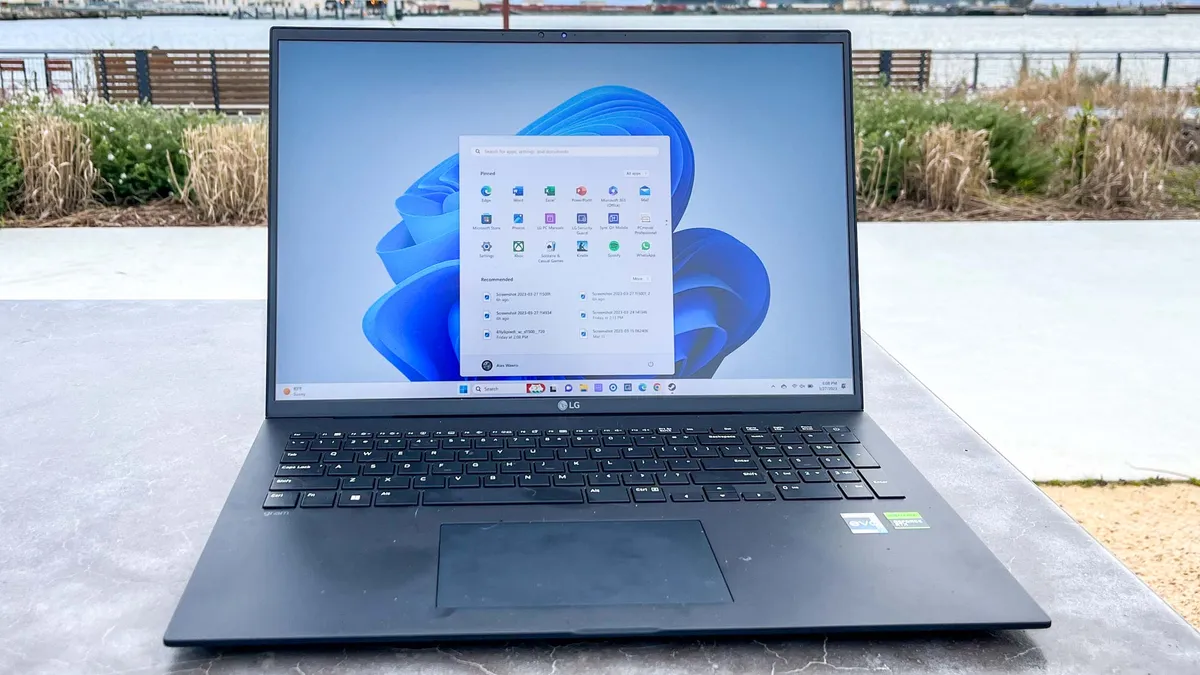
The patch, labeled KB5077797, is available through the Windows Update Catalog. To download it, head to the catalog website and search for the update number, or let Windows Update install it automatically.
Most users should receive the patch through regular Windows Updates without any manual intervention. If you're still experiencing the restart issue after the update installs, try restarting your computer once more to ensure the fix takes effect.
Microsoft also offered a command line solution as a temporary workaround. Simply type cmd into the Search bar, open Command Prompt, and enter shutdown /s /t 0 to trigger a proper shutdown.
With the official patch now available, it's unlikely you'll need this workaround. However, if you're still experiencing issues or waiting for the update to roll out to your machine, this command method is a good short-term solution.

Follow Tom's Guide on Google News and add us as a preferred source to get our up-to-date news, analysis, and reviews in your feeds. Make sure to click the Follow button!
More from Tom's Guide

