




It started happening randomly. I’d glance at my phone and instead of signal bars, I’d see “SOS” in the corner of the screen. Sometimes it would switch back after a few minutes. Other times it stayed there, even when people around me clearly had service.
At first I assumed it was poor coverage. But when it kept happening in areas where I normally had full signal, it became clear something else was going on. If your iPhone keeps getting stuck in SOS mode, here’s what it actually means — and the steps that finally fixed it.
What SOS mode actually means
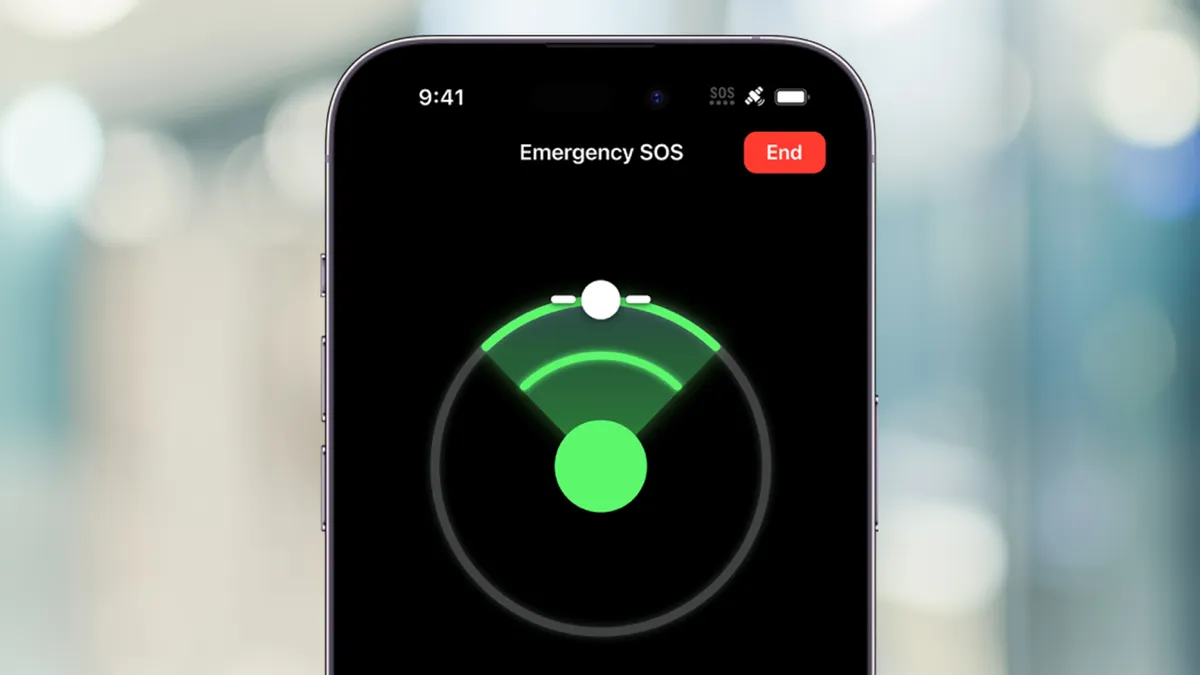
When your iPhone displays SOS or SOS only in the top-right corner, it means your device can’t connect to your usual carrier network but it can still place emergency calls using any available network.
On iPhone 14 and newer models, you might also see SOS in situations where Emergency SOS via Satellite is available. That feature is designed for remote areas without cellular coverage, allowing you to contact emergency services even when you’re completely off-grid.
However, if you’re seeing SOS in places where you normally have signal — at home, at work or in town, it’s usually not about satellite features at all. It simply means your phone has dropped its regular network connection and hasn’t successfully reconnected.
In most cases, this isn’t a serious fault. It’s a temporary communication breakdown between your iPhone and your carrier, and it’s often fixable in just a few steps.
How to fix SOS mode on iPhone
1. Toggle cellular data off and on

If your iPhone is stuck in SOS mode, the quickest fix is often the simplest. Turning cellular data off and back on forces your device to drop its current network connection and search for a fresh one.
Head to Settings, Cellular, toggle on Cellular Data off, wait 10 to 15 seconds, then turn it back on. In many cases, the signal bars return almost immediately. If the issue was just a temporary problem between your phone and the network, this step resolves it. It’s the first thing I tried and the one that worked most often.
2. Restart your iPhone

If toggling data doesn’t restore service, a full restart is the next logical step. Over time, background processes can hang or misfire, especially when switching between coverage areas.
Power your iPhone off completely, wait about 30 seconds, then turn it back on. This resets active network processes and gives your phone a clean opportunity to reconnect to your carrier.
Once it boots up, give it a minute to search for signal before assuming it hasn’t worked.
3. Check for a carrier settings update

This is an easy one to overlook. Your carrier occasionally pushes out small updates designed to improve your iPhone's connectivity and performance.
Go to Settings, General, and see if an update is available. If so, you'll see a prompt to install it. If you're stuck in SOS mode without cellular service, you'll need Wi-Fi connection for this to install.
4. Refresh your SIM or eSIM connection

If the problem keeps returning, it may be worth refreshing the line itself. For eSIM users, go to Settings, Cellular, tap your phone number and toggle off, then back on.
For physical SIM users, power down the phone, remove the SIM card, reinsert it carefully and restart.
This effectively reinitializes the connection between your iPhone and your carrier’s network, which can clear persistent registration issues.
5. Reset network settings

If none of the above fixes solve the issue, resetting your network settings is the final step.
Go to Settings, General, Transfer or Reset iPhone, Reset, and Reset Network Settings. Keep in mind this will erase saved Wi-Fi networks, VPN configurations and cellular preferences, so you’ll need to set those up again.
It’s a more drastic move, but if your iPhone keeps getting stuck in SOS mode in areas with strong coverage, this step often resolves it.

Follow Tom's Guide on Google News to get our up-to-date news, how-tos, and reviews in your feeds. Make sure to click the Follow button.
More from Tom's Guide
- 3 battery-draining iPhone settings you need to disable immediately
- You can turn your iPhone into a distraction-free dumbphone — here's how
- I just discovered this hidden iPhone feature that blurs faces instantly

