




This holiday season, some of us are going to be lucky enough to get shiny, new devices as gifts. Be it iOS or Android, smartphone or tablet, there are going to be plenty of fun things to download, play around with and learn on our new devices. From photography tricks and mobile games, to uploading contacts, and setting up all your favorite social apps, you're going to be spending a lot of time tapping away on your new device.
While you're doing that, you should definitely take about fifteen minutes and spend some time thinking about your device's security settings. This doesn't have to be a long list of to-do's that drill down into the privacy menus, instead, they can be quick and easy steps that you can set up now and mostly forget about. Doing so can help keep you secure for a long time to come.
The five steps below are quick, easy and very, very helpful for new devices and none of them should take you longer than it does to watch someone else empty their stocking.
Set up a passkey
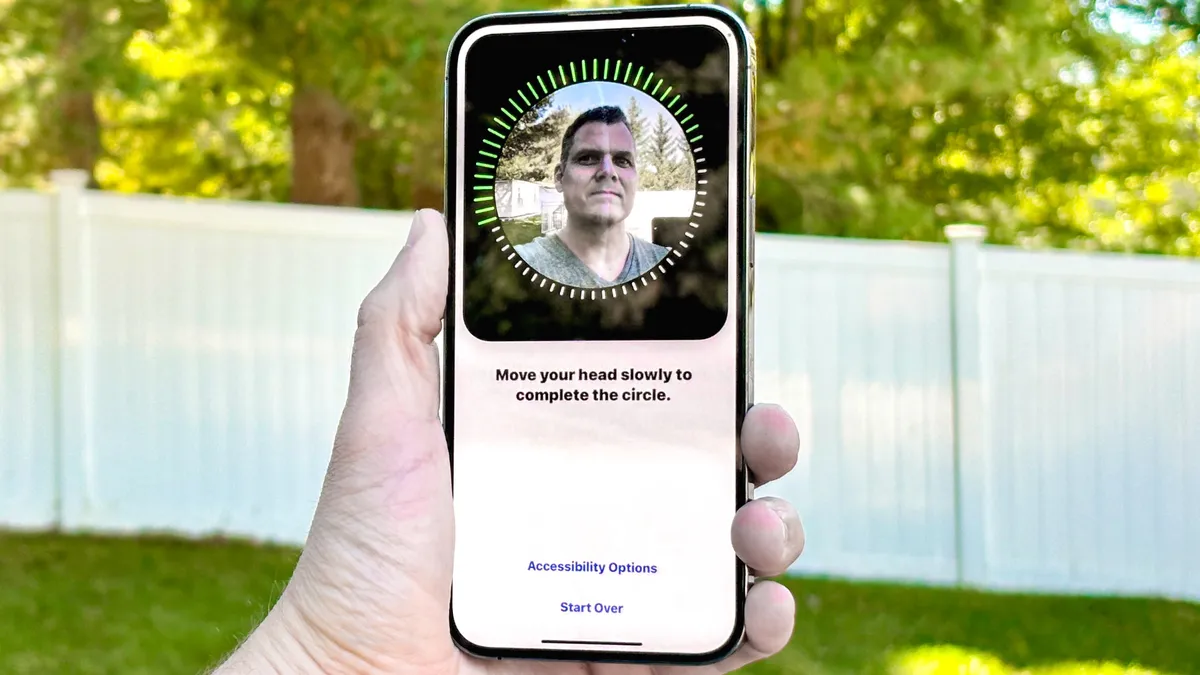
While most phones have adopted a biometric unlock to access the device itself, they may vary in security level depending on the model. Still, a passkey is the most secure method currently available and it's recommend to use one to secure sensitive accounts like your email, social media and banking and financial apps.
We recommend that you use a passkey whenever one is available – and in iOS you can require that certain apps use Face ID to unlock by simply tapping and holding an app icon. A menu will pop up with several options, one of which will be "Require Face ID." When you tap this, you'll also be given the option to "Hide and Require Face ID" if you want to put the app in a hidden folder as well.
Enable the 'Find My' feature

A setting that lets you track the location of your phone in case it's stolen (or lost), Find My (on iOS) and Find My Device (on Android) can be helpful because it can track your device and even remotely wipe it if you think it's gone for good.
In iOS, you can set this up by tapping on your name in the Settings menu, then tap Find My and toggle the On button. This allows your iPhone and other accessories to be shown on a map and remotely wiped and deleted from another device.
On Android, open Settings, then go to Google and find All Services and Find My Device. Make sure it's toggled to the 'On' position. If you have a Samsung device, the process is slightly different: Open Settings, tap Security and privacy, then Lost device protection. From there you'll want to tap Find my mobile and toggle on Allow this phone to be found.
Install an antivirus app

If you're an iPhone user, many of the more traditional antivirus apps will only be able to perform within the boundaries of iOS – meaning that they can't scan the device, or access particular portions of the system. However, the antivirus apps available on the app store can still offer you some protection from phishing attacks, web browsing protection, a VPN, and other useful features. It will vary by app, so you should check the features of the antivirus software you already use since there may offer a mobile option available that will cover your iOS devices.
For Android users, the options are much more varied. And while Google Play Protect does provide a great base layer against malware, third-party services come with many additional features like, again, VPNs, browser protections, and protection against phishing attacks. Our best overall pick, Bitdefender, can even turn off apps that may pose a security risk which may be well worth the extra subscription fee.
Check location services

Granted, some apps are clearly going to require your location data in order to function, like Maps or Uber. However, others definitely do not need to know where you are – and you shouldn’t just give out that information to any app that asks.
Why not? Because giving apps your personal information puts you at a risk of a data breach. And worse yet, some apps have been known to change from legitimate to malicious when they get updated. If they don't require these permissions to operate, they don't need it.
With your iPhone's location data, you have the ability to give apps the option to access it Always, Ask Next Time Or When I Share, While Using the App, or Never. And you can toggle an app's level of access to this data at any time in Settings.
Go to Settings > Privacy & Security > Location Services. Then select the app and the level of location data you feel comfortable with.
Extra credit tip: If you tap on an app, you will often also have the option to toggle off or on Precise Location which allows it to use your specific location. If you toggle this off, the app can only determine your approximate location.
In Android, you can turn off location for apps that don't need it, and if an app does need it, only turn it on when using the app. Go to Settings > Location > Location Services > Tap on Google Locations History and then turn it off or you can opt to have it auto delete after a set period of time.
Enable automatic updates

Old software is one big way that hackers can crack into a system – and one way to make sure that doesn't happen to you is to enable automatic updates right away. This makes sure that your mobile operating system is updated as soon as possible, and patched against any recent security flaws that might have occurred.
In iOS, just navigate to Settings, then General, tap Software Update and make sure that Automatic Updates is toggled to 'On.' In Android, open your phones Settings, then head to System or Software update. You're looking for either Auto download over Wi-fi or Smart update and you want to make sure it's toggled to 'On.'

Follow Tom's Guide on Google News and add us as a preferred source to get our up-to-date news, analysis, and reviews in your feeds.
More from Tom's Guide
- 7 security steps to prepare your home before you leave your for the holidays
- Don’t get caught: These were the 3 biggest scams of 2025
- Update your iPhone now — Apple patches two iOS zero days used in the wild by hackers

