Whether you’re leaving for the first time or heading back to college, packing tech for your dorm room is just as important as the essentials. With space at a premium, it makes sense to get devices that can do double duty. So, if you’re thinking about picking up a TV, I strongly recommend getting a monitor with USB-C connectivity and power delivery instead.
At home or in a shared apartment, one of the best TVs absolutely makes sense. But when you’re sharing a cramped dorm room with another person, you don’t have that luxury. While you could squeeze in a smaller 42-inch TV, you won’t have any desk space left for your books, laptop, and everything else.

You also won’t be able to wall mount a TV in a dorm, but a monitor gives you far more flexibility. Although you could use the included stand and let it sit on your desk, you can also pick up one of the best monitor arms. With a monitor arm, you free up valuable desk real estate and can easily reposition your display — angling it toward your bed for late-night streaming or toward your chair for studying.
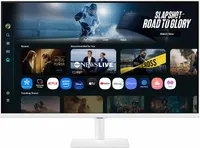
These days, there are plenty of great budget monitors out there. Alternatively, you could pick up one of the best monitors with all the extra features — and if you choose wisely, it could easily last until you graduate. Either way, there’s one specific feature I always look for whenever I shop for a new monitor: USB-C connectivity.
Do it all with a single cable
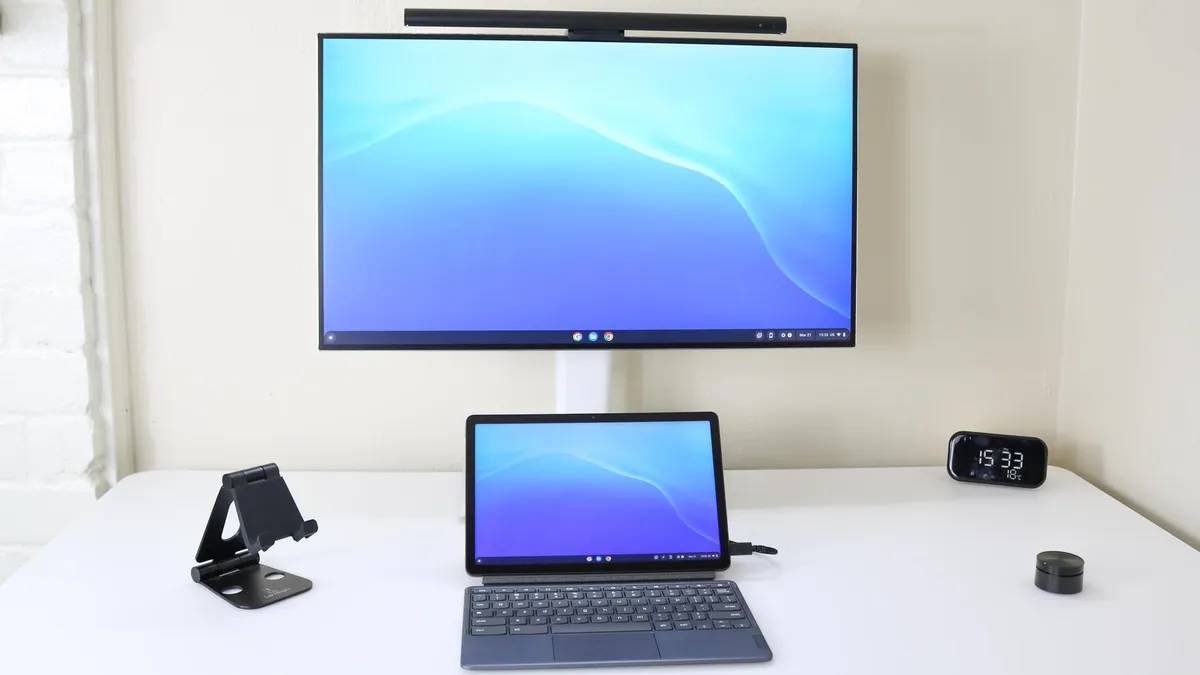
The first and most important investment to make for your college career is one of the best laptops for students. While budget-friendly, many offer the same core features you’ll find on a far more expensive machine. Just make sure the laptop you pick up features a USB-C port that supports both DisplayPort Alt Mode (video output) and USB Power Delivery (charging). With that kind of laptop in hand, you can move on to choosing the right display.
The beauty of a USB-C monitor is that a single cable turns your laptop into a full desktop workstation. However, not every monitor with USB-C is built the same. Cheaper options often limit their ports to 15 watts of power, which is barely enough to trickle-charge a smartphone — let alone power a laptop while you're working.
That’s why you should look for a monitor that offers at least 65W of Power Delivery. That provides plenty of juice for 13- and 14-inch laptops like a MacBook Neo or Dell XPS 13, keeping your battery topped off so you can unplug and head straight to class. If you use a larger, power-hungry machine — like a 16-inch MacBook Pro — you’ll want to target a monitor with 90W to 100W PD. That ensures your laptop won't slowly drain its battery during heavy editing or gaming sessions while plugged into the display.
Laptops aren't the only devices that can benefit from a monitor with USB-C, either. Modern iPads, Android tablets, and flagship smartphones can also output video over USB-C straight to your display. But if you want to switch between multiple devices on one desk without constantly swapping cables, there’s another essential feature to look for.
Different devices, same peripherals
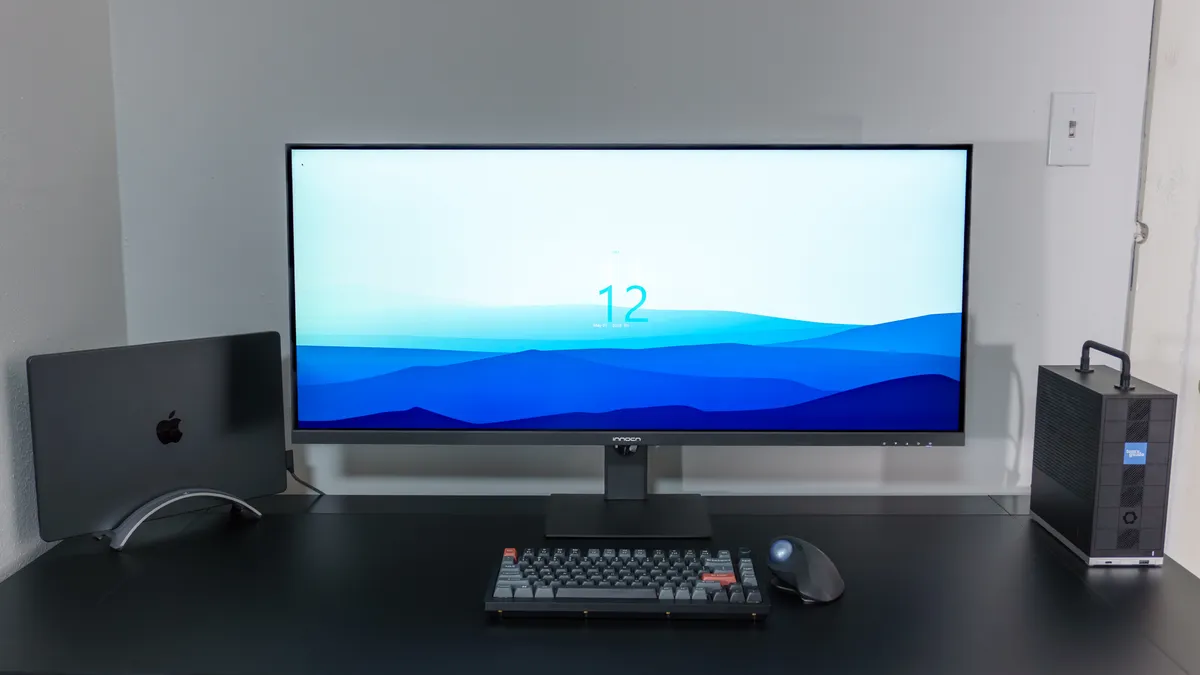
If you're just swapping between two laptops, you don't have much to worry about — you can always rely on their built-in keyboards and trackpads. But if you want to connect a phone, a tablet, a dedicated gaming rig, or even one of the best mini PCs, those built-in controls aren't an option.
That’s where a monitor with a built-in KVM switch comes in. KVM stands for "keyboard, video, and mouse," and it’s a hardware feature that lets you control multiple devices using a single one, in this case your monitor. If you’re writing an essay on your laptop and suddenly want to review photos from your phone or jump into a PC game on the big screen, a KVM switch lets you use the exact same keyboard and mouse across every device without missing a beat.

When shopping for a display with KVM functionality, look for a rear panel that includes a USB-C port, a USB-B port, and a few USB-A downstream ports. You plug your desktop peripherals — like a keyboard, mouse, or even a webcam — directly into the monitor's USB-A slots. When your laptop is connected via USB-C, the monitor automatically routes those peripherals to your laptop.
To connect a second device like a desktop or mini PC, you simply run an HDMI or DisplayPort cable for video, plus a USB-B-to-USB-A cable for data back to the monitor. Once plugged in, the display handles all the signal routing behind the scenes. You don't have to unplug a single wire; your peripherals seamlessly switch over to whatever device is actively displayed on screen. Sure, you could buy multi-device Bluetooth gear to switch between screens, but re-pairing connections manually gets tedious fast.
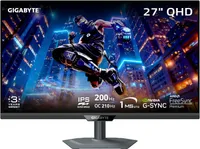
Higher watts and better cables

Now, I’d never recommend that you pick up the first monitor you find, even if it meets your current criteria. Since this is a display for college, you’ll likely use it for several years. That’s why it’s always a good idea to futureproof a few key features if you have the budget for it.
While you might start off your college career with a 13-inch MacBook Air or a Dell XPS 13, your workload could easily change by junior year to the point where you need a 16-inch MacBook Pro or a heavy-duty workstation. In that case, a display with lower Power Delivery output won't cut it anymore. If your budget allows, look for a monitor with 90W of Power Delivery or higher so you're covered no matter what laptop you upgrade to down the line.
Another easy trap to fall into is using the wrong cable to connect your laptop to your new monitor. If your display comes with a full-featured USB-C cable in the box, great. If it doesn't — or if you need a replacement — you need to specifically look for a cable rated for high-wattage charging that explicitly supports video pass-through out of the box. Most students won't need expensive Thunderbolt 5 cables, but since this single cord is carrying both high-resolution video and continuous power to your main machine, it pays to invest in a quality option.
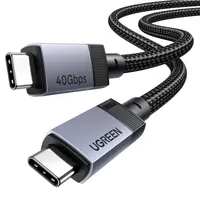
A big TV might make your dorm room the hangout spot on your floor, but a reliable USB-C monitor with Power Delivery will keep your devices charged, streamline your desk setup, and give you maximum screen real estate without sacrificing a single inch of actual space.

Follow Tom's Guide on Google News and add us as a preferred source to get our up-to-date news, analysis, and reviews in your feeds.
More from Tom's Guide