

How to Change Your Wi-Fi Network on Chromecast
Change Wi-Fi networks for your Chromecast with this step-by-step guide.
Here at Tom’s Guide our expert editors are committed to bringing you the best news, reviews and guides to help you stay informed and ahead of the curve!
You are now subscribed
Your newsletter sign-up was successful
Want to add more newsletters?
Daily (Mon-Sun)
Tom's Guide Daily
Sign up to get the latest updates on all of your favorite content! From cutting-edge tech news and the hottest streaming buzz to unbeatable deals on the best products and in-depth reviews, we’ve got you covered.
Weekly on Thursday
Tom's AI Guide
Be AI savvy with your weekly newsletter summing up all the biggest AI news you need to know. Plus, analysis from our AI editor and tips on how to use the latest AI tools!
Weekly on Friday
Tom's iGuide
Unlock the vast world of Apple news straight to your inbox. With coverage on everything from exciting product launches to essential software updates, this is your go-to source for the latest updates on all the best Apple content.
Weekly on Monday
Tom's Streaming Guide
Our weekly newsletter is expertly crafted to immerse you in the world of streaming. Stay updated on the latest releases and our top recommendations across your favorite streaming platforms.
Join the club
Get full access to premium articles, exclusive features and a growing list of member rewards.
One of the advantages of the Google Chromecast over more intricate streaming players is its portability. If you take the Chromecast with you everywhere you go, you’ll need to change its Wi-Fi network on a fairly regular basis. It’s not hard; all you need is a mobile device in proximity to the streaming device itself.
1. Open the Google Home app.
If you don’t have it, it’s easy to acquire through the Google Play Store or the Apple App Store.
2. Select the Devices option.
It’s in the upper right corner.
MORE: Best Streaming Services
3. Open the Settings menu.
You can do this by locating your Chromecast, then tapping the vertical ellipses in the upper-right corner.
4. Select Wi-Fi from the menu.
You can tap on it, even though it doesn’t look like it’s interactive.
Get instant access to breaking news, the hottest reviews, great deals and helpful tips.
5. Choose a new Wi-Fi network.
Input a password, wait for the Chromecast to connect, and you’re ready to go. You can now control your Chromecast as normal. Be aware that if you’re traveling, some hotels have an extra login screen, which the Chromecast is not equipped to handle. On the bright side, most hotel Wi-Fi isn’t fast enough to support video streaming anyway, so maybe record some stuff before you leave.
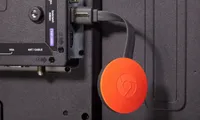
Google Chromecast

Marshall Honorof was a senior editor for Tom's Guide, overseeing the site's coverage of gaming hardware and software. He comes from a science writing background, having studied paleomammalogy, biological anthropology, and the history of science and technology. After hours, you can find him practicing taekwondo or doing deep dives on classic sci-fi.

