




Netflix games aren't just for your phone anymore; you can now play them on your TV, and the setup is easier than you'd expect. There's no need for special controllers, gaming consoles or extra purchases. Your phone becomes the controller, which means you already have everything you need to start playing.
Whether you're tackling solo adventures or gathering friends for multiplayer games, Netflix has built a library of titles you can play directly on your TV screen. Everything from party challenges to arcade classics is included with your existing subscription at no extra cost. All you need is your TV, your phone and a few minutes to get connected. Here's how to start playing.
1. Find Netflix games on your smart TV
Open Netflix on your smart TV and look for the Games row in your main menu. Browse through the available titles until you find something you want to play. Once you've picked a game, select it and press the Play Game button.
You'll see a QR code appear on your TV screen along with instructions for pairing your phone. Don't close this screen — you'll need it for the next step.
The game library includes various genres from competitive party games to relaxing puzzle titles, and everything is included with your Netflix subscription with no ads, extra fees, or in-app purchases.
2. Connect your Android phone as a controller

If you're using an Android phone, open your phone's camera app and point it at the QR code displayed on your TV screen. A link will appear on your phone — tap it to proceed.
If you don't have the Netflix app installed on your phone yet, you'll be prompted to download and install it from the Google Play Store. Once the app is installed, scan the QR code on your TV screen again with your phone's camera. Your phone will automatically connect to your TV as a controller, and the game will start loading.
3. Connect your iPhone or iPad as a controller
For iPhone or iPad users, the process is slightly simpler. Open your device's camera app and scan the QR code showing on your TV screen. A Netflix controller pop-up notification will appear on your iPhone or iPad — tap to open it. Your device will pair with the TV automatically, and the game will start within seconds.
The pairing happens through your Netflix account, so make sure you're logged into the same Netflix account on both your TV and your mobile device. Your iPhone or iPad screen becomes the controller interface, giving you all the controls you need to play the game on your TV.
4. Start playing on the big screen
Once your phone or tablet is connected, the game will launch on your TV and you can start playing immediately. The controls appear on your phone's screen while the game action happens on your TV, creating a console-like experience without needing any additional hardware.
If you're playing multiplayer games, other people can join by scanning the same QR code with their phones. Netflix supports multiple controllers for party games. The connection stays active as long as both devices are on the same network and the game is running.
If you get disconnected, just scan the QR code again to reconnect.

5. Browse mobile-only Netflix games
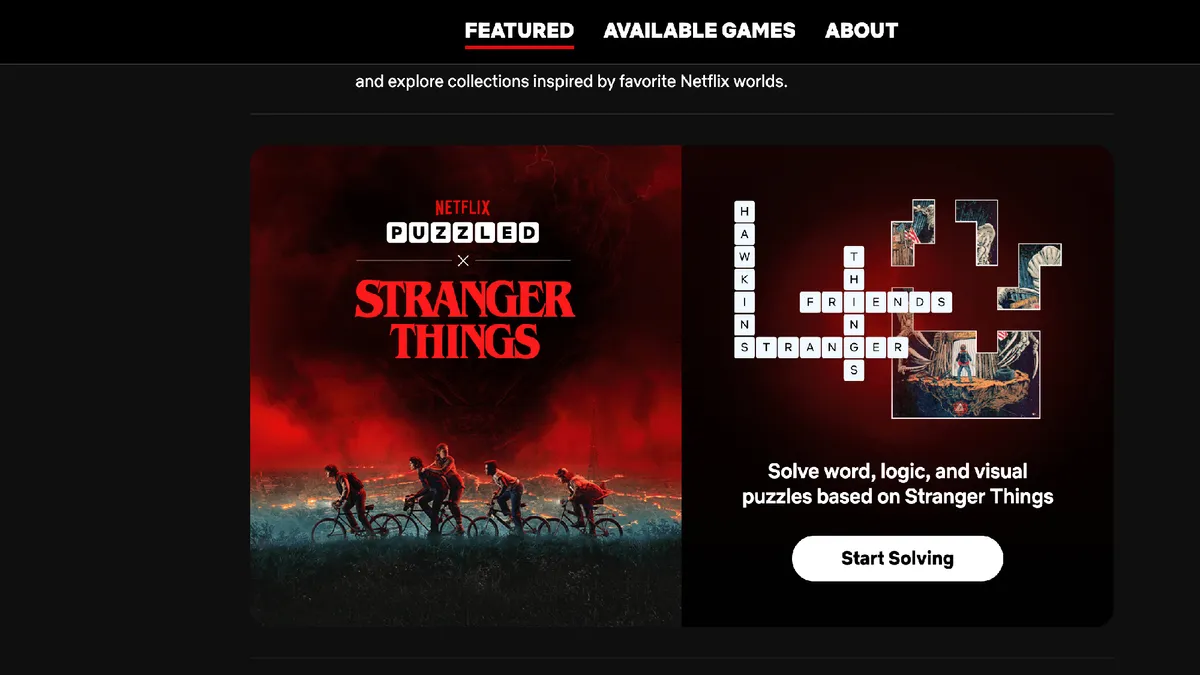
Not all Netflix games work on TV — some are designed specifically for mobile devices. To find these games, open the Netflix app on your phone or tablet and look for the mobile games section. These games download directly to your device and can be played anywhere without needing a TV.
The mobile game library is significantly larger than the TV game library and includes popular titles and Netflix original games based on shows like Stranger Things and The Queen's Gambit.
All mobile games are also included with your subscription at no extra cost, with no ads or in-app purchases. You can find the complete list of available mobile games on Netflix's website.

Follow Tom's Guide on Google News and add us as a preferred source to get our up-to-date news, analysis, and reviews in your feeds.
More from Tom's Guide
- Can't find anything good on Netflix? Try these secret codes
- 7 hidden Netflix features you need to know
- 5 smart TV settings that make watching much easier

