

When GTA 6 finally dropped last week after more than a decade of waiting, I knew playing it on a standard TV setup wasn't going to cut it.
Vice City is practically built out of neon sunsets, flashing police strobes, and blinding beachfront sunlight, and I wanted that chaos spilling off the screen and straight onto my living room walls.
That is why I finally set up the Philips Smart LED Screen Sync behind my TV. Built on Philips' more budget-friendly smart lighting line, it is discounted right now for Black Friday — and I know this because I was manning the Amazon live blog when I spotted it.
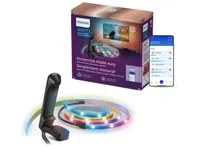
Even better, the kit bundles both the screen-reading sensor and a four-sided RGBIC lightstrip right in the box.
Five minutes to Vice City
I will admit I was skeptical about how painless the installation would be when all I wanted to do was jump into the game. Fortunately, the whole process took less than ten minutes. You stick the four-sided lightstrip around the back of your TV, perch the compact fisheye camera on top of the bezel, and let the app run an automatic calibration.
It maps the corners of your display on its own, though you can tweak the anchor points manually if your TV sits at an awkward angle. Because it relies on an optical fisheye lens to read the screen in real time rather than intercepting an HDMI signal, there is also zero input lag added to your console and no need to worry about bandwidth bottlenecks.

The WiZ app is where you can customise how it looks. I found after having a play around that Vibrant mode is my personal favorite, especially once you nudge the Saturation and Intensity sliders up so the colors really pop.
Next-level immersion
The moment you cruise at dusk in GTA 6, the effect is honestly breathtaking. Rather than a single muddy wash of color, the RGBIC strip paints shifting gradients across your wall that feel like a natural extension of the game world itself.
When they first lit up, electric pink and cyan neon signs bled softly out from the left edge of the frame while warm, syrupy golden-hour skies glow across the top, wrapping your whole field of vision in atmosphere. Everything you're playing, suddenly, feels so much more real.

Beyond looking incredible, that responsive halo actually cut down on my eye strain. I tend to game late into the night and already suffer from dry eyes, so the contrast of a bright screen in a dark room normally wears me out pretty fast. I didn't have any of that once I set these up, though, as the glow softens the glare and gives my eyes a break.
Is a camera mounted on top of your TV slightly less sleek than a hidden HDMI box? Sure. Does a dark room keep the color tracking noticeably more accurate than broad daylight? Definitely. Yet it completely changes how a game feels (and don't even get me started on how good it makes movies look!)
Throw in the fact that it is marked down right now for Black Friday, and it is hands down one of the best TV upgrades you can make.

Follow Tom's Guide on Google News and add us as a preferred source to get our up-to-date news, analysis, and reviews in your feeds. Make sure to click the Follow button!
More from Tom's Guide