

There's nothing more frustrating than a smart TV that takes forever to load an app, gets bogged down by menus or constantly recommends shows you have no interest in watching. And if your TV still has a perfectly good picture, replacing it just because the software feels outdated seems like a waste of money.
But what if you could give your existing TV a refresh without spending anything?
A free AI setup could help you clean up unnecessary apps, simplify your home screen and adjust settings that might be slowing things down. Better yet, it runs locally on your computer, so you don't need another subscription or a cloud-based AI assistant.
By using a local AI agent, you can manage a smart TV over your home network. It isn't quite as simple as installing an app, and the results will depend on your television. But if you're comfortable following a few technical steps, it could be an interesting way to get more life out of a TV you already own.
How AI can give your smart TV an upgrade

The setup uses three free tools: Ollama, Hermes Agent and an AI model from the Qwen3 family.
Ollama runs the AI model directly on your computer, while Hermes Agent acts as the assistant that carries out your instructions. Think of it this way, instead of asking a chatbot for advice and manually following its recommendations, you're asking an AI agent to inspect your TV and potentially make approved changes for you.
For example, you could ask it to identify apps you no longer use, turn off unnecessary animations that randomly come on, or help simplify your home screen. The goal is to reduce clutter and potentially improve responsiveness, although there's no guarantee that these changes will make every TV noticeably faster.
The biggest advantage is that the AI itself can operate without sending requests to a cloud service. Once the software and model have been downloaded, you can run the setup on your own hardware without paying per prompt.
What you'll need to get started

Before jumping in, you'll need a computer capable of running a local AI model and a compatible smart TV connected to the same home network.
Android TV and Google TV are the most straightforward candidates for the original workflow because they support Android Debug Bridge, or ADB, which lets a computer communicate with the television.
LG TVs running webOS also have developer tools, but they use a different connection process. Samsung's mainstream smart TVs generally run Tizen, so you shouldn't follow Android TV instructions on a Samsung set.
Here's the basic process for a compatible Android TV or Google TV.
1. Enable developer options on your TV

Open your TV's Settings menu and look for the device information section, usually under System or About.
Find the Android TV OS build number and select it repeatedly, typically seven times, until developer options become available.
Next, look for debugging settings. Depending on your TV's software version, you may be able to enable wireless debugging and pair your computer over Wi-Fi.
Some older televisions require a different ADB connection method, so check the instructions for your specific model before proceeding.
2. Find your TV's IP address

Open your television's network settings and locate its IP address. You'll need this so your computer knows which device to connect to.
Make sure your computer and TV are connected to the same trusted home network.
3. Install Ollama and download an AI model

Visit Ollama's website and install the version for your computer. The original tutorial uses a model from the Qwen3 family.
For example, you can download and run Qwen3 8B by entering the following command in your computer's terminal: ollama run qwen3:8b
Keep in mind that running AI locally requires processing power and memory. If you're using an older computer, a smaller compatible model may be more practical, although its ability to follow complex instructions could be limited.
4. Set up Hermes Agent
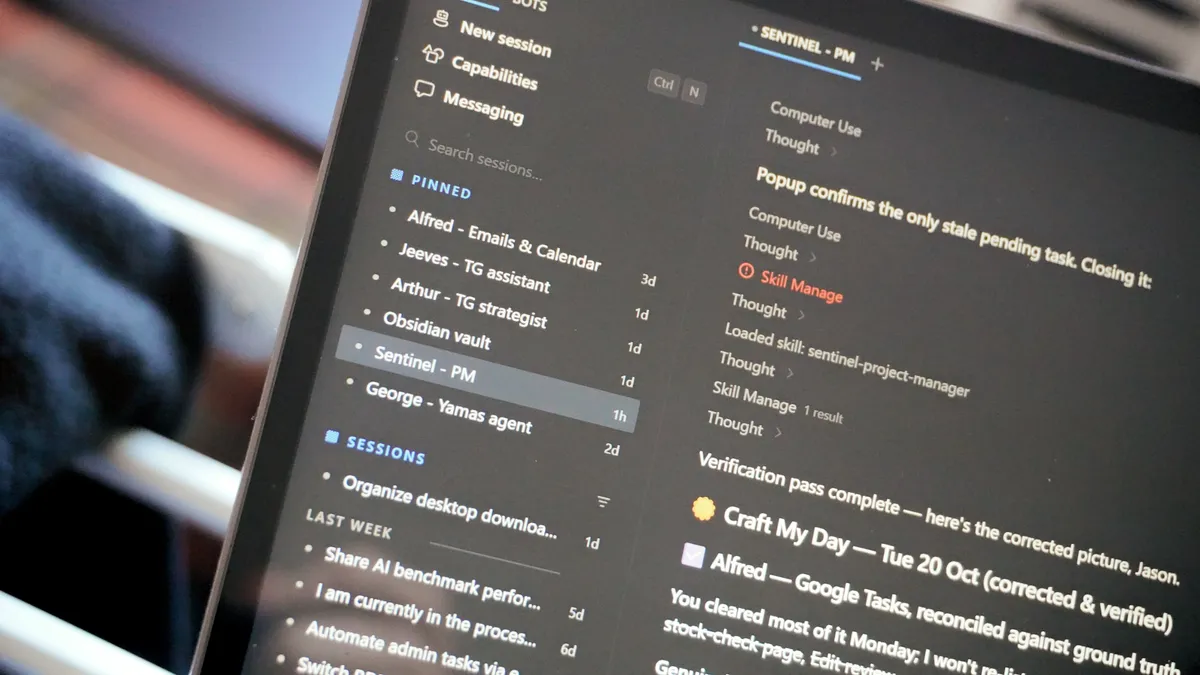
Next, install Hermes Agent and configure it to use your locally running model.
Hermes is the software that translates your requests into actions. The model decides what to do, while the agent uses the tools available on your computer to perform those tasks.
You'll also need to establish and authorize the connection between your computer and television. Simply entering the TV's IP address isn't enough on devices that require ADB pairing or other authentication.
5. Give the AI its instructions

This is where the fun begins. AI engineer and YouTube creator Fahd Mirza, who demonstrated how to use a free, locally running AI agent to manage an older smart TV, has shared a free prompt on GitHub designed to help the agent inspect and clean up an Android TV.
The prompt instructs the agent to check available memory, identify installed apps and separate them into categories based on whether they're needed.
It also asks the AI to get your permission before changing anything, disable apps rather than uninstall them and keep a record of changes so they can be reversed.
One of the more ambitious instructions asks the agent to build a simplified home screen without ads or unwanted recommendations. That's an interesting possibility, but it should be treated as an experimental request rather than a guaranteed feature. Full transparency, I wasn't able to pull that one off, but if you have tried and it worked for you, please let me know in the comments.
Just start with something simple and reversible, such as asking the agent to report available memory without making any changes.
Verdict: this is worth trying
The most appealing thing about this approach is that it gives you another option before replacing a television that's otherwise working fine. There's also a privacy benefit. Since the AI model runs locally, your prompts don't have to be processed by a cloud AI provider. That doesn't mean your smart TV stops collecting data through its own apps and services, however.
There are some important downsides. Developer settings can give software powerful access to your television, and an AI agent can make mistakes even when you've instructed it to ask permission first. Disabling the wrong system app could cause problems, while a factory reset may erase your settings and require you to sign in to your streaming services again. Not a big deal, but as someone who can never remember passwords, it's a frustration I felt was worth mentioning.
It's also worth remembering that removing apps or changing animations won't fix every performance problem. A TV with an aging processor or limited memory will still have those hardware limitations.
For most people, this isn't going to be easier than using the settings menu or connecting an inexpensive streaming stick. But if you enjoy experimenting with AI and want more control over a television you already own, it could help you get a little more mileage out of your current setup.

Follow Tom's Guide on Google News and add us as a preferred source to get our up-to-date news, analysis, and reviews in your feeds.
More from Tom's Guide