




While using your iPhone's markup tools to doodle over someone with a virtual pen may sometimes do the job, blurring faces is the best way to protect sopmeone's privacy without spoiling your photos. But now you can let your iPhone do all the work with only minimal effort.
If you're trying to remove people in the background of your photos with the least possible editing, protect the identity of a child you want to keep off of the internet, or just for an amusing effect to your images, I can show you how to blur faces using the Photos app on iPhone. This feature is available in iOS 18 and onwards, so even if you're not on the latest iOS 26 update, you can still try this out.
How to blur faces in photos on iPhone
1. Open an image in your iPhone's Photos app with a face you want to blur

Whether it's just a small face in the background, or a full-on selfie like this one that you want to edit, we begin by just open it up in your Photos app like usual.
2. Open the editing menu, and select Clean Up

You activate the built-in editor with the sliders icon on the right of the toolbar at the bottom of the app window. Conveniently, the Clean Up tool can be accessed from roughly the same spot on the following page.
3. Circle the face

Trace around the person you want to disguise with your finger. You'll know it's working if you have a glowing trail behind your finger as you move it.
When you're done, just wait a moment, and the phone will apply a pixellated blur effect, with an "Identity protection applied" pop-up below the image confirming what's happened. And there you go, one blurred face!
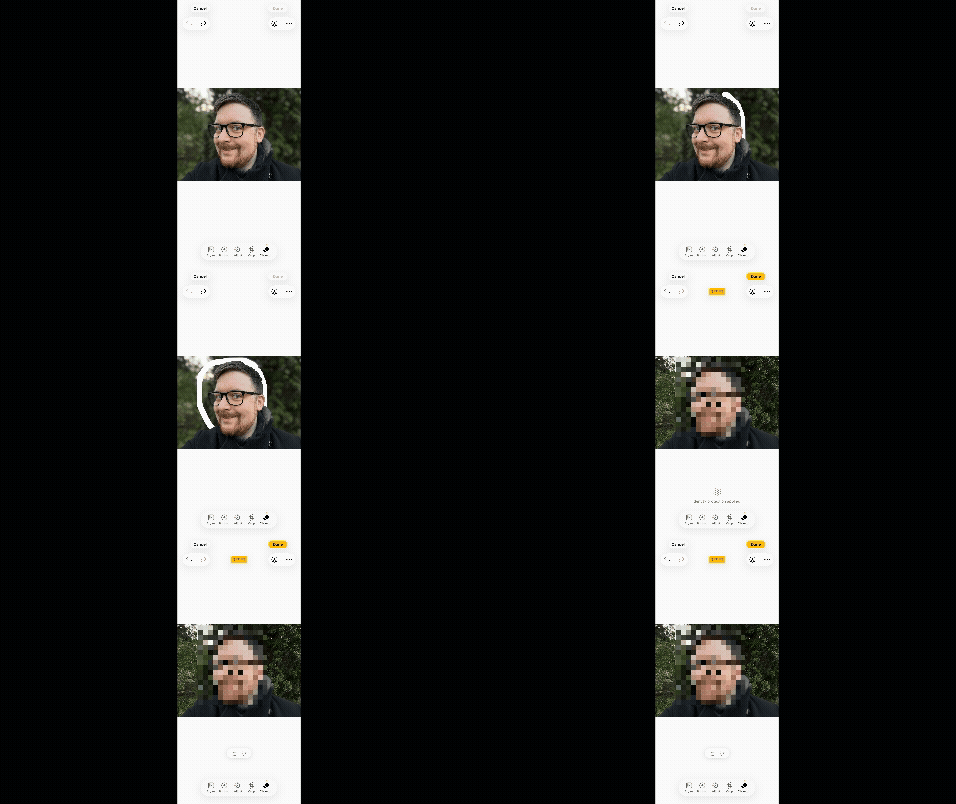
If you want to remove the blur, just open the photo, and then the editing menu, once again. In the top right corner you'll find a big red Revert button. Tap that, and then the confirmation message, and everything will be as it was originally.

Don't worry. Sending the photo on to another iPhone user is safe. They won't be able to undo your edits, leaving the identity of whoever you've hidden a mystery.

Follow Tom's Guide on Google News and add us as a preferred source to get our up-to-date news, analysis, and reviews in your feeds.
More from Tom's Guide
- The new iOS 26 Preview app has solved one of my biggest problems with the iPhone
- I discovered this hidden camera mode on my iPhone — and it's a game-changer
- Is your phone spying on you? Here's how to test it

