Last year, I wrote about how the Plugable 14-in-1 USB-C dock helped me turn my 13-inch MacBook Air M3 into my primary computer. However, that was a short-lived adventure, since I soon reverted to switching between my PC and the MacBook depending on what I needed to do. I’ve now fully committed to this venture and don’t plan to look back.
As I explained in my previous post, I’m constantly switching between macOS and Windows 11 computers for work, which helps me stay familiar with both systems. But at home, I want things simpler. Since I use the MacBook Air M3 much more than my PC, it just makes sense to make it my primary machine.
What did I do differently this time to successfully use a MacBook as my main PC, and have I completely given up on PC? Read on to find out!
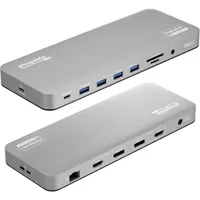
Plugable 14-in-1 USB-C dock

This post is a quasi-sequel to the Plugable USB-C dock story, since this device lets me use my MacBook Air effectively as my sole computer. That’s because it has all the ports I need for the peripherals I connect to my PC — specifically, my webcam, microphone, speakers, and monitors.
You can read my full account of this Plugable USB-C dock in the previous story, but suffice it to say, it’s a fantastic device that makes my current setup possible. Though pricey even at its current discounted price of $179, it’s well worth the money for turning a MacBook into your main computer.
The apps and peripherals I use

The main reason my previous attempt didn’t work is that I didn’t account for the gaming podcast I host. I have the OBS streaming software on my PC for that task, and OBS is also available for Macs. However, while OBS does have an export feature for transferring all profiles and scene collections from one computer to another, it doesn’t work across different operating systems. Since I have limited free time during the week to manually recreate my OBS setup, I left it alone — though it was always in the back of my mind.
When I recently took a staycation, I decided to finally hunker down and manually recreate my podcast setup on the MacBook Air M3. I uploaded all my relevant files (movies, animations, music, etc.) to Google Drive, then downloaded them all to the MacBook. It took close to three hours, but I had successfully set up the MacBook Air for my podcast. I’m happy to report that I’ve successfully streamed three shows so far.
When I first started using Macs in 2021 after years with Windows, I was disappointed that some of my go-to apps weren’t available. Now, every app I need is available on the App Store.
The apps in question are Logitech G Hub for my webcam and streaming light, DaVinci Resolve for converting MP4 to MP3, Audacity for editing audio, Elgato Wave Link for my mic, and, of course, OBS. To my surprise, Razer Synapse is now available for Macs, though the program doesn’t list my Razer Barracuda Pro headset as compatible. This is fine, since the headset works perfectly well on the Mac via Bluetooth.
The other main program I use is Logi Options+ for my keyboard and mouse. This program has been available for Macs for a while and is a great way to keep those two peripherals (and the webcam and streaming light) up to date. In case you’re wondering, I prefer using Logitech G over Logi Options+ for the webcam, since it gives me greater control over image configuration.
What about gaming?
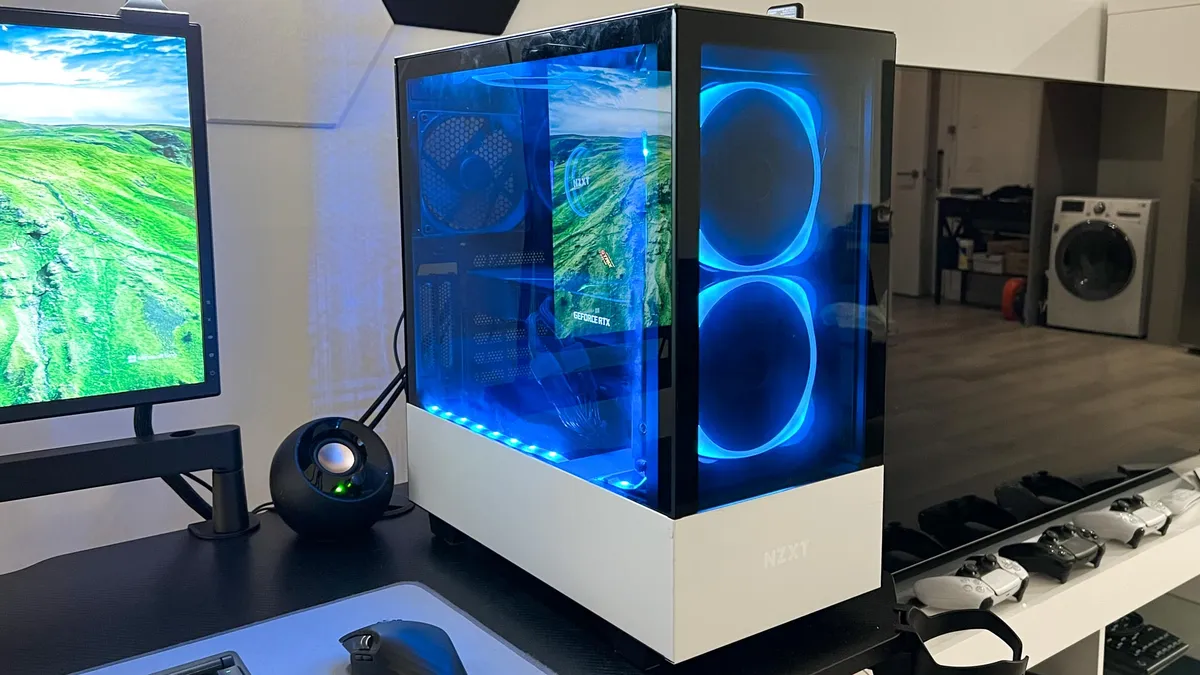
MacBooks let me do almost everything I need for work and personal use. However, the main reason I’ve been unable to fully jump ship is because of gaming. Don’t get me wrong, Mac gaming has come a long way, with heavy hitters like Cyberpunk 2077, Resident Evil 4 Remake, and even Crimson Desert available on Macs. Unfortunately, many PC games are still unavailable for macOS.
While I was setting up OBS on the MacBook Air, I realized I hadn’t jotted down the exact bitrate I streamed at (to ensure everything went smoothly). Since I already had my TV connected to my PC via HDMI, I used it as a monitor while I searched for what I needed. That was when the obvious hit me: Since I already prefer playing games on my LG OLED TV, why not just use my gaming rig purely for gaming?
Before, I had to switch from my monitors to my TV for PC gaming. Now I can just turn on the PC and play games on my TV. It’s a bit odd to use my PC only for gaming, but it works out well. I mostly game on a PS5 Pro, so I rarely play PC games. But when I need to use it for reviews, I’m ready.
In case you were wondering, my PC is a little over four years old, but it’s still plenty powerful to play modern games. It packs an Nvidia RTX 3080 Ti GPU, an 11th Gen Intel Core i7 CPU, and 32GB of RAM. Thanks to that, I can still play most games at 4K resolution and 60 frames per second (or higher). I also paid close to $4,000 for my rig near the end of 2021, so there’s no way I can just let it collect dust.
Bottom line
It has been two weeks since I began using the MacBook Air as my main computer, and I’m more than happy with the results. I’ll probably swap the Air for a MacBook Pro, since it can get hot during streams due to its lack of internal fans. But that’s about it. Transferring apps and profiles should be a cinch. That said, I’m not in a hurry, since everything is working so well at the moment.
Moving forward, I’ll use the MacBook Air for all my main work and streaming, while keeping my Windows PC on standby for serious gaming. It’s a setup I’m glad I finally made a reality.

Follow Tom's Guide on Google News and add us as a preferred source to get our up-to-date news, analysis, and reviews in your feeds. Subscribe to Tom's Guide on YouTube and follow us on TikTok.
More from Tom's Guide