







Every photo you take on your smartphone contains more than just the image. Hidden metadata gets saved automatically with each picture, including the exact GPS coordinates of where it was taken, the date and time, and details about your device and camera settings.
This is useful when you want to organize photos by location or remember where a picture was taken. But when you share photos publicly online, you're potentially giving strangers your home address, workplace, or travel locations without realizing it. Here's how to check if your photos contain location data and how to stop your phone from saving it.
What photo metadata contains
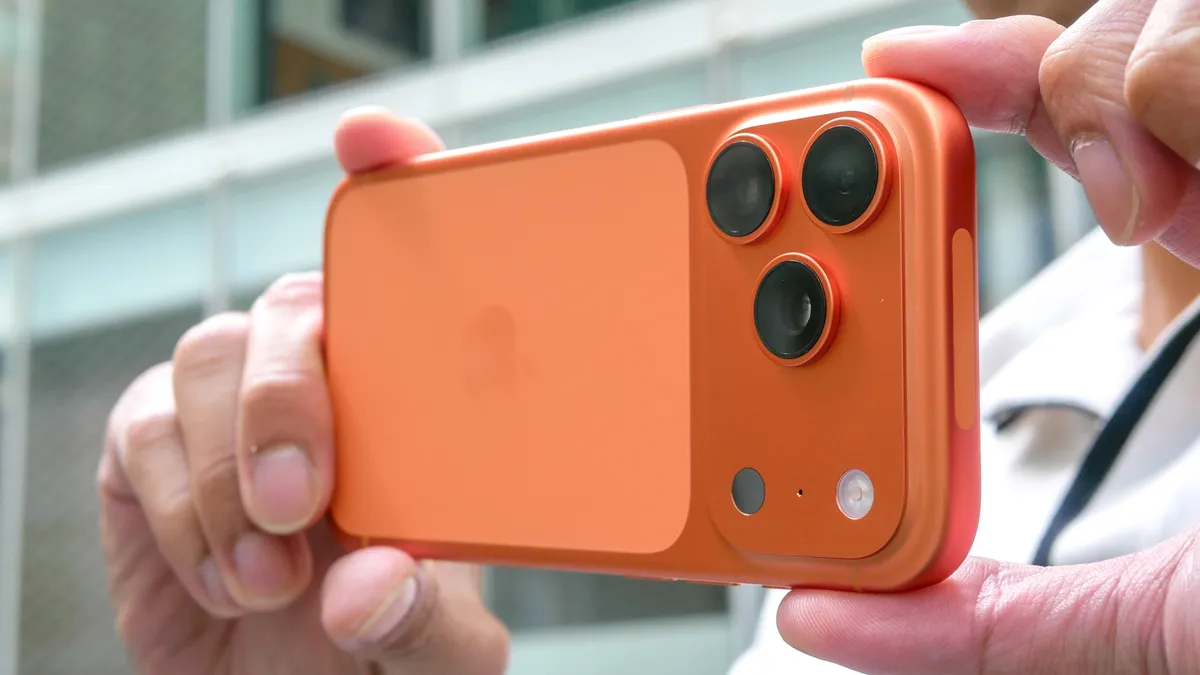
Metadata is information embedded in photo files that describes when and how the image was captured. It's invisible when viewing the photo normally but accessible through device settings or photo apps.
Photos of pets taken inside your house, items you're selling online, or pictures of your yard can all reveal your home address through embedded GPS coordinates if you're not careful.
Location data is the most privacy-sensitive metadata. If your phone's GPS is enabled when you take a photo, the exact latitude and longitude coordinates get stamped into the file. This pinpoints where you were standing when you pressed the shutter — often accurate to within a few meters.
Other metadata includes the date and time the photo was taken, your phone or camera model, camera settings like shutter speed and aperture, and sometimes the device's unique identifier. This data helps photo apps organize pictures by place and time, but it becomes a privacy risk when photos are shared publicly.
Photos of pets taken inside your house, items you're selling online, or pictures of your yard can all reveal your home address through embedded GPS coordinates if you're not careful about removing this data before sharing.
1. How to check and stop saving location data on iPhone
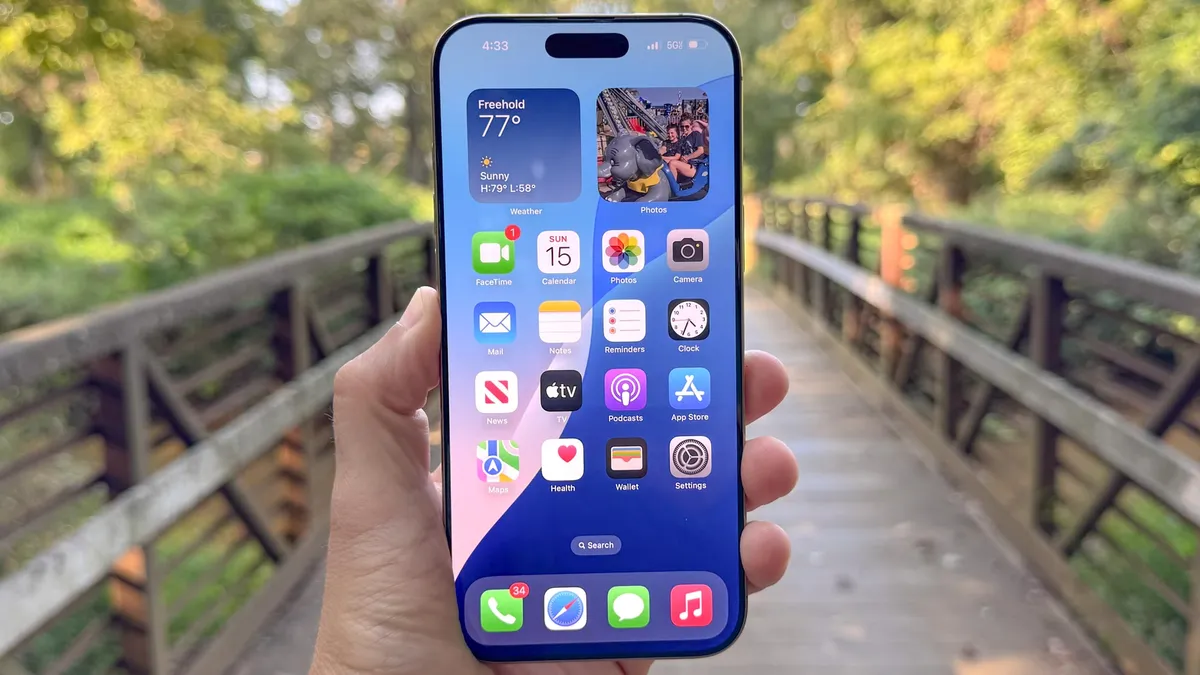
To check if a photo has location data: Open the Photos app and select a photo. Tap the info button (small "i" icon) at the bottom of the screen. If location data exists, you'll see the photo pinned on a small map showing exactly where it was taken.
To stop your iPhone from saving location data in new photos: Go to Settings, Privacy & Security, Location Services, and Camera. Then change the setting from "While Using the App" to "Never." Your camera will no longer save GPS coordinates with future photos.
To remove location data from an existing photo: Open the photo in the Photos app, tap the info button, and select "Adjust." You'll see an option to remove the location data from that specific image.
Disabling location access means you won't be able to search photos by place or see maps in your photo library. If you use these features, leave location services on but manually remove GPS data from individual photos before sharing them publicly.
2. How to check and stop saving location data on Android

If you use Samsung Gallery (or most Android manufacturer gallery apps): Open a photo, tap the three dots (usually top or bottom right), and select "Details" or "Info." Scroll down to see location information if it's attached.
If you use Google Photos: Open a photo, tap the three dots in the top right corner, and choose "About." If GPS coordinates are attached, the photo will appear on a map showing the precise location.
To stop Android from saving location data in new photos: Go to Settings, Apps, Camera, Permissions, Location and toggle it off. Your camera app won't have access to GPS coordinates and won't save location information with future photos.
The disable instructions are the same across Android devices, it's the viewing method that varies by app.

Follow Tom's Guide on Google News and add us as a preferred source to get our up-to-date news, analysis, and reviews in your feeds. Make sure to click the Follow button!
More from Tom's Guide

