I've been using an iPhone for years now, and I still catch myself defaulting to the standard Photo mode for everything. Landscapes, portraits, group shots — all Photo mode, all the time. Turns out I've been ignoring a handful of specialized shooting modes that actually make a difference.
Your iPhone's Camera app includes several distinct modes designed for specific situations. Each mode has its own quirks and ideal use cases. Once you understand what they're designed for and how they work, you'll be able to take better quality photos.
1. Portrait mode blurs backgrounds automatically

Portrait mode does one thing exceptionally well — it blurs the background while keeping your subject sharp. This mimics the shallow depth-of-field you'd get from a DSLR with a fast lens, making portraits look more professional.
The mode works best when your subject is relatively close to the camera. If you're too far away or too close, you'll see a message telling you to adjust your distance. Once you're in the right range, the background blur kicks in automatically.
Above the shutter button, you'll see lighting options you can swipe through. Natural Light is the default, but you can switch to Contour Light for dramatic shadows or High-Key Light Mono for a grayscale subject on a white background.
Tap the six dots at the top right, then select Aperture to adjust how strong the background blur appears. Slide left for less blur, right for more. You can also change both the lighting and blur strength after you've taken the photo in the Photos app.
2. Pano mode stitches ultra-wide scenes together

Panorama mode is built for capturing scenes that are too wide for a standard photo. Sweeping landscapes, city skylines, or any situation where you want to show more horizontal or vertical space than the lens can normally capture.
When you switch to Pano mode, an arrow appears on screen showing which direction to move your iPhone. Press the shutter button and slowly pan in the direction indicated. Keep the arrow aligned with the horizontal line as you move — this helps the iPhone stitch all the individual frames together smoothly.
Your movements should be slow, steady, and consistent. Jerky panning creates alignment issues and visible seams in the final image. You can shoot panoramas with your phone in either portrait or landscape orientation.
One overlooked trick: panoramas don't have to be horizontal. Flip your phone to landscape mode and pan vertically to capture tall buildings or trees without needing to step back or use the ultra-wide lens.
3. Photo mode offers hidden manual controls

Photo mode is where most people spend their time, and it's more adjustable than you might realize. When you open the Camera app, this is the default mode you land in.
The iPhone automatically handles focus and exposure, but you can take manual control. Tap anywhere on screen to set your focus point. To lock focus so it doesn't shift as you move the phone, tap and hold until you see the AF/AE Lock indicator.
After tapping to focus, slide your finger up or down to adjust exposure — essentially making the image brighter or darker by controlling how much light hits the sensor. The changes preview in real-time.
Tap the six dots at the top right to access additional settings. You can control the flash, set a timer, manually toggle night mode, and change the aspect ratio. There's also an Exposure option for finer brightness control, plus Styles and Filters that apply preset looks before you take the shot.
Plus. macro mode (a flower icon) and night mode (a crescent moon icon) activate automatically when the camera detects appropriate conditions.
4. Spatial mode needs a Vision Pro to shine
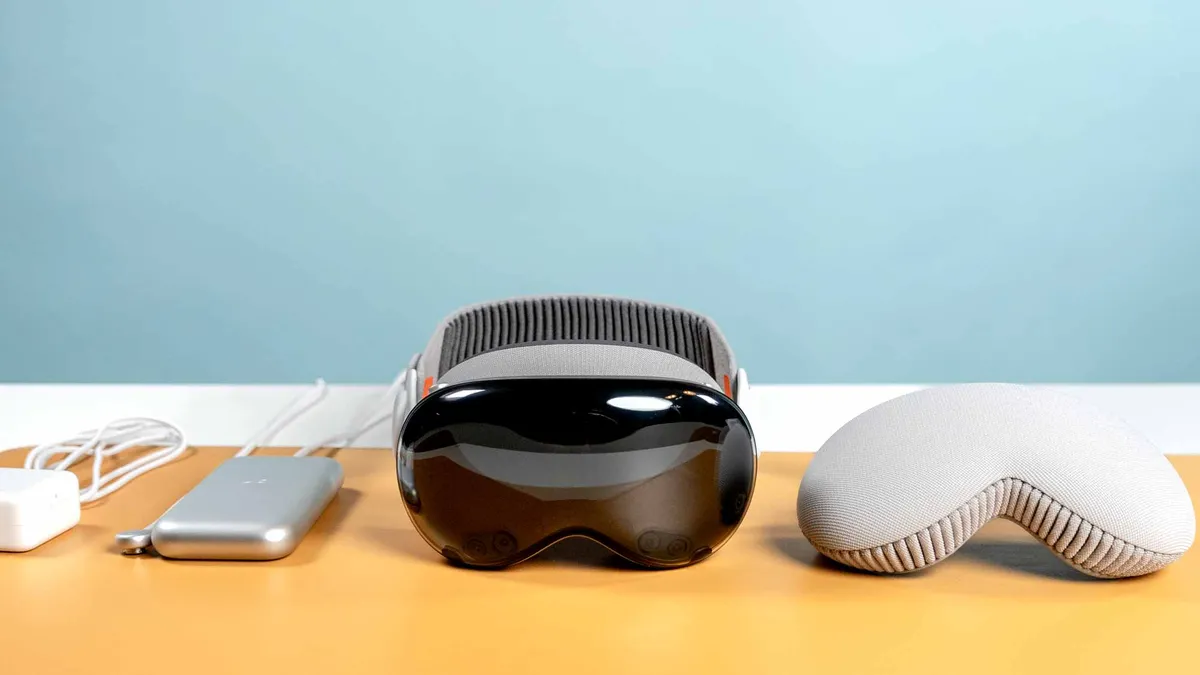
Spatial is the most niche mode on this list. It only appears if you have an iPhone 15 Pro, iPhone 15 Pro Max, or any iPhone 16 or later model. The mode captures photos and videos with 3D depth information, letting you view them immersively on an Apple Vision Pro.
Without a Vision Pro, spatial photos look like regular photos on your iPhone or any other device. So unless you own Apple's headset or plan to get one, this mode won't offer much value.
For the best results, keep your phone steady and level in landscape orientation. Frame your subjects between 3 and 8 feet from the camera in even, bright lighting. You'll see on-screen guidance to help with proper framing.
The mode works for both photos and videos, capturing the spatial depth data alongside the standard image. But again, that extra dimension only becomes apparent when viewed through a Vision Pro headset.

Follow Tom's Guide on Google News and add us as a preferred source to get our up-to-date news, analysis, and reviews in your feeds. Make sure to click the Follow button!
More from Tom's Guide
- 7 underrated iPhone features you're probably not using
- Apple buried these iPhone features in settings — and they're genuinely useful
- 9 hidden iOS Messages features everyone needs to know