





Tom's Guide Verdict
The Razer Kiyo V2 features a brand-new design with multiple mounting options and a twistable privacy shutter while delivering sharp 4K video, albeit at 30 fps. The included lifetime license to Camo Studio Pro helps offset its higher price and its Sony STARVIS sensor provides great natural exposure along with impressive low-light performance. Its autofocus can struggle at times, but the overall package and new color options make this a great choice for streamers.
Reasons to buy
- +
Sharp 4K video
- +
Twistable privacy shutter
- +
Multiple mounting options
- +
Useful AI features and free software
Reasons to avoid
- -
4K limited to 30 fps
- -
Auto-focus can be finicky
Why you can trust Tom's Guide Our writers and editors spend hours analyzing and reviewing products, services, and apps to help find what's best for you. Find out more about how we test, analyze, and rate.
Razer has long been known for its circular webcams made for gamers and streamers but with the new Kiyo V2, it changed up the design significantly. The big circular lens is still front and center but now, there’s a large rectangle around back that houses the Kiyo V2’s chipset and microphones.
Not only does this give Razer’s new 4K webcam a more modern look but it also allows for more separation between its dual-microphone array with one on each end. Another big change is that the Kiyo V2’s cable is now detachable which makes moving it around easier and the tripod mounting hole on the bottom means you aren’t limited to just putting this webcam on top of your monitor. Finally, there’s a twistable privacy shutter on the front with a nice click to let you know it’s closed.
Image quality is crisp and clear and with a wider 93° field of view, you can easily capture your whole room in the frame. Of course, with Razer’s Synapse software you can tweak all of the Kiyo V2’s settings to your liking but you also get a lifetime license to Camo Studio Pro which helps justify this webcam’s $149 price tag. Still, while you can record in 4K, you’re limited to 30 fps instead of 60 fps unless you drop the resolution down to 1080p. Likewise, I found the Kiyo V2’s autofocus to be a bit finicky out of the box.
My Razer Kiyo V2 review will help you decide if this is the best webcam for your needs or if you’re better off going with a more traditional webcam instead of one aimed at gamers.
Razer Kiyo V2: Cheat Sheet

- What is it? A 4K webcam with an ultrawide lens and useful AI features.
- Who is it for? Streamers, gamers, and PC users who want a high-quality 4K webcam with AI-powered studio effects.
- What does it cost? The Razer Kiyo V2 costs $149, but there’s also the $99 Kiyo V2 X that shoots in 1440p instead of 4K.
- What do we like? The new design, the twist-to-close privacy shutter, the 360-degree swivel mount, the detachable cable and the new color options.
- What don’t we like? That Razer only includes a USB-C to USB-C cable with the Kiyo V2 and how its autofocus can be finicky at times.
Razer Kiyo V2: Specs
Price |
$149 |
Compatibility |
Windows 10/11, macOS 14+ (no Razer Synapse but Cam Studio Pro works), PS5, Xbox and Nintendo Switch 2 (no advanced image settings) |
Video resolution |
1080p @ 60, 30, 24 fps / 1440p @ 30 fps / 4k @ 30 fps |
Diagonal field of view |
93° (wide angle, configurable) |
Focus type |
Auto / Manual |
Built-in mic |
Stereo microphone |
Privacy shutter |
Yes |
Dimensions |
4.6 x 1.1 x 2.9 inches |
Weight |
0.56 pounds |
Colors |
Black, white, pink |
Razer Kiyo V2: The ups
The Razer Kiyo V2 is an impressive looking webcam thanks to its new design and the fact that it’s available in other colors besides black. However, it’s the AI-powered features, the software and the little tweaks throughout that are the most impressive.
Brains in the back

At 4.6 x 1.1 x 2.9 inches inches, the Kiyo V2 is significantly wider than the Razer Kiyo Pro thanks to its new design but unlike the massive Razer Kiyo Pro Ultra, it’s travely-friendly. Having the circular lens up front and the brains of the webcam in a rectangular housing in the back gives the Kiyo V2 a more modern look. In fact, it wouldn’t look out of place in an office setting as its design shares some similarities to the Logitech MX Brio, albeit with a wider circular lens.

When you flip the Kiyo V2 around, there’s a small cutout for its USB-C port. In the box, you get a USB 3.0, USB-C to USB-C cable along with the webcam itself and that’s it. If you want to record at 4K, you’ll need to use this cable specifically as Razer warns you when you try to use a different one or plug the Kiyo V2 into a slower USB port.

The universal clip on the bottom lets you place this webcam on top of your monitor or one of the best laptops. It doesn’t have an extra piece at the bottom like a C-shape mount, but I found the rubber on the inside to be quite grippy and it held the Kiyo V2 firmly in place on top of my monitor. It’s not your only mounting option though.

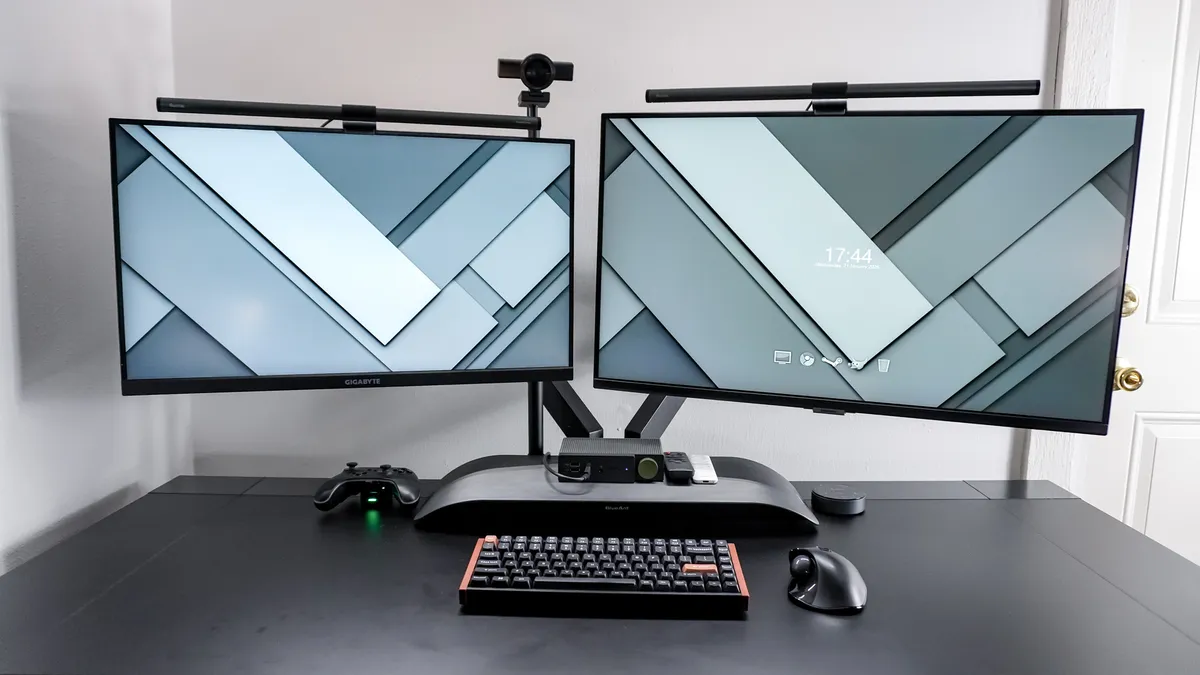
On the bottom of the Kiyo V2, you’ll find a standard universal camera thread which means you can use virtually any piece of camera gear to mount it instead. For instance, I used a SmallRig Camera Desk Mount to have the webcam positioned between my dual monitor setup as opposed to having to choose which display I wanted to look at during video calls.

All in all, I’m a big fan of the new design and how the Kiyo V2 looks on that tripod-style desk mount or perched on top of my monitor.
Twist for privacy, turn for views

The original Kiyo and the Kiyo Pro both lacked built-in privacy shutters but Razer has added one with the Kiyo V2. Like on the MX Brio I mentioned before, the Kiyo V2’s privacy shutter is activated by twisting a notched ring around the lens. It gives off a very satisfying mechanical “click” when fully engaged and for me, it felt more like zooming in on my actual camera than sliding the one on my ThinkPad laptop across.
Even if you don’t opt to use a separate, camera-style mount like I did, the Kiyo V2’s lens and body are attached to its universal clamp on a 360-degree swivel hinge. Turning the webcam left or right as well as up or down is very smooth and it’s easy to get your frame exactly where you want it.
Still, with an ultra-wide 93° field of view, there may be things in the background you don’t necessarily want in your shot. And for that, there’s Razer’s own Synapse software as well as Cam Studio Pro.
Stream ready
Right out of the box, the Kiyo V2 provides a great default image thanks to its Sony STARVIS 1/2.8 sensor. It’s larger than the ones you find on most webcams but smaller than the one in the Logitech MX Brio and the one Razer used in the Kiyo Pro Ultra.


The Kiyo V2 does an excellent job in natural light as well as during the day with the lights on. With 8.3 megapixels, it handles HDR well; in my tests with natural light, the bright window on the right side of the frame didn’t look washed out. However, since this is a webcam for gamers and streamers after all, low-light performance is the true test of the Kiyo V2.


Much to my surprise, in a dark room with just the light from my dual-monitor setup, the Kiyo V2 performed exceptionally well. While you can’t make out all the details in the room behind me, the image itself is clear and, most importantly, my face and body are lit well. From there, I turned on the monitor light bars on top of my displays, and to tell you the truth, I actually prefer how the Kiyo V2 handled no light over low light.
My one main gripe right out of the box was the autofocus. On default settings, the Kiyo V2’s autofocus struggled to keep me in focus at times. Fortunately, you have two software-based options to fix that and recent firmware updates have addressed this issue for the most part.

To start things off, there’s Razer’s own Synapse software, which you’ll need to install to configure the webcam (though it does work as a plug-and-play device). In Synapse, you can tweak the Kiyo V2’s autofocus, auto exposure, lighting, and zoom. You can even set up several different presets in case you want to quickly switch from a tight shot to a wider one with a single click.

Then there’s Camo Studio Pro, which Razer includes a lifetime license for when you purchase the Kiyo V2. If you want to set up a virtual green screen or switch between custom backgrounds, this is where you can do that. You can also fine-tune the autofocus, adjust your frame, and add "Portrait Mode" bokeh. It’s a great inclusion, and at $100 on its own, this license helps justify the Kiyo V2’s price tag. It’s also worth noting that if you opt for the cheaper Kiyo V2 X, you won’t get access to this software — just Synapse.
Colors everywhere

Although Razer sent over a black Kiyo V2 webcam for me to test out when the device first launched, in the time since, the company has expanded the available color options. Now in addition to black, you can also get this webcam in white and in a light pink color Razer calls Quartz. The best part, you don’t have to pay extra for one of these more vibrant Kiyo V2 models.
Since this is a webcam for gamers and streamers after all who often go above and beyond with their setups, it’s great that Razer provides multiple color options so that your webcam can match the rest of your gear. There’s nothing worse than building an all-white setup, only to have a black webcam sticking out like a sore thumb up top.
Razer Kiyo V2: The downs
The Razer Kiyo V2 is a big step up over its predecessors thanks to its new design, AI features, and the included Camo Studio Pro license. However, the experience is soured slightly by the included cable and a price point that feels a bit awkward for what you're actually getting.
Cable matters

In the box, Razer includes a 6.5-foot, USB 3.0-rated USB-C to USB-C cable with the Kiyo V2 and that’s it. To get the promised 4K video at 30 fps or even 1080p at 60 fps, you need to use this particular high-bandwidth cable. In fact, when you try to plug in the Kiyo V2 with a different one, a warning pops up in Razer Synapse explicitly telling you to use the original cable to avoid performance issues.
This is par for the course with most high-bandwidth devices, since using the wrong cable or a USB port with slower speeds (like USB 2.0) will result in the Kiyo V2 not functioning as intended. However, my beef is with the fact that you only get a USB-C to USB-C cable. Since the best gaming laptops already have webcams built-in, you’re likely going to be using this one at your desktop, where USB-C ports can be harder to find than they are on a laptop.
Razer could have easily rectified this by also including a high-speed USB-C to USB-A cable or at least a dongle in the box. Sure, this would likely raise the Kiyo V2’s cost slightly, but it would be a lot more convenient. Likewise, for a premium webcam, a braided cable like the one found on the older Kiyo Pro would have been a nice touch too.
Stuck between midrange and premium

At $150, the Kiyo V2 is in somewhat of an awkward place price-wise. It’s slightly more than the less expensive Kiyo V2 X, but costs the same as the Insta360 Link 2C, which is our current pick for the best overall webcam. At the same time, it’s $50 cheaper than the Logitech MX Brio, which has a larger sensor and a more premium, all-aluminum body but is still capped at 4K at 30 fps.
The other problem is that video conferencing platforms like Google Meet and Microsoft Teams still top out at 1080p. While you can stream on YouTube at 4K, and Twitch is slowly rolling out higher resolution support, the Kiyo V2’s 30 fps cap makes this less than ideal for fast-paced game streaming. Essentially, you’re paying for functionality you might not even be able to use, and due to that lower frame rate, you’d likely drop your video down to 1080p for a smoother 60 fps experience anyway.
Razer does try to offset the Kiyo V2’s higher price by including that Camo Studio Pro lifetime license. However, for most people, you’d likely be better off with the Kiyo V2 X for straight streaming at 1080p/60fps. You will lose out on the extra software and the 4K sensor, but you'll save $50 in the process.
Razer Kiyo V2: Verdict
The Razer Kiyo V2 brings quite a lot to the table compared to its predecessors. From its new design to its AI-powered lighting and autofocus features — and of course, creature comforts like the detachable USB-C cable and standard camera tripod mounting hole on the bottom — this is a big upgrade across the board.
While I would have liked to see Razer go all the way to 4K at 60 fps, that would have likely raised the Kiyo V2’s price significantly. At the same time, due to platform limitations, it might take a while before you could actually stream or join video calls at this higher resolution and faster frame rate anyway. I do like how Razer included a lifetime license to Camo Studio Pro to help justify its $50 price increase over the Kiyo V2 X. A high-speed USB-C to USB-A cable or even just a simple adapter would have sealed the deal, though.
Still, if you’re already heavily invested in Razer’s peripheral ecosystem or just want a great webcam for game streaming, the Kiyo V2 is a somewhat pricey but worthwhile investment — especially if you opt for one of the newer color options to match the rest of your setup.

