Even with Gmail's category tabs sorting my emails, my inbox still felt chaotic. The real problem wasn't the number of messages but the repetitive process of managing them. I'd open an email, read it, archive or delete it, then click back to my inbox to decide which message to tackle next.
This constant back-and-forth happened dozens of times a day and made checking email feel exhausting. Then I discovered Gmail's Auto-advance feature buried in settings, and it completely changed how I process my inbox. Here's how to enable it and why it makes such a dramatic difference.
What auto-advance does and why it helps

Auto-advance significantly speeds up how you process email. Instead of returning to your inbox after every action, Gmail automatically loads the next message, creating an uninterrupted workflow.
This forced momentum means you can't skip difficult messages or get distracted by other subject lines. You make quick decisions on each email and immediately move forward. The result is processing emails in half the time with better concentration.
How to enable auto-advance on desktop

Enabling auto-advance is seriously straightforward. Open Gmail in a web browser and sign into your account. Then click the gear icon in the top right corner and select See all settings.
Next, navigate to the Advanced tab at the top. Find the Auto-advance section and select Enable, then click Save Changes at the bottom.
After that, go back to the General tab under Settings. Scroll down until you find Auto-advance and choose whether you want to move to the newer conversation or the older conversation after taking action. Then click Save Changes.
How to enable auto-advance on mobile
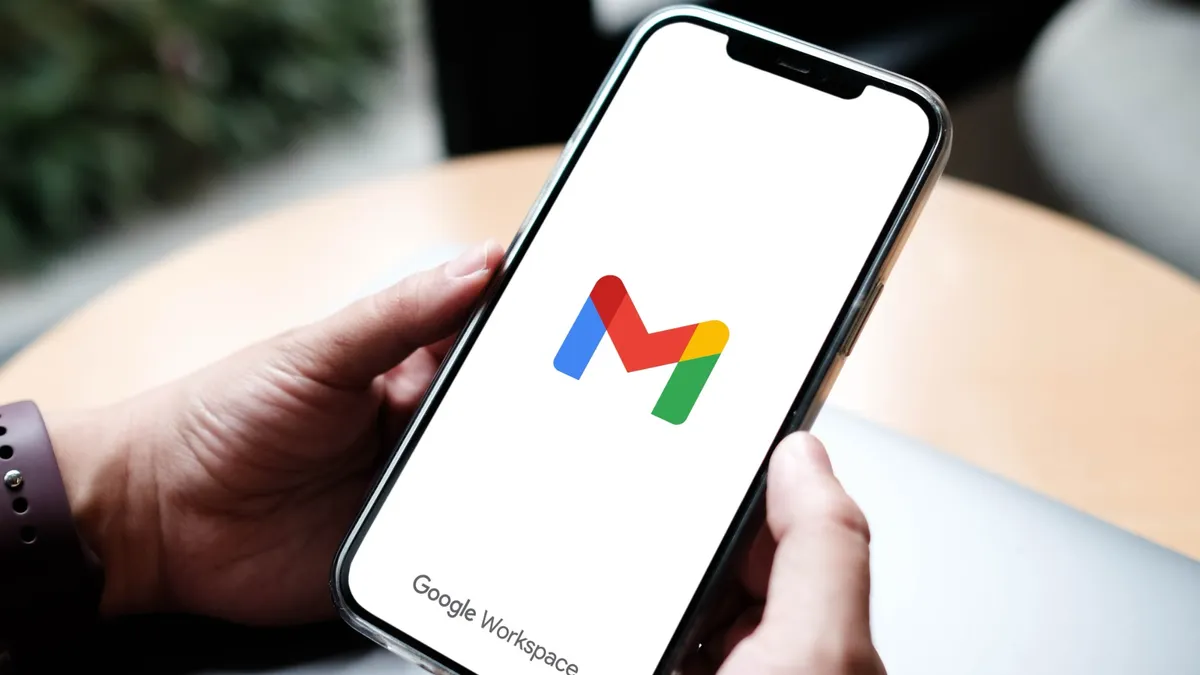
If you're using Gmail on an iPhone, you'll need to enable Auto-advance through a web browser instead of the app, since iOS doesn't support this setting natively. Follow the desktop instructions above to turn it on.
Android users can enable Auto-advance directly in the Gmail app. To do this, open the app and tap the menu icon (three horizontal lines) in the top left corner. Next, scroll down and tap Settings and select your email account.
Tap General settings, find Auto-advance and select either Newer or Older, depending on how you prefer to process emails. The change saves automatically without requiring additional confirmation.
Once enabled, swiping to archive or delete an email will automatically advance you to the next message in your inbox.
Bonus tip! Extend the undo send timer

If you're anything like me, you'll want to increase Gmail's undo send delay to give yourself more time to catch mistakes. The default 5-second window is too short — I've caught typos, realized I attached the wrong file, or noticed I sent something to the wrong person only after that brief window closed.
To extend it, go to Settings, General, Undo Send and change the cancellation period to 30 seconds. Now when I send an email, I have a full half-minute to click "undo" if something's wrong. It's a small change, but that extra time makes all the difference.

Follow Tom's Guide on Google News and add us as a preferred source to get our up-to-date news, analysis, and reviews in your feeds. Make sure to click the Follow button!
More from Tom's Guide
- Gmail lets you unsubscribe from spam emails with a single tap — here's how
- How to stop your personal data from appearing in Google searches
- Tired of Google's AI Overviews? Here's how to bring back traditional search