





HomeView comes with the Apple TV app built right in, but you aren’t restricted to watching Apple’s shows and movies. You can also enjoy videos provided by other streaming services — and while it isn’t quite as simple as tapping a dedicated app icon, getting them up and running is straightforward.
That flexibility means you can access pretty much any content you wish to view on the HomeView’s small screen, which is handy if you’re looking to follow a recipe, for example, or catching up on a show in bed. Here is how to get started.
Watch video content via Safari
You can enjoy content from the likes of Netflix, Amazon Prime and YouTube if you log into your account via the Safari browser on HomeView.
1. Look for content
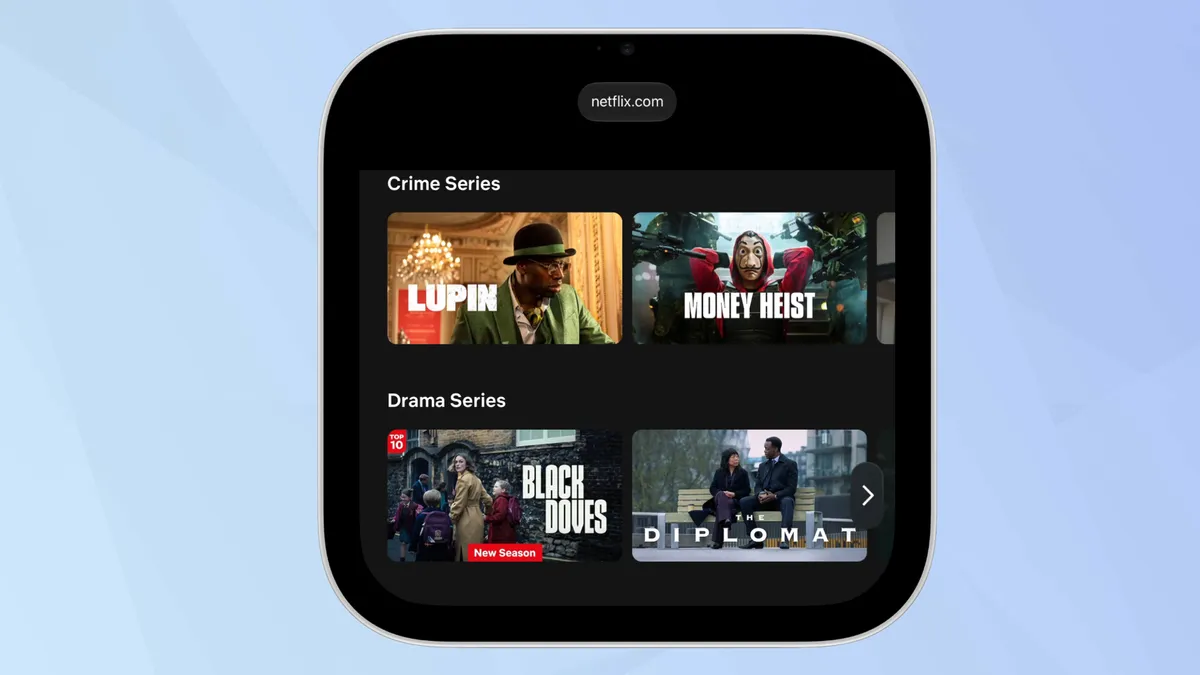
It’s a simple enough process: just open the Safari app, visit the relevant website (for example, netflix.com), enter your login details (although you can watch YouTube without logging in) and then browse and choose content as normal.
2. Play and enjoy
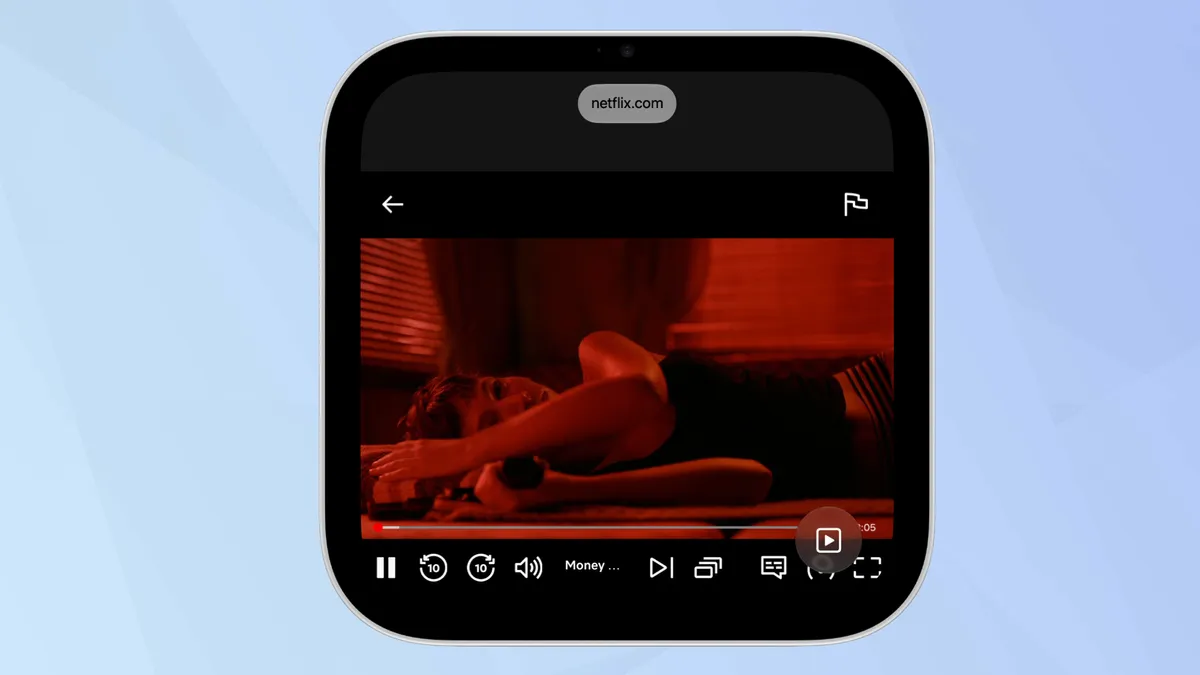
Tap the screen at any time and you can control the content. A wealth of options will appear at the bottom on the screen.
Watch YouTube videos from your iPhone
You may find it’s actually easier to search for content on your iPhone and then have the video and audio play on HomeView.
1. Find a video
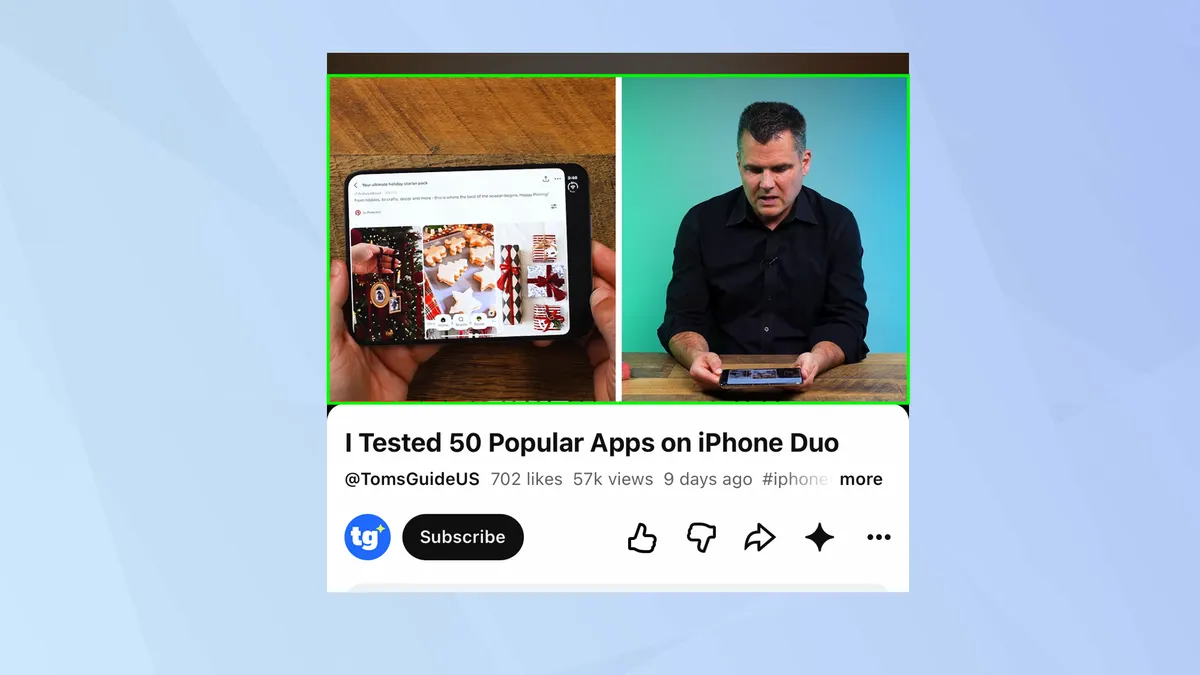
Since HomeView doesn’t have a YouTube app of its own, you will need to handoff or cast videos to it from your iPhone. Open the YouTube app on your iPhone and find a video you’d like to watch.
2. Cast the video
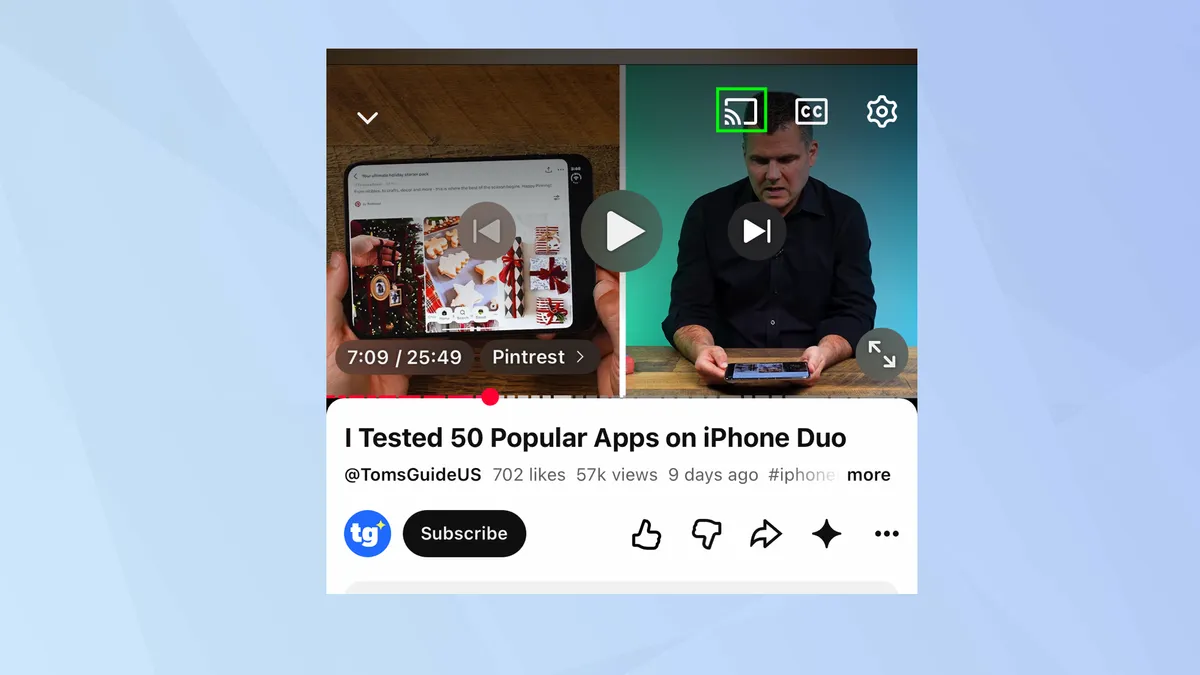
When the video starts to play, hold your iPhone in front of the HomeView display. So long as the two devices are on the same Wi-Fi network, it should handoff the video and play it on HomeView via AirPlay.
But if it does not, just tap the video screen to see the available options and select the cast button.
3. Choose to AirPlay
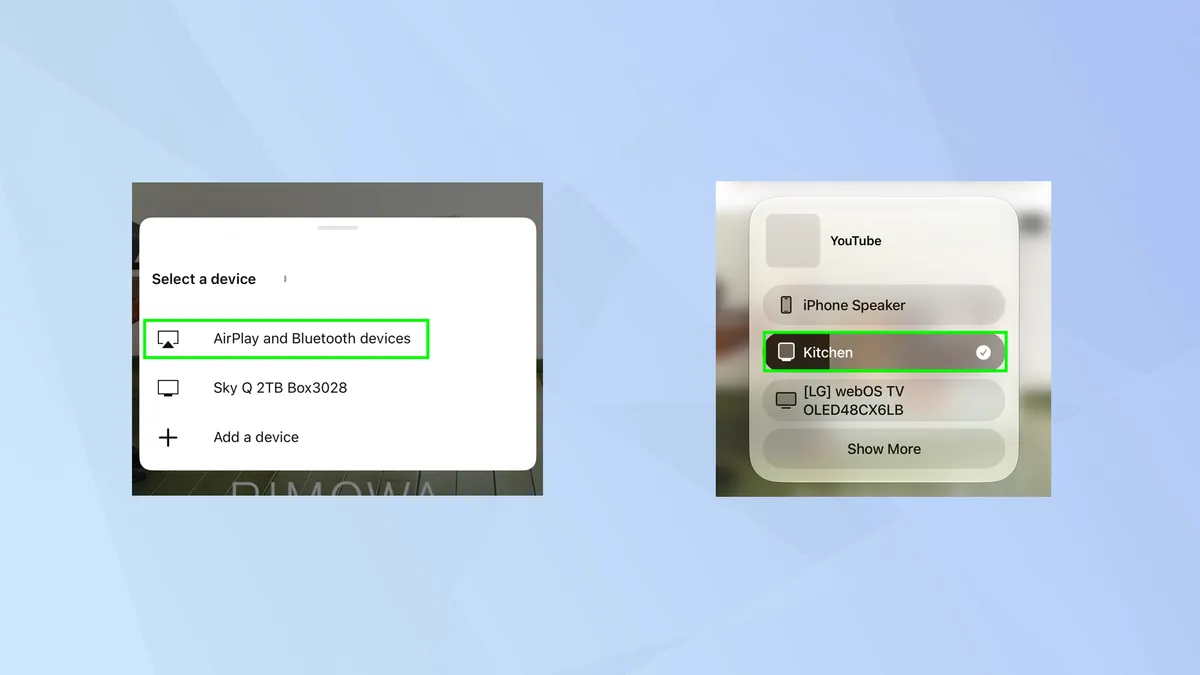
If you’re connecting manually, select AirPlay and Bluetooth devices and select the name of your HomeView device. In our case, we’ve called the HomeView “Kitchen” because that is where we’ve placed it.
4. Watch the video on HomeView
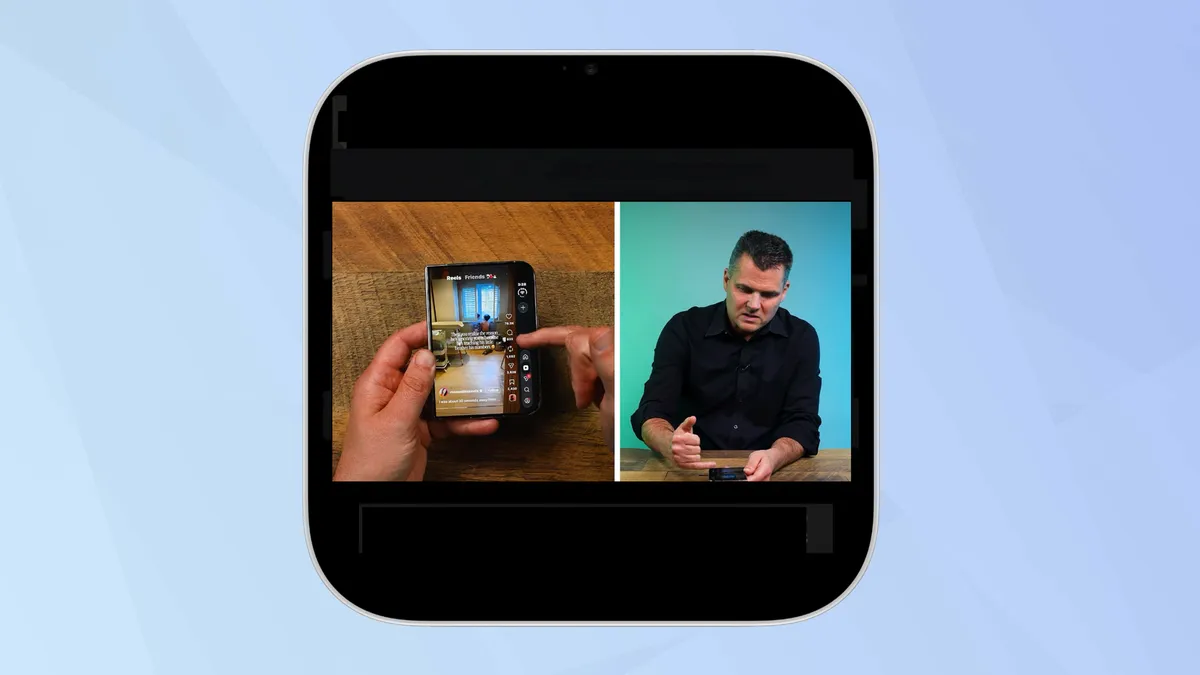
You should see your video appear on its screen.
5. Control the video
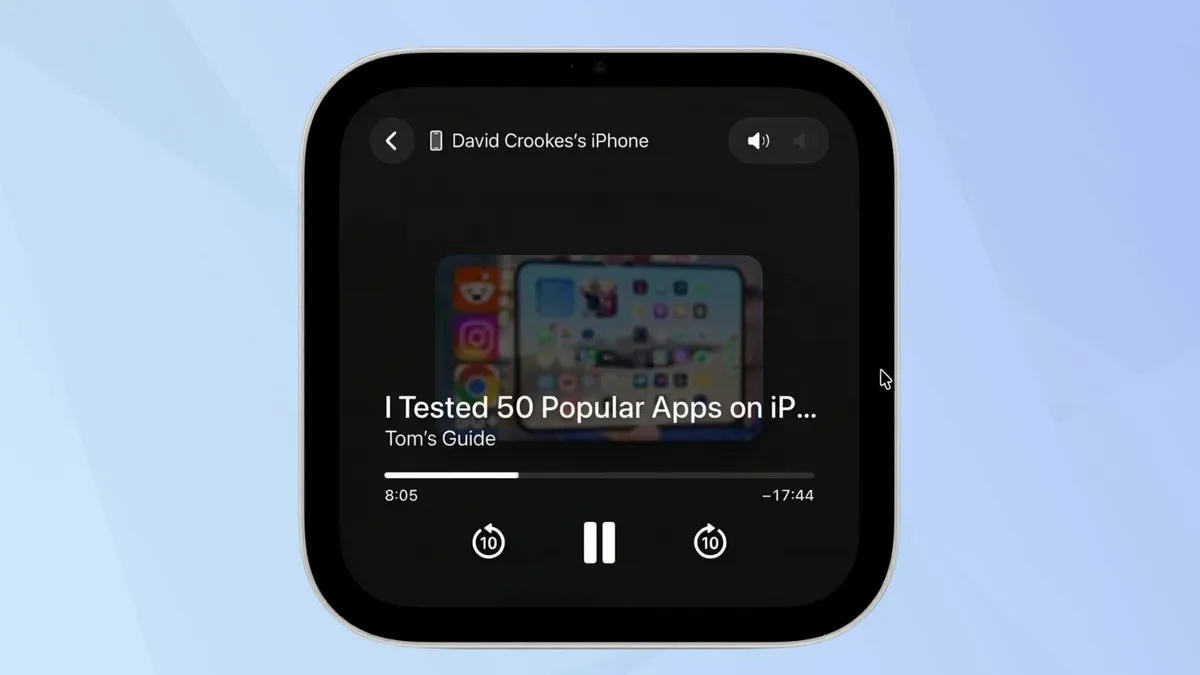
If you tap the screen, you’ll be able to control the video with options to play/pause and go forward and back.
Follow Tom's Guide on Google News and add us as a preferred source to get our up-to-date news, analysis, and reviews in your feeds. Make sure to click the Follow button!
More from Tom's Guide

