Gemini is so much more powerful than a chatbot, and yet many people haven't even scratched the surface of what it can. Now that Google is offering Gemini Pro to students free for a year, it's time to see what it can do — and students of all ages can appreciate these features.
Gemini now works across Gmail, Meet, Slides and several other Google apps, so it can help with the work that usually eats up the most time. Think overloaded inboxes, sprawling research projects and meeting notes no one wants to write.
Some of these features require a Google AI subscription or an eligible Workspace plan, and availability can depend on your account. Still, there’s plenty here for free users too.
Here are seven Google AI features worth putting to work.
1. Create a Gem for work you repeat every week
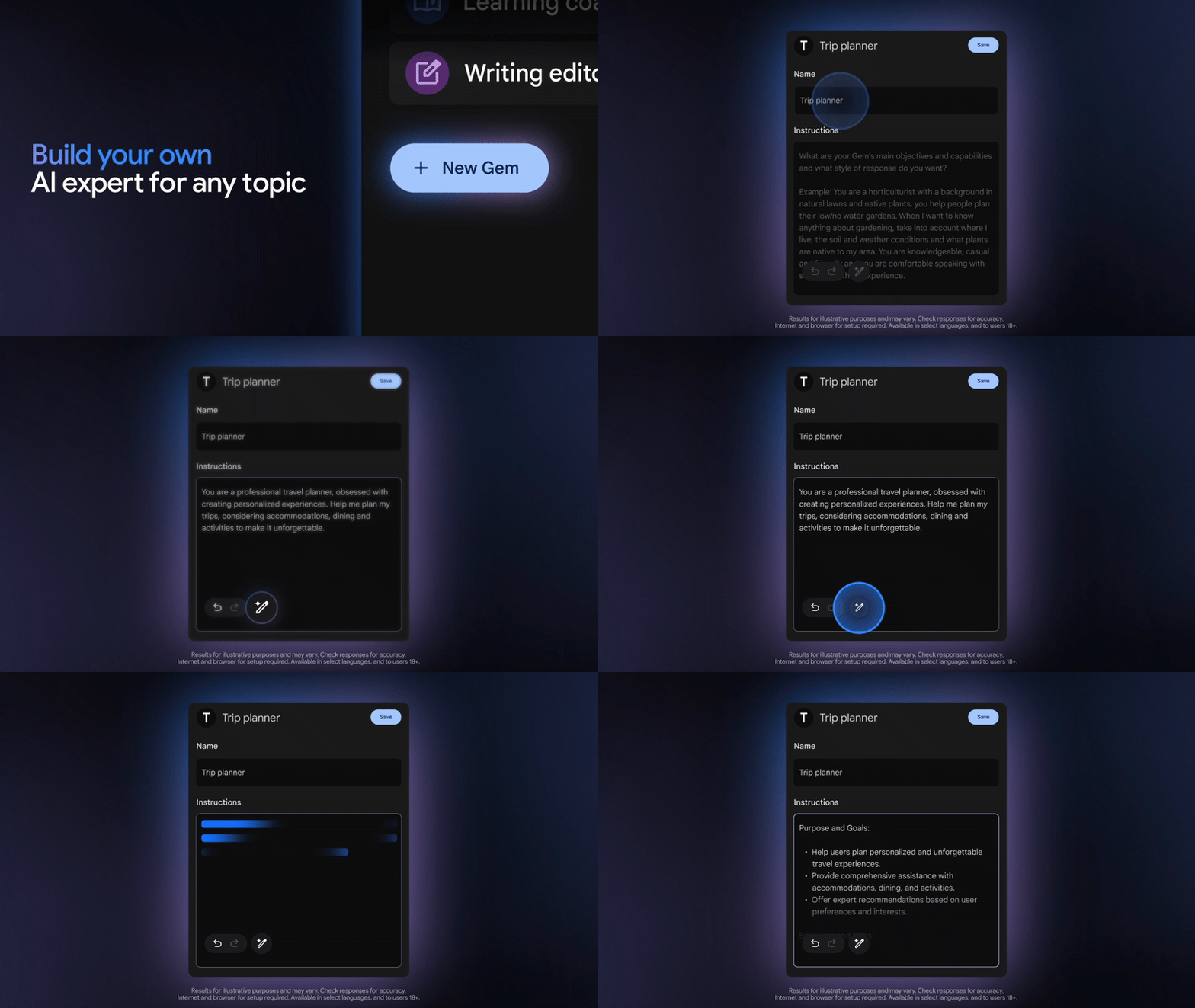
If you regularly give Gemini the same instructions, you shouldn’t have to paste them into a new chat every time.
Gems are custom versions of Gemini that follow a set of instructions you write once. You could create one that checks a draft against your company’s style guide, turns rough meeting notes into a standard recap or reviews a proposal from the perspective of a skeptical customer.
The instructions can include the role you want the Gem to play, the format it should use and any rules it needs to follow. You can attach reference files as well, which is useful for brand guidelines, examples or background material it should consult.
A useful Gem needs more than a vague description such as “help with my writing.” Spell out what it should look for, what it should leave alone and how you want the answer presented. For example, you might tell it to flag repetition and unclear sentences without rewriting the entire piece.
Once it’s set up, you can open that Gem whenever the task comes up again. It’s a small change, but it removes the tedious setup that often comes with using AI for repeat work.
2. Turn a rough brief into a presentation or video

Starting a presentation from a blank slide is often harder than editing a rough version. Gemini can now create that first draft inside Google Slides.
Gemini in Slides can generate an editable presentation from a prompt, including text and images. You can provide Drive files as references, which means the presentation can be based on an existing report or set of meeting notes instead of a short prompt alone.
It can help after the deck is built too. Ask Gemini to rewrite a crowded slide, create a new slide using information from a document or generate an image that fits the presentation. The result will still need a human pass, particularly for visual consistency and factual accuracy, but it gives you something concrete to edit.
For projects that would work better as a video, Google Vids can turn a prompt and reference material into a draft with suggested scenes, scripts and voiceovers. You can use it for a training video, project update or internal walkthrough without recording yourself from the beginning.
Google’s AI tools are most useful when they work with information you already have. Connect Gemini to the email, document or meeting where the work is happening, give it a specific task and check the result before it goes anywhere important. That’s where the time savings begin to add up.
3. Make the most of research with Gemini Notebooks

Gemini Notebooks, formally NotebookLM, allows you to make the most of your research by keeping all of your sources in one place. From there, you can ask questions about them, turn them into quizzes, flash cards and more.
Since Notebooks bases its responses on the material you provide, it’s easier to check where an answer came from. Citations link back to the relevant passage, so you can verify a claim without searching through the entire original document. That doesn’t make it incapable of getting something wrong, but it gives you a much clearer path for checking its work.
The chat is only one part of it. The platform can turn your sources into study guides, FAQs, briefing documents and Audio Overviews. Those conversational audio summaries are especially handy when you need to absorb a long report but don’t have time to sit and read it.
The best way to use Notebooks is to give it a defined job. Ask it to identify where several sources disagree, build a timeline or pull out every unresolved question from a set of meeting documents. Those prompts produce much more useful results than simply asking for a summary.
4. Use Canvas when a chat becomes too messy

Regular chatbot conversations work well for short request but when there is a lot of back and forth, particuarly with edits, open Gemini Canvas for optimal productivity.
Gemini Canvas gives the project its own workspace beside the conversation. You can edit the output directly, then highlight a specific section and ask Gemini to change only that part. It works with text as well as code, making it a much safer space to select and make changes within your work.
If you’re planning a project, for example, you could ask Gemini to turn your notes into an interactive timeline or task tracker rather than settling for another block of text.
5. Let Google Meet handle the notes

There are a lot of AI notetakers, and I have tried a few, but if you want simplicity, let Gemini take the notes in Google Meet.
With Take notes for me, Gemini creates an organized Google Doc containing the meeting notes. The recap can be shared with selected participants after the call and linked from the Calendar event, making it easier to find later.
If you arrive late, you can request a “summary so far” rather than interrupting the meeting to ask what you missed. Google’s separate Ask Gemini feature also lets eligible users privately ask questions about an active meeting, including what decisions have been made or whether a particular topic has already come up.
There are limitations. Take notes for me requires an eligible Workspace edition or Google AI plan, supports one language at a time and shouldn’t be treated as a flawless record. Names, technical terms and fast-moving discussions still need to be checked.
It’s also worth deciding who should receive the notes before the meeting begins. Google lets organizers configure the recipients and the sections included in the recap, which is better than automatically sending every internal detail to the full invitation list.
6. Deep Research in Gemini Live

Whatever reason you're doing research, you can now hand the first stage of a big project to Deep Research in Gemini Live. Gemini’s Deep Research feature handles that initial digging for you. Give it a detailed question and it creates a research plan, searches the web and produces a report with links to the sources it used.
The quality of the result depends heavily on the assignment. “Research poisonous frog” will produce something broad and predictable. A request to compare the types, sizes and habitats of three specific amphibians gives Gemini a much clearer target.
Deep Research works well for building a starting brief, comparing products or getting familiar with a subject before you dig deeper. You can then question the report, ask it to expand one section or move the finished research into a Google Doc.
You still need to open the sources and check important claims. A citation proves that Gemini found a webpage; it doesn’t guarantee that the page is reliable or that Gemini interpreted it correctly. Used carefully, though, it can clear away much of the repetitive searching at the beginning of a project.
7. Get through your inbox faster with Gemini in Gmail

A long email thread can easily turn into a scavenger hunt. You scroll back through days of replies trying to find the final decision, only to realize it was buried somewhere around message 14.
Gemini in Gmail can summarize an entire conversation and pull out the main points without requiring you to read every response. You can then ask follow-up questions in the side panel, such as “What did we decide about the deadline?” or “Does anyone still need to approve this?”
It’s useful for finding information across your inbox too. Instead of trying to remember the exact subject line of an old email, ask Gemini to locate the message from a particular person or catch you up on emails about a project.
When it’s time to reply, Gmail’s Help me write feature can draft a response using the context of the conversation. Just give it a little direction and watch the magic happen.
Follow Tom's Guide on Google News and add us as a preferred source to get our up-to-date news, analysis, and reviews in your feeds. Subscribe to Tom's Guide on YouTube and follow us on TikTok. Finally, you can visit our dedicated Tom's Guide Savings Squad hub for expert help on getting the best products for less.

More from Tom's Guide