






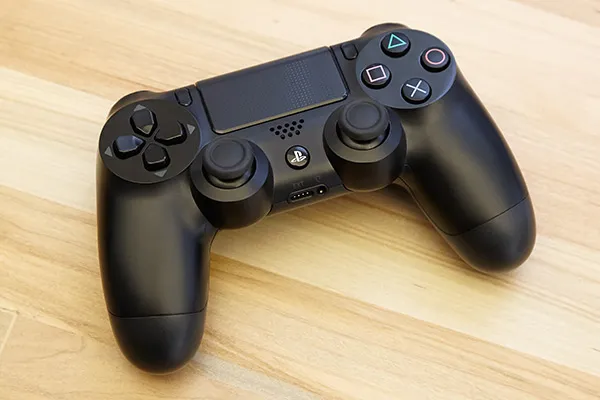
If you already own a PS4, it's well worth knowing how to use a PS4 controller on Steam too.
Back in 2018, Valve officially introduced support for the PS4’s DualShock 4 pad to Steam — and it’s actually impressively customizable.
Not only will it just plug and play with gamepad supported games (with a little bit of work), but you can make it so that the touchpad controls your mouse — quite a trip in Windows — or that camera movements are done by tilts of the gamepad.
However, learning how to use a PS4 controller on Steam isn't quite as simple as plugging in an Xbox One pad and jumping into your game of choice — especially if you want to use it wirelessly.
But we're here to help, so here’s our guide for how to use a PS4 controller on Steam.
1. Connect your DualShock 4 controller
If you’re happy using it wired, just connect a microUSB lead from the pad to your PC and then proceed to Step 10.
2. Check your PC has Bluetooth
If you want to use your DualShock 4 controller wirelessly with Steam, there are a few additional steps. First of all, make sure your PC has Bluetooth. If it doesn’t, Sony sells an official DualShock 4 USB adapter, though it’s pretty hard to find nowadays. Fortunately, any old dongle that supports Bluetooth 2.0 and above should suffice.
3. Press the Start button, then Settings

In Windows, press the Start button, and then press Settings.
4. Press Devices

From the next set of options, select Devices.
5. Switch on Bluetooth, then Add Bluetooth device

Ensure Bluetooth is switched on, and then press Add Bluetooth or other device.
6. Select Bluetooth

Simply choose the top option on this menu.
7. Pair PS4 controller

Now take your PS4 DualShock 4 controller and hold down the PS button (the one between the two analogue sticks) and the Share button (the one above and to the right of the D pad). When the light bar on the controller starts flashing, it’s ready to be discovered by your computer.
8. Select Wireless Controller

Back on Windows, the PS4 pad will now show up in the list of devices ready to be paired. It’ll be called the very generic “Wireless Controller”, so when that shows up, click it.
9. Look for 'Device ready' message

If all goes well, you’ll see this. Success!
10. Go to Steam settings

Log into Steam. Press the Steam menu in the top-left hand corner, and then press Settings.
11. Select Controller in Steam

In the submenu that appears press Controller, and then General Controller Settings.
12. Tick PlayStation Configuration Support

Tick the box that says “PlayStation Configuration Support” to set it up for the final stage of the process.
13. Customize your PS4 controller for Steam

Your PS4 pad is now ready to use in Steam, but to really supercharge it, return to the previous menu and play around with both Big Picture Configuration and Desktop Configuration. This will let you customize your controller in some really interesting ways both in game and generally when using Steam.
In addition to remapping every button and adjusting the sensitivity of the thumbsticks, you can also take advantage of the controller's unique touchpad and gyroscope in a myriad of ways.
Want the DualShock 4's touchpad to behave like a mouse? Go for it. How about controlling the in-game camera by simply moving the controller? You can make that happen. If you like tweaking every possible parameter when setting up your controls for games, Steam's DualShock 4 features could keep you busy for hours.

