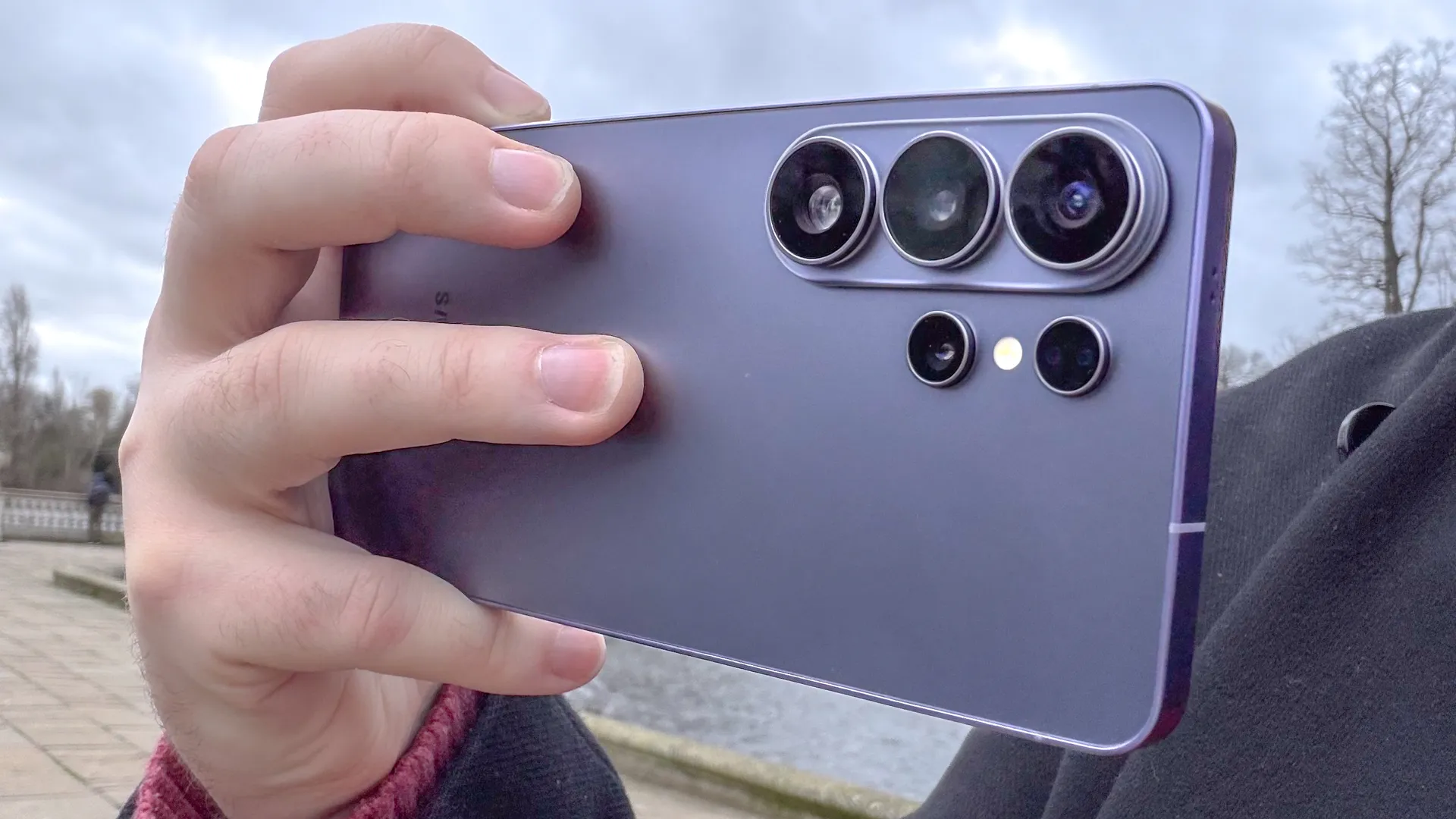
Samsung Galaxy S26 Ultra's Privacy Display may have recieved most of the attention, but it's far from the only upgrade Samsung added to its latest phones. The camera on all three Galaxy S26 phones comes with a new video stabilization feature called Horizontal Lock.
Horizontal Lock locks the camera to the horizon, and ensures your recording stays perfectly straight — regardless of how much your phone might spin around in the process. It's essentially a version of optical image stabilization ramped up to 11, or so Samsung's marketing says.
I was curious about this. I had already briefly tried Horizontal Lock when I went hands-on with the Galaxy S26 Ultra, but I never got to compare it to other camera stabilization modes. So I went out and put Horizontal Lock to the test.
How to use Horizontal Lock

If you want to use Horizontal Lock for yourself, all you need to do is open up the official camera app on a Galaxy S26 phone, then tap the running figure icon at the top of the screen.
The pop-down menu will give you the option to turn off stabilization (left), turn on Super Steady (center) and turn on Horizontal Lock (right)
How I tested Horizontal Lock
To see just how much of a difference steady camera modes make, I went out to shoot some video using the stabilization modes on the Galaxy S26 Ultra: Horizontal Lock, Super Steady and then again without any stabilization features.
For this, I needed a large open space and a lot of movement to keep track of. Since I'm not really an outdoorsy person, I took both my dogs to the park and let them loose. They're both high-energy labradors, but they both behave very differently in the park. One will hyper-fixate on chasing his ball, while the other will simply trot around exploring and eating the grass. There's occasional bursts of running to chase this brother, prompted by a fear of missing out.
In addition to their almost constant movement, I'm also walking alongside them. Tracking them with a phone camera is difficult at the best of times, but with all that motion going on, the instability of the camera can make the final result an unholy mess. It can get to the point that some clips can start triggering my motion sickness.
No stabilization
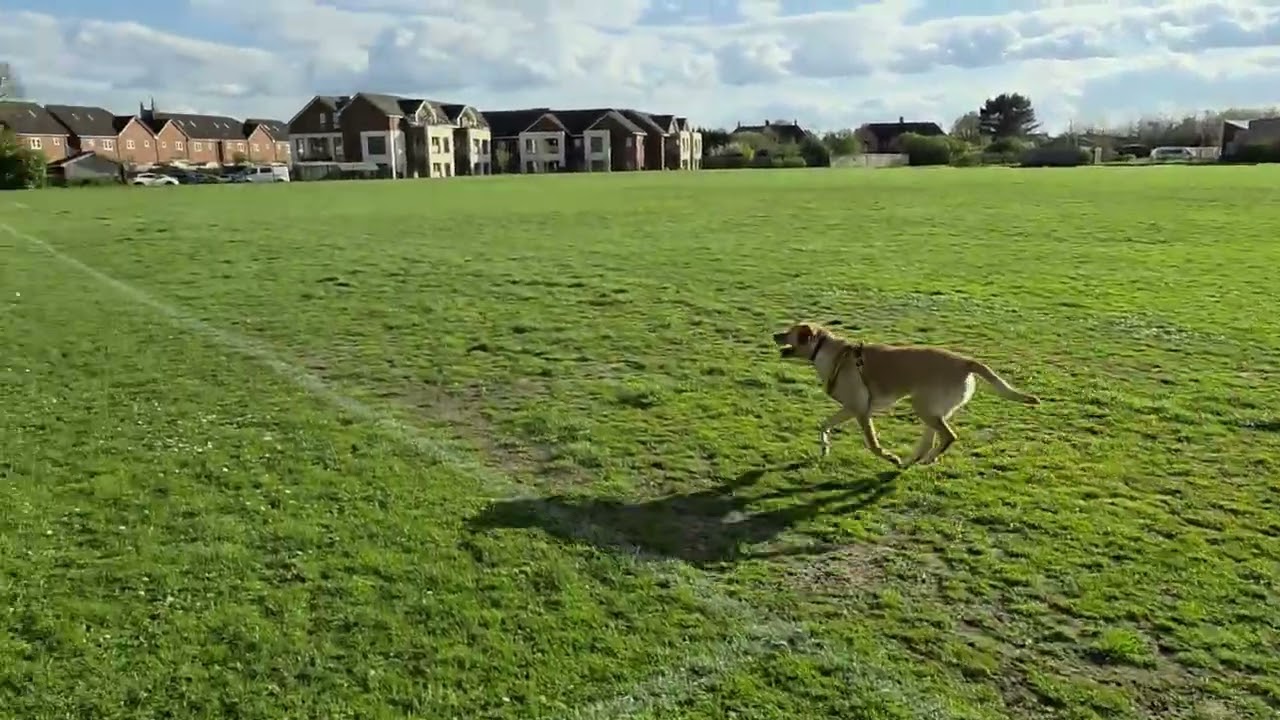
Turning off video stabilization is the base level of what the Galaxy S26 Ultra can handle, and the metric at which the other two stabilization settings are judged.
As you can see in the video above, things are not very stable at all. It's very clear to see how much the camera position is changing, despite all my best efforts to keep everything fairly level. Obviously, I am not a superhuman with gimbal-like powers, so no matter how hard I tried, there was some unevenness to the footage.
Plus, all that walking around and interacting with my dogs only made that worse, as I was more focused on them having fun than making sure the imaginary spirit level in my hand didn't tilt from side to side.
Super Steady stabilization

Samsung first released Super Steady stabilization way back in 2019 on the Galaxy S10, with periodic improvements coming on subsequent devices. Judging from the video of my two dogs doing their doggy thing, there is a marked improvement in the leveling of the camera.
Shakiness is a little less pronounced, to the point where the video almost feels a little too smooth. I'll admit, watching this clip is a little triggering for my motion sickness, too — perhaps a little more so than the non-stabilized footage.
Horizontal Lock
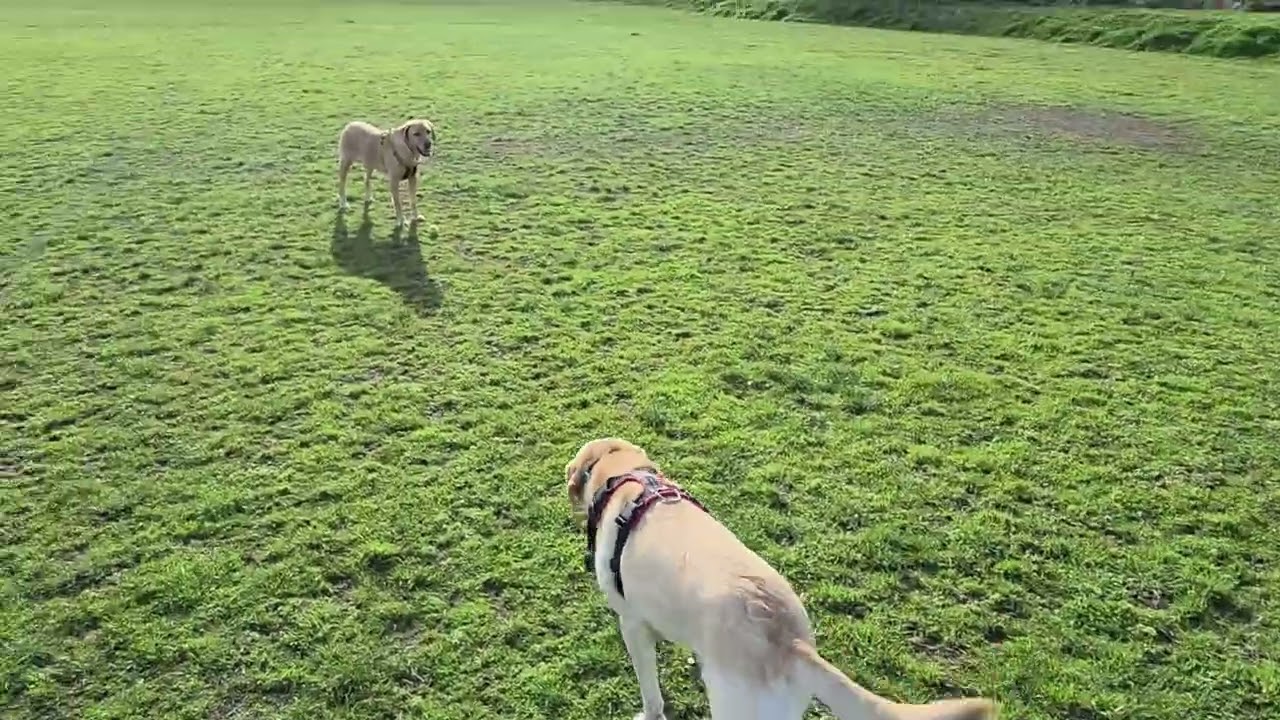
The difference with horizontal lock engaged is even more pronounced than with Super Steady. The camera stays almost completely level compared to other video stabilization, though I did notice a few instances of the camera visibly shifting to maintain that effect through the recording.
It almost looked as though the virtual gimbal Samsung is using lagged and had to suddenly catch up with the phone's movement. The artificial smoothness also made a comeback, though this is clearly just the price you have to pay for a more evenly leveled video recording.
There is definitely a marked improvement in the leveling of the video, keeping a solid vertical or landscape shot no matter how much you move around. Just remember that Horizontal Lock doesn't lock the field of view in place, and shaking your camera around is still going to affect the quality of the final recording.
Bottom Line
One thing you should know is that video stabilization on Galaxy S26 phones limits the amount of zoom available to you. While the unstabilized video mode has a variety of different zoom options available, stabilized video is limited to 2x magnification. Likewise, regular video can be recorded in up to 8K resolution, while stabilized is limited to QHD — though a 60fps frame rate is still available.
Considering how easy it is to turn on Horizontal Lock, it's definitely a feature people can use as frequently as they like. That said, you do need to be aware of the feature's limitations and potential side effects to locking in your orientation quite so definitively. If you don't want to be quite so strict, or need a little more versatility with what your camera records, Super Steady still does a very good job at levelling everything out.
Horizontal Lock is easily one of those features that Samsung can improve upon in future Galaxy phones. But based on my experience with my dogs it more than lives up to the hype.

Follow Tom's Guide on Google News and add us as a preferred source to get our up-to-date news, analysis, and reviews in your feeds.
More from Tom's Guide