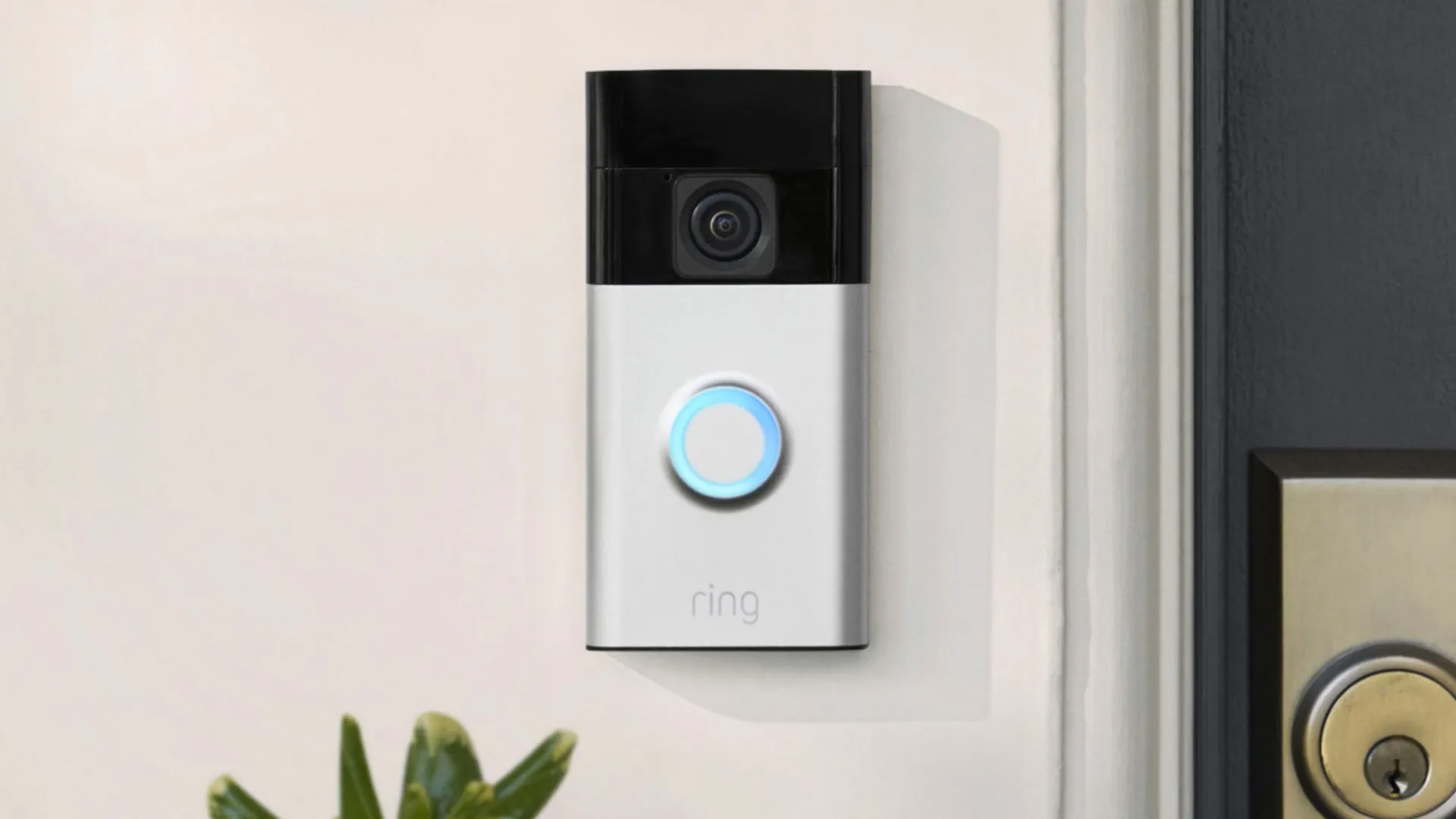
If you set a schedule for your Ring doorbell (or other Ring camera device), you can manage when you receive motion alerts. This is especially useful for avoiding unnecessary notifications, like when the mail is delivered, the trash is collected, or family members leave for work.
With the best video doorbells, you can even set up quick replies to automatically respond to visitors, adding even more convenience. Setting schedules can help prevent distractions from constant chimes and unnecessary alerts, so you can stay focused without constantly swiping them away.
With a Ring doorbell, you can schedule when to pause alerts via the app. Set daily or grouped schedules, even multiple per day, to customize notifications. These are just some of the tips you need to know to get the most out of your device.
Plus, pausing alerts can also help conserve battery life. So, let’s dive into how to put Ring Doorbell motion detection on a schedule.
1. Select the doorbell

After you open the Ring doorbell app, find the footage from your Ring doorbell and tap the three dots in the top-right corner.
Now select Settings from the menu (the actual name will depend on what you’ve called your doorbell).
2. Select Motion Settings

Look in the options for your Ring Doorbell — you need to select Motion Settings.
3. Check the schedule

Now scroll down the screen towards the bottom and select Motion Schedules. It’s unlikely you’ll have already created a schedule so tap Add Schedule.
4. Select a name

To ensure your schedule is easy to identify you need to give it a name. You can choose from one of the suggestions — just tap Night-time, Morning or Evening.
You can also create your own name if you select Customized.
5. Select the times

Now decide when you want to turn alerts off and on using the carousel to select the times. Tap Done when you’re finished.
6. Choose your days

You need to select the days you want your schedule to apply. Tap one or more circles for Monday, Tuesday, Wednesday, Thursday, Friday, Saturday and Sunday.
You can produce more than one schedule, so you could have one for Monday to Friday and another for the weekend. Tap Save.
7. Check and add more

Schedules appear on the Motion Schedules page and you can turn them on and off. Just tap the button next to each one. If you tap a Schedule, you have the option to delete it.
If you want to create another schedule, tap Add Schedule and repeat steps three to seven.
You now know how to put Ring Doorbell motion detection on a schedule. You can also learn how to set up package detection, turn on your Ring doorbell's end-to-end encryption and protect your privacy with the Control Center.