Having to pull out your phone just to see the time or check the weather can get distracting real fast, especially with all those unread notifications waiting for your attention. That’s why I’ve been using one of the best smart displays to get quick info at a glance while working at my desk for the past few years. However, those screens can bring their own distractions if you’re not careful.
Adding a smart display underneath my monitor was a real game changer for my productivity early on. Not only was I putting wasted desk space to good use, but I also had full control over my smart home right in front of me, whether I used a tap on the screen or my voice.
After swapping between Google’s Nest Hub Max and Amazon’s Echo Show 8, though, I realized these more powerful screens might be overcomplicating things. Instead of another standard smart display, I recently switched to one that’s part digital photo frame and part retro desk screen. The coolest thing about Divoom’s Times Frame ($169, Amazon) is its transparent display — and the way its backlight illuminates the space around it.
Here’s what it’s been like spending the past week ditching a traditional smart display for one that mixes analog controls with deep customization.
Trading touch for knobs and buttons

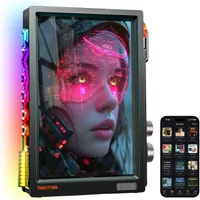
Divoom sent over a Times Frame for me to check out in black, but it’s also available in white or pink to match the rest of your desk setup. In the box, you get the device itself, a power cable, and a cleaning cloth — since its clear 10.1-inch IPS display can be a bit of a fingerprint magnet. Fortunately, you won’t have to worry about smudges too much since you don’t actually touch the screen to interact with it.
Unlike a traditional lightbox that projects light outward behind an opaque sheet, the Times Frame flips this design on its head. Up front, you have a transparent display, while the back of the frame shines light outward. Given that this ambient glow may be too bright for some, Divoom includes an optional paper cutout to place behind the screen. Personally, I love the way it lights up the wall behind my desk, so I chose to leave the device as is.
There’s also a strip of RGB lighting wrapped around the left side of the frame. You can customize its colors, apply several dynamic lighting effects, or even set it to react to music. If you find this a bit too distracting, though, you can easily disable it in the companion app.

On the right side, there are two large knobs that can be pushed in to serve as buttons. The top dial controls screen brightness, while the bottom one cycles through clock faces — including custom ones added through the app. Below the dials, a dedicated settings button pulls up a radial menu to switch between clock faces, a Pomodoro timer, and other tools, with a physical back button next to it.
Powering the device is just as straightforward. It runs on a single USB-C cable, and I really appreciate that Divoom placed the port on the bottom-right rear corner. That placement made running a power cable up from under my desk clean and completely hassle-free.
A portrait-style desk companion

Compared to the other smart displays I’ve used at my desk, what immediately stood out to me about the Times Frame is its portrait orientation. While you can’t put it under your monitor, it serves as a conversation piece that fits quite well on the side of your desk. With the Framework Desktop on the right and my 40-inch ultrawide monitor in the middle, the Times Frame ended up being the perfect size and fit for this particular desk setup.
Its 10.1-inch display gives you quite a lot of screen space to work with and some of the pre-made clock faces make full use of all of it. While I tried out quite a few during my time testing the Times Frame, the one that stuck out to me most — Memphis — features bright colored shapes along with the current time and temperature.

Switching between the device’s various clock faces couldn’t be simpler. You just give the lower dial a twist, find the one you want and push in to select it. From the current MLB Rankings to stock and crypto prices and cartoonish takes on popular works of modern art, there are plenty of clock faces to pick from right out the gate.
Although you can technically set up the Times Frame and use it without the app, downloading it lets you connect the device to Wi-Fi, tweak its settings further, download new clock faces from the community gallery and make your own too.
From twisting to tapping

Once you download the Divoom app for Android or iOS and connect the Times Frame, a massive list of customization features opens up. Right out of the gate, you can remotely toggle the device on or off, adjust screen brightness, or configure the RGB lightstrip along the side.

The app’s main hub features a grid of icons covering everything from photo albums to a tomato-themed Pomodoro timer. Along the bottom, you can manage your active clock faces, while the Community tab lets you browse and download new designs made by other users
While the Aura RGB lightstrip doesn’t quite fit the cleaner look of my workspace, I appreciate just how deep the settings go. The app makes it easy to preview different lighting effects, and the EQ Rhythm mode can even bounce the lights to whatever music or game audio is playing in your room.

If you just want to stay on top of your schedule, though, you can sync the Times Frame directly with Google Calendar or Microsoft Calendar. Once I linked my account, I really loved how the transparent background makes color-coded events pop. That way, your upcoming meetings are almost impossible to miss.

From there, I dug deeper into the rest of the feature set. The Tomato Clock offers surprising depth, letting you tweak work intervals alongside short and long break durations to match your exact workflow. You can even use the frame as a digital scoreboard if you're playing mini-hoops at your desk. Divoom has been building pixel art displays for years, and that heritage shines through in the app’s drawing suite, which lets you design custom animations or static art from scratch.
Overall, the software offers far more utility than you'd expect from a device that looks like a simple desk clock at first glance.
All the info without the wake word

Now don’t get me wrong — I still love my smart displays from Google and Amazon. However, they’re often far better suited for the kitchen counter or a bedside table. The Divoom Times Frame delivers the perfect amount of quick, glanceable info without feeling overwhelming. Since you can’t stream YouTube or launch Fire TV on it, it’s also much less distracting — especially once you disable that Aura RGB lightstrip.
While the Times Frame was on the pricier side at $200 when it first launched, it has since come down in price, and you can often find the standard 64GB model on sale. Divoom also recently introduced a lower-capacity 32GB version for $159, making it a bit easier on your wallet.
Even with the higher price tag, what really sold me on the Times Frame is its intentional focus. It might be a simpler smart display on paper, but it functions as a versatile, multi-use tool — acting as a customizable clock, a color-coded calendar, or a high-tech Pomodoro timer for your desk. After spending a week with it, I don’t see myself swapping it back out for a traditional smart display anytime soon. It’s earned its spot on my desk.
Follow Tom's Guide on Google News and add us as a preferred source to get our up-to-date news, analysis, and reviews in your feeds. Subscribe to Tom's Guide on YouTube and follow us on TikTok.

More from Tom's Guide