




What's more exciting than pulling a brand new Sonos soundbar from under the tree? Getting it plugged into the TV and watching your favorite movie, that's what. But hold! Don't get watching "Star Wars Episode III" just yet – there's some settings you'll want to change first.
Let me guide you through the process. Once you've got everything setup, there are some extra steps to make sure your soundbar is performing its best. Get your phone ready, and prepare to see what Sonos soundbars are really capable of doing.
1. Download the Sonos app

While the Sonos App has had its fair share of problems over the last few months (or just over a year — but who's counting?), it's still a useful way to control your Sonos soundbar.
Pop over to the app store, and find the "Sonos" app. From there you can connect your Soundbar. It also unlocks the smart features of the soundbar, so you can use the built-in voice control and stream music wirelessly over Wi-Fi.
And before anyone says "well that seems obvious," I know someone who went months without downloading the app for their soundbar. They had no idea you could stream music to it – or that they needed to activate the Dolby Atmos setting.
2. Tune with TruePlay
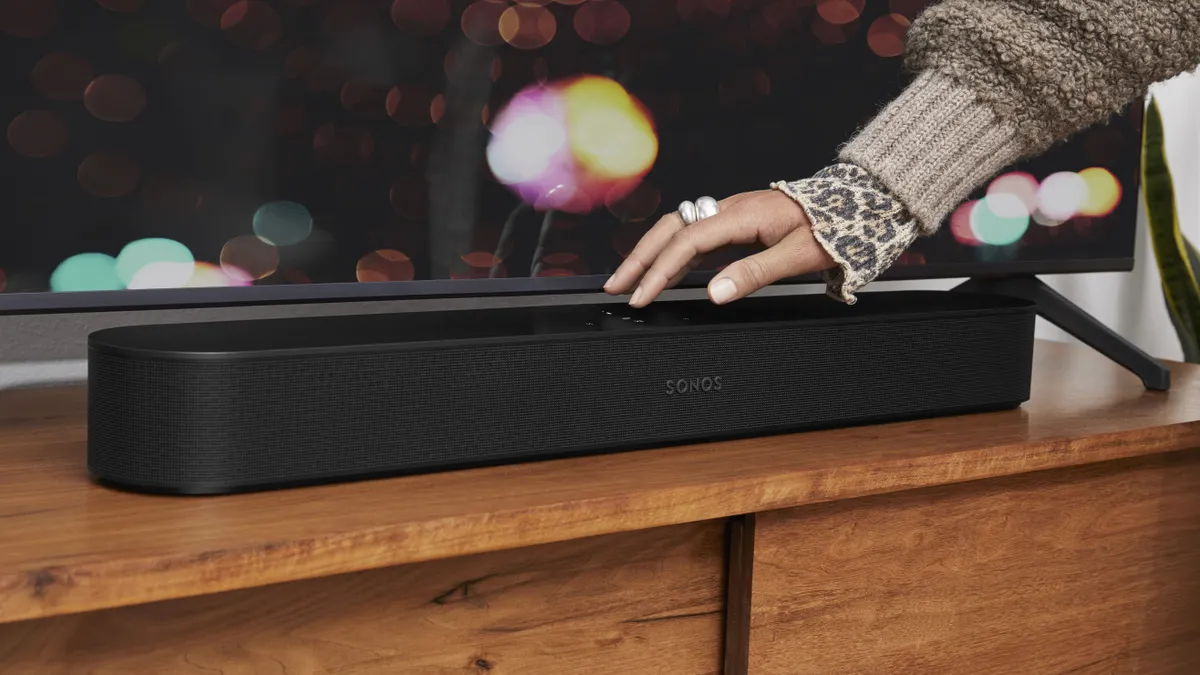
There are a great many things that can affect the sound of your soundbar, including room acoustics. Not that you really need to worry about all that, thanks to Sonos' built in tuning system called "TruePlay."
It listens to a series of sounds from your soundbar, and using the soundbar's mics and the mic in your phone, it builds a sonic picture of your room. From there it can create a profile that makes sure it sounds the best possible according to the unique sonic characteristics of your room.
It's easy to find. Go into the app, and find the settings of your sound bar. Find the TruePlay tuning option. There are two options here. A simple option where you don't have to move around, and a more complex one that sees you walk around the room waving your phone around.
Follow the instructions on screen, and wait for the loud laser noises to finish. Et voila! One tuned soundbar.
3. Activate Dolby Atmos

Generally, spatial audio and Dolby Atmos are turned on by default, but you'll want to check. That way you can be sure you're getting surround sound for your favorite movies, games and music.
Head into the settings menu of your soundbar, and head down to the "surround" options. From there, check that Surround is turned on and that you've got Spatial Music turned on.
To check that things work correctly, play a movie on Netflix or Disney+ that you know has Dolby Atmos. Go into the Sonos app while the movie is playing, and check that there's the 'Dolby Atmos' logo on the screen.
If you see "stereo PCM," then Dolby Atmos isn't activated. Go back to the settings screen and check all the settings from above to make sure you're getting the best sound possible.
4. Activate speech enhancement for better dialog

This is only going to work with the Sonos Arc Ultra, but it's well worth turning on, especially if you like to watch TV and movies with lots of spoken words. Using some very clever AI, the soundbar will highlight dialog to make it easier to understand with speech enhancement so that you never miss a word.
It's easy to turn on. Head to the settings menu in the Sonos app, and then find the Speech Enhancement menu. From there, you can select a level — the higher the level, the louder the dialog.
The highest levels to affect the sound of the movie or TV show, so I'd recommend you stick with the middle level. That will enhance the dialogue a good deal without affecting the sound of the rest of the movie.
You should also turn it off when you listen to music – it sounds bad.
5. Add some streaming services

You can actually stream music to your soundbar directly from the Sonos app — you just need to sign into your services. When you search in the app, it will search through any streaming services you've added, making the potential library even larger.
Just head to the first page of the Sonos app, and press the 'Add' button under 'your services.' Follow the on-screen instructions, and log in to Tidal, Apple Music, Spotify, and more.
You can also stream from Sonos radio, although you don't get to choose the tracks you're listening to there.

Follow Tom's Guide on Google News and add us as a preferred source to get our up-to-date news, analysis, and reviews in your feeds.
More from Tom's Guide
- US bans foreign-made drones including those by DJI — here’s what it means for you
- Netflix has racked up 31 No. 1 shows in 2025 — here's the 7 actually worth watching
- Best Buy takes $50 off Nintendo Switch 2 in huge holiday deal

