




A Sonos soundbar, before you've even dipped into the many (many) settings available, is a fantastic addition to your TV stand. Handsome, performant — there's little more you could ask.
Only, you can ask for more. Open up the (now mostly fixed) Sonos app and you'll find pages upon pages of different settings to change so that you can get the most out of your soundbar. But which should you turn on, and why? These are all the settings you should change on your Sonos soundbar to get every last drop of performance.
1. Download the app
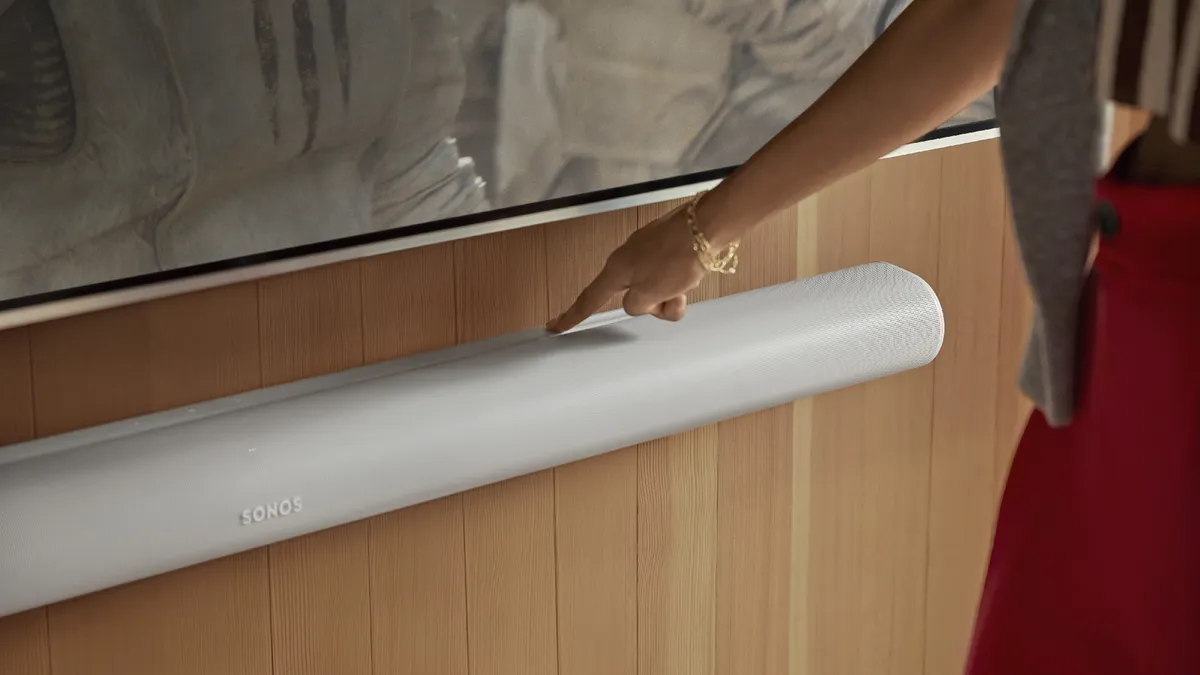
It might sound completely obvious, but you'll need to download the Sonos app if you really want to get the best out of your Sonos soundbar. Fear not, the many technical issues that Sonos has faced after the application relaunch are now mostly fixed, and its a must-install for all Sonos users.
It unlocks the full range of features on your soundbar, and there are versions available for both Android and iOS. You won't have any of the below settings and features without it, so you should get it sorted before moving on.
2. Tune the sound to your room

While your new Sonos soundbar is going to sound good out of the box, it's well worth spending some time tuning the bar so that it sounds good for your surroundings. After all, the core tuning is handled in a controlled test room. Which, I'm going to guess, is something your living room is not.
TruePlay plays a series of different sounds, and then uses your phone's microphone to judge the acoustics of the room. From there, it changes the sound to better match your needs.
Head into the app and find the soundbar settings. From there, select the TruePlay tuning section. The simple tuning means you can sit still, but its results won't be as transformative. Use the complex option if you want to eke all the performance out of your bar.
Follow the instructions, and you're done!
Note: this is only available on iOS devices at the moment, sadly. Sorry, Android users, you're out of luck!
3. Use dialogue enhancer

One of the biggest improvements a soundbar can bring is better speech for your movies and TV. Even then, there can be shows and other content that just have muffled dialogue straight out of the studio. Thankfully, some Sonos soundbars can improve this with very clever AI dialogue enhancement.
It picks out the voice line of a movie or TV show and then increases the volume. There are different strength options; the stronger the dialogue enhancement, the greater effect you'll see in the rest of the soundscape.
Note: Don't use it for listening to music. It sounds bad.
Head to the settings menu and find the speech enhancement menu. Select your desired level — mine is the middle — and get to watching your favorite Netflix documentaries with clearer speech. David Attenborough has never sounded so good.
4. Activate Dolby Atmos
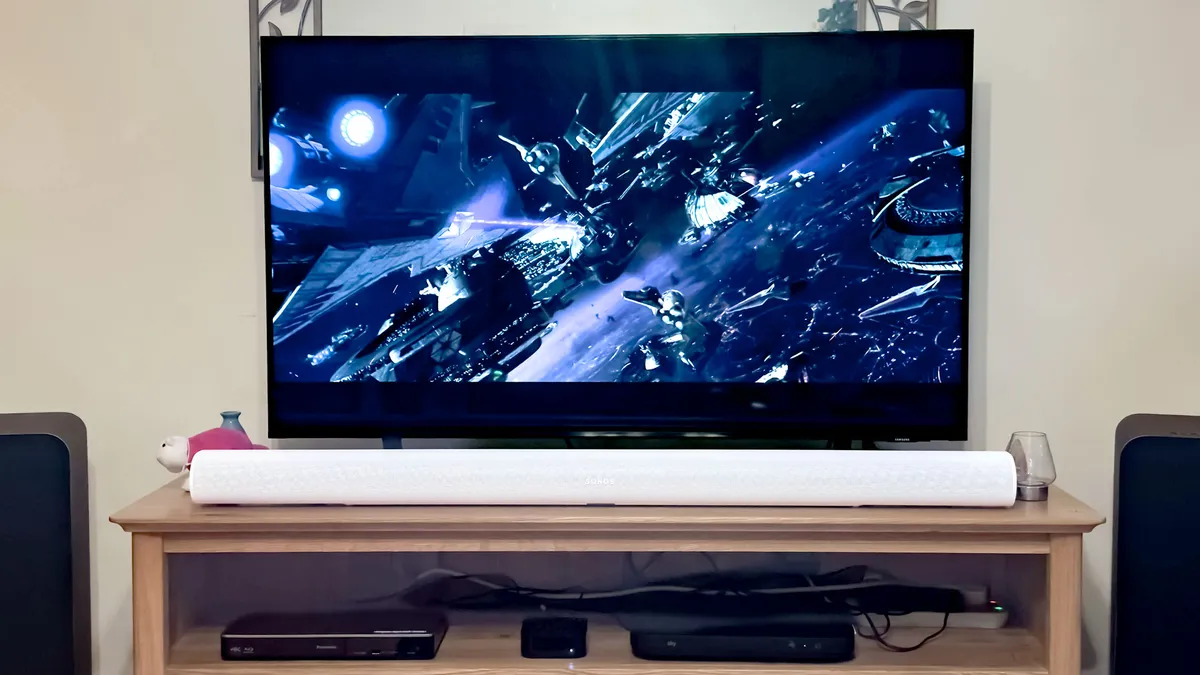
This is only accessible for Sonos Arc and Sonos Beam Gen 2 users, but it's well worth activating. After all, if you want to use all those fancy upfiring drivers and get the best soundtracks and movie experience possible, you're only going to get it with Dolby Atmos turned on.
These are often turned on by default, but you'll still want to double-check just in case. Head to the soundbar settings in the Sonos app, and check the surround option. You'll also want to turn on the Spatial Music option.
Now, head to Netflix or Disney+ and find a movie or TV show with Dolby Atmos. Press play, and check the 'now playing' screen on the Sonos app. There should be a "Dolby Atmos" logo.
If there isn't, you should check the sound settings on your TV. Here, you'll either need to make sure that the sound options are set to Dolby Atmos or 'pass through.' Also, check the device you're using and the audio settings there.
Go back to your streaming service and try again — there's an annoying number of roadblocks, but it's well worth getting Dolby Atmos turned on properly.
5. Turn off the status light

Ok, so this one might sound really silly, but believe me, it's worth it. If you're anything like me (and it's very possible you are, given you've landed here), you like to watch movies in a dark room. That means that any lights, especially ones extremely close to the TV, are an eyesore. An irritating distraction.
Thankfully, you can turn the little light atop Sonos soundbars off in the settings menu. Find the Status light setting in the soundbar menu, and toggle that badboy to the "off" position.
Done! No more annoying little lights under the screen when you change the volume, or to let you know that the soundbar is turned on. It also works with any surround speakers you might have attached to the bar.

Follow Tom's Guide on Google News and add us as a preferred source to get our up-to-date news, analysis, and reviews in your feeds.
More from Tom's Guide

