Smart TVs have evolved from simple living room displays into active data-gathering hubs. Between targeted banner ads, voice-assistant listening, and automatic content recognition, today's TVs track far more than just what movie you are watching.
According to a recent technical investigation by Gamers Nexus and Level1Techs (and reported by Ars Technica), certain LG Smart TVs running webOS are capable of scanning local Wi-Fi networks (LAN) to identify secondary devices like smartphones and smartwatches connected to the same household network.
In a statement to Tom’s Guide, LG pushed back against the report's conclusions. Regarding local network scanning, LG explained that its TVs "feature the ability to scan for and connect to nearby devices on the same network," calling it "a standard function commonly provided by smart TVs and smart home devices.
You, however, don't have to tolerate any potential snooping in your living room. By adjusting a few buried default settings, you can lock down your television's privacy in under five minutes.
Here is how LG's background scanning works, and the exact steps to turn it off.
How smart TVs track your home network
Most users assume that agreeing to a TV's privacy policy simply allows the built-in apps to stream video. In reality, modern webOS systems utilize several overlapping background services designed to monetize user data.
Local network scanning: Using built-in discovery protocols, the TV scans your Wi-Fi network to identify other connected smart devices, helping advertisers build a broader profile of your household.
Automatic content recognition (ACR): Feature settings like "Live Plus" analyze on-screen pixels and audio cues to identify every show, movie, or ad you watch — even from external devices like cable boxes or gaming consoles.
Always-on microphones: Voice recognition services and "Always Ready" modes keep the TV's internal or remote listening for wake words, logging audio requests to cloud servers.
How to turn off tracking and network scanning on LG Smart TVs
You can block background network scanning, targeted ads, and active listening by navigating to a few key areas in your LG webOS settings menu.
1. Disable Automatic Content Recognition (Live Plus)
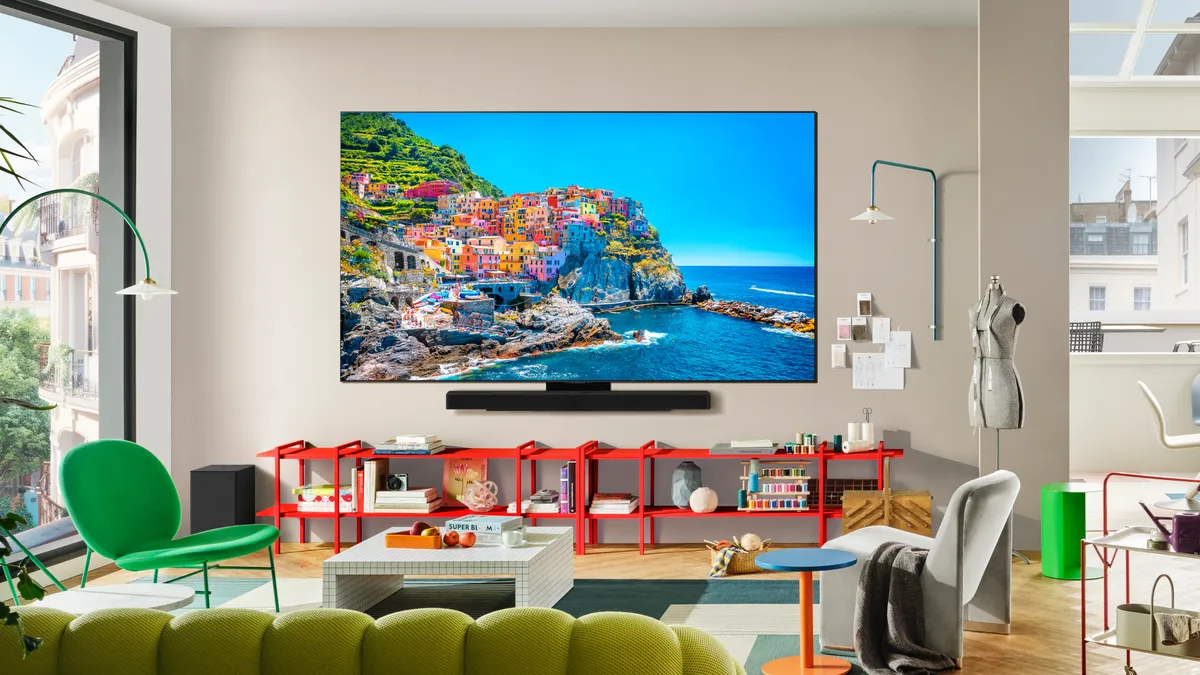
Press the Settings gear on your remote, select All Settings, and then open General.
Navigate to System, then Additional Settings, locate Live Plus, and toggle it OFF. This immediately stops the TV from analyzing on-screen video frame-by-frame.
For its part, LG maintains that features like Automatic Content Recognition (ACR), Voice Recognition, and Interest-Based Advertising operate strictly on an opt-in basis.
The company told Tom's Guide that "if a user does not consent to the applicable optional agreement, ACR data is not used for advertising purposes," and notes that permissions can be managed or revoked in the settings menu at any time.
2. Limit ad tracking and revoke user agreement permissions

In the same Additional Settings menu, open Advertisement, toggle Limit AD Tracking to on, and select Reset AD ID to clear existing tracking data.
Next, head back to System (or look under Support and Privacy & Terms depending on your webOS version), open User Agreements, and uncheck optional agreements like Voice Information and Interest-Based & Cross-Device Advertising.
3. Shut off Always-Ready voice recognition

To prevent the TV from listening in standby mode, go to Settings, then General, and open AI Service. From here, select Voice Recognition Settings and turn off Hands-free Voice Control. If your model features Always Ready mode, navigate to Settings, General, then Always Ready, and switch it off.
In response to standby listening concerns, LG told Tom's Guide that claims its TVs record ambient conversations are "not true." The company explained that voice data is processed only when the remote button is pressed or when a wake word like "Hi LG" is triggered after a user enables Far-Field voice recognition.
LG added that while the TV monitors for a wake word in standby mode (if Far-Field is enabled), "the audio processing for wake word detection is performed locally on the device and is immediately deleted" if no wake word is detected, and is never sent to servers.
4. Block local network access or switch to an external streamer
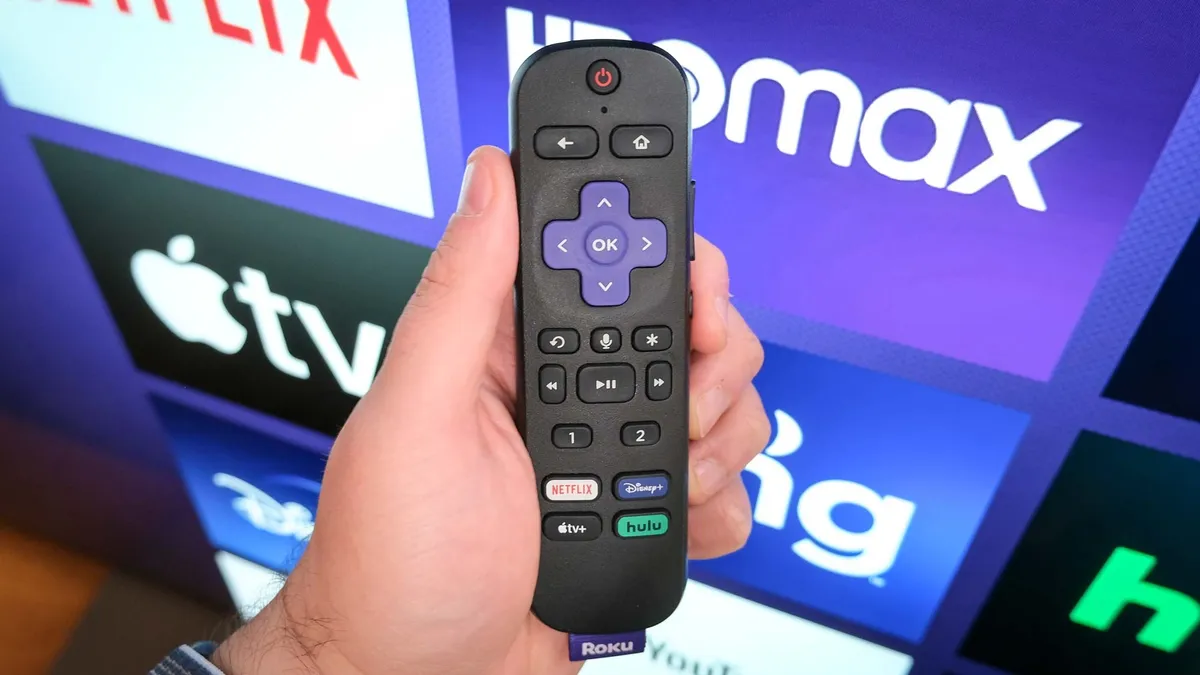
To prevent the TV from communicating with other devices on your Wi-Fi, open your router's companion app and assign your LG TV to an isolated Guest Network.
Alternatively, disconnect the TV from Wi-Fi entirely and use a dedicated streaming device (like an Apple TV or Roku), which offers far tighter, transparent privacy controls.

Follow Tom's Guide on Google News and add us as a preferred source to get our up-to-date news, analysis, and reviews in your feeds. Make sure to click the Follow button!
More from Tom's Guide