Google is rolling out a new setting called "Search Services History" that saves your media inputs like Google Lens photos, Google Translate data and voice searches to train its AI models.
If you already have Google's master Web & App Activity turned off, you're safe. But for everyone else, this feature is enabled by default. It doesn't scrape external files you just listen to or click on, but it does harvest the voice commands and images you directly upload.
Taking action now matters. While deleting your history disconnects it from your account immediately, an anonymized version can still sit in Google's AI training systems for up to four years.
Here is how to check your account and turn it off immediately.
How to opt out of Google AI data training
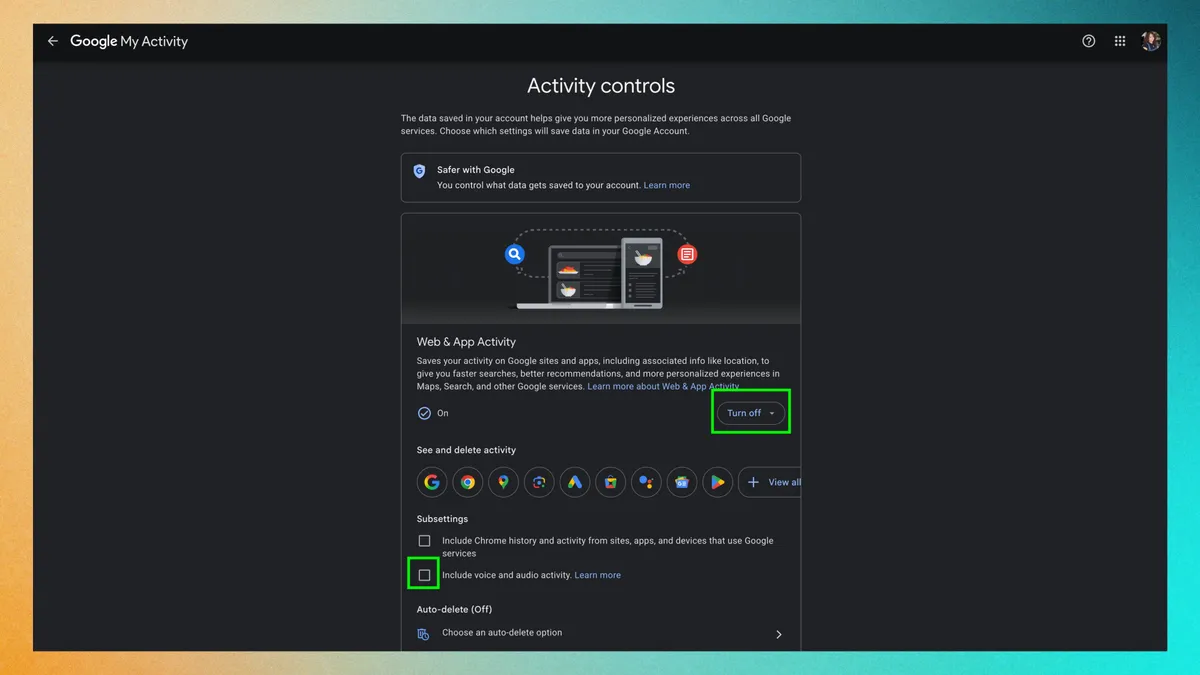
Go to myactivity.google.com and sign in to your Google account. Then look for the "Search Services History" tab — this is where Google is storing your media uploads. If you see it, you'll find a toggle at the top you can turn off.
Most importantly, find the checkbox labeled "Save media" and uncheck it immediately. This is the critical step that prevents your future images, audio, and video inputs from being used to train Google's AI models.
Because Google is rolling this out in waves, you might not see that new tab yet. If you don't, click on Web & App Activity instead, scroll down, and look for "Include voice and audio activity" and uncheck it.
Once you uncheck those media boxes, Google will stop collecting new media for AI training going forward. You should do this right now, as the longer you wait, the more of your active uploads get swept into Google's dataset.
While you can delete individual files later to disconnect them from your profile, any data already swallowed by the AI training system can remain anonymized in their loops for up to four years before it's completely cleared.

Follow Tom's Guide on Google News and add us as a preferred source to get our up-to-date news, analysis, and reviews in your feeds. Subscribe to Tom's Guide on YouTube and follow Tom's Guide Entertainment on TikTok and Instagram.
More from Tom's Guide