







If you're wondering how to restart a Chromebook, then you're in the right place. Whether you need to do so for a software update or for any other reason, we're here to guide you through the whole process from start to finish.
Finding a way of rebooting your Google-powered laptop can be a bit tricky, especially since Chromebooks typically don't have a dedicated "restart" button that you'd often find when using other PCs.
- These are the best Chromebooks right now
- And here's how to clear cookies in Chrome
Below we will walk you through three ways of restarting your Chromebook, including the traditional "shut down and power back up" way, doing so via the power button, and performing a hard reset. Though it's worth noting that with some of these methods, you might be risking losing any unsaved work, so make sure you save everything important and close your Chrome tabs before diving into the process.
How to restart a Chromebook: Shutting down and rebooting
1. Click on the notification section located on the right side of your navigator tab at the bottom of the screen. It will typically indicate your Chromebook's battery, Wi-Fi, and time.

2. You should then be able to see a small window open up at the bottom right corner of your screen. Go ahead and select the 'Shut down' icon at the top of the notification window. This should automatically save any data and work that you have opened on your Chromebook and safely log you out of your Google account before shutting down your device.

3. If you're still worried about not being logged out, you can always opt to sign out right before choosing to power off your laptop. To do this, simply select the 'Sign Out' option to the left of the 'Shut down' button.

4. You can now power your Chromebook back up by using the power button.

How to restart a Chromebook using the power button

1. Locate and hold the power button for approximately three seconds. This should automatically log you out of your Google account, save your work, and shut down your Chromebook.
You can also hold the button for just a second or so, which should reveal a 'Power menu,' where you'll have the option to either 'Shut down,' 'Log off,' 'Lock your Chromebook,' or 'Provide feedback.'

2. You can now restart by pressing the power button as usual.
How to restart a Chromebook with a hard reset
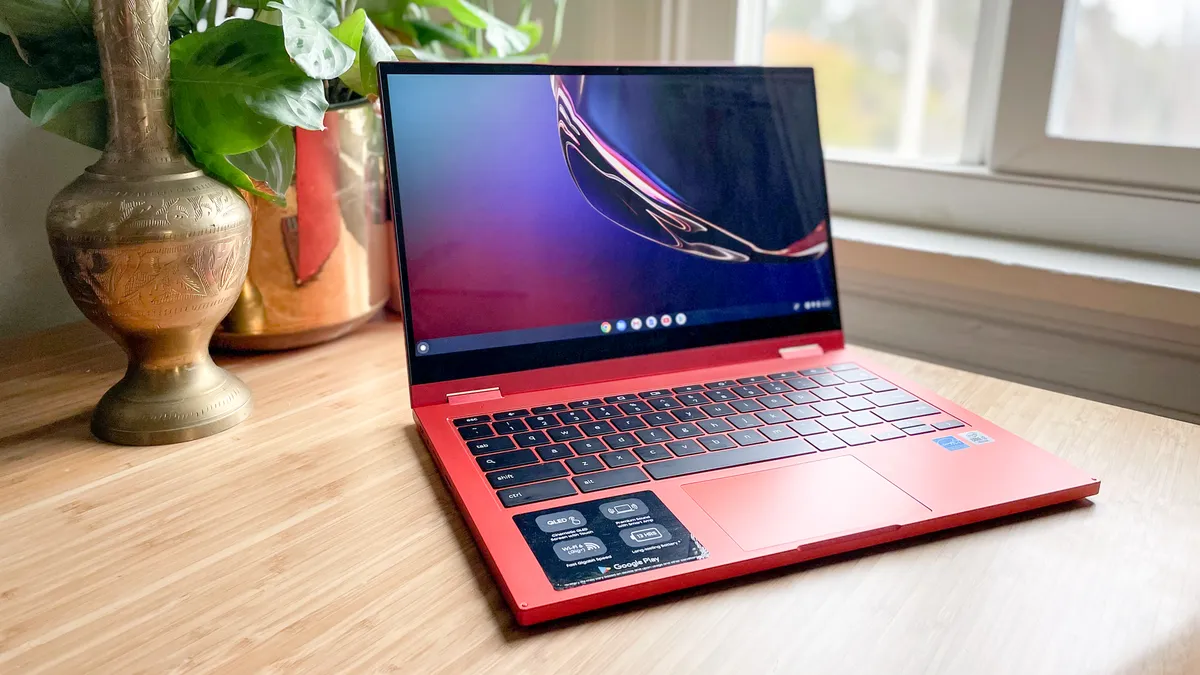
WARNING! This method will risk losing any unsaved work, so make sure to manually log out of your Google account before getting started. You can do so by holding the Ctrl and Shift keys + pressing Q twice or via the notification section located on the right side of your navigation bar.
Once you've clicked on it, go ahead and select the 'Sign Out' option located at the top left corner of the notification window. Ready? Alright, let's get to performing a hard reset on your Chromebook.
1. Hold the 'refresh' key and tap on the power button right after. This should force your Chromebook to automatically restart.

While this should work for the majority of Chromebooks, some devices provide alternative methods.
For example, if you're using a Chrome OS tablet, you can restart your device by pressing and holding the 'volume up' and 'power button' for a total of approximately 10 seconds.
- More: How to update Chrome to ensure you've got the latest version
- And here's how to clear cache in Chrome

