For millions of households, the Roku remote is a fixture on the coffee table. But most of us stick to the directional pad, volume, and app shortcut buttons without paying much attention to the rest.
The star button is easy to overlook, but it opens an options menu that changes depending on what you’re doing. Press it during a show and you can adjust captions and sound settings, press it on the home screen and you can manage your apps.
If you want to get more out of your Roku player or Roku TV, here are a few ways you can put the star button to use.
1. Volume Leveling and Night Mode during playback
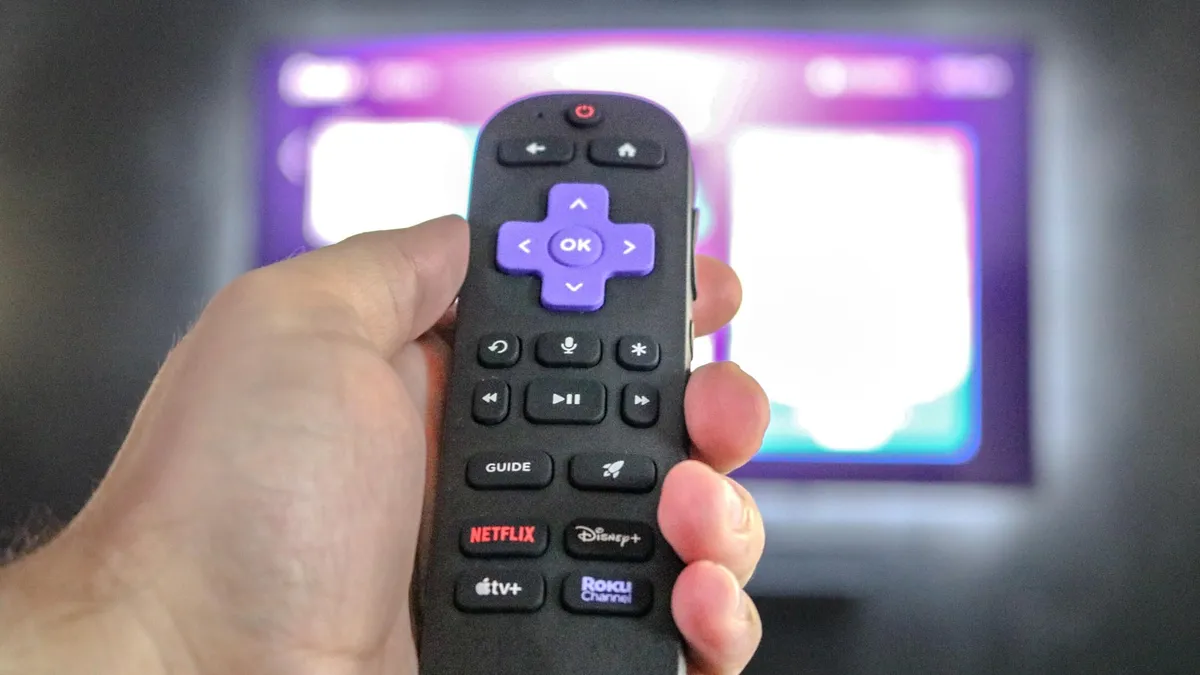
One of the more useful things the star button does happens during playback. Press it while a movie or show is playing, and on most Roku devices an Options menu appears on screen. Among the settings there, you’ll find volume modes such as Leveling and Night.
Leveling keeps volume more consistent as you move between apps or when a commercial comes on, so you don’t have to keep adjusting it. Night Mode raises quieter sounds like dialogue and lowers louder ones like explosions, which helps for late-night viewing when you don’t want to disturb anyone. Once you pick a mode, it stays on when you return to that app.
Availability varies by device, and in some apps the star button does something else, so you may not see these options everywhere.
2. Quick caption controls
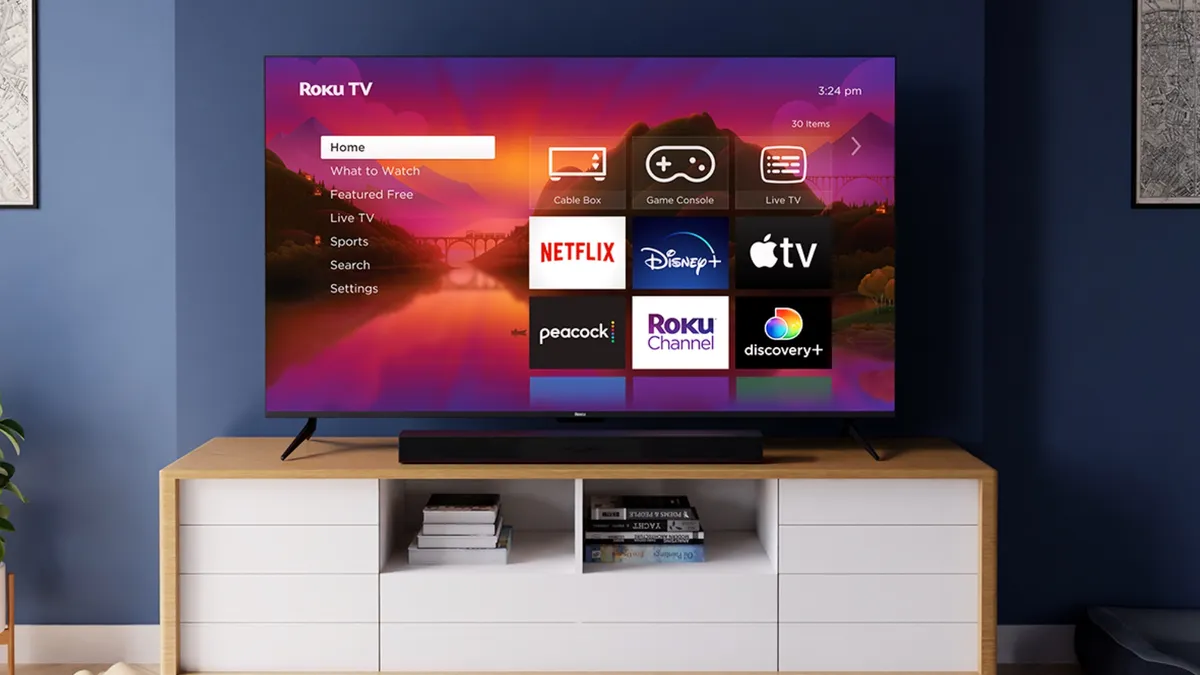
The star button is also a quick way to manage closed captions without leaving what you’re watching. While something is playing, press it to open the Options menu, where you can turn captions on or off, and set them to "On mute" or "On replay."
That replay setting briefly shows captions after you press the instant replay button, so you can catch a line you missed without keeping subtitles on the whole time. Because some apps use their own caption controls, this option may not appear in every app.
3. App management and cleanup
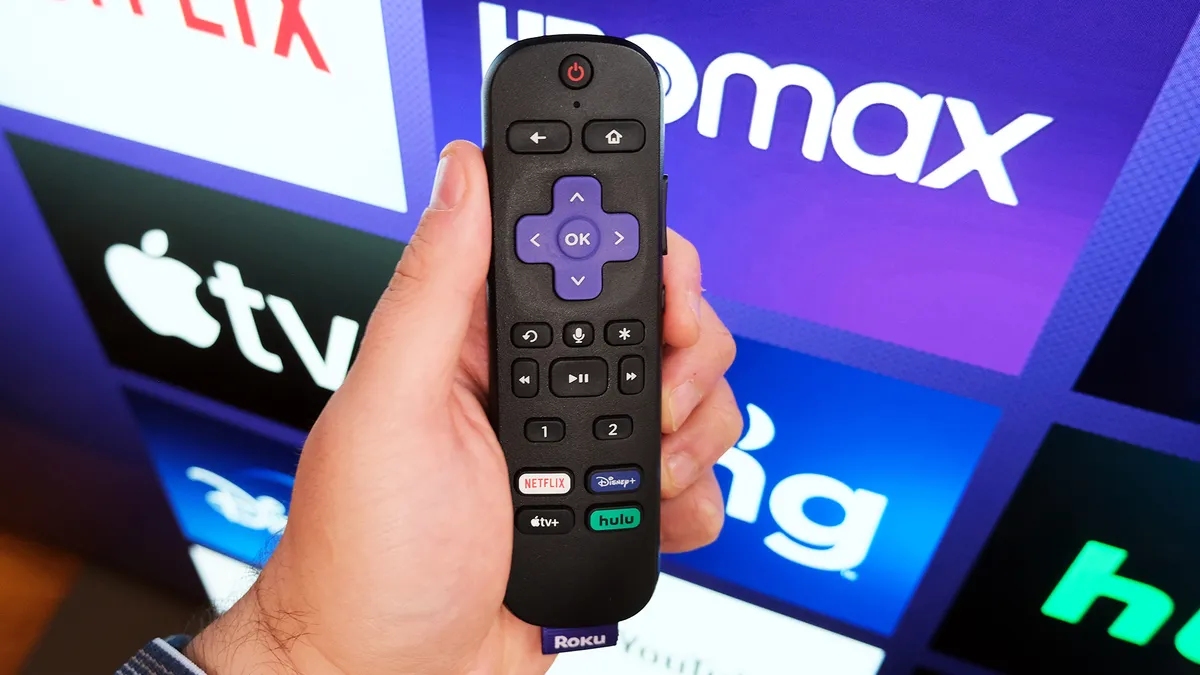
The star button works on the home screen, too. Highlight any app and press it to open a menu for that app, where you can move it to a new spot, check for updates, or, for subscriptions billed through Roku, manage your subscription.
It’s also the easiest way to clear out apps you don’t use. Select “Remove app” to uninstall it, which frees up space on your device. If an app keeps crashing, removing it, restarting your Roku, and adding it back is a common fix.
Do you have any Roku tips or tricks? Share them in the comments below!

Follow Tom's Guide on Google News and add us as a preferred source to get our up-to-date news, analysis, and reviews in your feeds. Make sure to click the Follow button!
More from Tom's Guide