Ever since the release of Android 16 last year, Google has shifted to a more accelerated release cycle for Android updates. Earlier, major Android versions would arrive alongside new Pixel launches around August or September, but now Google is pushing out stable Android releases mid-year, with feature drops following around the Pixel launch.
This year, the company is continuing with the same approach, and we've already seen multiple Android 17 beta builds roll out. I've been running Android 17 on my Google Pixel 9 Pro since the first beta dropped, and I've come across quite a few changes during this cycle.
Android 17 might not feel as exciting as some of the older updates, but it still brings a number of useful features, including a new multitasking feature (that I'm personally a BIG FAN of), and the upcoming Android update is definitely something worth keeping an eye on.
App bubbles
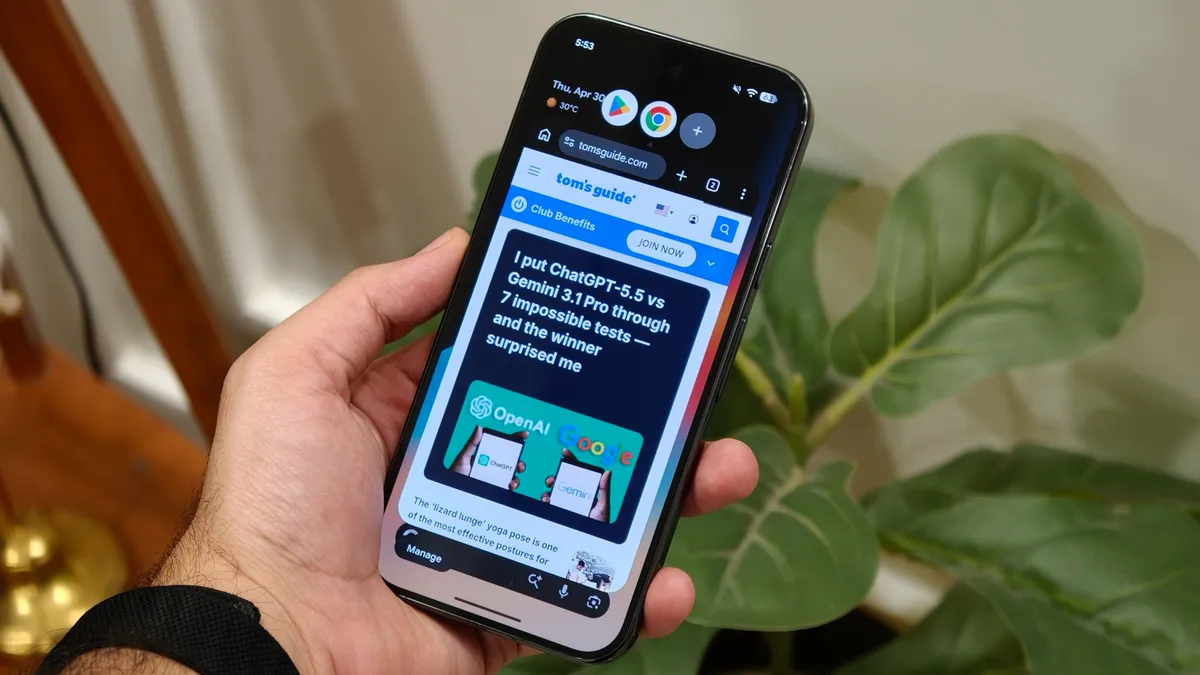
Say what you want about the iPhone, but if you care about multitasking on a phone, Android still does it best. We've had split-screen support for years now, and with Android 17, Google is taking things a step further.
Android 17 introduces a new feature called App Bubbles. As the name suggests, it lets you run full apps in floating windows on top of whatever you're currently doing. We've seen similar ideas on some Android skins before, but this is the first time Google is building it in natively, which means Pixel phones and other devices will support it out of the box.
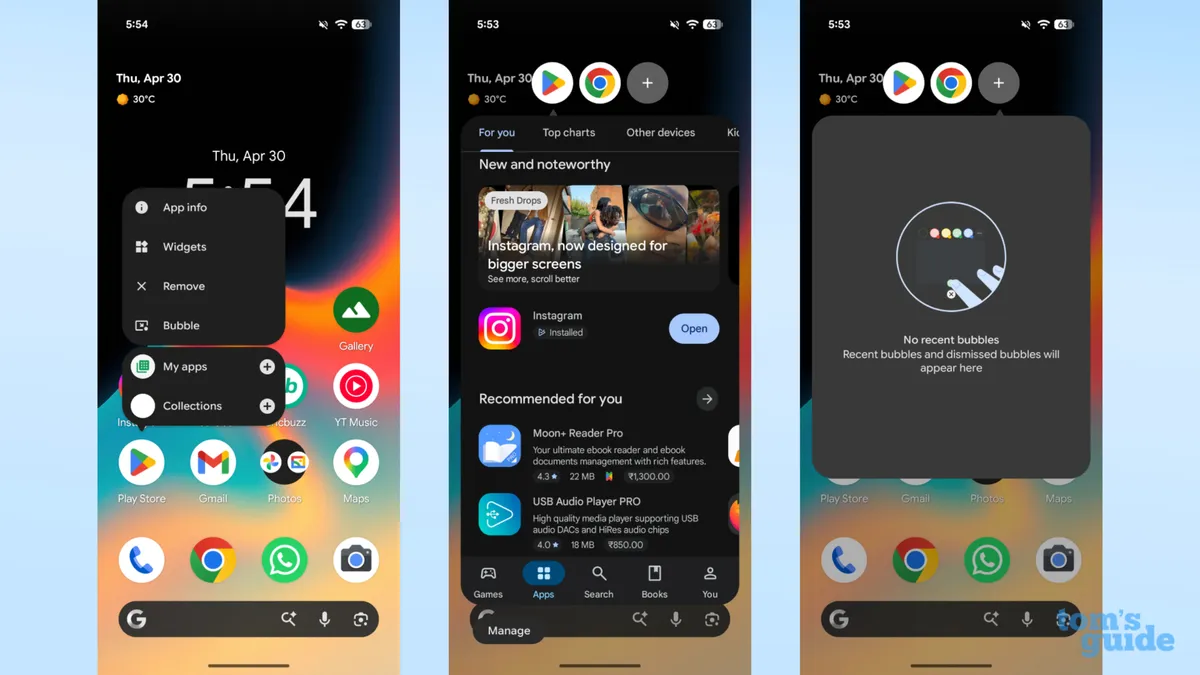
Using App Bubbles is pretty straightforward. You just press and hold on an app icon and tap the bubble option. The app opens in a floating window that you can move around and use normally.
When you're done, tapping outside minimizes it into a small bubble that stays on your screen. You can even have multiple bubbles active at once and move them around together.
The whole thing reminds me a lot of Facebook Messenger's chat heads from years ago, but now it's for full apps. It's a new way to multitask on Android, especially useful when you want to quickly check something without switching apps entirely. And with foldables becoming more common, I can see this being one of the most useful features once Android 17 rolls out.
New screen recording features
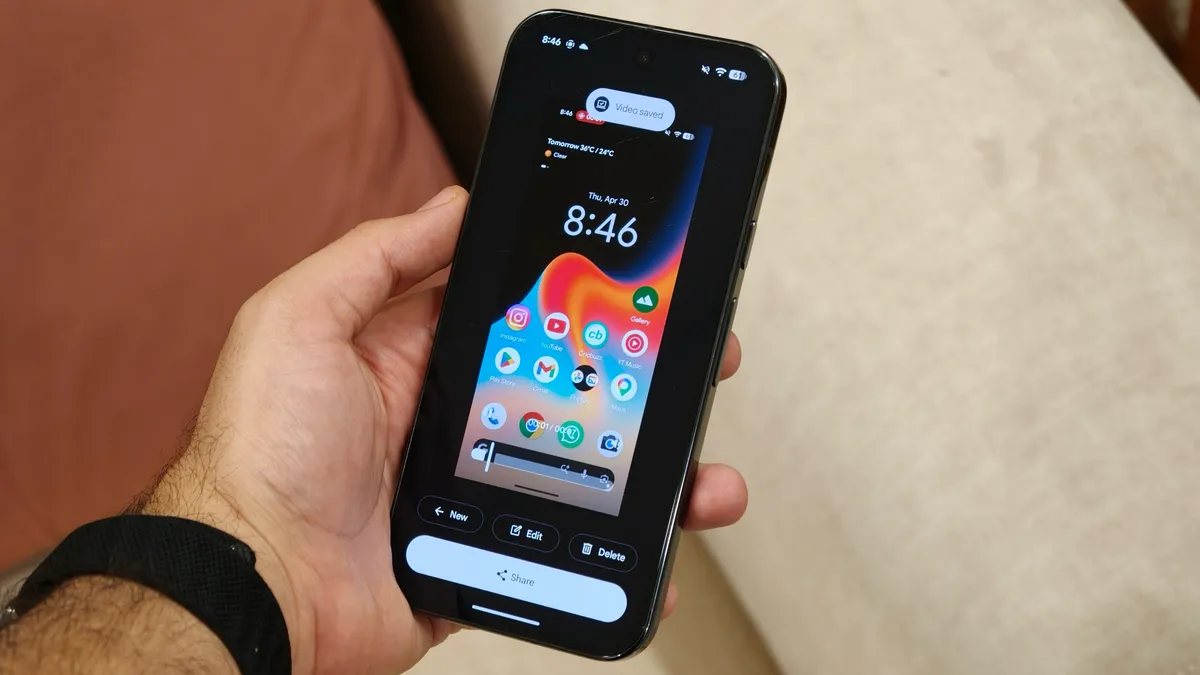
Android's screen recording feature is already quite functional, but with Android 17, Google is finally fixing some of the smaller annoyances.
Now, when you start screen recording, you still get the option to record the entire screen or just a single app. Right there, you can also choose whether to record device audio, microphone audio, or show touches, which is especially useful for tutorials.
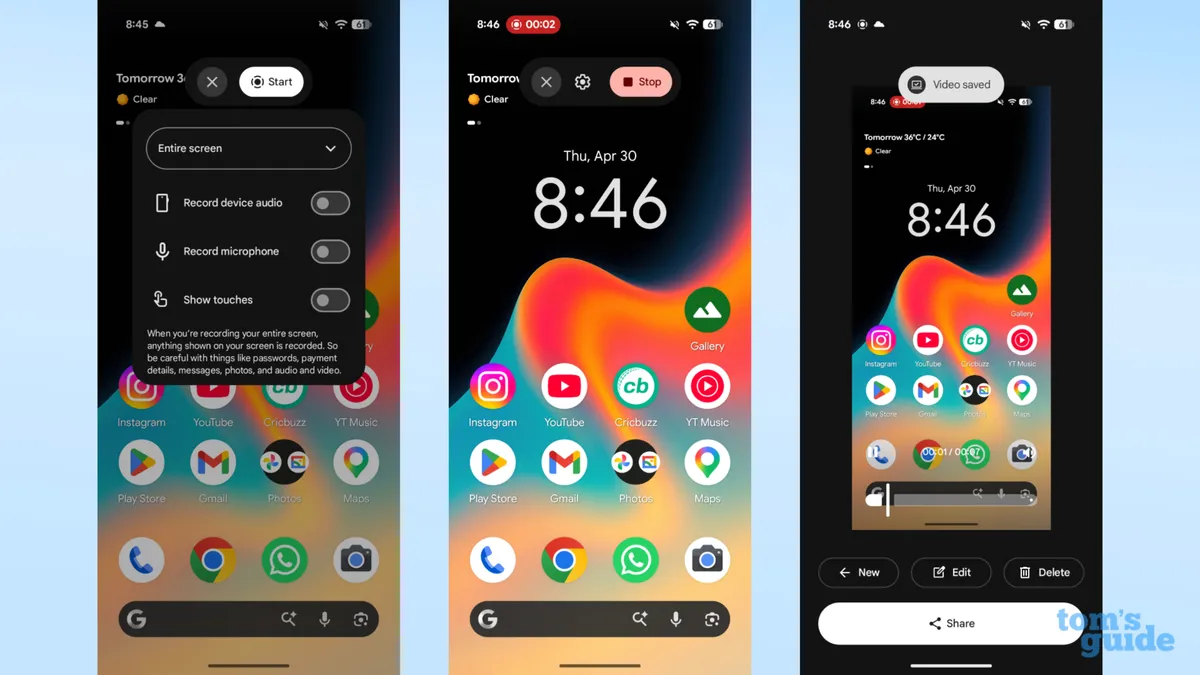
Once you start recording, the screen recording chip still appears in the status bar. But now, when you tap it, you get a new pill-shaped overlay with a clearly labeled stop button.
The real upgrade shows up when you stop the recording. Instead of it just saving to your gallery, you're taken to a preview screen where you can watch the recording immediately. From there, you can share it, edit it, or even trim the video. If you don't like the clip or started recording by mistake, you can delete it right away as well.
Minimal home screen
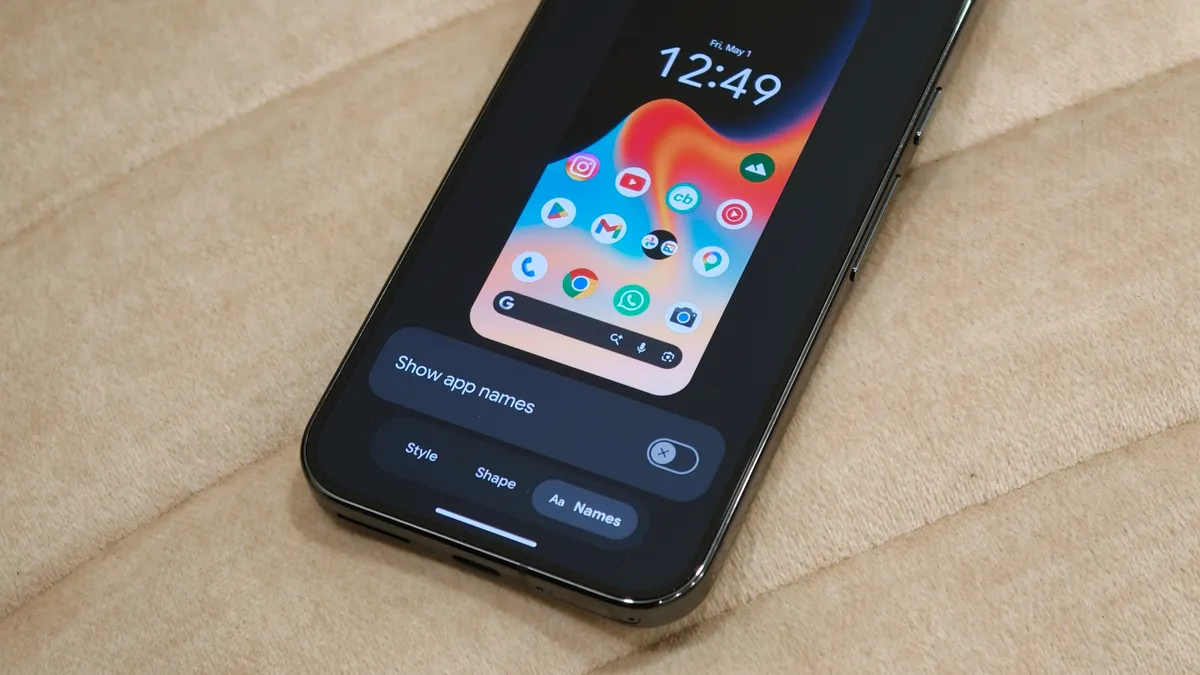
I'm a sucker for a minimal setup, and if you're like me, Android 17 is bringing a couple of changes that make the Pixel home screen much cleaner.
First up, Google is finally adding the option to disable the At a Glance widget. It's a useful widget that shows contextual info like flight updates, calendar events, and more, but if you don't really use it and just want a cleaner look, you'll finally be able to remove it from the home screen by going into the home screen settings.
Another nice addition is the ability to hide app labels. Right now, every app icon shows its name underneath on the home screen, but with Android 17, you will be able to turn that off for a more minimal layout. The option is available under Wallpaper & style settings, where you can disable app names completely.
Separate Wi-Fi and Mobile Data toggles
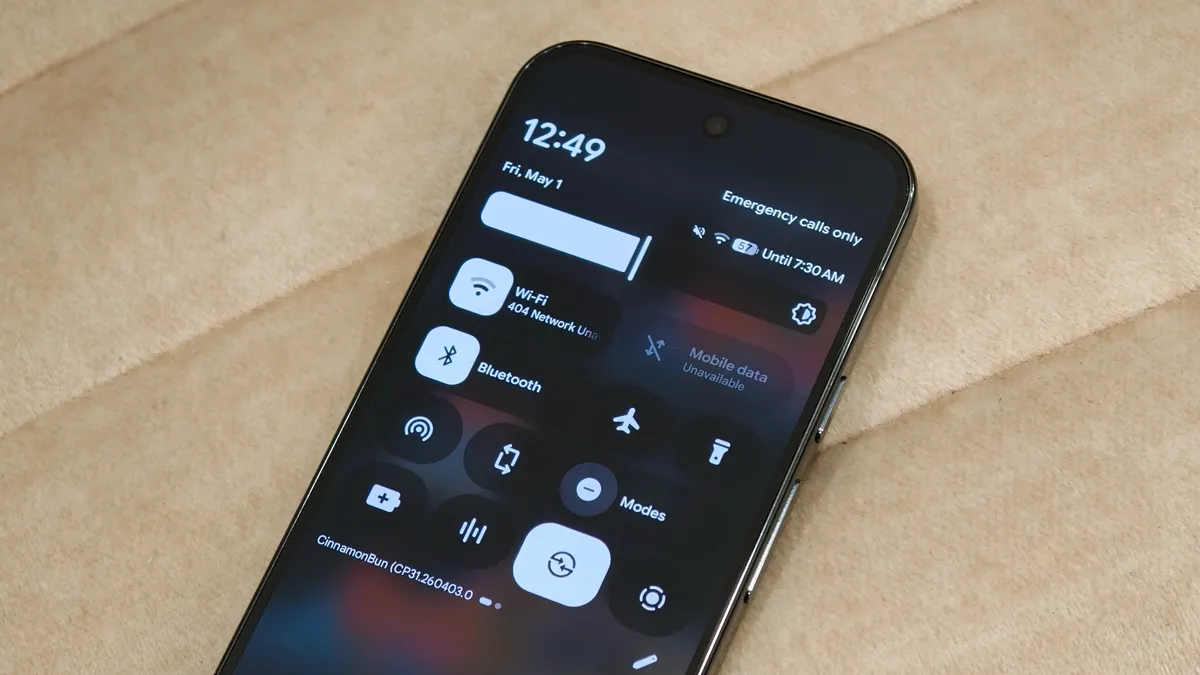
One of the biggest mistakes, in my opinion, that Google made in the past few years was merging Wi-Fi and mobile data into a single Internet tile in Quick Settings.
Right now, if you want to switch Wi-Fi networks or turn mobile data on or off, you've to open Quick Settings, tap the Internet tile, and then take action. It just feels clunky, but thankfully Android 17 is fixing this.
Now, you'll be able to add separate Wi-Fi and mobile data toggles to Quick Settings, just like before. This means tapping the Wi-Fi tile takes you straight to Wi-Fi settings, while the mobile data tile lets you quickly turn it on or off without extra steps.
Cross-device continuity
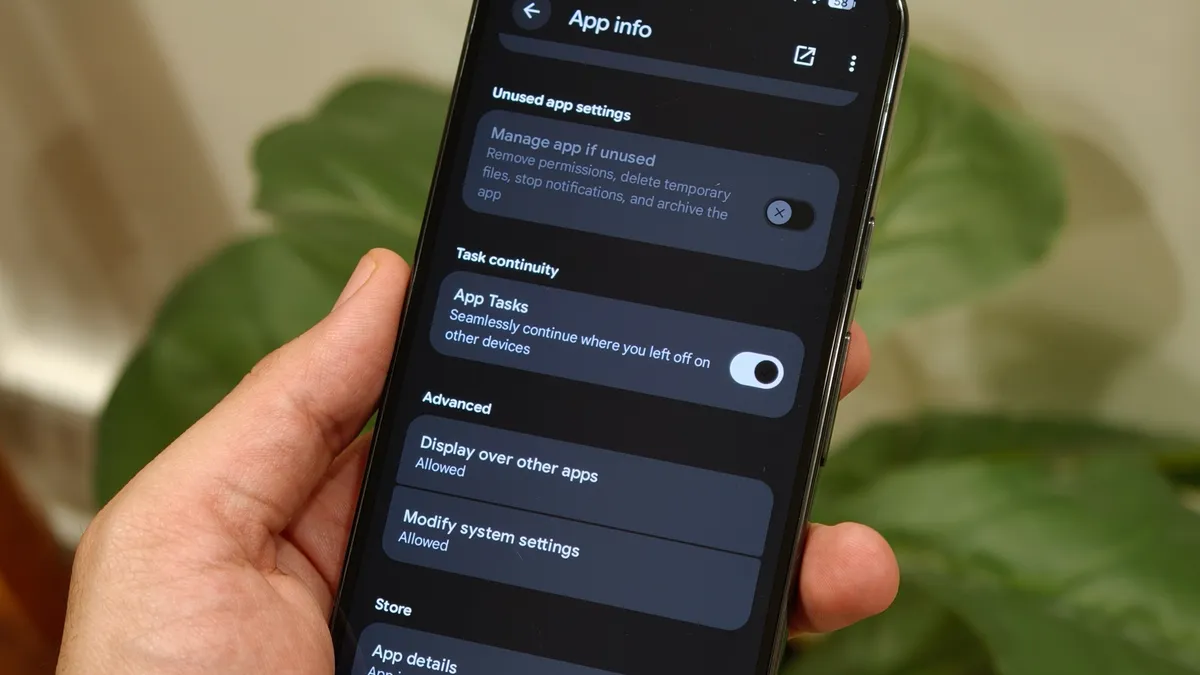
Probably the most important feature Android 17 is getting is cross-device continuity and handoff. Android already has some continuity features like Instant Hotspot and synced notifications, but with Android 17, Google is expanding this in a much more meaningful way.
With this update, Google is adding proper handoff support through Play services, which means apps updated for Android 17 can offer a more seamless experience across devices.
For example, if you start taking notes on your phone and then switch to your Android tablet, you can pick up exactly where you left off in the same app. A new task continuity option is already showing up in some apps, letting you enable this feature on a per-app basis.

There's also a universal clipboard feature expected, which will let you copy something on one device and paste it on another. If you use multiple Android devices, this could be incredibly useful, especially when paired with things like Android's desktop mode.
All things considered, Android 17 might not feel like a massive leap at first glance, but it's clearly building toward a more refined and connected Android experience.
And, on top of that, there are several UI tweaks expected as well, like more blur effects across the interface, likely taking cues from Apple's Liquid Glass. But for now, we'll have to wait for the full reveal to see how all of this actually comes together.

Follow Tom's Guide on Google News and add us as a preferred source to get our up-to-date news, analysis, and reviews in your feeds.
More from Tom's Guide