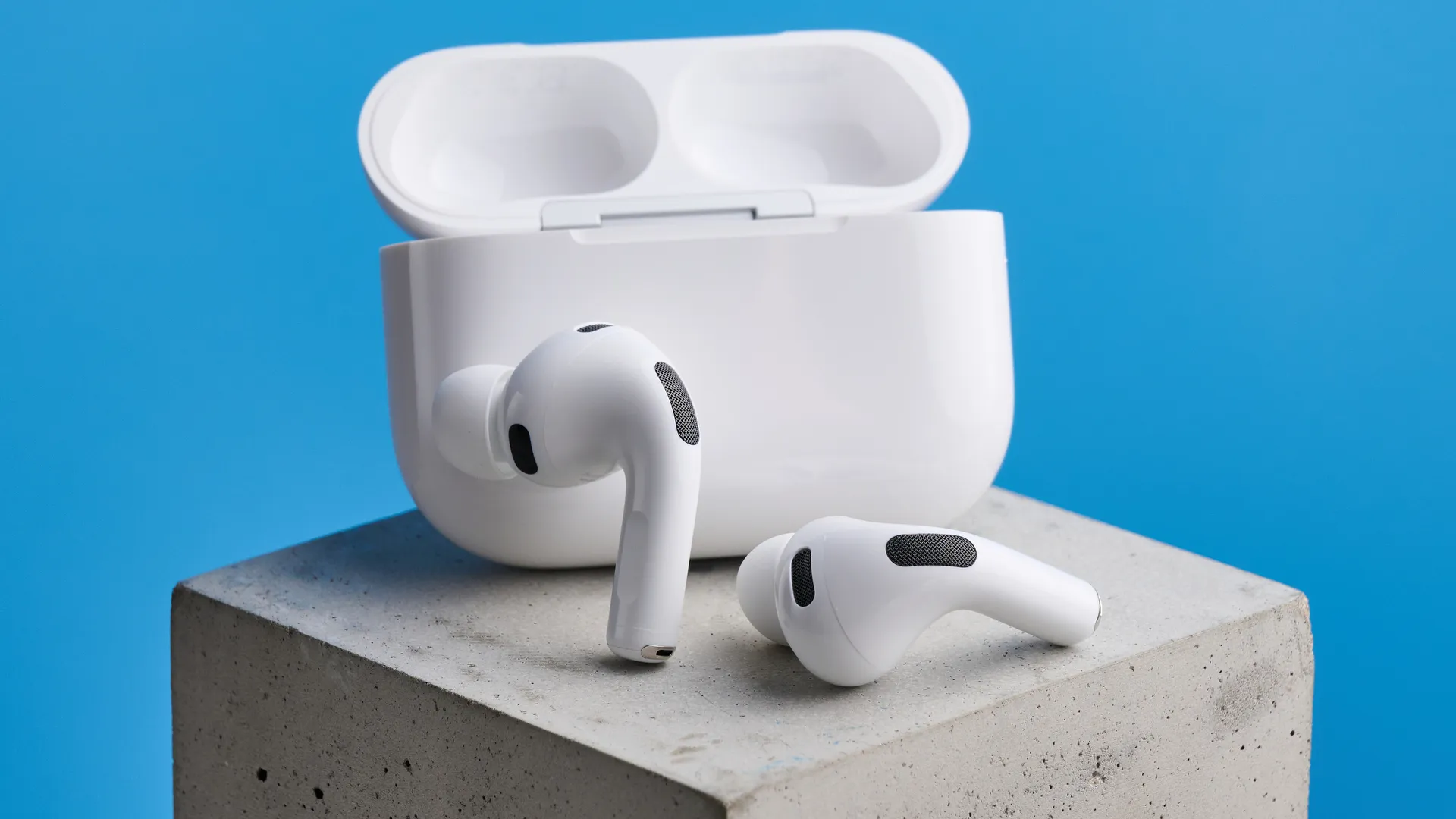
Most people use their AirPods for listening to music and taking calls, but Apple has quietly added dozens of features through software updates that completely change what these earbuds can do. You can nod your head to answer calls, use them as a real-time translator, or even take photos with your iPhone remotely.
If you bought AirPods in the last couple years or haven't explored your settings recently, you're probably missing capabilities that would actually be useful in your daily life. I discovered five features that made me realize I've been underusing my AirPods. Here's how to find and use each one.
1. Answer calls and texts by nodding your head
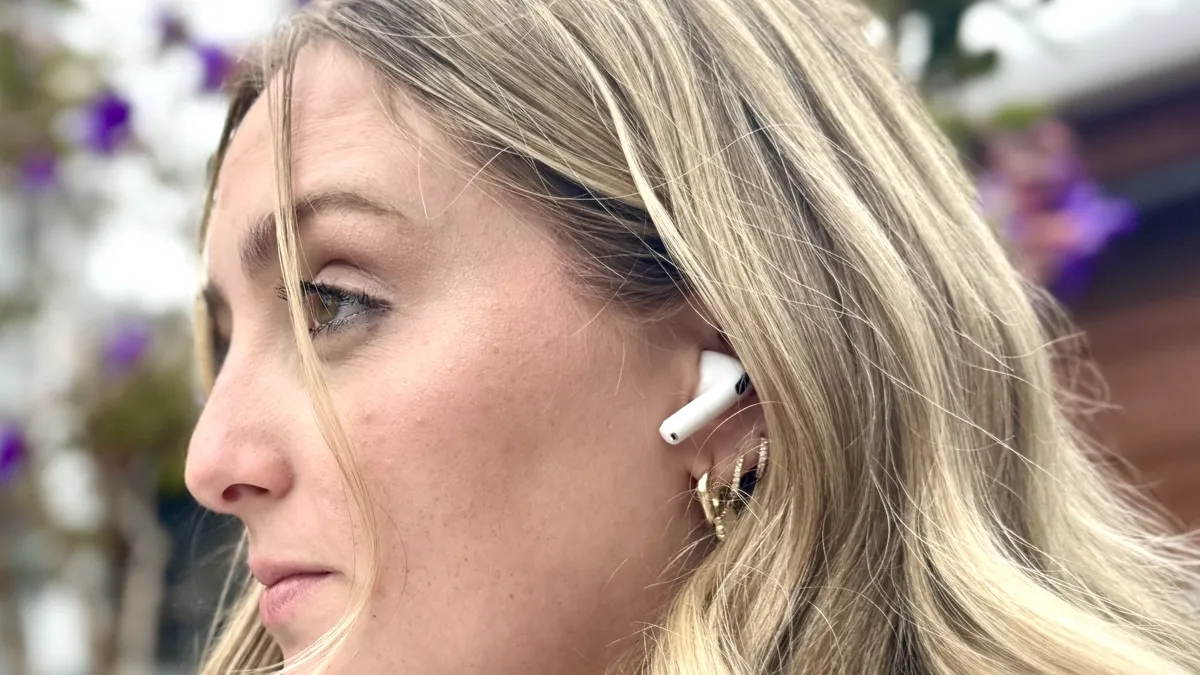
Your AirPods Pro 2, Pro 3, or AirPods 4 can detect head movements and use them to control Siri and respond to notifications hands-free. When a call comes in or you receive a text message, you can nod your head up and down to accept or reply, or shake your head side to side to decline or dismiss.
Put your AirPods in and make sure they're connected to your iPhone. Next, open Settings and tap your AirPods' name at the top of the screen. Scroll down and tap "Head Gestures" then toggle the switch on. You can customize which gesture does what by tapping the options below the toggle.
Use the "Try Head Gestures" button to test whether it's detecting your movements correctly. Once enabled, Siri will announce incoming calls and messages, and you can respond just by moving your head.
2. Use AirPods for real-time language translation

Live Translation is one of the most impressive hidden features added in iOS 26. You can translate conversations in real-time, letting you understand someone speaking a different language. If you're speaking English with someone who speaks Spanish, you'll hear what they're saying translated into English through your AirPods.
There are three ways to activate Live Translation: open the Translate app on your iPhone, press and hold the stem on both AirPods simultaneously, or ask Siri to "start Live Translation".
The translation happens live as the other person speaks, making it possible to have flowing conversations across language barriers. This works for multiple languages and is incredibly useful when traveling or speaking with people who don't share your language.
3. Automatically pause media during bedtime

If you regularly fall asleep while listening to music, podcasts, or videos with your AirPods in, sleep detection solves a common problem. Available on AirPods Pro 2, Pro 3, and AirPods 4, this feature uses sensors to detect when you've fallen asleep and automatically pauses whatever you're listening to. This saves battery life on both your AirPods and your phone.
To enable it, connect your AirPods to your iPhone, open Settings, tap your AirPods at the top of the screen, scroll down, and toggle on "Pause Media When Falling Asleep."
Once activated, your AirPods will monitor your movement and breathing patterns to determine when you've dozed off and pause playback automatically.
4. Take photos using your AirPods as a remote

Your AirPods can function as a camera remote shutter for your iPhone, which is perfect for group photos, selfies, or situations where you can't reach your phone's screen.
To do this, connect your AirPods to your iPhone, then go to Settings, tap your AirPods, scroll down to "Camera Remote," and choose whether you want to take photos by pressing the AirPods stem once or by pressing and holding.
Once configured, open the Camera app, set up your shot, and use the gesture you selected on your AirPods stem to trigger the shutter. This gives you a wireless remote control for photos without needing a separate device or timer.
5. Stop audio from jumping to nearby speakers

One of the most annoying AirPods behaviors is when your audio suddenly switches from your earbuds to a nearby Bluetooth speaker without warning.
iOS 26 added a hidden setting that prevents this. "Keep Audio with Headphones" locks your audio to your AirPods even when other Bluetooth devices are in range, so your music won't randomly jump to your car speakers, HomePod, or someone else's Bluetooth speaker.
To access this feature, open Settings, tap General, select "AirPlay & Continuity," and toggle on "Keep Audio with Headphones." Once activated, your audio will stay in your AirPods until you manually choose to switch it to another device.
This is incredibly useful in homes with multiple Bluetooth speakers or when you're in environments with many Bluetooth devices competing for your phone's attention.

Follow Tom's Guide on Google News and add us as a preferred source to get our up-to-date news, analysis, and reviews in your feeds. Make sure to click the Follow button!
More from Tom's Guide
- How to pair AirPods with any Android phone — 5 simple steps
- Your earbuds are disgusting — here's how to clean them
- Spotify's Lossless listening makes music sound brand new