




Samsung is discontinuing its Messages app. If you're still using it to send texts on your Galaxy phone, it will stop working in July 2026. After that date, you won't be able to send or receive messages through the app except for emergency services.
Samsung stopped preinstalling Messages on new Galaxy phones years ago, but millions of users on older devices still rely on it. The company is now forcing everyone to migrate to a different texting app — primarily Google Messages, which comes preinstalled on most recent Galaxy phones.
Here's what's happening and what you need to do before the shutdown.
What's happening to Samsung Messages?
Samsung will deactivate its Messages app completely in July 2026. The company hasn't announced an exact date, just "July," so assume the shutdown could happen anytime during that month.
Once deactivated, Samsung Messages will no longer send or receive texts, group messages, or media. The only function that will continue working is messaging to emergency services like 911. Everything else stops.

Samsung began transitioning away from its own texting app when it stopped making Samsung Messages the default on new Galaxy phones. The Samsung Galaxy S26 and newer models can't even download Samsung Messages — they ship with Google Messages.
Users on Android 11 or older aren't affected by the shutdown. Samsung Messages will continue working on these older operating system versions. However, since Android 11 is outdated and no longer receives security updates, users will likely want to switch to a supported texting app anyway for safety and feature access.
How to switch to Google Messages
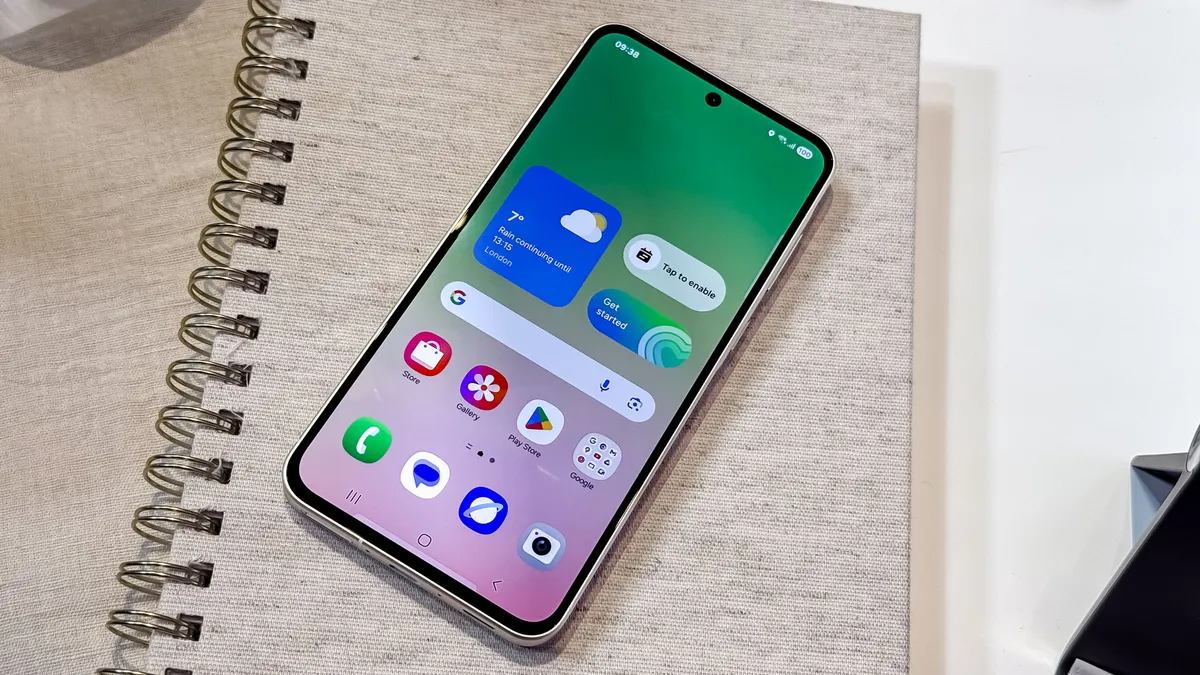
Samsung may send an in-app notification within Samsung Messages to guide you through the switch. If you receive this notification, follow the on-screen instructions to complete the process.
To switch to Google Messages manually, start by downloading it from the Google Play Store if you don't already have it installed. Most recent Samsung Galaxy phones have it preinstalled, but if you don't see it, search "Google Messages" in the Play Store and download it.
Open Google Messages. The first time you launch the app, a message appears: "To use Messages, make it your default SMS app." Tap the "Set default SMS app" button.
Select Google Messages from the list of messaging apps that appears. Look for the white icon with the blue conversation bubble. Once you've selected it, tap "Set as default."
Google Messages is now your default messaging app and ready to use. That's all you need to do — once it's set as your default, you're prepared for the Samsung Messages shutdown and can continue texting normally.
There are some caveats
First, it's worth noting that this change appears to affect U.S. users only for now. Once Samsung Messages is officially discontinued, the app will only be able to send texts to emergency service numbers or emergency contacts saved on your device — so don't leave the switch too late.
Samsung has also flagged that devices released before 2022 may run into RCS disruptions, and if you're already on a Galaxy S26, you'll find Samsung Messages has been pulled from the Galaxy Store with immediate effect. Everyone else has until July before older devices are blocked from downloading it too.

Follow Tom's Guide on Google News and add us as a preferred source to get our up-to-date news, analysis, and reviews in your feeds. Subscribe to Tom's Guide on YouTube and follow us on TikTok.
More from Tom's Guide

