




I never thought I’d be able to look up in my game room and see a picture of Mona Lisa or the Great Pyramid recreated in pixel form on my ceiling. Thanks to Govee’s new Ceiling Light Ultra, though, I can. But this massive 21-inch smart light can do so much more.
I’ll admit, my smart home journey started small with a few smart bulbs here and there before I graduated to lightstrips. Then I redid my backyard with smart outdoor string lights and gave my son a massive pixelated canvas in his playroom with a smart curtain light — but I was just getting started.
It did take getting the breaker in my home completely redone, but I eventually moved on to hard-wired smart lights. Sure, I did have to cut the power and get comfortable with wiring, but it was absolutely worth it.
Back at CES 2026, I got to see Govee’s Ceiling Light Ultra in person. While impressive on the show floor, it wasn’t until I installed it in my own living room that I truly came to appreciate just how much brighter and bigger it was.
If you’re tired of sitting in a dim, boring room or just want to actually use ‘the big light’ for a change, here’s what it was like installing and using the Govee Ceiling Light Ultra to completely transform my living room.
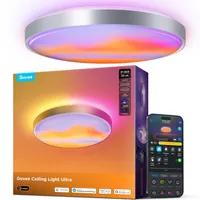
A familiar yet massive smart light
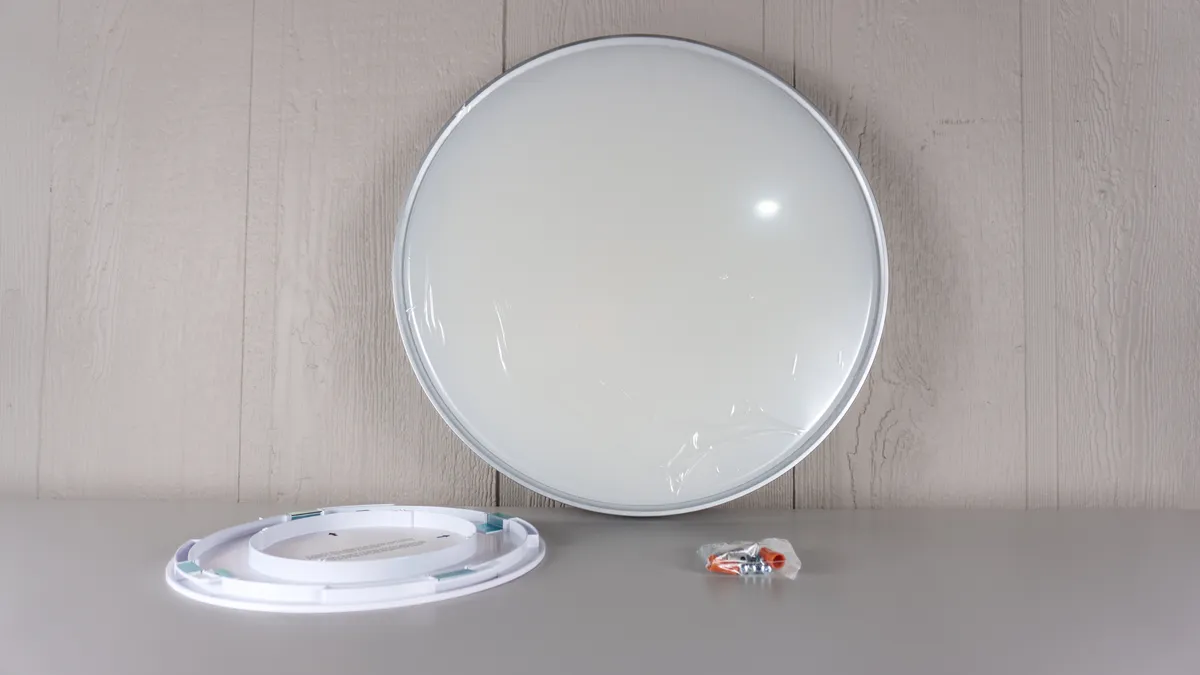
Now this isn’t my first rodeo with Govee’s hard-wired ceiling lights. In fact, back in October of last year, I swapped out the dated and quite ugly boob lights in my main hallway for a pair of the company’s smart ceiling lights. As such, I wasn’t too surprised when I unboxed the Ceiling Light Ultra.
Inside its massive box, you get the light fixture itself, a mounting plate, and all the hardware you’ll need to install it. One thing I like about Govee’s approach to this is that, in addition to your standard wire nuts, you also get a pair of Wago-style connectors. That way, if you don’t have a lot of slack left on your wires, you can just push them into these connectors and clamp them shut.
Govee’s Ceiling Light Ultra is 21 inches in diameter, 3 inches tall, and is rated for 5,000 lumens. It has a color temperature range of 2700 to 6500 Kelvin, and this means that, in addition to more relaxed yellow light, it can also produce clean white light, which is great for reading, studying, or working. Unlike my smaller ceiling lights, this one has a silver edge to help give it that premium, ultra feel.
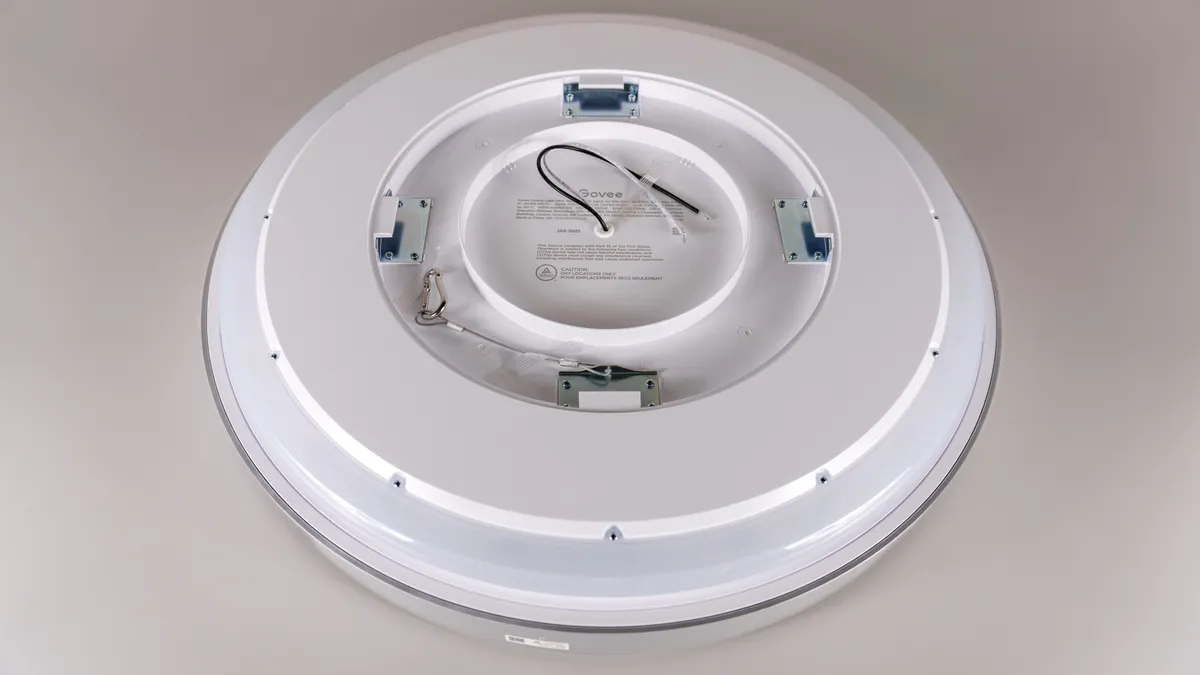
When you flip the Ceiling Light Ultra over, you can see the black (hot) and white (neutral) wires at the center. There’s also a clip with a cable to make installation slightly easier (more on that later), and the light’s base plate unscrews so that you can attach that to your ceiling first. Once again, I really like how Govee packages its hard-wired smart lights, as all of the extra hardware is actually tucked away neatly underneath this plate.
With the Govee Ceiling Light Ultra unboxed, it was time to go get my living room ready for the install.
Not quite a simple swap
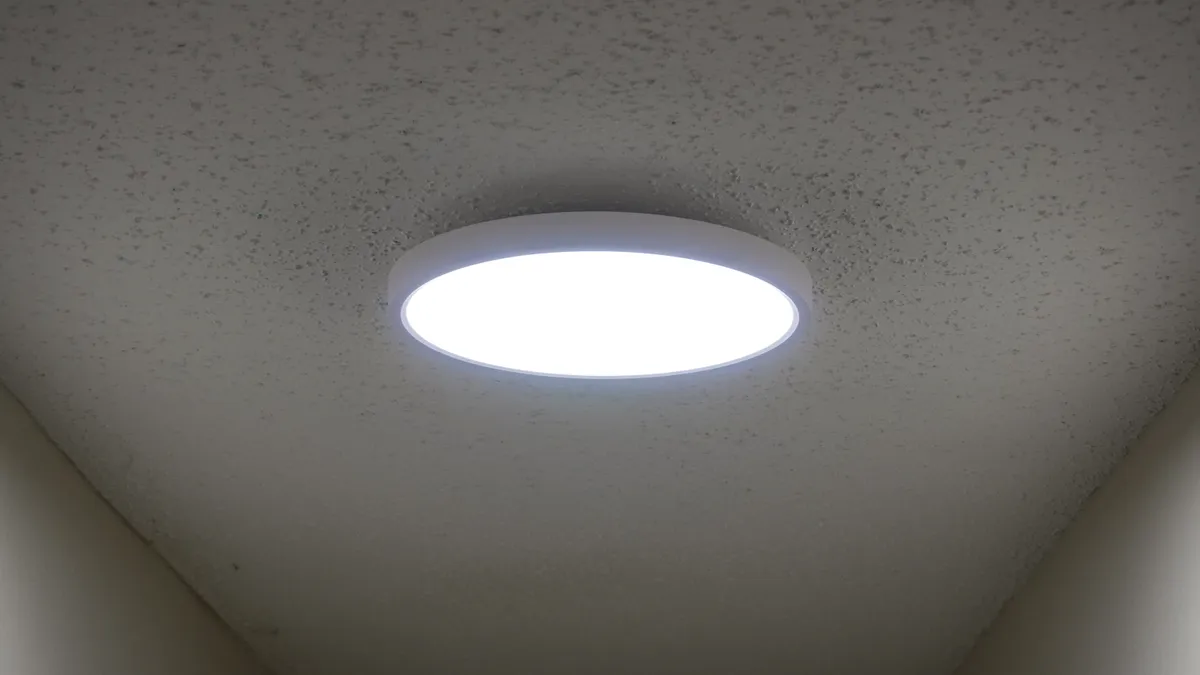
Now, if you want to follow in my footsteps and swap out your own boob lights with Govee’s smart ceiling lights, it’s a fairly straightforward process. This is because those lights weigh just under three pounds, which means that they’re well under the six-pound limit for what a circular junction box can hold. The Ceiling Light Ultra is a different beast altogether at 11 pounds, and because of this, I had to install it slightly differently.
My living room used to have two separate three-light cluster fans on either side of the room. While I swapped out their traditional candle-style bulbs with smart ones, their uneven placement and dated look — just like with the boob lights — meant they had to go. So before I even started installing Govee’s Ceiling Light Ultra, I took them down, but instead of throwing them out, I relocated one to my office and the other to my son’s bedroom.
With a blank living room ceiling, it was time to start the install. Since my living room was originally a garage, it already had a power outlet on the ceiling, which worked in my favor. Instead of running new wires, I simply took that receptacle down and planned to use its wires for the Ceiling Light Ultra. There was just one problem, though: I needed to put in a new junction box.
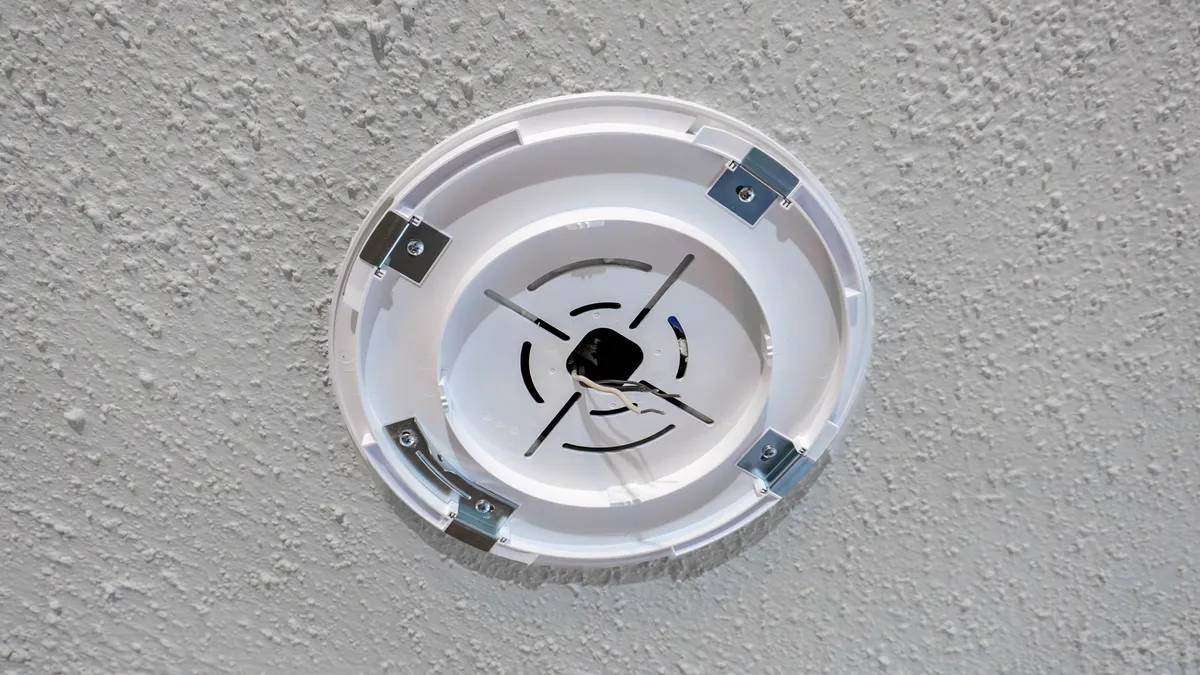
Just like with a ceiling fan, your standard old work junction box just won’t be strong enough to hold the Ceiling Light Ultra in place. Instead, you need a fan brace. Since I can access the attic from the living room, I went with a new work fan brace instead of an old work one, as I’d be able to get up there and screw it in.
I cut out a hole in the center of my living room’s ceiling for the fan brace, then came the tricky part. I had to go up in the attic and screw it in between two joists to ensure the Ceiling Light Ultra was fully supported. It was tough, cramped, and challenging, but I got it done. Then I drilled five more smaller holes in the ceiling and inserted wall anchors into each of them to attach the light’s mounting plate.
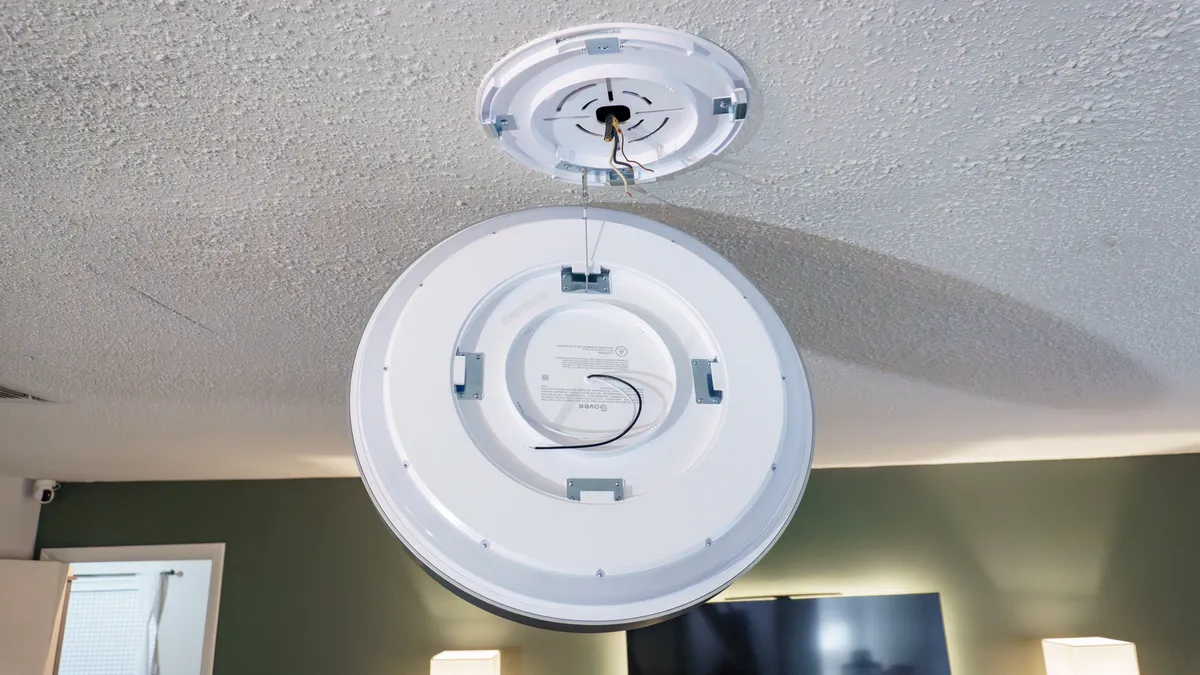
Remember that clip I mentioned earlier? Well, when installing hard-wired lights — whether they’re traditional or smart — that clip lets you hold the light fixture in place while you wire everything up. Though I like how Govee includes Wago-style connectors, I went with tried and true wire nuts instead for peace of mind.
Once I had everything wired up, I just lined up the Ceiling Light Ultra with the cutouts on its mounting plate, gave it a twist, and voila, I now had a massive smart light right in the center of my living room.
Let there be light (and GIFs)
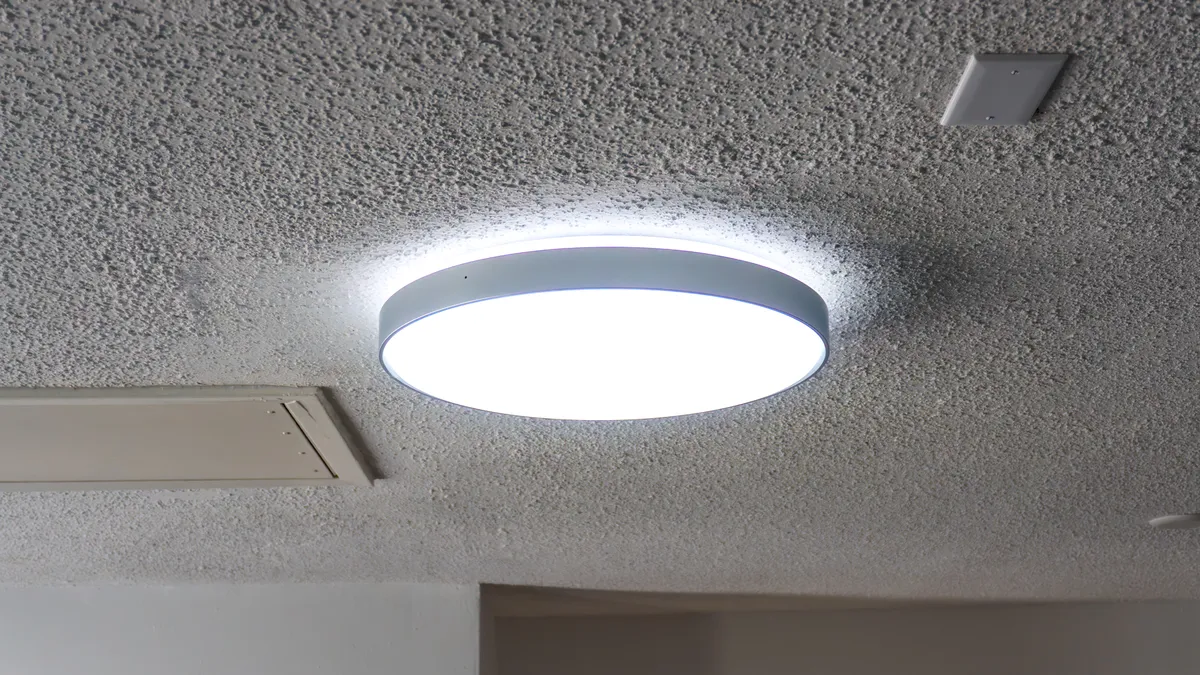
The previous smart lights I’ve installed around my home have really made a difference, but the Govee Ceiling Light Ultra completely transformed my living room. Instead of two fans with three candle bulbs each at the front and back of the room, I now had a massive light that fully lit up the space. And unlike with those fan lights, I actually wanted to turn this one on and keep it on.
Adding the Ceiling Light Ultra to the Govee app was a breeze, too. I just tapped the Plus icon in the right corner, selected it, connected it to my Wi-Fi, installed a quick update, and I was good to go. Once it was in the app, it was instantly added to Alexa and Google Home, so I could control it with one of the best smart speakers in addition to using my phone.
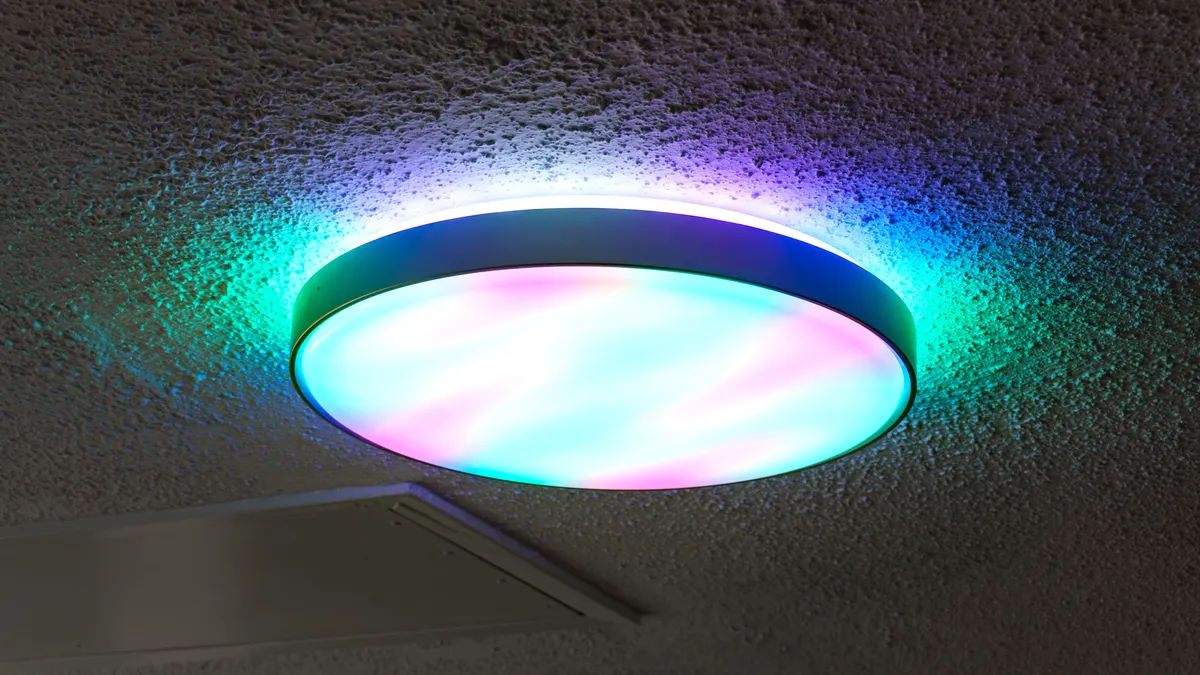
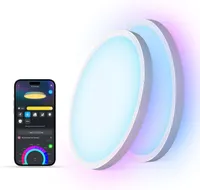
If you haven’t played around with one of Govee’s smart lights before, there’s quite a lot you can do with them. Of course, you can change their colors, switch between loads of preset scenes, or even sync them with your music. One thing I really like about the Ceiling Light Ultra and the Govee Lightwall I just reviewed is that you actually have several music sync modes to choose from.
As I was taking these pictures of the Ceiling Light Ultra in action, I had synced up to music playing from my Echo Dot smart speaker. There’s a microphone inside the light so it can hear what you’re playing, but you can also have the Govee app pick up what you’re playing right from your phone. It was quite impressive to see the Ceiling Light Ultra put on its own light show while my son jumped around on the couch to the soundtrack from K-Pop Demon Hunters played in the background.
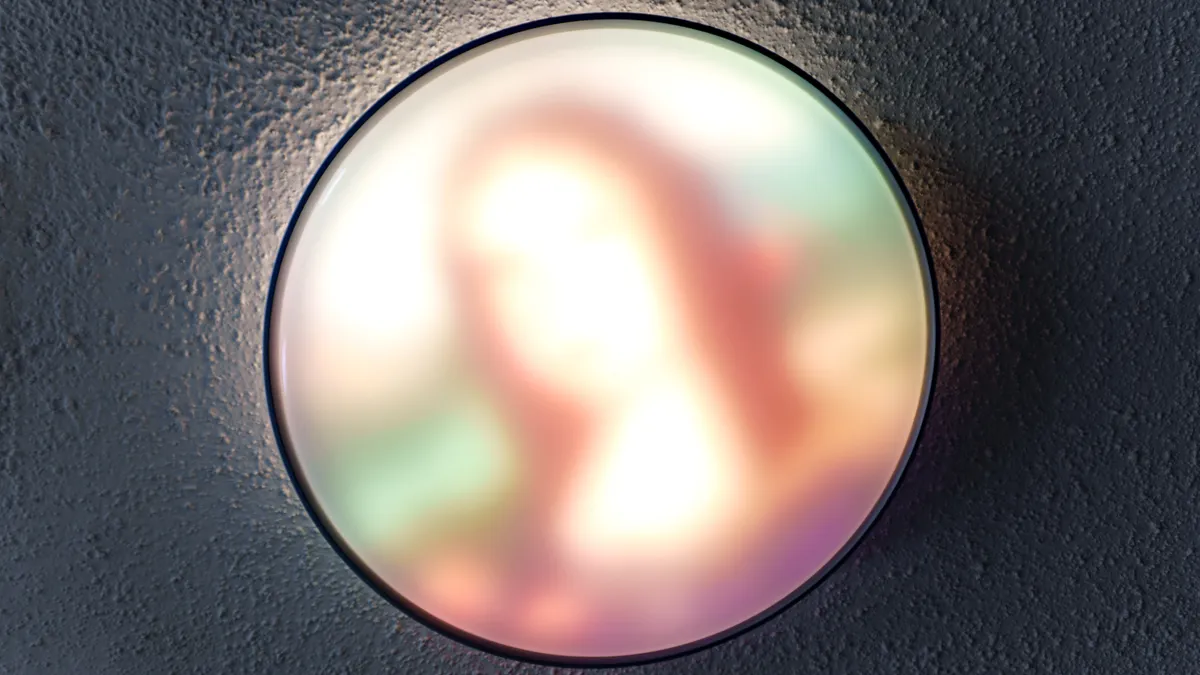
The Ceiling Light Ultra has another more impressive trick up its sleeve that was previously only available on Govee’s curtain-style lights: it can display pictures and even animations. For instance, you can choose from a few popular works of art, like Da Vinci’s Mona Lisa, seen above.
I did have to get slightly creative when taking this pic, as I didn’t line up the light with the front of my living room. Then again, my whole street was flooding during my install, and my son did venture up into the attic on his own using the drop-down ladder to check on me while I was installing that brace in the ceiling. To avoid this, you want to make sure that you align one side of the center square with where you’ll be looking at the light when installing its mounting plate. Maybe I’ll go back and fix this, but for my intents and purposes, I’m really happy with how the install turned out.
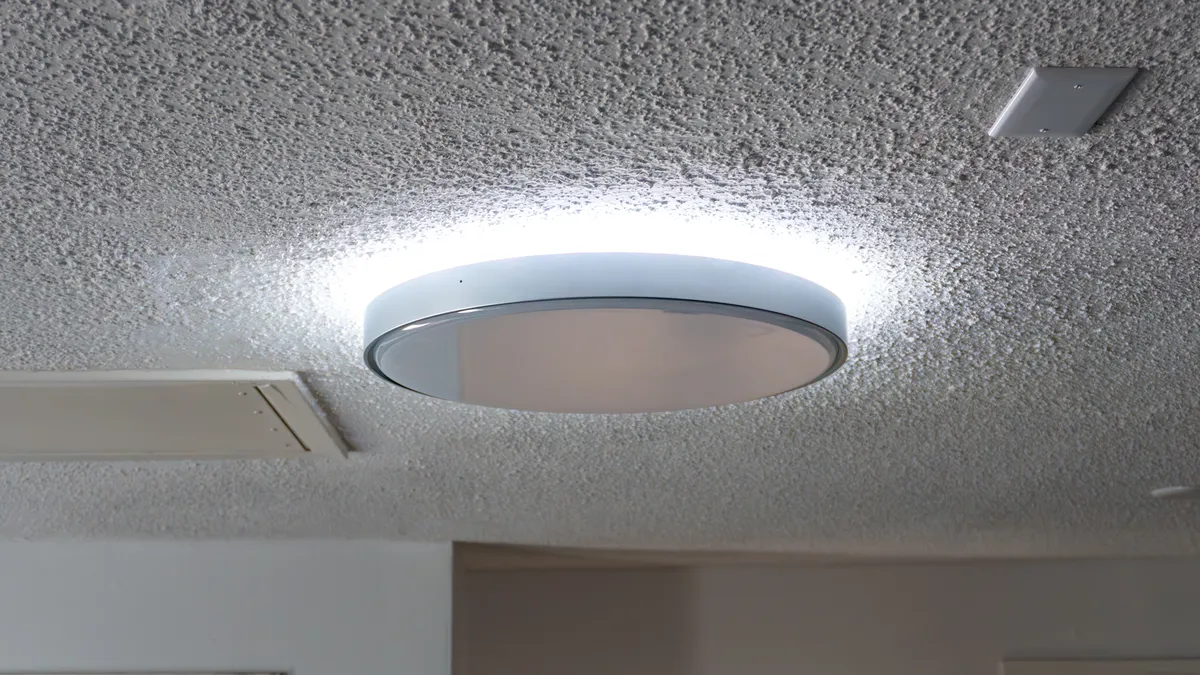
One other big difference between the Ceiling Light Ultra and my smaller Govee ceiling lights is that you can now easily control the ring of LEDs at its base separately. With those smaller lights, I have to manually select each LED zone to have just the inner edge lit up. The Ceiling Light Ultra adds a separate button for toggling the inner ring on or off. I find this to be quite useful at night when I want some light in my living room, but nothing nearly as bright as the 616 LEDs that make up the main part of the Ceiling Light Ultra.
A big light I haven’t turned off yet
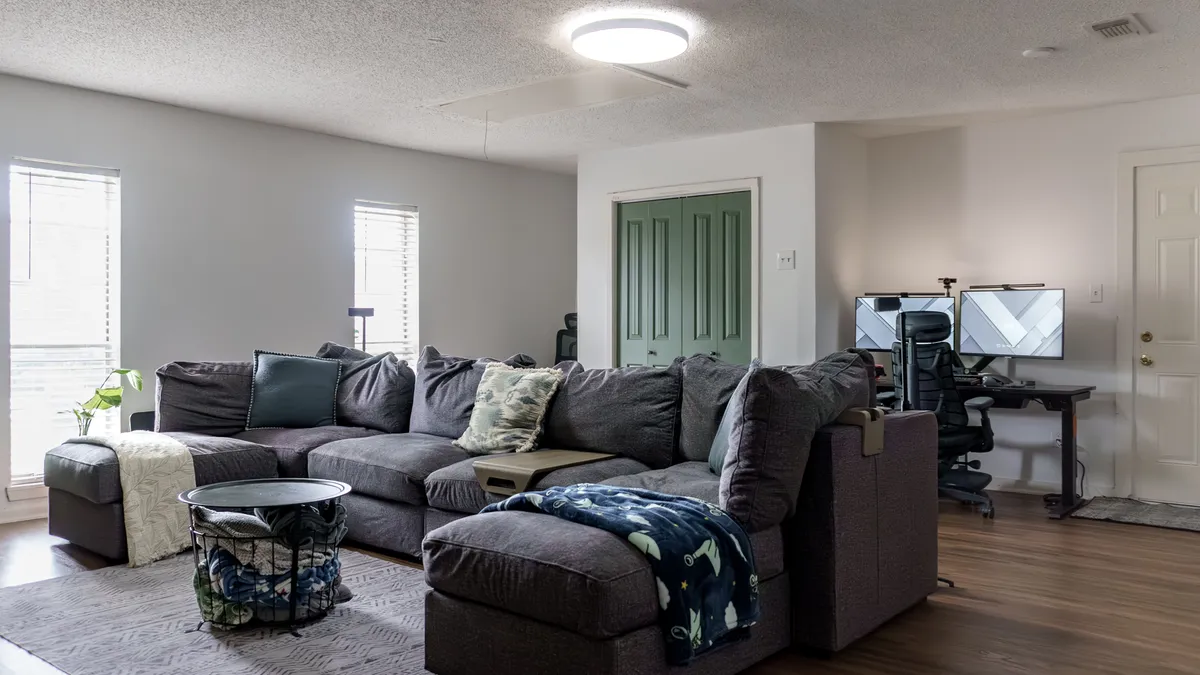
It’s hard to believe it now, but when we first moved in, this room was navy blue with a black chalkboard wall. Last summer, we painted it white to brighten things up a bit and changed that accent wall to forest green, which really made a difference. However, with those old fans on the right side of the room and an unexplained power outlet on the ceiling, it was still far from finished.
Taking those fans down and putting the Govee Ceiling Light Ultra up in the center of the room was the finishing touch to last summer’s remodel. Even with ambient light coming in from the windows on the left, the Ceiling Light Ultra is still quite bright and easily visible. It’s even better at night, too.
Putting in that bracket did take some extra work, but if I decide to take down the Ceiling Light Ultra or put it in another room, I could easily install a large ceiling fan there instead. I’m using a Govee smart tower fan to keep things cool for now, so I don’t think I’ll have to.
It’s one thing screwing in smart bulbs or plugging in a smart lightstrip behind your TV, but hard-wired smart lights really are the endgame. You do have to be careful during the installation process, but Govee’s Ceiling Light Ultra does what no other smart light can do: it doesn’t just add some accent lighting, it actually lights up the entire room. In a 20-foot by 20-foot room like this one, that’s just as impressive as the animated GIFs it displays.

Follow Tom's Guide on Google News and add us as a preferred source to get our up-to-date news, analysis, and reviews in your feeds. Subscribe to Tom's Guide on YouTube and follow us on TikTok.
More from Tom's Guide

