Whether you're unboxing a new Windows 11 PC or reinstalling Windows 10 on your old laptop, I have some advice on how to streamline the process and get the best (free!) apps installed ASAP.
I wanted to write this for you because I review laptops and desktops for a living here at Tom's Guide, which means I end up going through the first-time setup process for a new Windows 11 PC at least a few times a month.
That used to take me at least 20-30 minutes every time since I had to download all my favorite apps individually, but then I discovered Ninite. Those who know, know, but if you're not familiar Ninite is a super-useful (and free) utility that lets you quickly customize and download a package of all your favorite apps.
It's really easy to use, too—just head over to the Ninite website, pick the apps you want from a big list, then download the custom installer that Ninite generates for you. You can then put that file on a USB stick, plug it into your new PC and run the installer to immediately install all the apps you wanted at once.
Ninite alone is a game-changer when setting up Windows machines, but I have some additional recommendations for apps you should install first on your new PC. All of these apps are free, available on Ninite and on my short list of the most useful apps I install first on every Windows 11 PC I review.
Did I miss your favorite app? Let your fellow readers know in the comments below!
7-Zip

I don't need to compress things as much as I used to now that it's so much easier to share big files online, but I still install 7-Zip on every new PC because it's a good open-source compression tool that comes in handy when you need to move large files.
Even if you don't plan on regularly sharing packages of files online, having 7-Zip installed is smart because sometimes someone sends you a file that basic Windows can't unzip. When that happens, you'll be glad you have 7-Zip on hand ready to roll.
Google Chrome
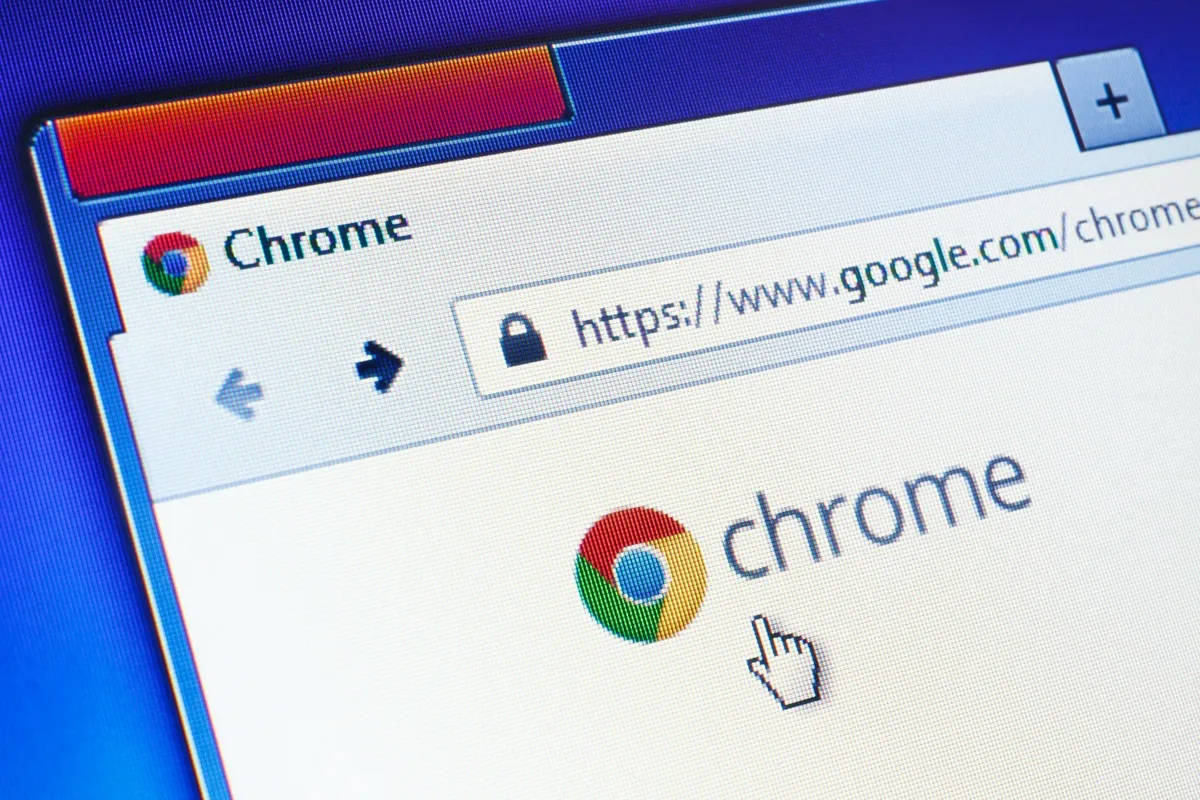
There are a lot of good web browsers out there, but I've long preferred Google Chrome because it feels fairly fast and reliable, and it supports every website and web service I need to use. Plus, I use Google for work and personal business, so it's convenient to log into my browser with the same accounts.
Admittedly, I'm starting to lose my fondness for the browser now that Google seems to be cramming Chrome full of AI "upgrades" that do more to annoy than assist me. I'm considering switching to Firefox as my browser du jour, and if you have similar reservations you can skip Chrome in favor of something like Firefox, Brave or Opera.
Discord
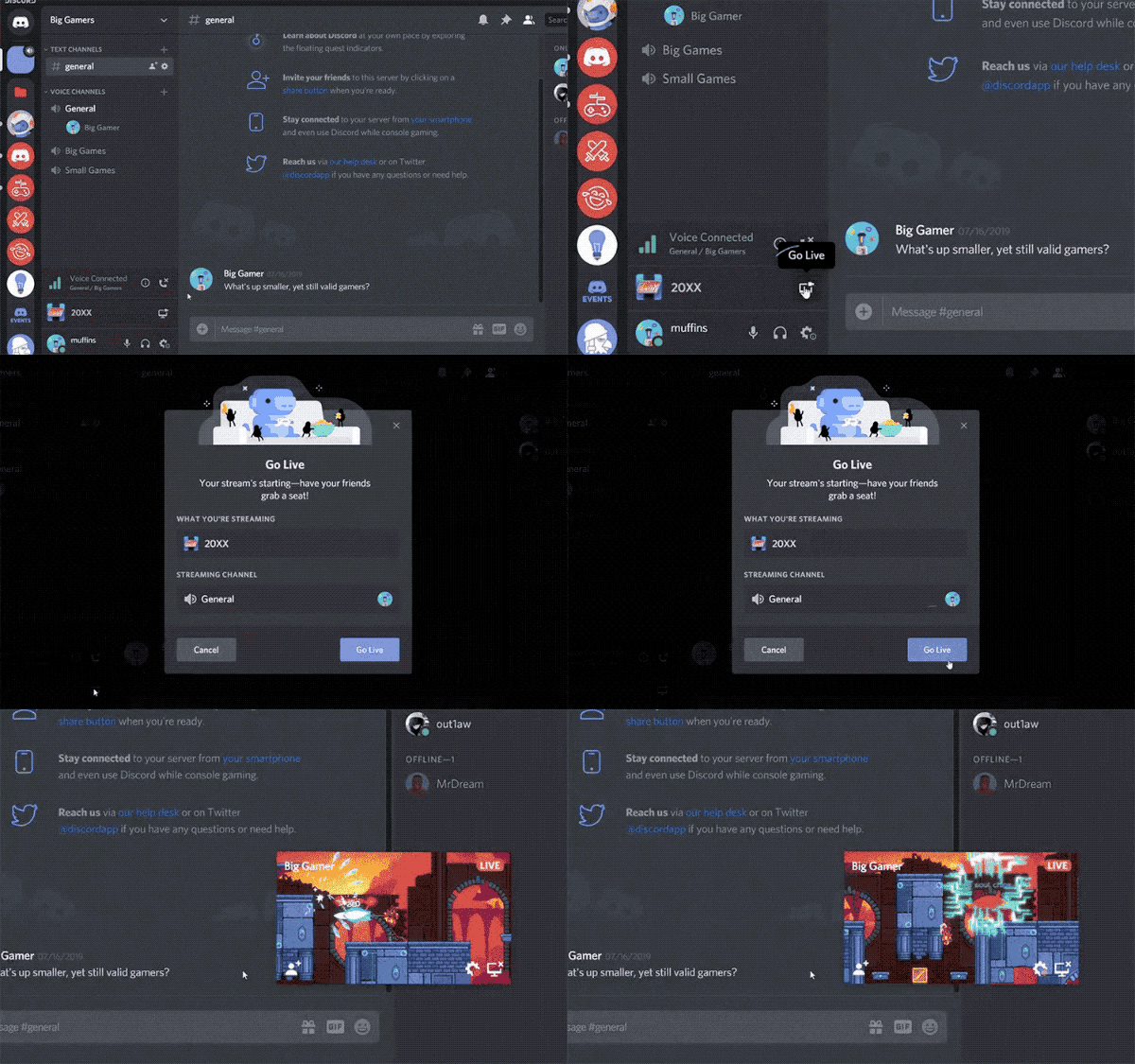
I was slow to adopt Discord after it launched in 2015, but nowadays it feels like one of my most commonly-used communication tools.
If Slack is for work, Discord is for fun, and I install it on every PC I get my hands on so I can stay in touch with all my disparate friend groups around the world. Plus, Discord's chat room tech is getting good enough that you can use it to stream games, record podcasts or do other fun stuff with friends online, making it a must-have utility for me.
Everything

Everything is a free search utility that works like Windows Search on steroids, and I find it's really handy for quickly finding files or images I need for work.
What's especially useful is the fact that you can run custom searches on your PC using advanced search descriptors, look for specific words or phrases within files and filter by date, file type and the like. If you've ever had a hard time finding something on your hard drive, Everything can be a big help.
Gimp

Everyone has their favorite free image editor, and mine happens to be Gimp. Try to look past the name and you'll find this little utility is surprisingly useful, duplicating many of the features of a more robust editor like Photoshop at a fraction of the price.
It's not great for serious editing work, but for a cretin like me who just needs to resize images and occasionally crop things, this free image editor is a lifesaver.
Steam
Steam has been one of the first apps I install on every new PC for decades, and for good reason: Steam is the place to buy and play the best PC games.
Sure, you can still get PC games in storefronts like the Epic Games Store, but Steam is the biggest and best PC game storefront in the business. I also keep in touch with a few friends on my Steam friends list, so it's nice to have it installed and running on my PC to keep abreast of who's playing what.
VLC

If Windows Media Player can't play an audio or video file, odds are good the VLC media player can handle it. This has been my go-to media player for decades because its simple, easy to use and supports a variety of formats and codecs that otherwise won't play on a freshly unboxed PC.
Bottom line
These are the apps I install on every new Windows PC I unbox without fail, and it never fails to save me at least 15 minutes of downloading and installing apps every time I get my hands on a new Windows machine.
Using Ninite to install them all in one fell swoop has made my life a lot simpler, so I highly recommend you just go that route instead of going to each app's website to individually download them.
Of course, don't feel like you need to stick to what I suggested—Ninite offers a big catalog of free apps to choose from, so feel free to mix and match your favorites to perfectly match your needs!
Follow Tom's Guide on Google News and add us as a preferred source to get our up-to-date news, analysis, and reviews in your feeds.