
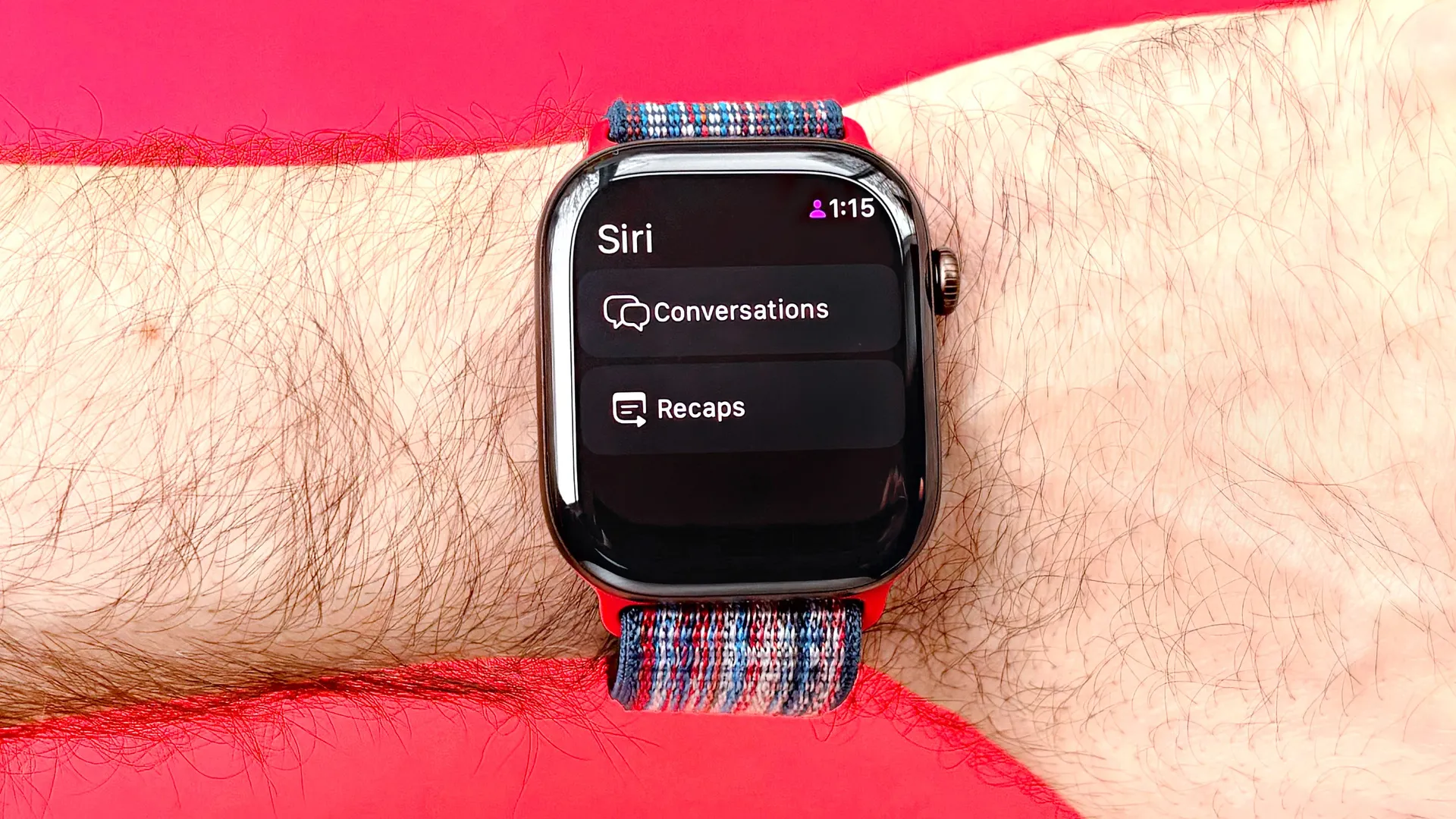
Apple's somewhat controversial new Audio Intelligence feature, Siri Recap, is now live in public beta for Apple Watch users. Best of all, you can try it yourself by following the five steps listed below.
As a refresher, Siri Recap ambiently listens to all of your conversations and uses AI to summarize major themes, important details, and key points. For privacy, users can set and control when the feature is active or not.

Siri Recap also never identifies individual speakers or saves any actual audio recordings. Better yet, all your data associated with Siri Recap is encrypted end-to-end.
With that said, here's how to enable Siri Recap on your Apple Watch and generate your own Apple Intelligence daily conversation summaries.
How to enable Siri Recap on your Apple Watch
- Install iOS 27.3 beta on your iPhone and watchOS 27.3 beta on your Apple Watch
- Open the Apple Watch app on your iPhone and select > Siri > 'Set up Siri Recap'
- You’ll then be prompted to create a passcode; skip this step if you already have one
- Toggle the Siri Recap switch on, then tap 'Enable Siri Recap'
- Finally, set up a listening schedule and notification alerts
Read on to see full illustrated instructions for each step.
1. Install iOS 27.3 beta on your iPhone and watchOS 27.3 beta on your Apple Watch
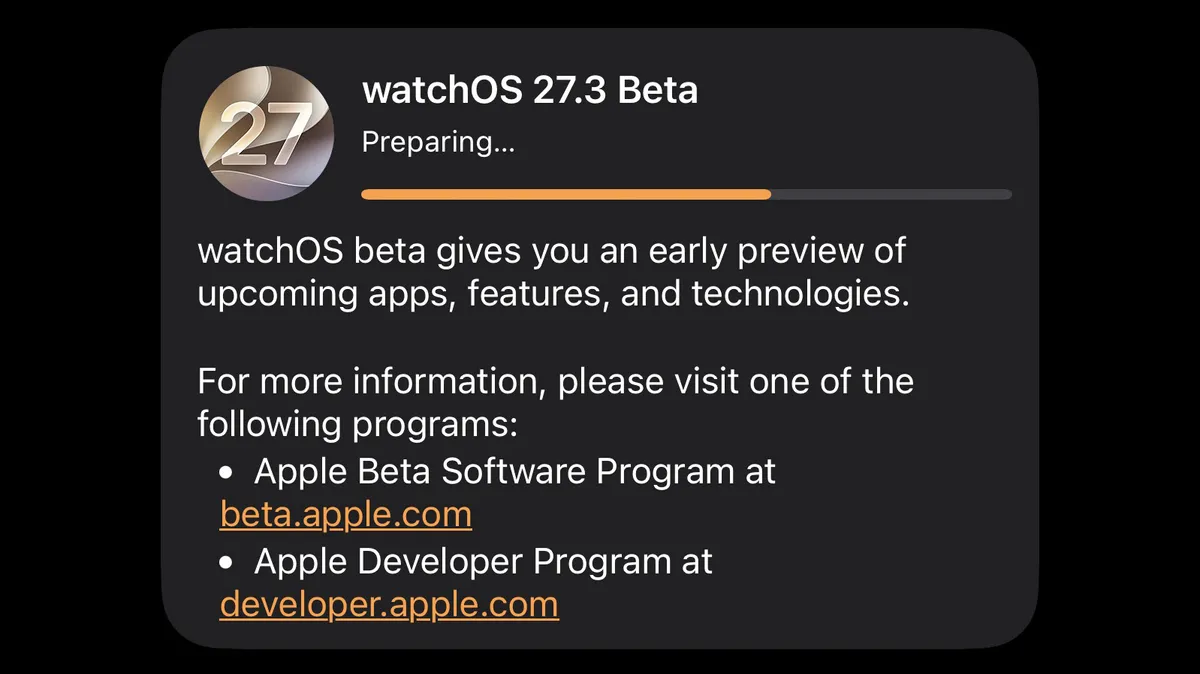
To enable Siri Recap on your Apple Watch, first download and install iOS 27.3 beta on your iPhone. Then install watchOS 27.3 beta on your Apple Watch. Note: Only the latest Apple Watch models support this Apple Audio Intelligence feature, including the Ultra 4 and Series 12.
2. Open the Apple Watch app on your iPhone and select > Siri > 'Set up Siri Recap'
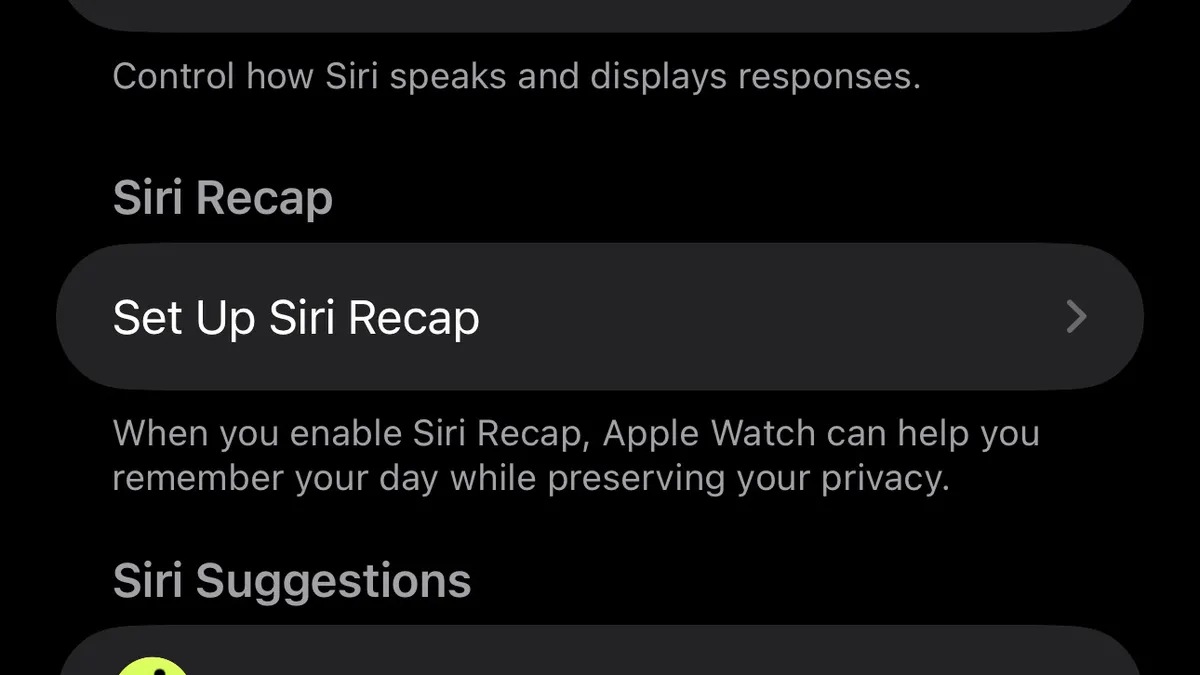
Next, open the Apple Watch app on your iPhone, scroll down and tap on Siri. Then scroll down and tap on “Set up Siri Recap.”
3. Create a passcode if you don't already have one
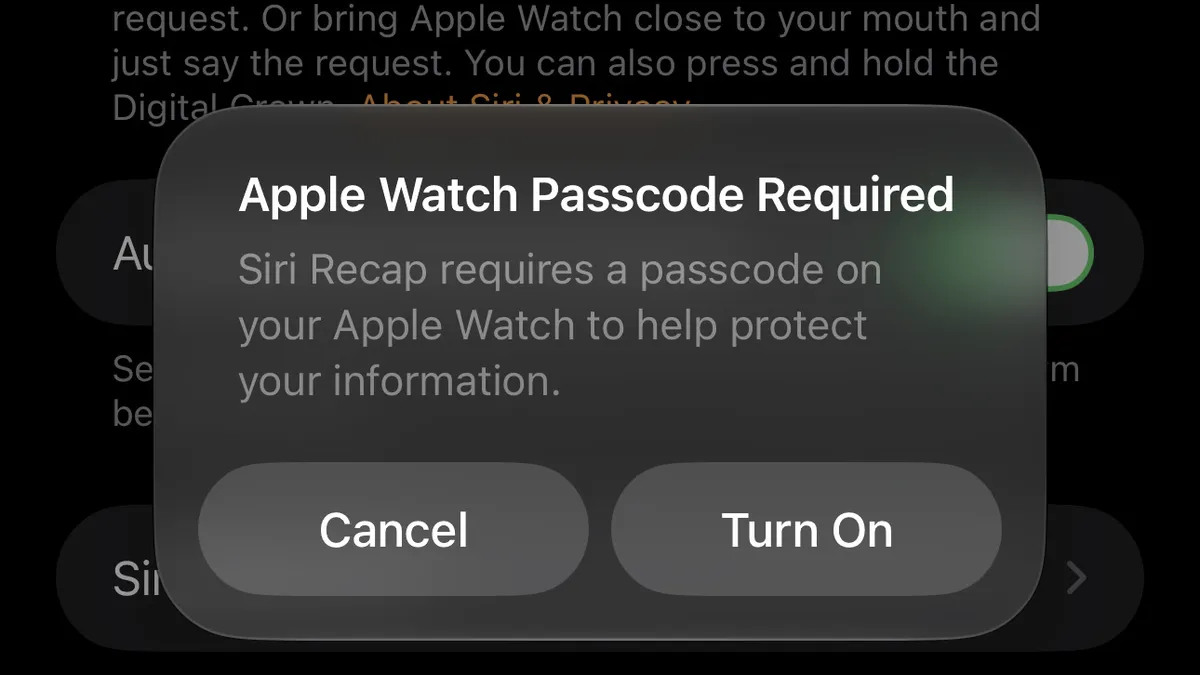
You'll then be prompted to created a passcode if you don't already have one. Unfortunately, a passcode is mandatory to use Siri Recap. If you need to create one, tap "Turn on" and then enter your passcode of choice twice to confirm it.
4. Toggle the Siri Recap switch on, then tap 'Enable Siri Recap'
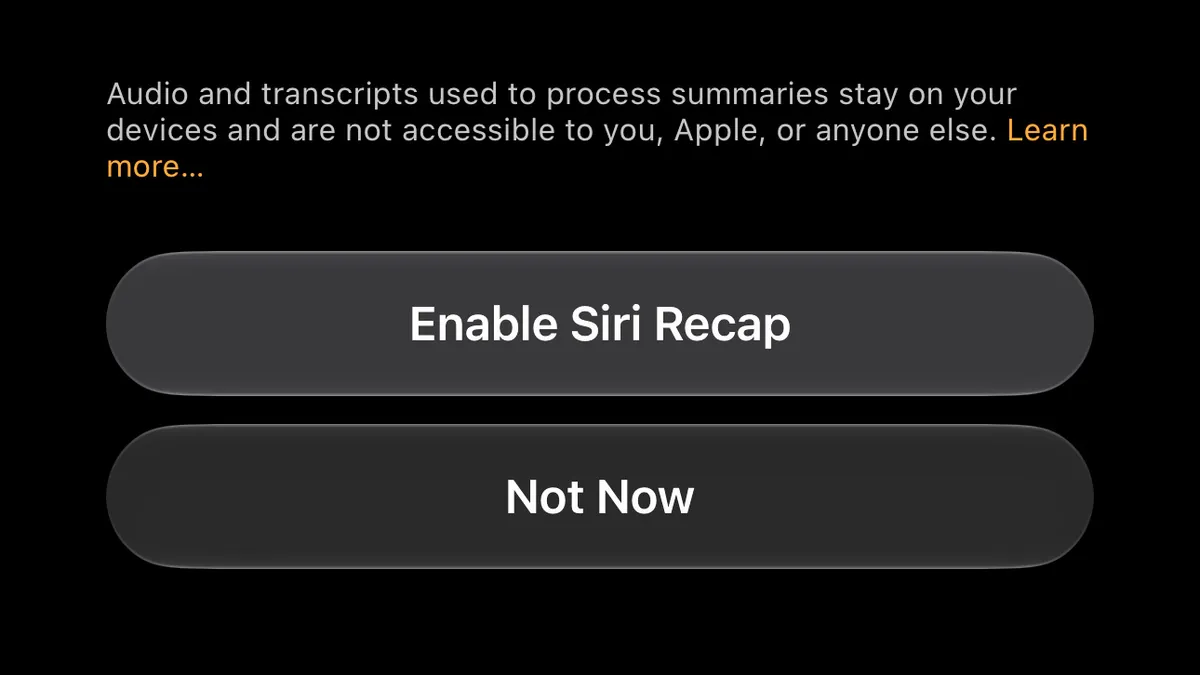
After that, toggle the Siri Recap switch to on by tapping on it (it should turn green); then tap on the “Enable Siri Recap” button on the following screen. The feature is nearly ready to go!
5. Finally, setup a listening schedule and notification alerts
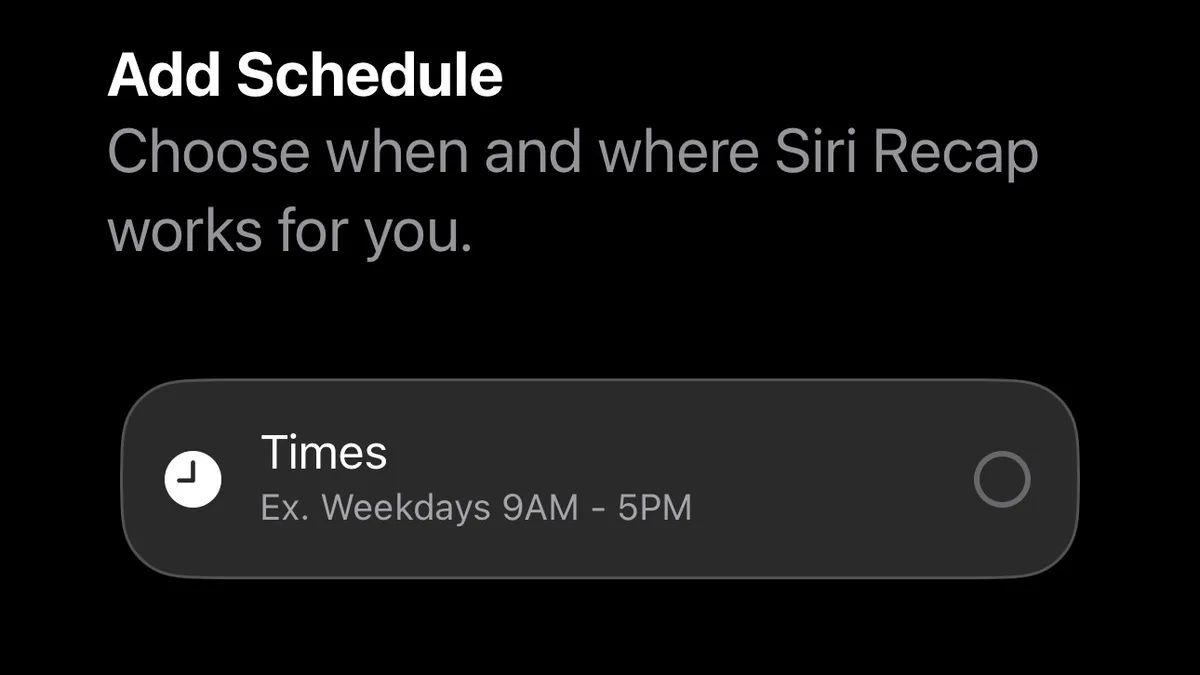
The last step is to setup and listening schedule for Apple's Siri Recap feature (or not). To set one, tap on "Times" and select and confirmed your desired listening hours. Or, tap Not now” to set one up later. On the following screen, enable notifications for Siri Recaps or don't by tapping "Not now."
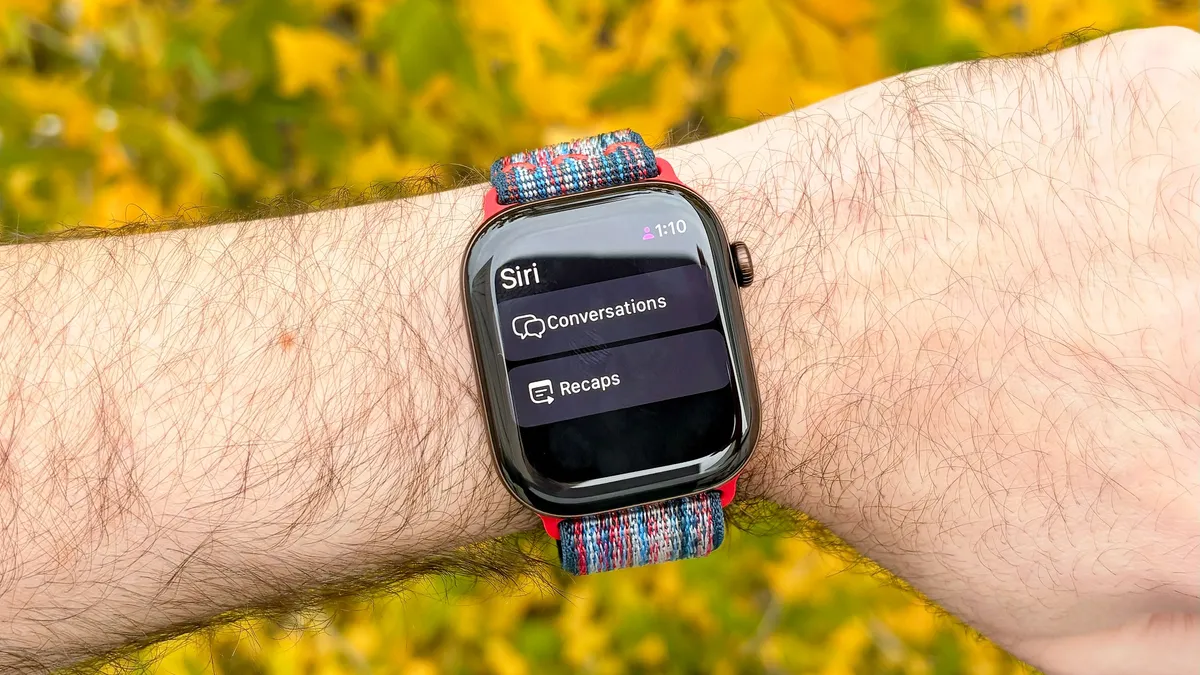
And just like that, Apple's new Siri Recap Audio Intelligence feature is ready to roll. As a reminder, you can view your recaps at any time by opening the Siri app on either your Apple Watch or iPhone.
Of course, this is just one ofer several new Audio Intellegence features found in the best Apple Watch models. Others include Live Rewind and automatic, always-on music recongnition.
Stay tuned for a deeper dive on how these new AI features work, whether or not they're actually beneficial, and just how highly they ultimately rank on the creepy scale.
In the meantime, here's how to turn on Apple’s new AI-powered Siri, enable dynamic step counts, and unlocking your daily Readiness score.

Follow Tom's Guide on Google News and add us as a preferred source to get our up-to-date news, analysis, and reviews in your feeds. Alternatively, you can read our content on the Tom's Guide app available now for iOS and Android.
More from Tom's Guide