
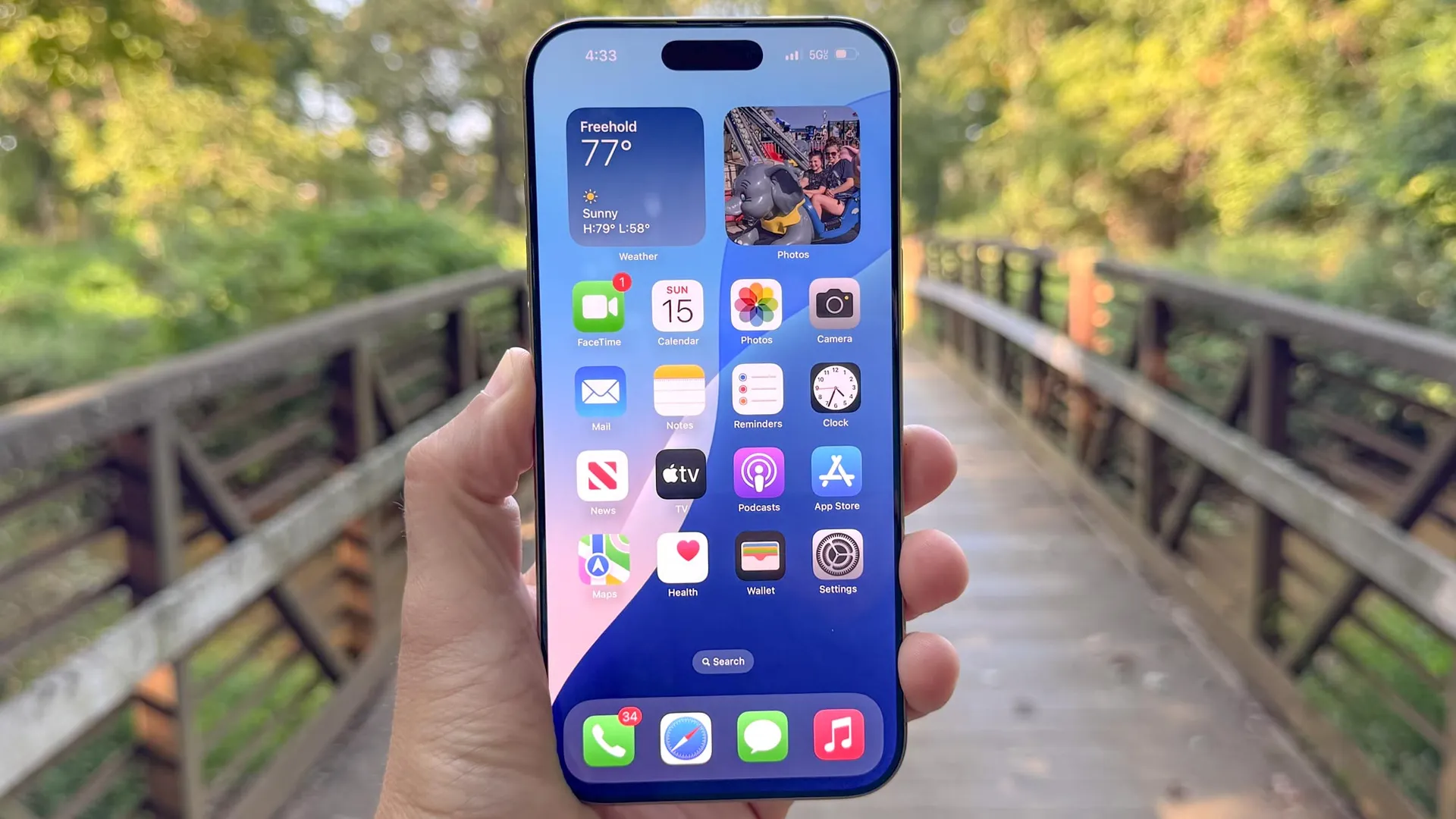
We have all lived the routine: someone texts you a dinner time or a parcel tracking code, and suddenly you are juggling three apps, highlighting tiny strings of text, and manually populating calendar slots like an unpaid personal assistant. In iOS 27.2, Apple eliminates that chore by weaving Apple Intelligence straight into Messages through Suggested Actions.
Instead of leaving you to juggle apps, the system scans incoming texts on-device and places one-tap action buttons directly beneath the chat bubble. Here is what the feature automates, how it cuts out the friction, and how to manage your settings.
What Suggested Actions can automate
Enabled by default, the feature tackles routine admin across five core areas. Mention a time or dinner plan, and an Add to Calendar button pre-fills the invite. Get texted an errand, and Add to Reminders logs the chore without making you open the app.
It clears up reference notes and travel logistics just as quickly. Longer texts trigger an Add to Notes shortcut, while addresses produce an instant Show in Maps link. The system also catches flight numbers and parcel codes, launching live status cards right in the thread.
Just keep in mind it is an Apple-only perk: shortcuts route strictly to native apps and only appear in blue-bubble iMessage chats.
How to enable and manage Suggested Actions
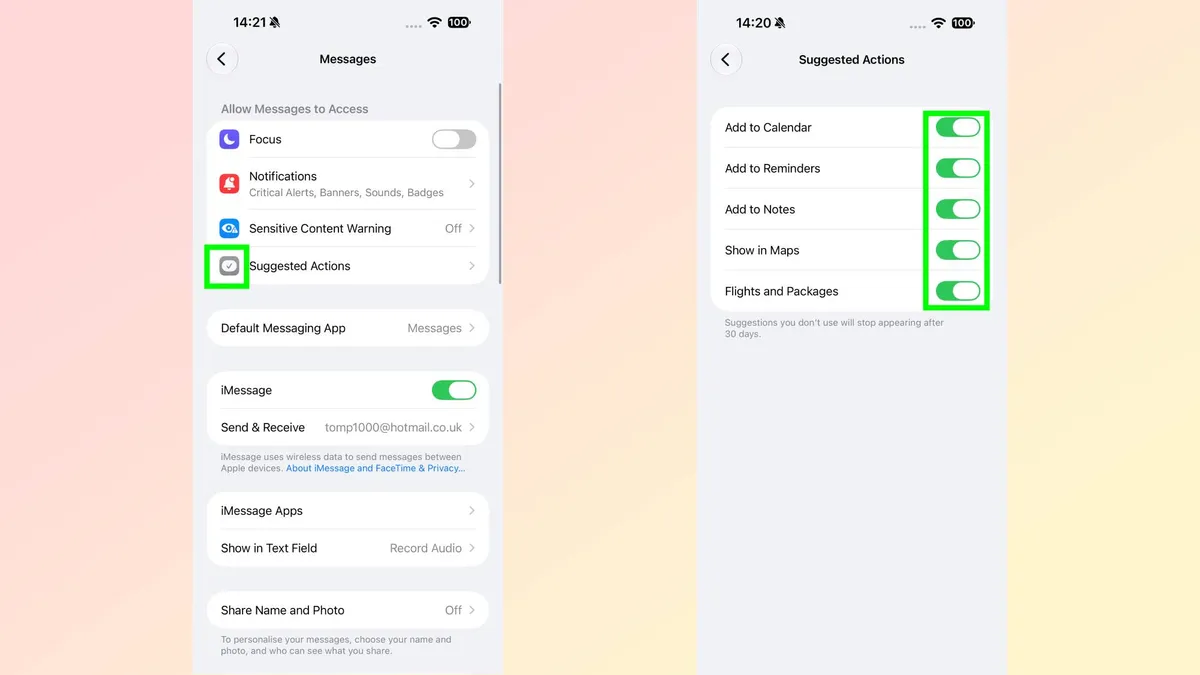
Every category is switched on by default, but you do not have to live with buttons you never plan to tap. To clean up your threads, go to Settings, head into Apps, choose Messages, and select Suggested Actions.
You will find individual switches for Calendar, Reminders, Notes, Maps, and Flights and Packages, making it easy to keep the shortcuts that save you time and shut off the ones that get in the way.

Follow Tom's Guide on Google News and add us as a preferred source to get our up-to-date news, analysis, and reviews in your feeds. Make sure to click the Follow button!
More from Tom's Guide