Variable aperture is easily the standout feature on the iPhone 18 Pro and iPhone 18 Pro Max. Powered by a mechanical iris of sorts and made up of six individual laser-cut blades, this system lets users control how much light actually enters the main camera lens. The idea being that taking that control lets you employ different effects and techniques to get your desired shot.
The problem is Apple doesn't make it very clear how to control the aperture. You're just handed a phone with a camera app, and left to try and figure it out for yourself. Which is hardly ideal when this is one of the major selling points of the latest flagship iPhones.
Here's how to use the iPhone 18 Pro and Pro Max's variable aperture camera system, as well as the kind of things you can actually do when you take control of the light hitting your lens.
How to control aperture on iPhone 18 Pro and Pro Max
1. Open the camera
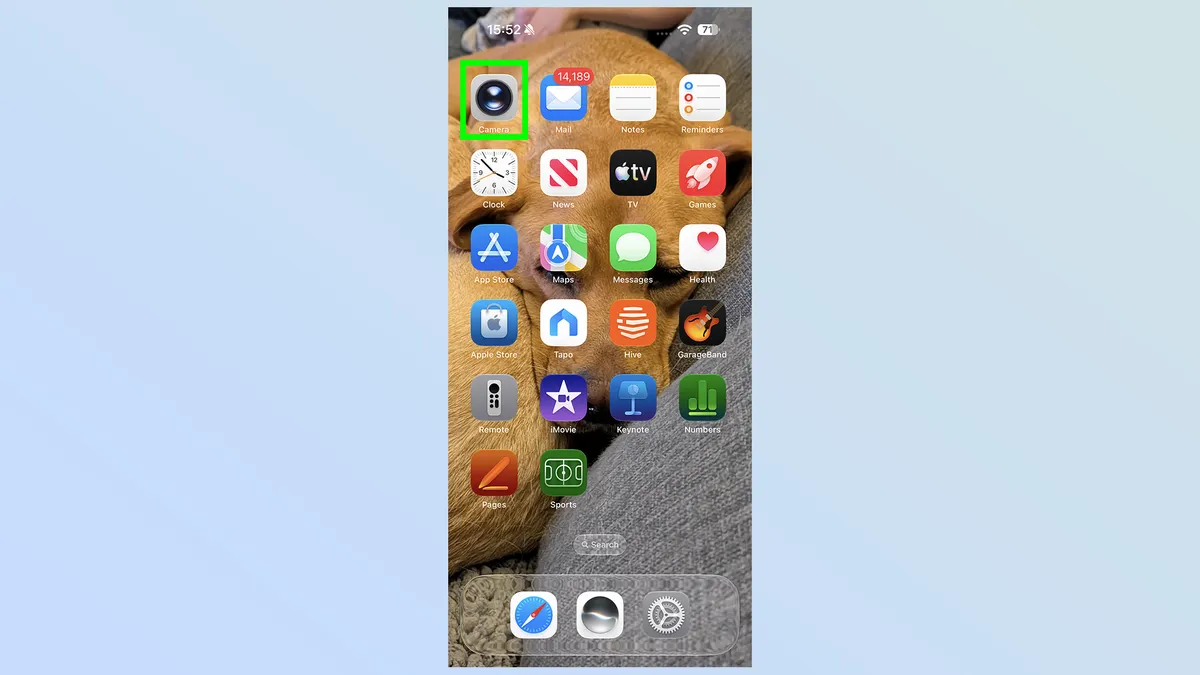
The first thing you need to do is open up the main iPhone camera app. This can be done via the app icon on your home screen, the shortcut on your lock screen or using the iPhone 18 Pro's camera control app.
2. Open the camera settings
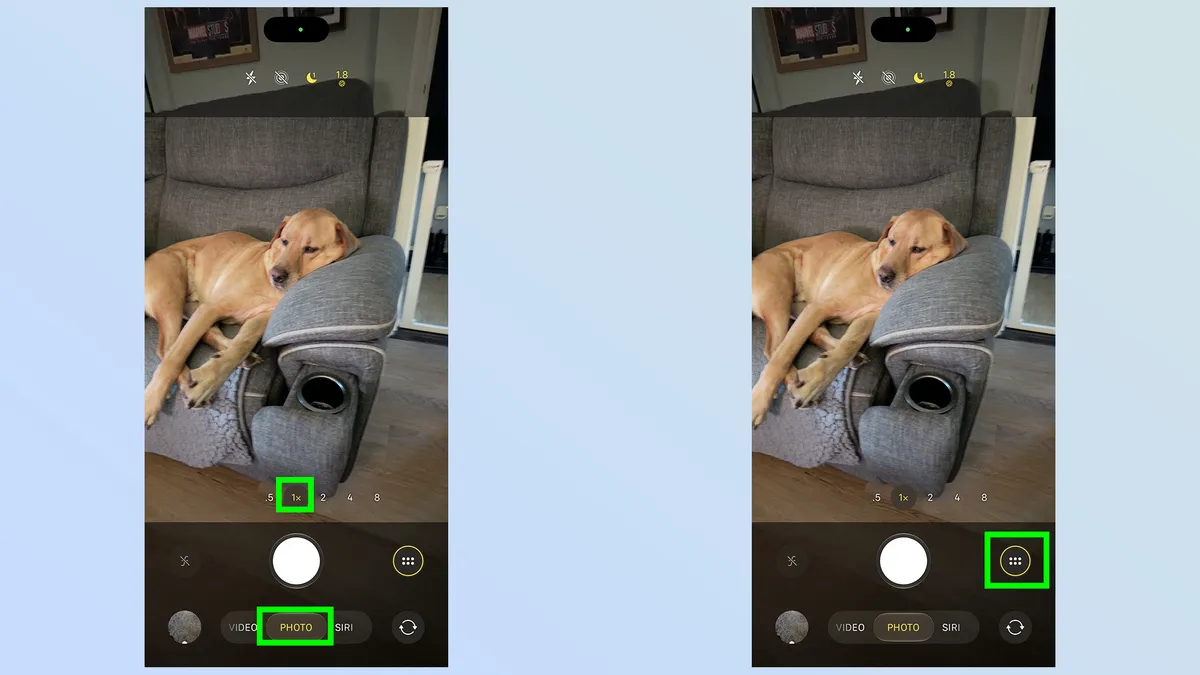
Next up, make sure your phone is set to capture photos from the main camera lens. This means ensuring the main setting is set to Photo and that magnification is set to 1x.
Once that has been done tap the Camera settings button in the bottom right side of the screen. You'll recognize it because it looks like two stacked levels of three dots.
3. Select Lens Aperture
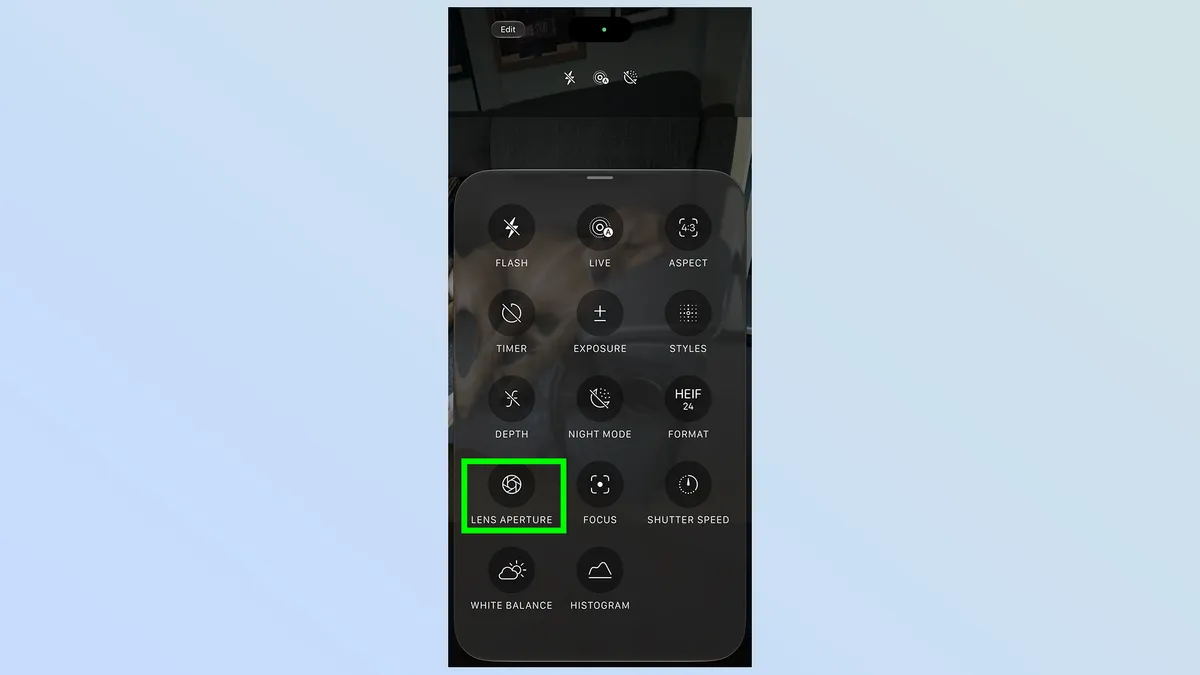
Next up you'll need to tap the Lens Aperture button. It's on the second from bottom level by default, and that means you'll need to pull the menu up from the gray "—" icon before you can see it properly.
4. Select your chosen aperture level
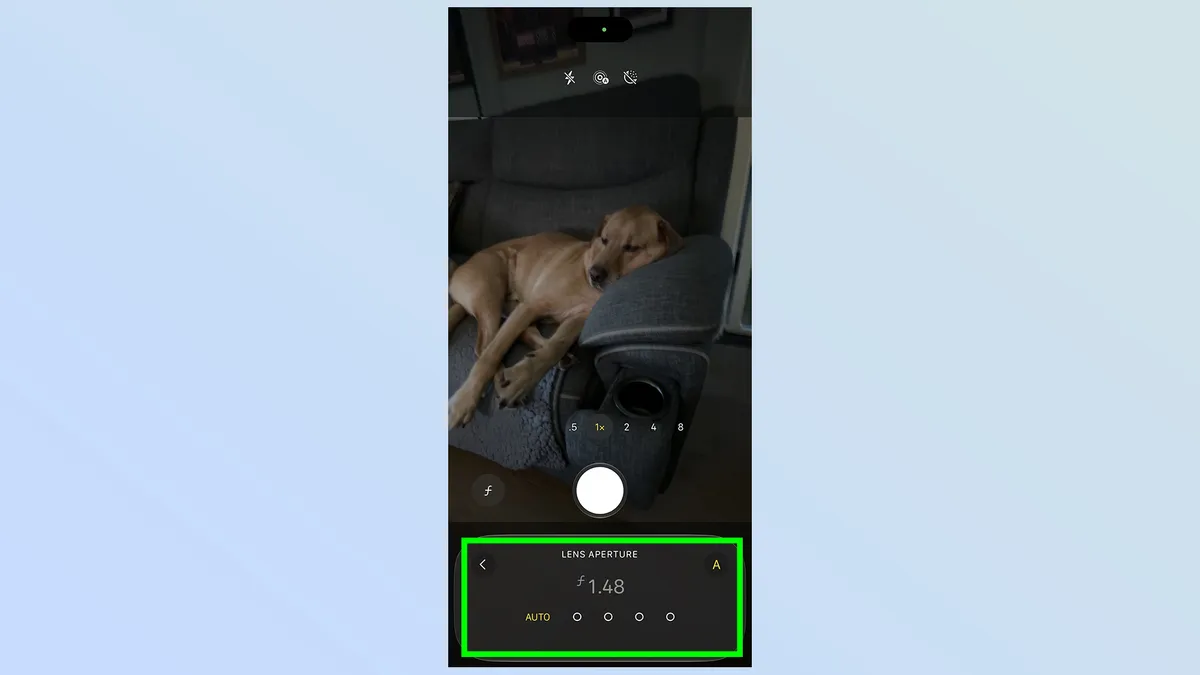
A menu will pop up at the bottom of the screen, letting you choose one of four aperture levels. Your choices are f/1.48, f/1.8, f/2.8 and f/4.0.
There's also an automatic mode, which lets the phone decide which aperture level to shoot in. This can be activated by tapping Auto on the left or the large A on the right.
How to Add Lens Aperture to quick settings
If you plan on using variable aperture frequently, you might want to make it a little easier to access. You can do this by adding the setting to the Camera app's quick settings menu at the very top of the page. Here's how to do it.
1. Open Camera Settings
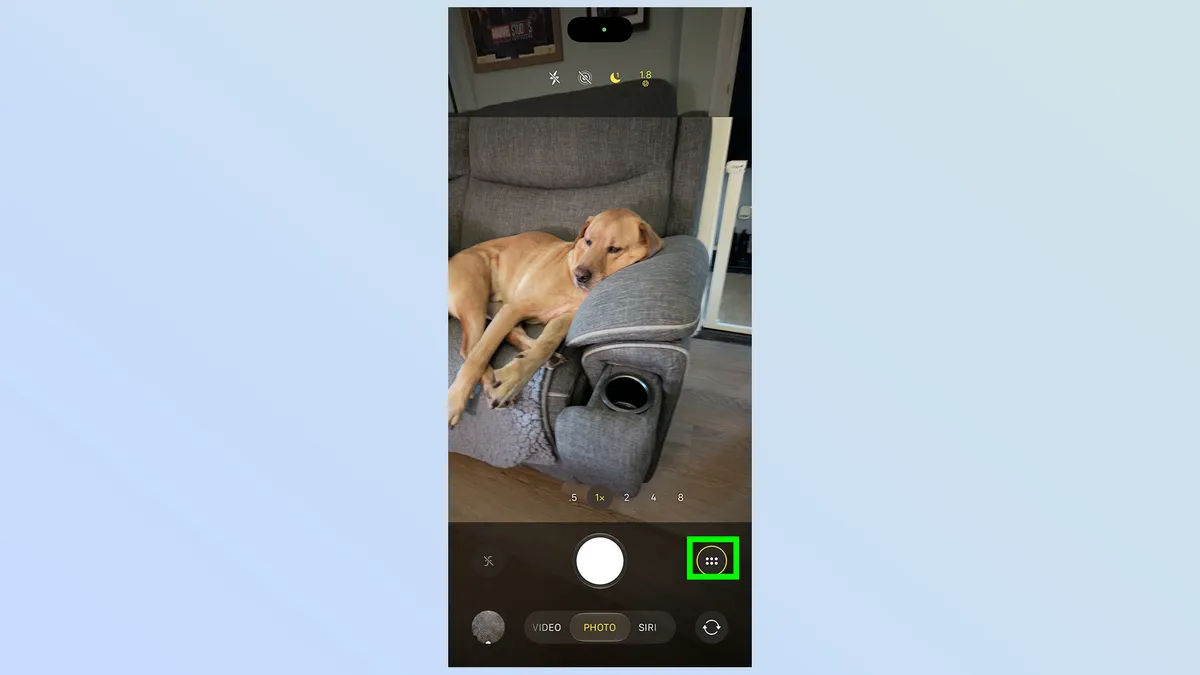
As before open up the camera settings menu by tapping the six-dot button on the bottom right side of the screen.
2. Tap "Edit"
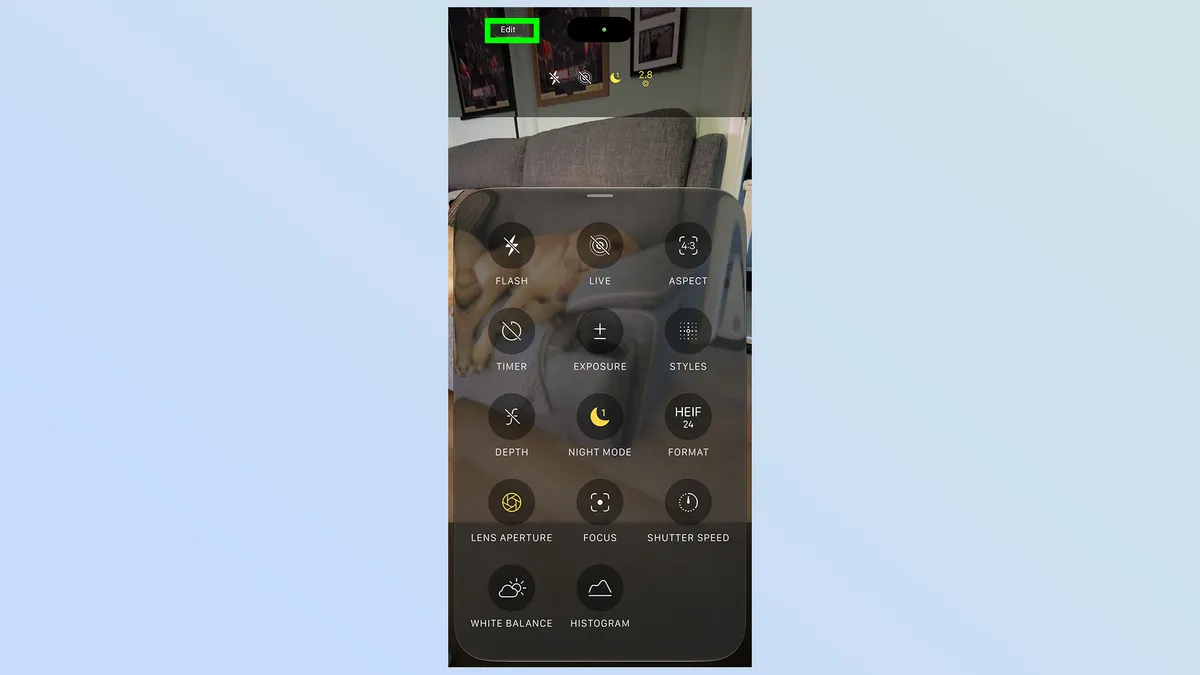
At the top of the page you'll see an Edit button. Tap this
3. Tap the Lens Aperture option
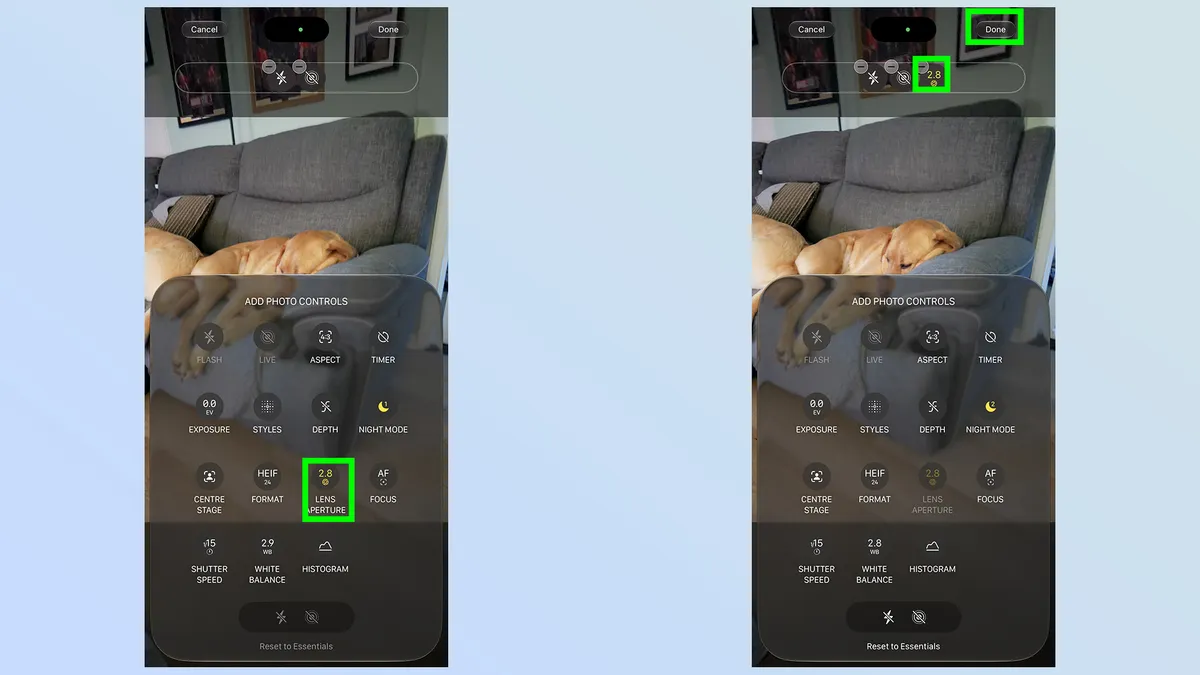
A new menu will appear from the bottom of the screen, with a bunch of different features. Tap the Lens Aperture option. This will then appear on the bar at the top of the screen, at which point you tap Done to finish the process.
Once that has happened, you'll be able to open the variable aperture menu by tapping the Aperture button in the quick settings menu at the top of the app page.
What controlling the aperture can offer you
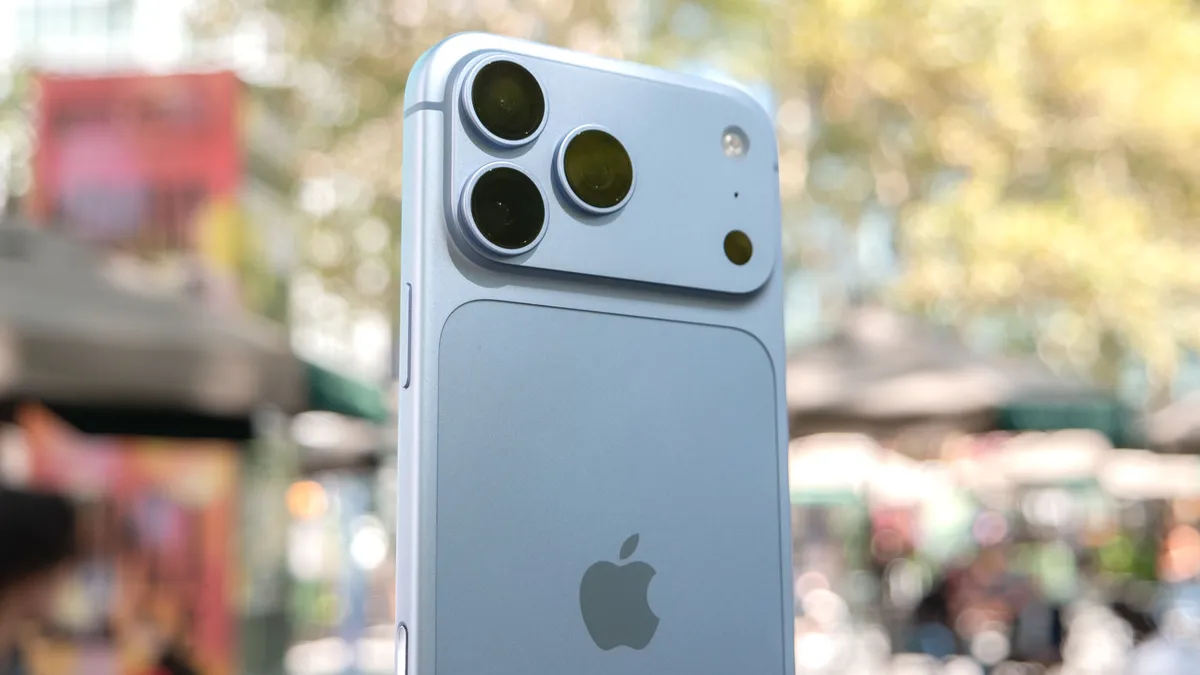
F-stop values can be somewhat intimidating for those of you that aren't well versed in camera lore, and you may be confused as to what the benefits of tinkering with the aperture might offer. We have a full breakdown on the benefits of variable aperture, but here's a quick rundown on what to expect from each aperture level.
f/1.48 is a wider aperture that enables a natural bokeh effect, without all the algorithms that power dedicated features like Portrait Mode.
This aperture also helps aid quality in darker conditions, helping the camera capture as much light as possible — and in turn helps reduce the exposure times utilized by traditional low light camera modes. That extra light also means you can minimize shutter speed, and photograph moving subjects without suffering as much motion blur.
f/4.0 does the total opposite of f/1.8, expanding the depth of field to ensure sharpness across the entire photo. This is perfect for photos of groups or scenery where all the details are important — not just the ones in the foreground.
Pairing f/4.0 with longer shutter speeds also helps create intentional motion blur. This means stationary targets are captured in ultra clarity, while everything else is blurred in a stylized way.

Follow Tom's Guide on Google News and add us as a preferred source to get our up-to-date news, analysis, and reviews in your feeds.
More from Tom's Guide
- I put the iPhone Duo vs. iPhone 18 Pro Max through a 10-round camera face-off — here’s what you're giving up
- First iPhone 18e specs leak point towards a disappointing upgrade for Apple's next low-cost iPhone
- Cancel your iPhone Duo pre-order: Here's why I think the iPad mini 8 and iPhone 18 Pro combo is cheaper and better