






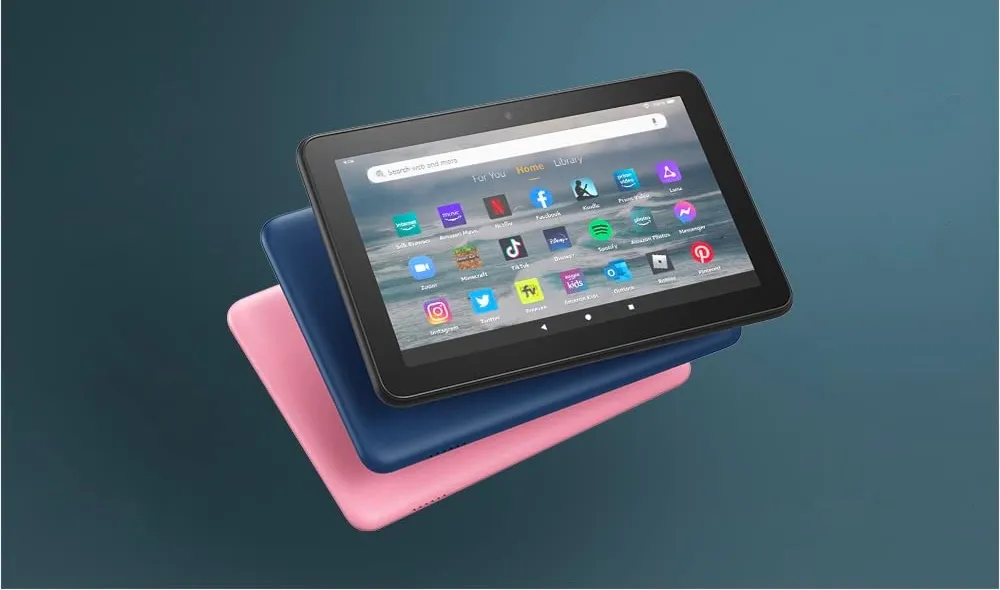
Knowing how to reset your Amazon Fire tablet really comes in handy, especially when you need to clear your personal data off so you can give it to someone else or send it in for repair.
I know because I review tablets as part of my work here at Tom's Guide, and that means I regularly need to reset them so they can be returned to the manufacturer.
Luckily Amazon makes it pretty easy to reset your Fire tablet using the built-in reset function.
Here's how to reset your Amazon Fire tablet.
How to reset your Amazon Fire tablet
The process of resetting an Amazon Fire tablet is pretty straightforward. Here's a step-by-step guide to what you need to do:
- Go to Settings
- Navigate to Device Options
- Select Reset to Factory Defaults
- Confirm and tap Reset
1. Go to Settings

The first step is to open the Settings app on your Fire tablet by tapping the gear icon on your home screen.
2. Navigate to Device Options

Once you're in the Settings menu, scroll down and tap on the Device Options button to access your tablet's device controls.
3. Select Reset to Factory Defaults

In the Device Options menu, tap the "Reset to Factory Defaults" button to initiate the reset process. You will be asked to enter the PIN you use to unlock the tablet in order to begin the factory reset prcoess.
4. Confirm and tap Reset to initiate the process

After you've entered your PIN to confirm you do indeed want to reset your tablet, it will show you one final warning. Tap Reset to confirm you want to reset your Amazon Fire tablet, at which point it will begin the reset process.
There you go, now you're equipped to reset an Amazon Fire tablet any time the opportunity presents itself. If you're looking to expand your skills further, don't miss our guide to how to use the Amazon Fire Stick.
Also, you may want to check out our guide on how to check your iPad model and generation if you can't remember what age or type your iPad is, or how to turn a Live Photo into a video on iPhone and iPad to more easily share clips with others.
More from Tom's Guide
- One thing I wish iPads would steal from Amazon Fire tablets
- New movies on Amazon Prime Video
- The best Amazon Fire tablets on the market

