When you buy a new gadget like a laptop, gaming laptop, phone, or tablet, you’ll almost certainly want to know if you’re getting your money’s worth. These days, separating the marketing hype from reality isn't easy, nor is comparing the specs of two or more specific devices on your shopping list against each other.
That’s what Tom’s Guide is here for. We’re like your tech-savvy friend, and we've seen and tested it all. Thanks to our rigorous lab benchmarks and our experts’ hands-on analysis, we cut through any confusion and noise to make sure you’re buying the absolute best laptops, MacBooks, gaming PCs, Chromebooks, and tablets available today.
As part of that commitment to you, every laptop, tablet, and PC that Tom’s Guide reviews goes through standardized lab testing before we hand them off to our team of reviewers to put through real-world scenarios. We don’t just rely on one or two simulated generic benchmarks. We have a full, always-updated suite — from performance, graphics, gaming, and display to our custom in-house laptop battery tests that put a device through its full limits.
Here is a complete breakdown of every benchmark and quality test we run before giving a device our Tom’s Guide stamp of approval.
All Windows PCs (and tablets)

Most of the computing products we test are Windows laptops. Many of the tests explained in this article are Windows-based, and some also run on macOS, Chromebooks, and tablets. We also tweak some of our custom tests (like the laptop battery test) for other platforms so all products get a similar treatment.
System preparation

Before testing begins, every Windows laptop undergoes standard preparation. We test using default manufacturer settings out of the box, except for what is seen below. If our lab discovers that a manufacturer altered any settings from what retail buyers receive, testers note it and revert the settings before handing the PC to the reviewer.
- We agree to all the options in standard Windows out-of-the-box experience settings, except OneDrive, Microsoft Edge sync, and Windows Recall.
- We set up the PC using our lab’s Microsoft Account (if needed) and disable OneDrive file syncing immediately upon reaching the desktop.
- We disable presence-sensing features and any auto-screen brightness features since it could impact our battery test.
- We set the refresh rate to 60Hz, or 120Hz (whichever is default in the menu), and turn off Dynamic Refresh Rates
- We change the desktop wallpaper from Windows Spotlight to the default Windows wallpaper, switch the Windows Power Plan to Best Performance, and set the screen never to go to sleep.
- We install all available Windows updates and update graphics drivers from Nvidia, Intel, or AMD.
- We check OEM apps for device-specific BIOS updates.
- We set display scaling to 100% for complete fairness across different screen resolutions.
- On laptops, we uninstall antivirus software since it interferes with our battery test.
- We also turn off the keyboard lighting.
After all of the above is complete, we will then install every testing application in our suite, reboot the device, and test with no other applications active except the benchmarking tool to ensure fairness and accuracy. Your experience is the most important thing to us.
Everyday performance
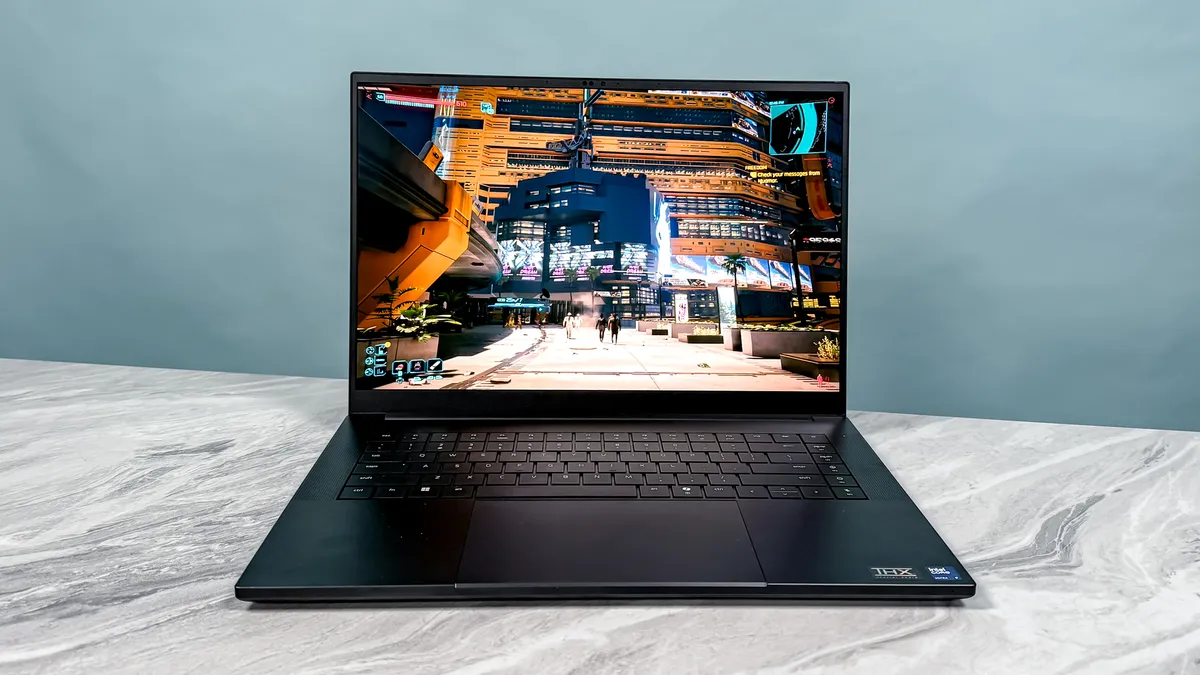
Most of our tests in the Tom’s Guide lab are everyday performance tests. Our benchmarks will show this reality for you and are essentially focused on the applications you might use most.
File copy test
You do it every day, copying files from one place to another.
We test this with our own custom script. We run a script that copies a 25GB folder containing a variety of file types (including Microsoft Word documents; folders full of photo, audio, and video files; and a selection of application installers) to another location on the system drive.
The script measures how long the copy takes, and we can use that time to determine the transfer speed (in MBps).
Geekbench 6 and Geekbench 7
Primate Labs is renowned in the industry for its wide-ranging tests that assess key real-world performance metrics. Under the hood, Primate Labs’ Geekbench 6 and Geekbench 7 benchmark runs workloads that simulate everyday tasks like web browsing, PDF rendering, data compression, object removers, background blur, HDR blending, navigation, and more.
This test always returns a simple number that allows for comparisons with other devices running not just Windows but also macOS, Linux, Chrome OS, Android, and iOS.
The current versions of Geekbench (6.7 and Geekbench 7.0, as of this writing) calculate their scores using different reference systems. Geekbench 6 scores are calibrated against a baseline score of 2,500 (which is the score of a Dell Precision 3460 with a Core i7-12700 processor). Geekbench 7 scores are calibrated against a baseline score of 2,500 (which is the score of a Lenovo Legion with an AMD Ryzen 7 7700 processor).
Higher scores are better, and double the score means double the performance.
Geekbench AI
From Copilot to ChatGPT and Claude, AI is all the rage. That’s why Primate Labs, the same folks behind Geekbench, developed a test specifically to measure how good a device is at AI. At the time of writing, the most recent version of that test is Geekbench AI 1.7.
In this test, AI Benchmark scores are used to evaluate and optimize CPU, GPU, NPU, and DSP performance across workloads that include Computer Vision and Natural Language Processing Tasks. The reference hardware is a Lenovo ThinkStation P340 with a Core i7-10700 processor.
HandBrake
How do you gauge a device’s video encoding performance? How long will it take for you to export that movie you just edited? HandBrake is how you can find out.
With this video transcoding test, we use HandBrake to convert the 12-minute 4K Blender film “Tears of Steel” from a 6GB MOV file to a 1080p30 MP4, determining the amount of time this takes with the built-in activity log. We report the result in minutes and seconds.
CrossMark
The Business Applications Performance Corporation, lovingly known in the biz as BAPCo, has been a driving force in computing for more than three decades — uniting many disparate companies (including, at present, Acer, Dell, HP, Intel, Lenovo, Samsung, and Western Digital) to develop industry-standard benchmark tests.
BAPCo’s latest, CrossMark, currently runs on everything except Chrome OS, and measures performance in real-world productivity (document and spreadsheet editing, Web browsing), creativity (photo editing and organization, video editing), and responsiveness (application launching and file opening) scenarios. The test results in scores for each of these categories, plus an aggregate (which weighs the productivity and creativity tests higher than responsiveness).
Graphics
One of UL’s longest-lasting tests is 3DMark, a sweeping collection of tests for measuring all aspects of your computer’s graphics performance. We run several of 3DMark’s built-in tests.
On non-gaming computers, we run Fire Strike (DirectX 11), Time Spy (DirectX 12), and Steel Nomad. On systems without discrete video cards, we also run Night Raid for integrated graphics testing.
On gaming PCs, we run Fire Strike Ultra, Time Spy Extreme, Speed Way, and Port Royal. On other systems, we may also run Wild Life, Wild Life Extreme, and Wild Life Extreme Unlimited. This is if the reviewer feels the need for comparisons against macOS systems, where we typically run the Steam-based version of 3DMark.
Light gaming
Integrated graphics have come a long way. No longer are you limited to simple games like Solitaire. Modern integrated graphics are increasingly capable of handling 1080p gaming. To keep up with the times, we use a suite of games with built-in benchmarks on laptops to gauge their gaming performance.
Our go-to game for testing productivity (non-gaming) laptops in the test lab is Sid Meier’s Civilization VI, with the Gathering Storm update applied. We set the graphics settings to medium to challenge less-powerful systems without overtaxing higher-end machines, then run the built-in Gathering Storm Graphics benchmark and report the frame rate the game reports.
For productivity-based systems powered by Intel Arc, AMD Radeon, or Qualcomm’s Adreno X1 and X2-90 graphics, we occasionally push their integrated GPUs a bit further. To see what they can really do, we test popular titles such as Assassin's Creed Shadows, Borderlands 3, Cyberpunk 2077, Far Cry 6, Shadow of the Tomb Raider, and Total War: Warhammer II. If the reviewer requests it and time allows, we’ll also test these games with the various upscaling technologies.
Heat (laptops only)
Though it’s less of a problem today than it used to be, laptops can still get warm (and thus uncomfortable to touch or rest on your lap) if they’re used too heavily for too long.
After turning off the computer, letting it cool completely, then restarting it and allowing it to idle for a few minutes to complete its boot processes, we play a 4K video at full screen for 15 minutes.
After that time, we use an infrared thermometer to measure the chassis temperature at the center of the touchpad (between the G and H keys, roughly the center of the keyboard) and at the center of the underside, then “sweep” the computer to identify which part is hottest. Because games can be even more demanding, we have a separate test that measures the heat impact of those (see below).
Display (laptops and All-in-One desktops only)
No matter what kind of computer you have, you’re using its display more than any other part (with the possible exception of the keyboard). So if you’re shopping for a laptop or an all-in-one, where the screen is a key part of the experience, you deserve to know how good it is.
Color: We use a high-end Klein K10-A colorimeter and DisplayCal software to measure two key display traits: Delta-E (color accuracy — lower is better) and color gamut volume. We report results for both sRGB and DCI-P3 color spaces. Note that we report color gamut volume, not color gamut coverage. Our lab numbers will sometimes exceed 100%. Volume measures the total range of colors a panel is physically capable of displaying—giving a clearer picture of how vivid and saturated the screen can get.
Brightness: Using the same K10-A tool and Klein’s ChromaSurf software, we test display brightness at five points on the screen and average the results (in nits). For OLEDs, we adapt the test with a black background and a moving white window to account for brightness variation. If the device supports HDR, we also test brightness using 10%, 40%, and 100% screen patches.
Battery test (laptops and tablets only)
Battery life is one of the most important features in any laptop, so we built a custom test to measure it consistently. Using Microsoft Edge on a closed Wi-Fi network, the system cycles through a set of web pages until the battery dies — reporting its status at regular intervals. Once recharged, we record the total runtime and run the test at least twice to confirm accuracy.
To keep results consistent across devices, we normalize each system: screen brightness is set to 150 nits, background apps (like antivirus) are disabled, and a custom power plan is applied. We also adjust Windows and Edge settings — like turning off Bluetooth and location services — to ensure clean, repeatable results.
Gaming PCs

Into PC gaming? Good, because we are too. We’re gaming nerds, and we get that you want to know how many frames per second your new gaming rig or gaming laptop can push out. We dial up and tweak the settings to try to help you figure that out.
Games

We only use games with built-in benchmarks in the Tom’s Guide test labs. Why? For fairness. Each of our benchmarks runs the same on every system we test, from budget to top-end. The in-game scenes never change, ensuring our data is never skewed. Our current list is below.
Our current list includes:
- Assassin's Creed Black Flag: Resynced
- Assassin's Creed Shadows
- Black Myth: Wukong
- Borderlands 3
- Doom: The Dark Ages
- Cyberpunk 2077
- Forza Horizon 6
- F1 23
- Far Cry 6
- Metro Exodus Enhanced Edition
- Red Dead Redemption 2
- Shadow of the Tomb Raider
- Total War: Warhammer III
If the reviewer requests it and time allows in the lab, we’ll also test these games with various upscaling technologies. All tests are run at 1920 x 1080p and at the system’s native resolution (4K on desktops), with settings usually at or near the top of the performance scale (on the theory that you want to know the best a computer is capable of doing).
We may also run some newer or more demanding games at lower detail levels to reflect what most people are likely to experience. In all cases, we report the resulting frame rates; we deem anything at or above 30 frames per second (fps) playable, while 60 fps is our threshold for genuinely smooth playability.
Graphics
The increase in gaming prowess necessitates working a bit more with 3DMark, so we also run that suite’s Fire Strike Ultra (4K DX11), Time Spy Extreme (4K DX12), Port Royal (ray tracing), and Speed Way (DX12 Ultimate) tests.
Heat
To see how well gaming laptops can take the heat, we run a variant of our YouTube test, this time with Metro: Exodus. We use the highest (Extreme) setting and run five full loops of the benchmark before taking our temperature readings (at the same locations as the other heat test) during the sixth. We still see laptops reach up to 140 degrees — don’t you want to know that before you put one on your lap?
Battery test
Dedicated gamers aren’t likely to play hardcore 3D games unless their laptop is plugged in. But if you wanted to, how long could you get away with it? UL has a terrific tool for figuring out this critical bit of information in its PCMark 10 benchmark suite.
Under all the same conditions as our Web-surfing battery test, we run PCMark’s gaming battery test until the system shuts off. When we turn it on again, we get the time. It’s usually between 60 and 90 minutes — not so great. But what did you expect from playing games off-plug?
MacBook Pros and MacBook Airs

We don’t test as many MacBooks as we do Windows laptops (we generally test every new MacBook Pro and Air), but we do spend the same amount of time on them when they come into our test labs.
We take Macs just as seriously as we do Windows PCs. When we set up a new Mac for testing, we will do the following:
- Sign in to our lab’s Apple Account
- Apply any software updates
- Change the display resolution to the native one
- Turn off all iCloud syncing
- Turn off Bluetooth
- Disable location services
- Disable True Tone, or any auto-brightness features
- Disable any battery-saving features
- Turn off automatic software updates
- Turn off dynamic wallpapers and disable the screensaver
- Turn off keyboard backlighting
We run as many of our standard PC tests on Mac computers as we can, including Geekbench, HandBrake, and Crossmark, plus, of course, our display tests.
We run whatever games we can (Assassin's Creed Shadows, Borderlands 3, Cyberpunk 2077, Shadow of the Tomb Raider, Sid Meier’s Civilization VI, and Total War: Warhammer III), though most require some slight tweaks to the settings, resulting in scores that, if not always 100% comparable to what we get on PCs, are as close as we can get.
For MacBook Pro releases and Apple desktops (such as the Mac mini, the Mac Studio, and the Mac Pro), we run the cross-platform PugetBench for Adobe CC workstation tests.
We also run a different version of our battery test for Apple laptops, but it’s based on the same essential idea: visiting websites over and over until the system runs out of power. Getting this test to work properly involves some adjustments to the computer’s settings, such as disabling color filters, automatic brightness adjustments, and True Tone.
Chromebooks

Testing Chromebooks isn’t something we do very often at Tom’s Guide, though when we do, we take it as seriously as we do with other systems.
In the world of the MacBook Neo and XPS 13, these ultra-affordable systems remain important in schools around the world. We try to run as many benchmarks on a Chromebook as we do on a Mac and a PC, though most are web-based or Android benchmarking apps.
JetStream 2
This classic suite combines dozens of JavaScript and WebAssembly tests into a single application that tells you a lot about how well the system is likely to perform while browsing the web.
Subtests include cryptography, ray-tracing, image editing, 3D rendering, and much more. Because we also run this test on phones and on Android and iOS tablets, some cross-comparison is possible — if you’re interested in that sort of thing.
WebXPRT 4
More real-world in scope than JetStream 2, WebXPRT also expands on it by utilizing HTML5, which is now common across the Web, in addition to Canvas, JavaScript, and WebAssembly.
The application’s scenario selection includes photo enhancement, AI photo album organization, stock option pricing, encryption and OCR scanning, sales graphs, and online homework. The test yields a single score that can be compared with scores from any other Web-browsing device.
CrXPRT 2
Another Principled Technologies test, CrXPRT 2 has been designed just for Chrome. It runs a set of scenarios similar to WebXPRT 4’s (Photo Effects, Face Detection JS, Offline Notes, Stock Portfolio Dashboard, DNA Sequence Analysis, 3D Shapes with WebGL), but focuses on Web browsing, JavaScript, and WebGL, with Chrome OS–optimized programming.
3DMark
Chrome’s move toward greater Android compatibility means we can now run 3DMark on Chromebooks, and we do, so we can better compare their graphics capabilities to those of other lower-end devices. Our exact slate of tests depends on the system’s capabilities, but we run everything we can.
Battery
Although our standard battery test doesn’t work in Chrome OS, we’ve developed another one that works almost identically.
After using a Chrome plug-in to prevent the screen from turning off, we run our proprietary test to visit a collection of major live websites until the battery runs out.
Workstations

Workstation PCs have much in common with gaming laptops. They have more powerful processors, more powerful graphics cards, and tend to be physically larger — and chances are you didn’t drop a ton of money on one just to type Word documents.
Because everything about workstations is tuned to optimize specific types of performance, gaming tests won’t do. So we supplement our everyday performance tests and Civilization VI with some heavier-duty applications.
PugetBench for creators
Puget Systems isn’t just a leading manufacturer of workstation computers — it also makes some of the most compelling test suites in the industry, which put powerful computers through grueling challenges drawn from industry-leading programs. Our favorite of these are for Adobe’s Creative Cloud Photoshop (photo editing), and Premiere Pro (video editing). We look at both the overall synthetic score and how long it takes to complete each individual test.
UL Procyon photo and video editing benchmarks
Benchmark stalwart UL had to have a say in professional performance, too, and its relatively new Procyon test suite does not disappoint. Its Photo Editing test combines Lightroom Classic and Photoshop into a single series of photo editing and organizational tasks; Video Editing subjects the computer to a particularly punishing Premiere Pro workload.
SPECworkstation
Like BAPCo, the Standard Performance Evaluation Corporation (SPEC) has been around for ages, and its benchmarks have long been the go-to for determining performance on high-end rigs. We run these tests in part to complement the others, as they are largely graphics driven and even the processor tests dig deeper than we see elsewhere. Workloads in the new, robust 4.0 version include Autodesk Inventory, Blender, LuxCoreRender, Python 3, and more — nearly two dozen in total.
Hands-on testing

After we have finished running the above tests, the system is then passed on to the reviewer. The amount of “quality time” the reviewer spends with the computer can range from a few days to a couple of weeks — whatever is necessary to get the best idea of how well the computer functions under everyday conditions.
The criteria applied at this stage are dependent on the system in question, and change slightly from reviewer to reviewer, but usually involve answering questions such as these:
- Is the system designed well? Does it look good and operate as you’d expect? If a laptop, does the cover open and close smoothly, and is it convenient to carry?
- What unique features does the system have? Do they add to or detract from the user experience?
- What ports are included on the system? Where are they located, and are they convenient or cumbersome to access?
- What is the keyboard like to type on? How comfortable and responsive is the touchpad?
- How do the speakers sound when playing different kinds of content at different volume levels?
- Who is the target audience for the computer, and how well does it meet the expectations of that audience?
- Everything considered, is the computer a good value for the price?
Tested nonstop and never second-best

Our dedicated New York-based lab testing team at Tom’s Guide never skips a beat. Just as the technology industry is always changing, the folks in the lab are always doing their very best to stay on top. They test as efficiently as possible, often as soon as products arrive in the lab.
Our lab testers are often known for going out of their way to provide Tom’s Guide reviewers with the best possible data for the best possible reviews. Lab testing every tech product at Tom’s Guide isn't an easy task, but our trusted information and data are hard to come by these days. Check out our How We Test page to see how we evaluate other types of tech gear, from phones to TVs.
If you have any questions, concerns, or suggestions about how we test, please let us know by leaving a comment. We always want the best for you, the reader.
Follow Tom's Guide on Google News to get our up-to-date news, how-tos, and reviews in your feeds. Make sure to click the Follow button.