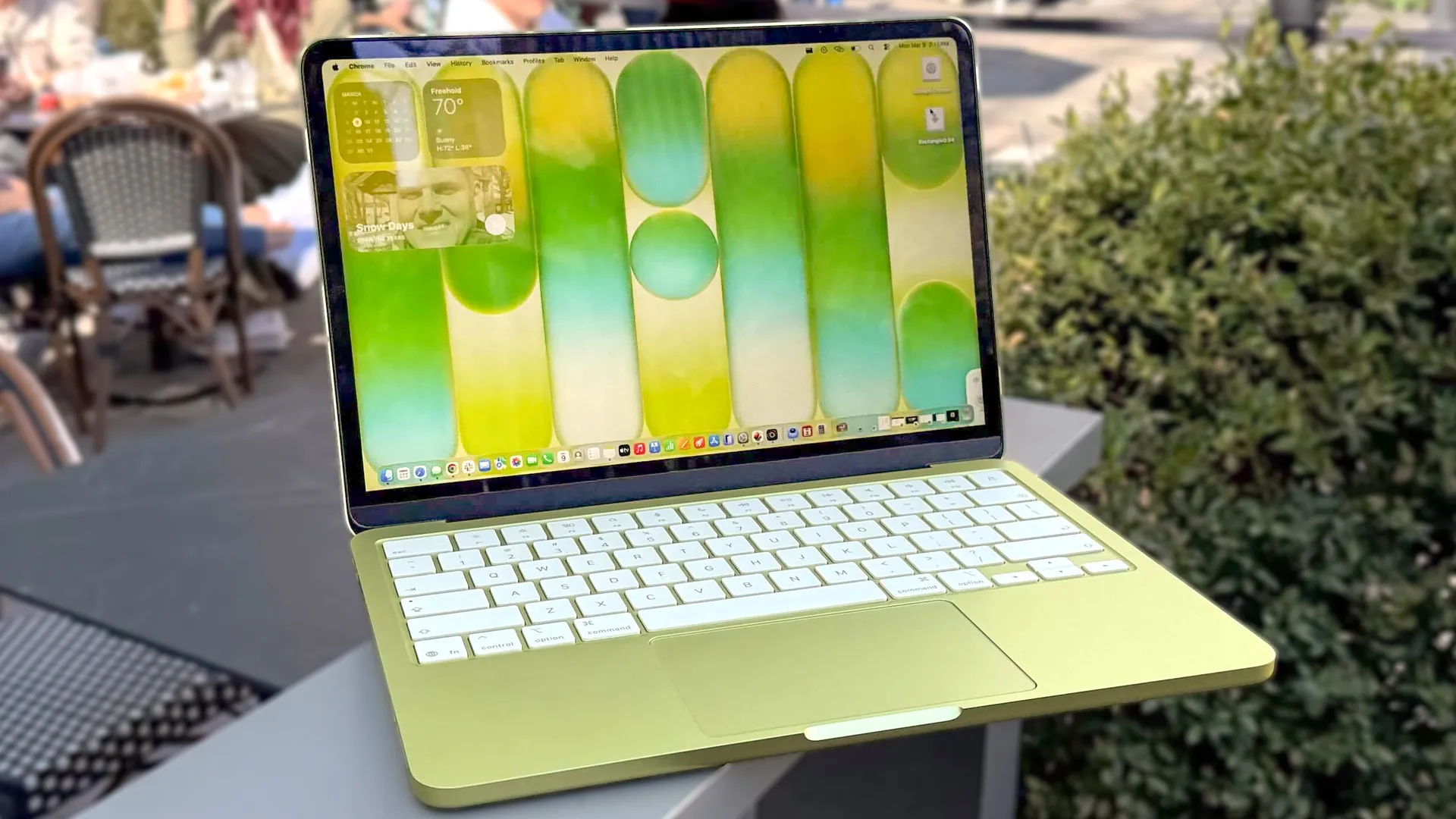
It finally happened, Apple released a budget laptop. The Macbook Neo brings starting prices crashing down, but with it there is a pretty noticeable trade-off. Apple cut costs by using a phone processor inside the device.
That, for the most part, causes absolutely no problems. It is a powerful laptop that can take on the majority of basic tasks, even battling through some tougher challenges. However, sometimes the Macbook Neo is going to struggle.
With this in mind, it is well worth setting your new laptop up for success. By making a few minor changes, or simply being aware of key settings, you can make sure your Neo can handle the tasks you are giving it.
1. Manage your storage
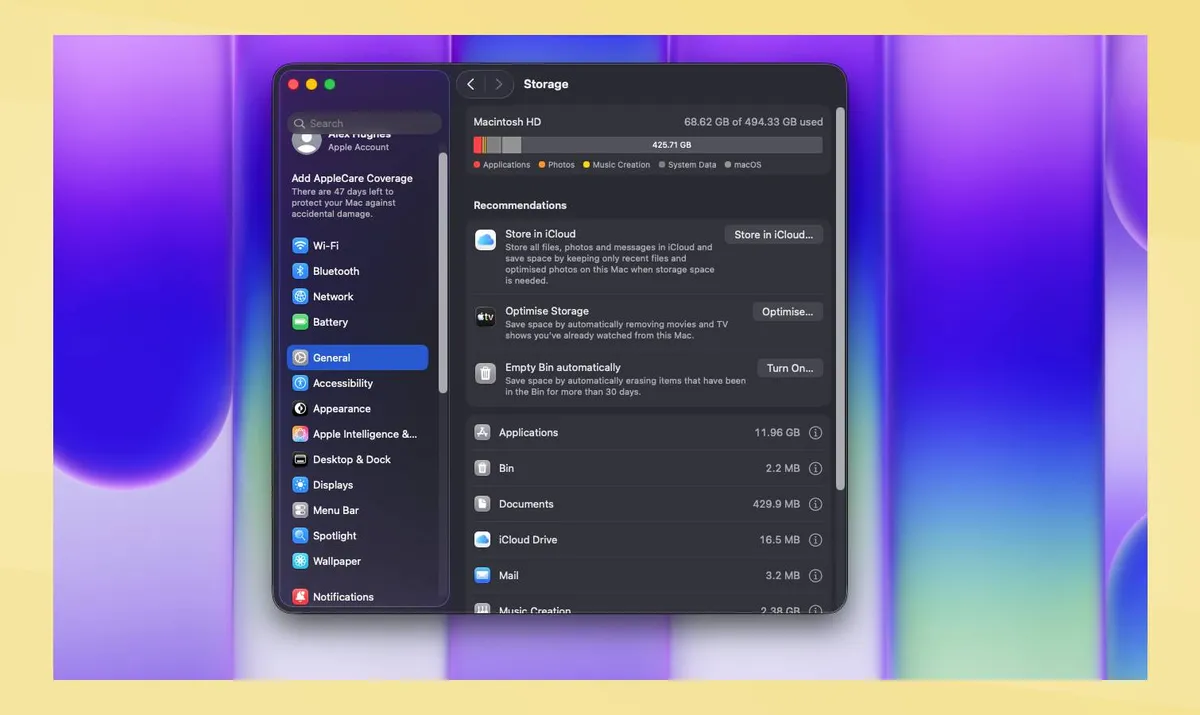
A simple trick, and one best used when you’ve had your laptop for a while, is to manage your storage.
The more your storage is taken up, the more a laptop will struggle. There is more data to store, and a sluggish feel can start to kick in.
By going to your settings, and then going into general and finally storage, you can make some key adjustments. This includes automatically emptying your bin, optimizing storage by deleting unused files like Apple TV downloads, and moving files to the iCloud.
From here, you can also see all of the files taking up space on your laptop. This can be a good way to find the biggest drains, such as large app files or a vault of images taking up a huge chunk of space.
2. Reduce login items
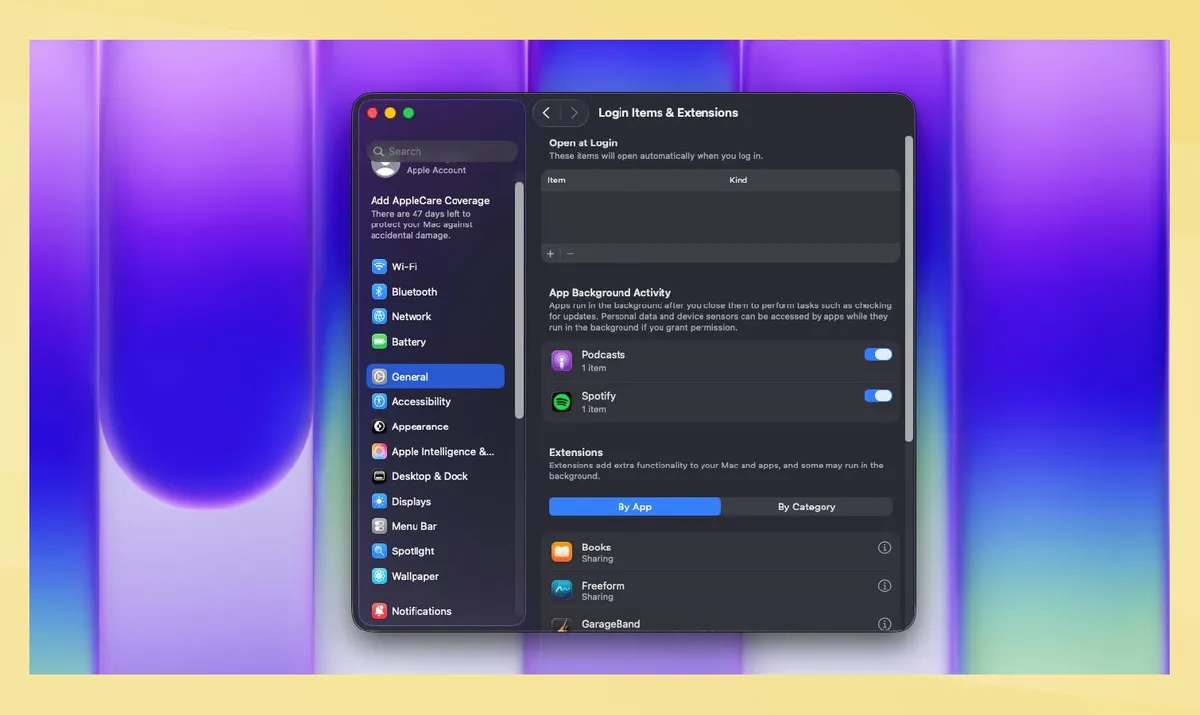
If you’ve downloaded a lot of apps and services for your Macbook, you might now find a sea of apps opening whenever you start your device. If this is happening, a quick setting change can reduce the strain on your laptop easily.
Go into your settings, and head to general. From there, scroll right down to login items and extensions. Then, simply toggle off anything in the open in login section that you don’t want as part of your starting up process.
You can also turn off apps that are running in the background in this section. Some of these are running to just check for updates. This won’t really make a huge difference if you turn them off as their usage is incredibly minor.
3. Limit background apps
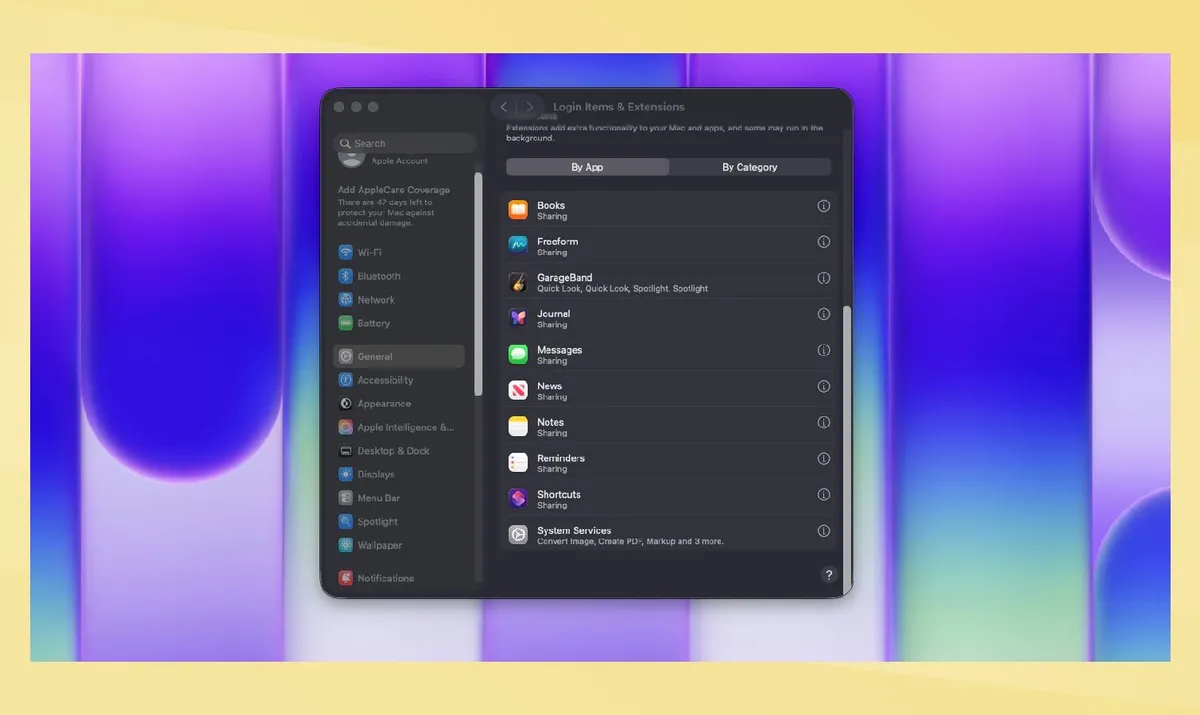
It is easy to lose count of background apps. If you have Spotify playing in the background, as well as a notes app, a browser and a variety of other productivity apps doing their own thing, these will all come together to put a strain on your laptop.
Getting into the habit of closing down anything you aren’t using is a great way to get the most out of the Neo. This isn’t to say that it can’t handle some background action, but it will certainly be a challenge as the apps begin to add up.
4. Enable low battery mode
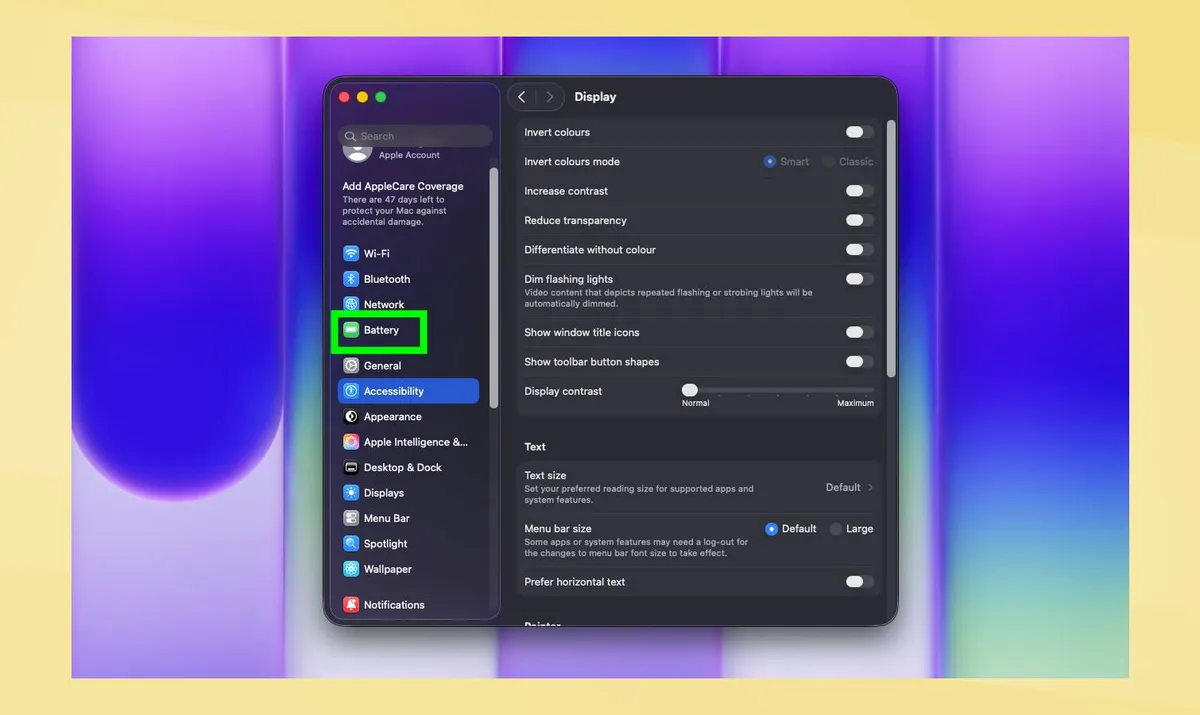
The Macbook Neo has an impressive battery life for a laptop of its size and price. However, if you are trying to go a long period without charging it, on a flight or train perhaps, then you could soon be disappointed.
Apple does offer a battery-saving mode for this situation and it keeps it simple offering a single setting for it.
By clicking the battery icon in the top right, you’ll see a button for low power mode. This will lower the performance of your laptop but improve the battery life. This can be a great solution to secure an extra hour or so doing those smaller tasks you still need to get done.
In your settings, you can change how this works. By going to system settings, then battery and clicking the low battery mode settings, you can select when this setting will come on.
This includes the mode never being on, always being on, and only when charging or always when not charging.
5. Adjust background visual effects
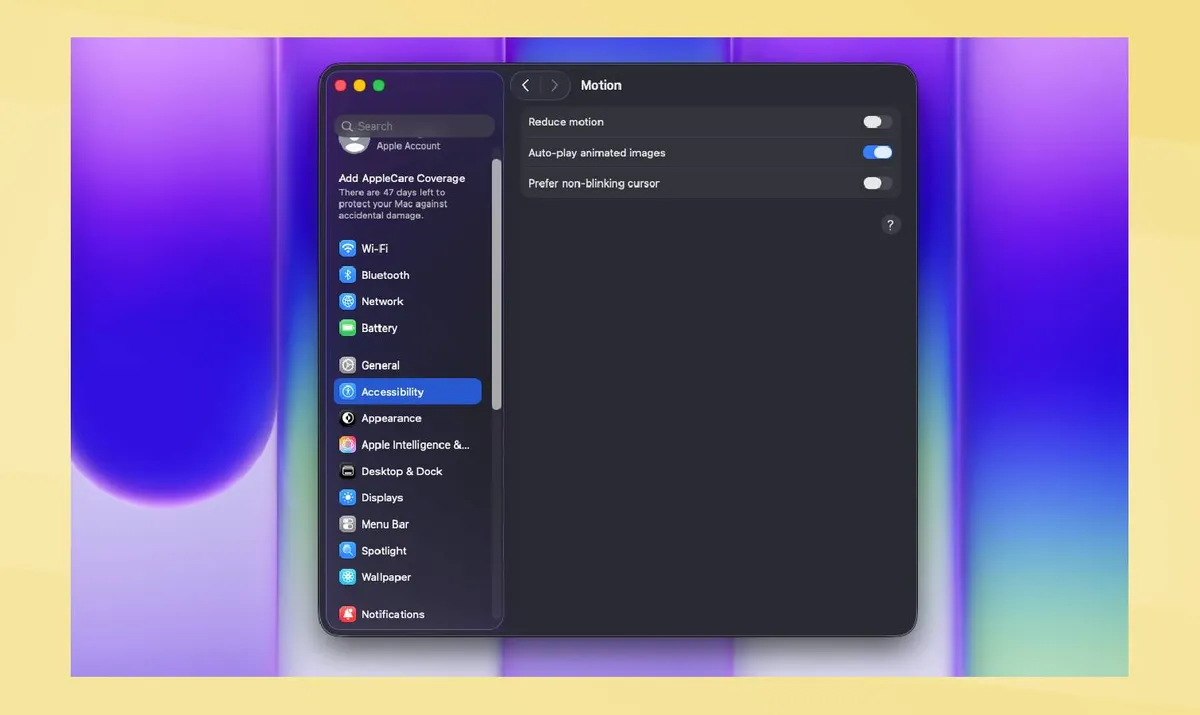
A lot of modern devices include flashy effects in the background. These can add to the experience but will slow your device ever so slightly.
This is a setting that you can adjust on the Macbook Neo. To do this, head to your settings and go into accessibility. Then, go into the motion tab and turn everything off.
While in the accessibility tab, you can also go into display and toggle reduce transparency. This can make things like your dock more opaque, reducing the load on your new laptop.

Follow Tom's Guide on Google News and add us as a preferred source to get our up-to-date news, analysis, and reviews in your feeds. Subscribe to Tom's Guide on YouTube and follow us on TikTok.
More from Tom's Guide